1OM-1086-002.pdf - 第221页
3 . "SEMI-AUTO OPERA TION" Submenu This window enables special start-up operations such as re-starting of the machine and continuous operation with the P .C.B. in the middle of process after power is turned off…
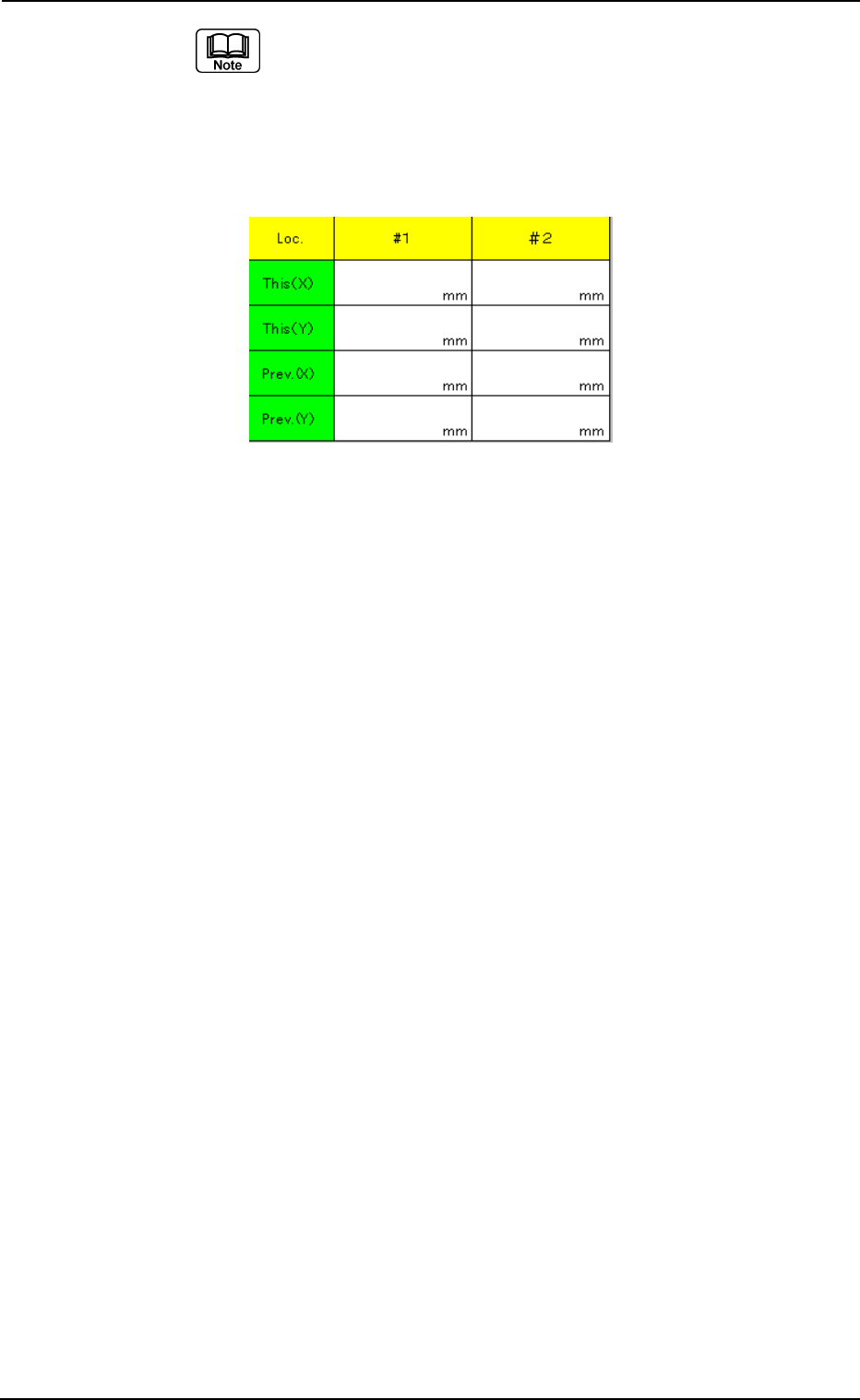
(a) Displayed in the *4 data field is the initial data or ex-
emplified one that appears when the [Realtime Cor-
rection] button is pressed.
(b) When the [P.E.C. Recog.] or the [Screen Recog.] but-
ton is pressed, the following data appears in the *4
data field.
Fig. 2E10
0211-005 Chapter 2 5-15 Tg0582-PM-D1
2.6 "Recognition Data" Tab
3 . "SEMI-AUTO OPERATION" Submenu
This window enables special start-up operations such as re-starting of
the machine and continuous operation with the P.C.B. in the middle of
process after power is turned off, starting of machine operation from
the middle of steps after system clear, etc.
• Window Layout
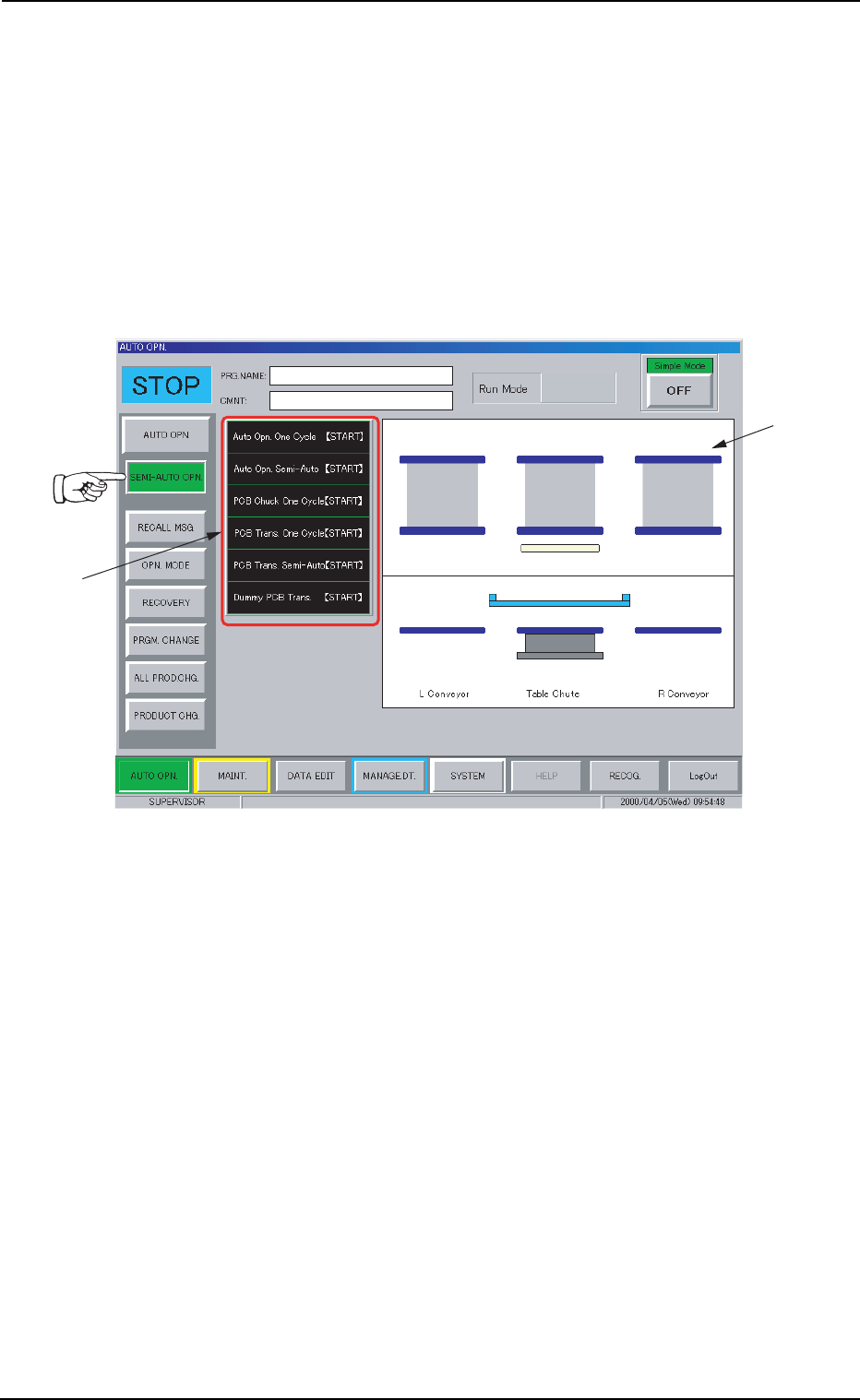
When the [SEMI-AUTO OPN.] button is pressed at the "AUTO OP-
ERATION" submenu bar, the following window opens.
Fig. 2E11 "SEMI-AUTO OPERATION" Window (Submenu)
• Window Composition
*1 Operation Buttons
The "SEMI-AUTO OPERATION" window (submenu) is provided
with the following operation buttons.
[Auto Opn. One Cycle (START)] Button
When this button is pressed, the background color turns blue.
When the [START] button on the front operation panel is pressed
subsequently, the machine performs one-cycle printing operation
for the P.C.B. of the specified model.
[Auto Opn. Semi-Auto (START)] Button
When this button is pressed, the background color turns blue.
When the [START] button on the front operation panel is pressed
subsequently, the machine performs step-by-step printing opera-
tion for the P.C.B. of the specified model.
3. "SEMI-AUTO OPERATION" Submenu
*1
*2
0211-005 Chapter 2 5-16 Tg0582-PM-D1

[PCB Chuck One Cycle (START)] Button
When this button is pressed, the background color turns blue.
When the [START] button on the front operation panel is pressed,
the machine takes the following actions.
• The machine transfers the P.C.B. on the L conveyor to the table
chute.
• The machine chucks the P.C.B.
• The backup table ascends.
Use this function to confirm that the P.C.B. is chucked
securely.
[PCB Trans. One Cycle (START)] Button
When this button is pressed, the background color turns blue.
When the [START] button on the front operation panel is pressed
subsequently, the machine performs one-cycle transfer operation
for the P.C.B. of the specified model.
[PCB Trans. Semi-Auto (START)] Button
When this button is pressed, the background color turns blue.
When the [START] button on the front operation panel is pressed
subsequently, the machine performs step-by-step transfer opera-
tion for the P.C.B. of the specified model.
[Dummy PCB Trans. (START)] Button
When this button is pressed, the background color turns blue.
When the [START] button on the front operation panel is pressed
subsequently, the machine transfers the test P.C.B. from the sup-
ply position to the P.C.B. stopper position on the L conveyor.
Use this function when a P.C.B. is required on the L con-
veyor for one-cycle operation (automatic operation), etc.
*2 Working Condition Display Field
The location and working condition of the P.C.B., the chuck, and
the table chute are displayed in real time, depending on which op-
eration button (described in "*1 Operation Buttons") is selected.
3. "SEMI-AUTO OPERATION" Submenu
0211-005 Chapter 2 5-17 Tg0582-PM-D1