1OM-1086-002.pdf - 第223页
4. "RECALL MESSAGE" Submenu This window enables the operator to recall the device errors, the ma- chine information, and the system information that occurred or issued in the past. • Window Layout When the [REC…
[PCB Chuck One Cycle (START)] Button
When this button is pressed, the background color turns blue.
When the [START] button on the front operation panel is pressed,
the machine takes the following actions.
• The machine transfers the P.C.B. on the L conveyor to the table
chute.
• The machine chucks the P.C.B.
• The backup table ascends.
Use this function to confirm that the P.C.B. is chucked
securely.
[PCB Trans. One Cycle (START)] Button
When this button is pressed, the background color turns blue.
When the [START] button on the front operation panel is pressed
subsequently, the machine performs one-cycle transfer operation
for the P.C.B. of the specified model.
[PCB Trans. Semi-Auto (START)] Button
When this button is pressed, the background color turns blue.
When the [START] button on the front operation panel is pressed
subsequently, the machine performs step-by-step transfer opera-
tion for the P.C.B. of the specified model.
[Dummy PCB Trans. (START)] Button
When this button is pressed, the background color turns blue.
When the [START] button on the front operation panel is pressed
subsequently, the machine transfers the test P.C.B. from the sup-
ply position to the P.C.B. stopper position on the L conveyor.
Use this function when a P.C.B. is required on the L con-
veyor for one-cycle operation (automatic operation), etc.
*2 Working Condition Display Field
The location and working condition of the P.C.B., the chuck, and
the table chute are displayed in real time, depending on which op-
eration button (described in "*1 Operation Buttons") is selected.
3. "SEMI-AUTO OPERATION" Submenu
0211-005 Chapter 2 5-17 Tg0582-PM-D1
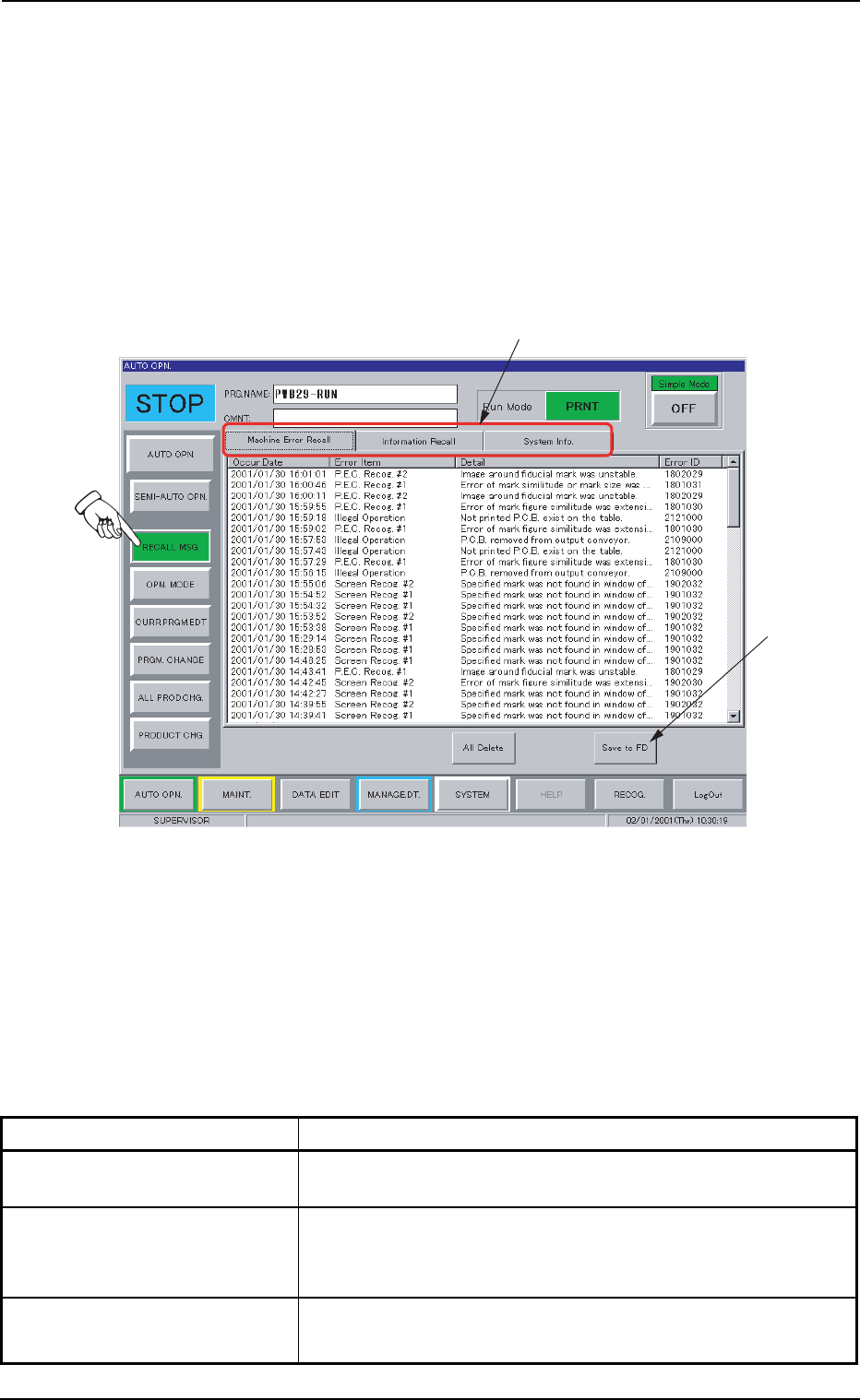
4. "RECALL MESSAGE" Submenu
This window enables the operator to recall the device errors, the ma-
chine information, and the system information that occurred or issued
in the past.
• Window Layout
When the [RECALL MSG.] button is pressed at the "AUTO OPERA-
TION" submenu bar, the following window opens.
Fig. 2E12 "RECALL MESSAGE" Window (Submenu)
• Window Composition
*1 Tabs
The "RECALL MESSAGE" window (submenu) is provided with three
tabs. When a tab is pressed, the corresponding tab sheet appears.
*2
*1
4. "RECALL MESSAGE" Submenu
0211-005 Chapter 2 5-18 Tg0582-PM-D1
Table 2E2
Tabs Description
Machine Error Recall Displayed in this tab sheet are the date & time of error occur-
rence, the error code, the contents of the error.
Information Recall Displayed in this tab sheet are the date & time of message
issuance, the message code, and the contents of the mes-
sage.
System Info. The corresponding tab sheet enables the operator to check
the empty area of the hard disk on the machine side.
4.1 "Machine Error Recall" Tab
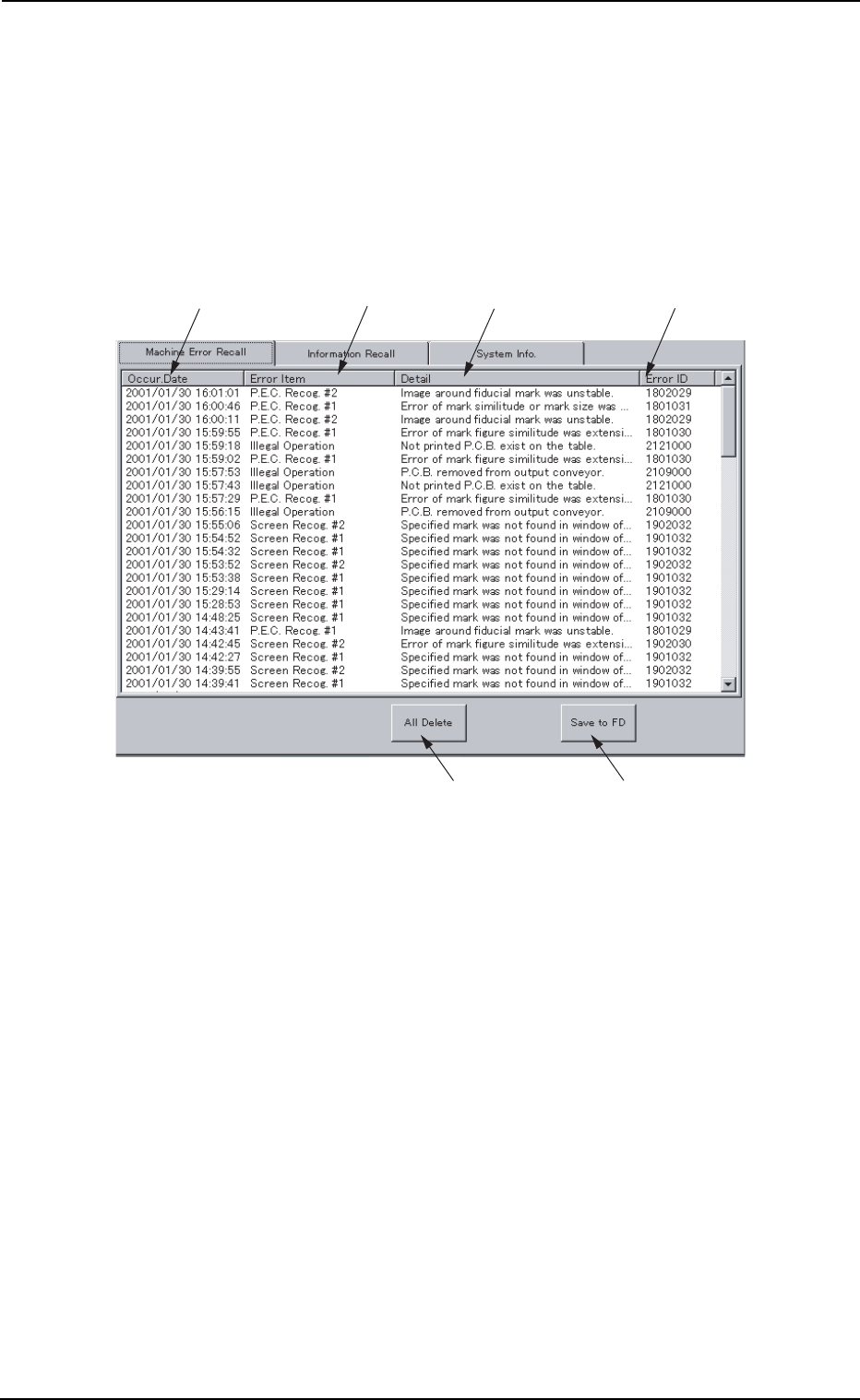
Displayed are the date & time of error occurrence, the error code, the
contents of the error.
• Sheet Layout
When the [Machine Error Recall] tab is pressed at the "RECALL
MESSAGE" window (submenu), the following tab sheet appears.
Fig. 2E13 "Machine Error Recall" Tab Sheet
• Sheet Composition
*1 [Occur. Date] Button
When this button is pressed, the date & time of error occurrence is
displayed in ascending or descending order.
*2 [Error Item] Button
When this button is pressed, the error codes (defined according to
the contents of errors) are displayed in ascending or descending
order (alphabetical order).
*3 [Detail] Button
When this button is pressed, the concrete contents of errors are
displayed in ascending or descending order (alphabetical order).
*4 [All Delete] Button
When this button is pressed, the contents displayed in *1 through
*3 are all cleared.
*1
*2
*3
*4
*5
*6
4.1 "Machine Error Recall" Tab
0211-005 Chapter 2 5-19 Tg0582-PM-D1