1OM-1086-002.pdf - 第237页
*2 Squeegee Limit Stop Setting This enables the operator to set the percentage of printing opera- tions to stop the automatic operation due to the end of squeegee life. The rate (percentage) can be determined, regarding …
5.4 "Auto Stop Setting" Tab
This tab sheet enables the operator to set the number of printing opera-
tions to issue an advance notice regarding the end of squeegee life and
the percentage of printing operations to stop the automatic operation
due to the end of squeegee life.
• Sheet Layout
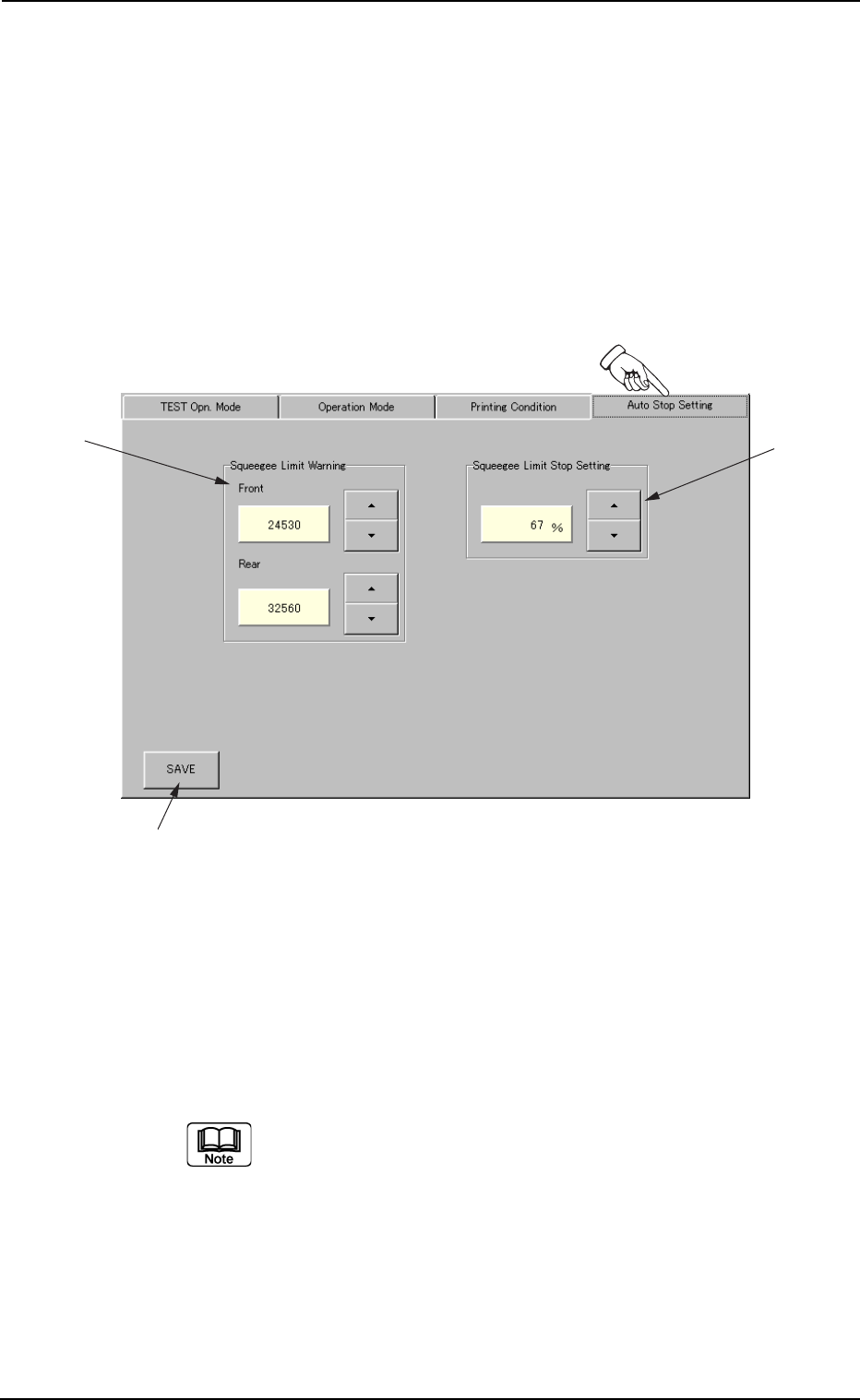
When the [Auto Stop Setting] tab is pressed at the "OPERATION
MODE" window (submenu), the following tab sheet appears.
Fig. 2E19 "Auto Stop Setting" Tab Sheet
• Sheet Composition
*1 Squeegee Limit Warning
This enables the operator to set the number of printing operations
to issue an advance notice regarding the end of the front and rear
squeegees’ life.
Press the up arrow on the right side of the spinner to make
the number change in increments of one. Pressing the
down arrow makes the number change in decrements of
one.
5.4 "Auto Stop Setting" Tab Sheet
*2
*1
*3
0211-005 Chapter 2 5-29 Tg0582-PM-D1

*2 Squeegee Limit Stop Setting
This enables the operator to set the percentage of printing opera-
tions to stop the automatic operation due to the end of squeegee
life.
The rate (percentage) can be determined, regarding the life speci-
fied in *1 (Squeegee Limit Warning) as 100%.
Press the up arrow on the right side of the spinner to make
the number change in increments of one. Pressing the
down arrow makes the number change in decrements of
one.
*3 [SAVE] Button
Press this button when the above-described settings *1 and *2 are
completed. The set values are saved on the machine side.
0211-005
Chapter 2 5-30 Tg0582-PM-D1
5.4 "Auto Stop Setting" Tab Sheet
6. "RECOVERY" Submenu
This window can be used to correct the current pattern program data.
The data can be corrected regardless of the state of the
automatic operation but cannot be saved during operation.
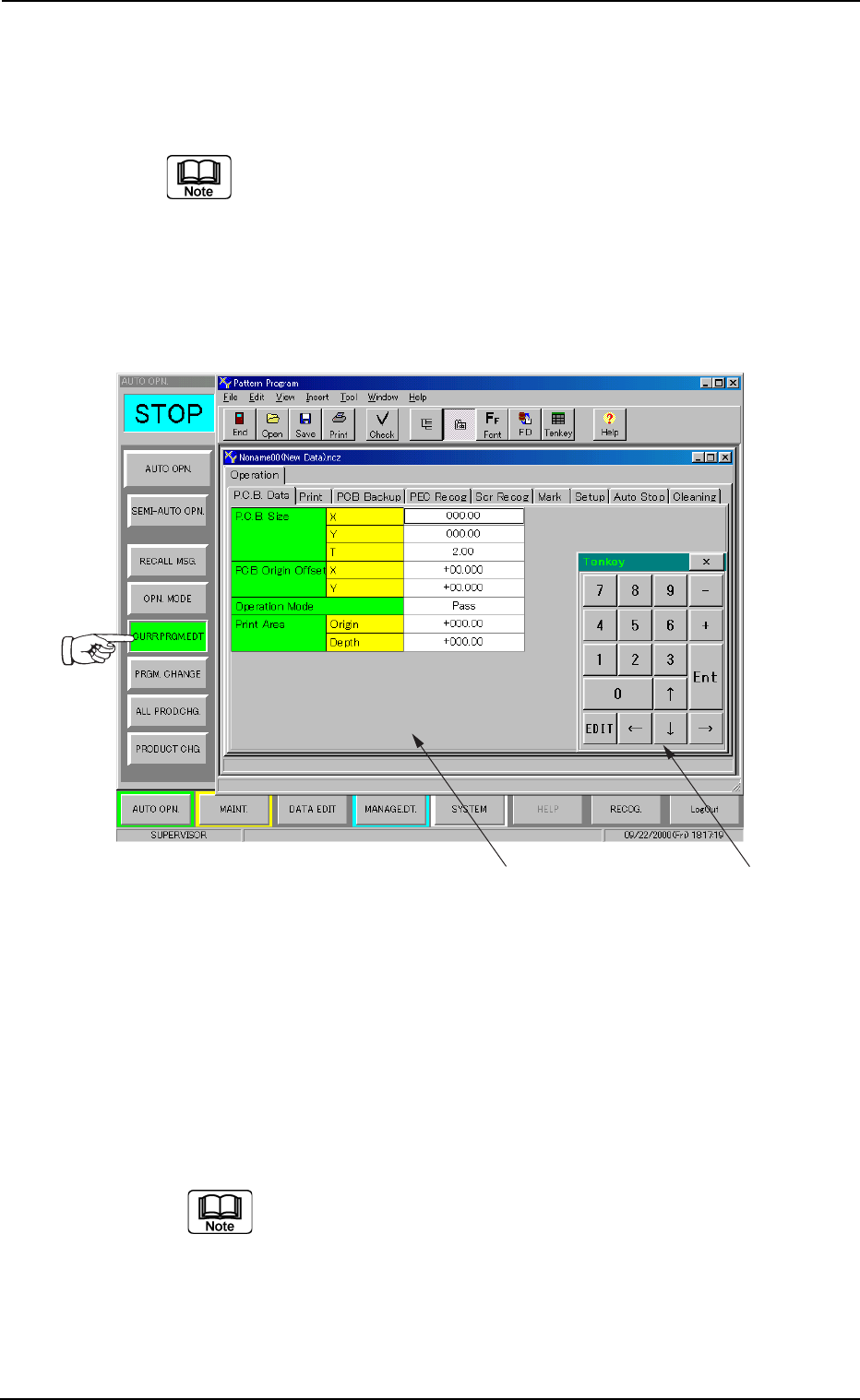
• Window Layout
When the [RECOVERY] button is pressed in the "AUTO OPERA-
TION" submenu bar, the following window opens.
Fig. 2E20 "RECOVERY" Window (Submenu)
• Window Composition
*1 "Pattern Program" Edit Sheet
This sheet can be used to correct the current pattern program data.
*2 Ten-Key Window
This window can be used to enter numerical values.
Refer to "Section 2 Pattern Program in Chapter 1 Pro-
gramming of Volume 2" for the detailed information on
how to correct (edit) and save the data.
6. "RECOVERY" Submenu
*1
*2
0211-005 Chapter 2 5-31 Tg0582-PM-D1