1OM-1086-002.pdf - 第249页
9.4 "Cleaning Change" T ab This tab sheet enables the operator to move each unit for replacement of the cleaning paper and holder . • Sheet Layout When the [Cleang Chg.] tab is pressed in the "PRODUCT CHAN…
9.3 "Backup Plate Change" Tab
This tab sheet enables the operator to move each unit for detachment/
attachment of the backup jig and set a jig replacement mode.
• Sheet Layout
When the [Backup Plate Change] tab is pressed in the "PRODUCT
CHANGE" window (submenu), the following tab sheet appears.
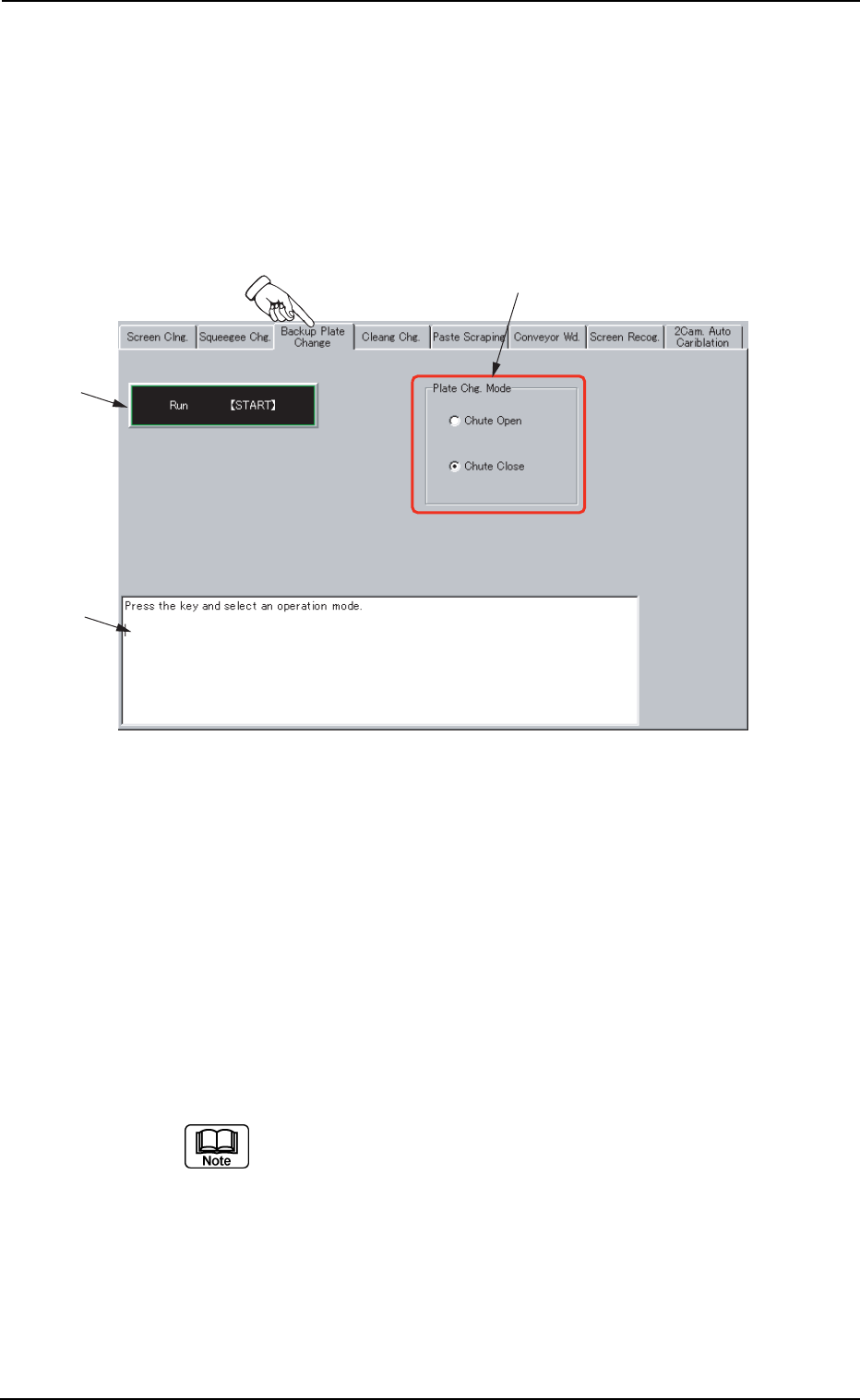
Fig. 2E28 "Backup Plate Change" Tab Sheet
• Sheet Composition
*1 Plate Chg. Mode
Turn on the "Chute Open" or the "Chute Close" option button to
determine whether or not the table chute (conveyor) should be
opened or closed for backup jig replacement.
Chute Open : The selection of this option button facilitates the
replacement work of the backup jig.
Chute Close : The selection of this option button facilitates the
positional adjustment of the support pins.
*2 [Run (START)] Button
When this button is pressed, the background color turns blue.
When an option button is turned on (selected), a dot ap-
pears inside the circle.
When a blank circle is turned on, a dot appears inside the
circle, indicating that it is selected.
When the [START] button on the front operation panel is pressed
subsequently, each unit moves to its specified position.
*3 Message
A message is issued, giving a guideline of the operations related
to the above-described button *1 or *2.
9.3 "Backup Plate Change" Tab
*1
*3
*2
0211-005 Chapter 2 5-41 Tg0582-PM-D1
9.4 "Cleaning Change" Tab
This tab sheet enables the operator to move each unit for replacement
of the cleaning paper and holder.
• Sheet Layout
When the [Cleang Chg.] tab is pressed in the "PRODUCT CHANGE"
window (submenu), the following tab sheet appears.
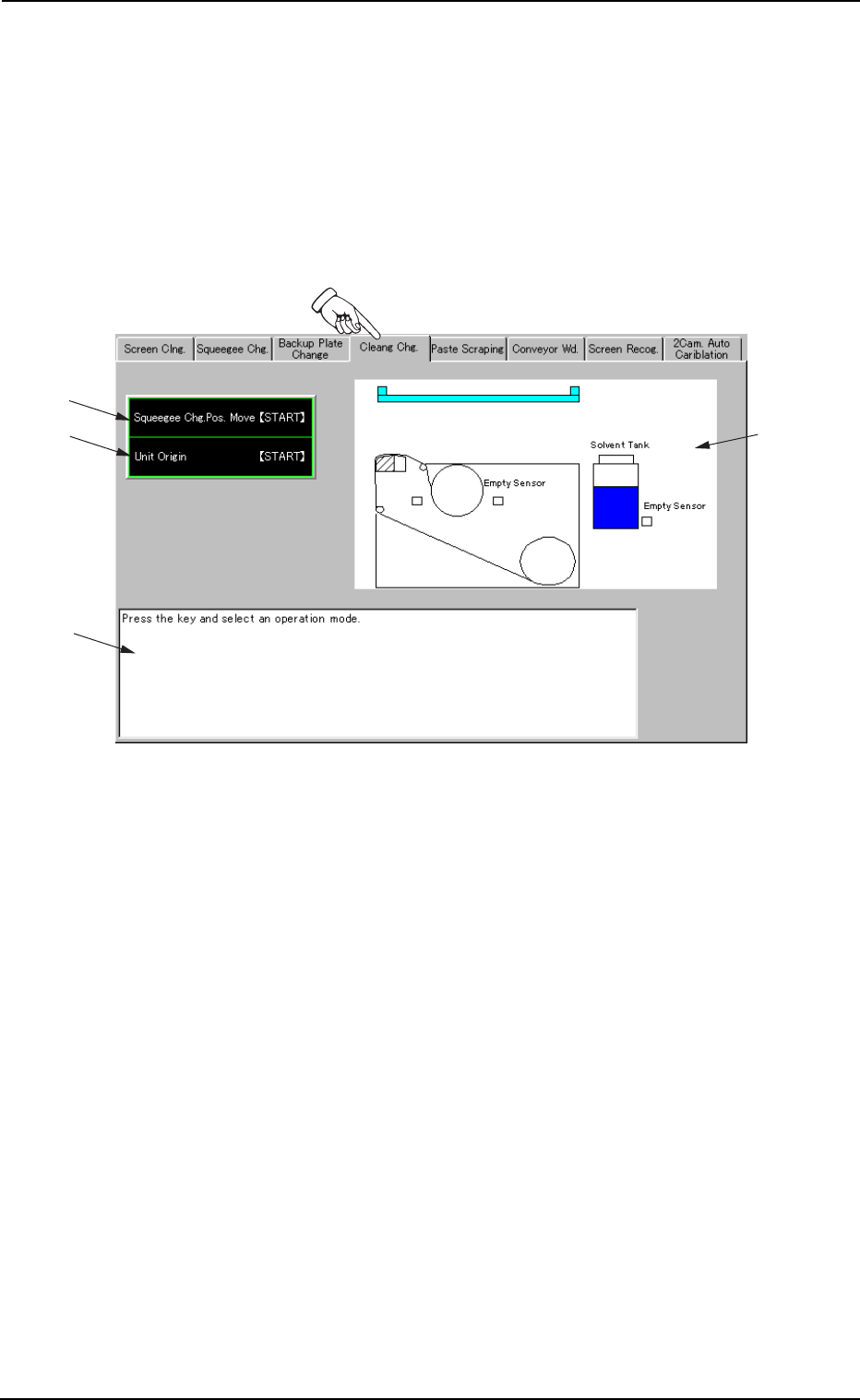
Fig. 2E29 "Cleaning Change" Tab Sheet
• Sheet Composition
*1 [Squeegee Chg.Pos. Move (START)] Button
When this button is pressed, the background color turns blue.
When the [START] button on the front operation panel is pressed
subsequently, the P.E.C. recognition and screen holder sections
move toward the front side of the machine for cleaning paper and
holder replacement.
*2 [Unit Origin (START)] Button
When this button is pressed, the background color turns blue.
When the [START] button on the front operation panel is pressed
subsequently, the P.E.C. recognition and screen holder sections
move to the printing position.
*3 Message
A message is issued, giving a guideline of the operations related
to the above-described button *1 or *2.
*4 Machine Operating State
Displayed is the operating state of the machine.
9.4 "Cleaning Change" Tab
*1
*2
*3
*4
0211-005 Chapter 2 5-42 Tg0582-PM-D1
9.5 "Paste Scraping" Tab
This tab sheet enables the operator to perform paste kneading opera-
tion and move each unit to the printing position.
• Sheet Layout
When the [Paste Scraping] tab is pressed in the "PRODUCT
CHANGE" window (submenu), the following tab sheet appears.
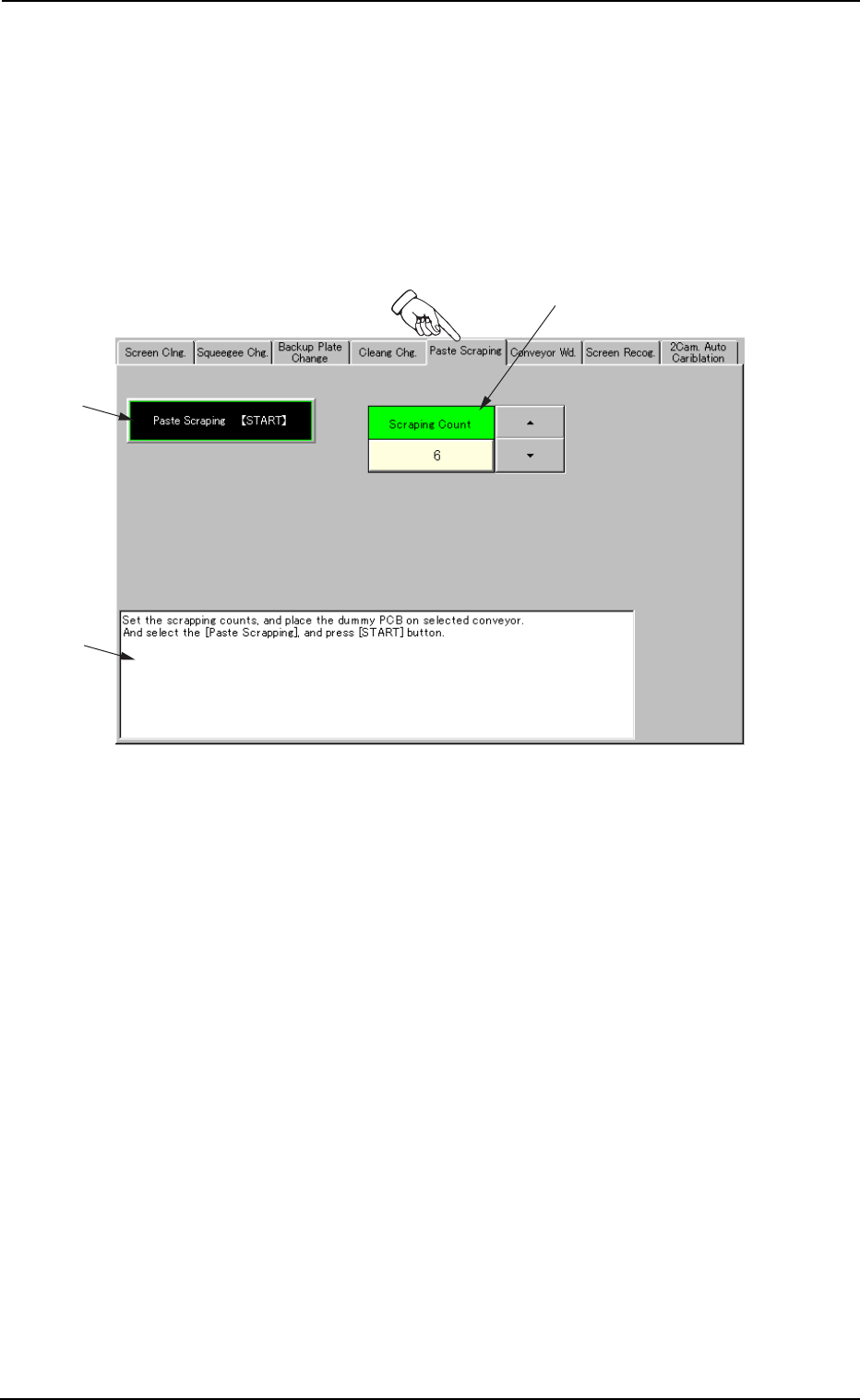
Fig. 2E30 "Paste Scraping" Tab Sheet
• Sheet Composition
*1 Scraping Count
The number of solder paste kneading times can be specified to
level the solder paste.
*2
*1
*3
0211-005 Chapter 2 5-43 Tg0582-PM-D1
9.5 "Paste Scraping" Tab