1OM-1086-002.pdf - 第256页
9. 8 "2 Camera Auto Calibration" T ab This tab sheet enables the operator to perform the dual camera auto- matic calibration. • Sheet Layout When the [2Cam. Auto Calibration] tab is pressed in the "PRODUCT…
9.7 "Screen Recognition" Tab
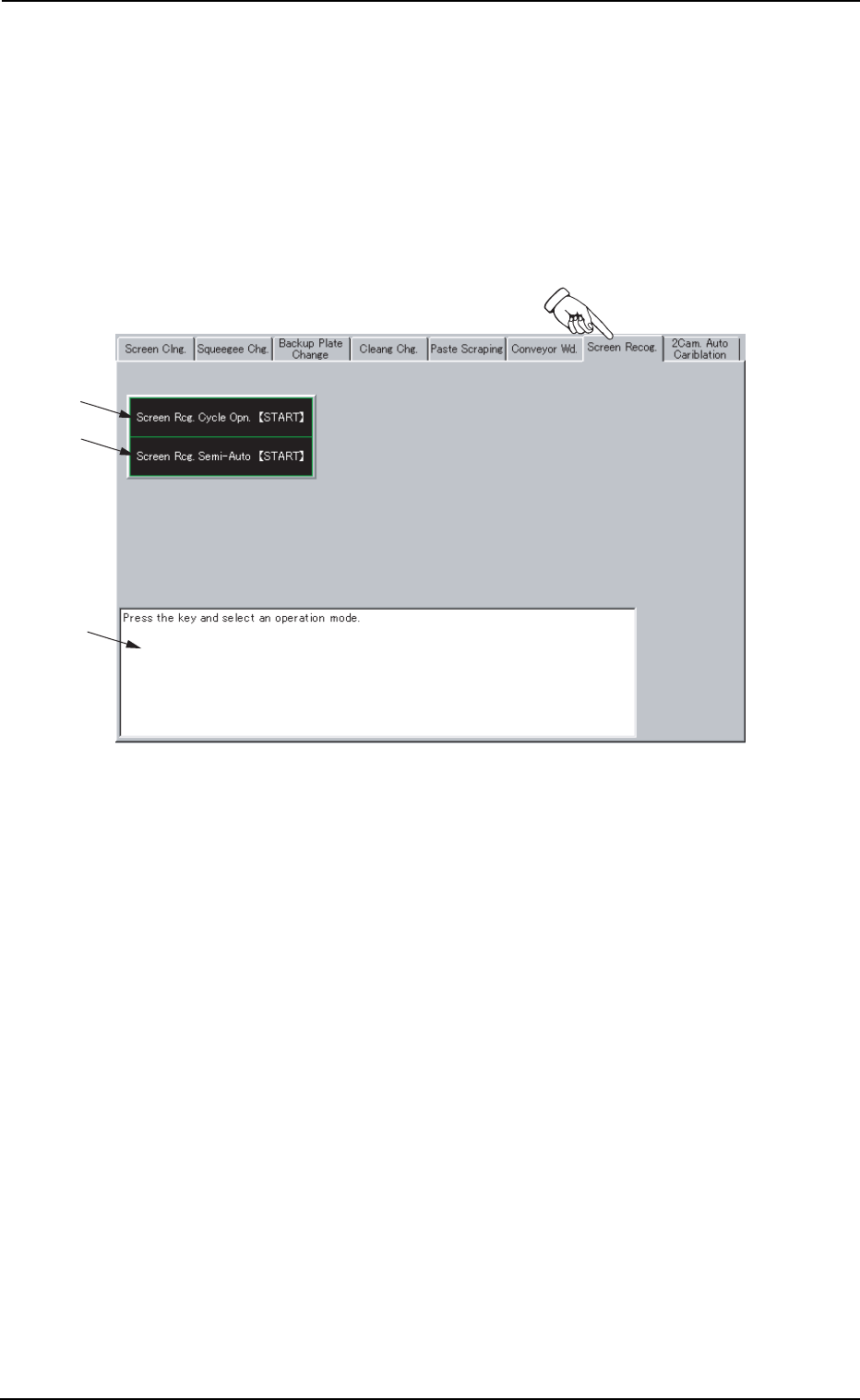
This tab sheet enables the operator to perform the screen recognition
operation.
• Sheet Layout
When the [Screen Recog.] tab is pressed in the "PRODUCT
CHANGE" window (submenu), the following tab sheet appears.
Fig. 2E35 "Screen Recognition" Tab Sheet
• Sheet Composition
*1 [Screen Rcg. Cycle Opn. (START)] Button
When this button is pressed, the background color turns blue.
When the [START] button on the front operation panel is pressed
subsequently, a series of operations start to recognize the screen.
*2 [Screen Rcg. Semi-Auto (START)] Button
When this button is pressed, the background color turns blue.
When the [START] button on the front operation panel is pressed
subsequently, a series of operations start step by step to recog-
nize the screen.
*3 Message
The guidance of operation is displayed.
9.7 "Screen Recognition" Tab
*1
*2
*3
0211-005 Chapter 2 5-48 Tg0582-PM-D1
9.8 "2 Camera Auto Calibration" Tab
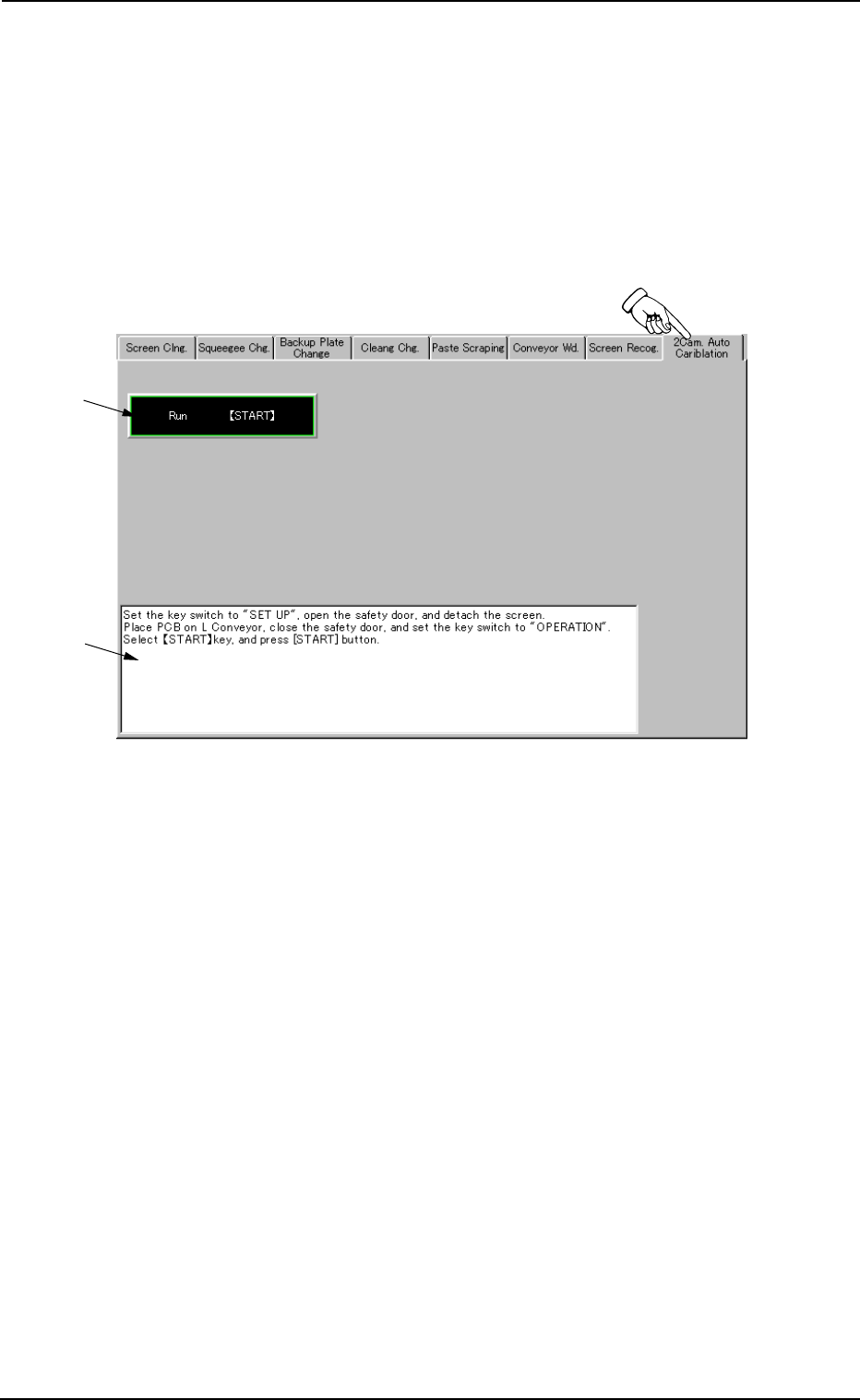
This tab sheet enables the operator to perform the dual camera auto-
matic calibration.
• Sheet Layout
When the [2Cam. Auto Calibration] tab is pressed in the "PRODUCT
CHANGE" window (submenu), the following tab sheet appears.
Fig. 2E36 "2 Camera Auto Calibration" Tab Sheet
• Sheet Composition
*1 [Run (START)] Button
When this button is pressed, the background color turns blue.
When the [START] button on the front operation panel is pressed
subsequently, the dual camera automatic calibration starts.
*2 Message
A message is issued, giving a guideline of the operations related
to the above-described button.
9.8 "2 Camera Auto Calibration" Tab
*1
*2
0211-005 Chapter 2 5-49 Tg0582-PM-D1

0211-005 Chapter 2 5-50 Tg0582-PM-D1