1OM-1086-002.pdf - 第277页
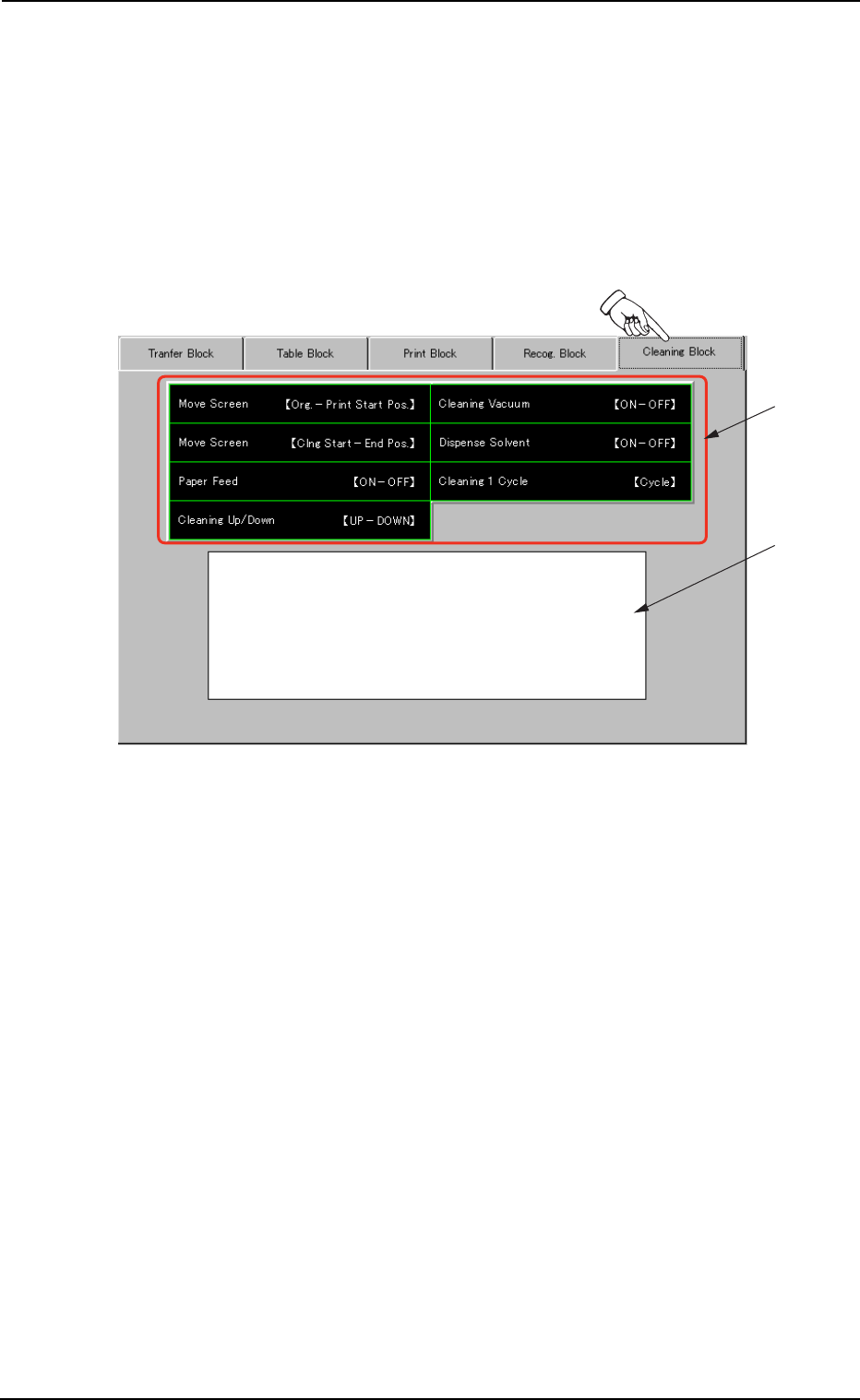
[Cleaning Up/Down (UP-DOWN)] Button When this button is pressed, the cleaning unit starts moving up or down. [Cleaning V acuum (ON-OFF)] Button When this button is pressed, solder paste is sucked through the cleaning pap…
4.5 "Cleaning Block" Tab
0211-005 Chapter 2 6-19 Tg0582-PM-D1
*1
*2
4.5 "Cleaning Block" Tab
This tab sheet can be used to perform the manual operation of the
cleaning section.
• Sheet Layout
When the [Cleaning Block] tab is pressed in the "MANUAL SUB-
SYSTEM" window (submenu), the following tab sheet appears.
Fig. 2F13 "Cleaning Block" Tab Sheet
• Sheet Composition
*1 Device Select Buttons
When a button is pressed, the background color turns blue, indi-
cating that the unit is selected.
When the [START] button on the front operation panel is pressed,
the selected unit starts moving. When the button is released, the
unit stops moving and is reset to the original position.
[Move Screen (Org.-Print Start Pos.)] Button
When this button is pressed, the screen frame starts moving be-
tween the origin and printing positions.
[Move Screen (Clng Start-End Pos.)] Button
When this button is pressed, the screen frame starts moving be-
tween the starting and end positions of cleaning.
[Paper Feed (ON-OFF)] Button
When this button is pressed, the cleaning paper is taken up.

[Cleaning Up/Down (UP-DOWN)] Button
When this button is pressed, the cleaning unit starts moving up or
down.
[Cleaning Vacuum (ON-OFF)] Button
When this button is pressed, solder paste is sucked through the
cleaning paper.
The blower unit (required for suction) is optional.
[Dispense Solvent (ON-OFF)] Button
When this button is pressed, cleaning solvent is discharged.
[Cleaning 1 Cycle (Cycle)] Button
When this button is pressed, the machine performs one-cycle op-
eration of cleaning.
*2 Status
Displayed is how each unit is working.
4.5 "Cleaning Block" Tab
0211-005 Chapter 2 6-20 Tg0582-PM-D1
5. "MANUAL ALIGNMENT" Window (Submenu)
This window can be used to perform the manual alignment of each unit.
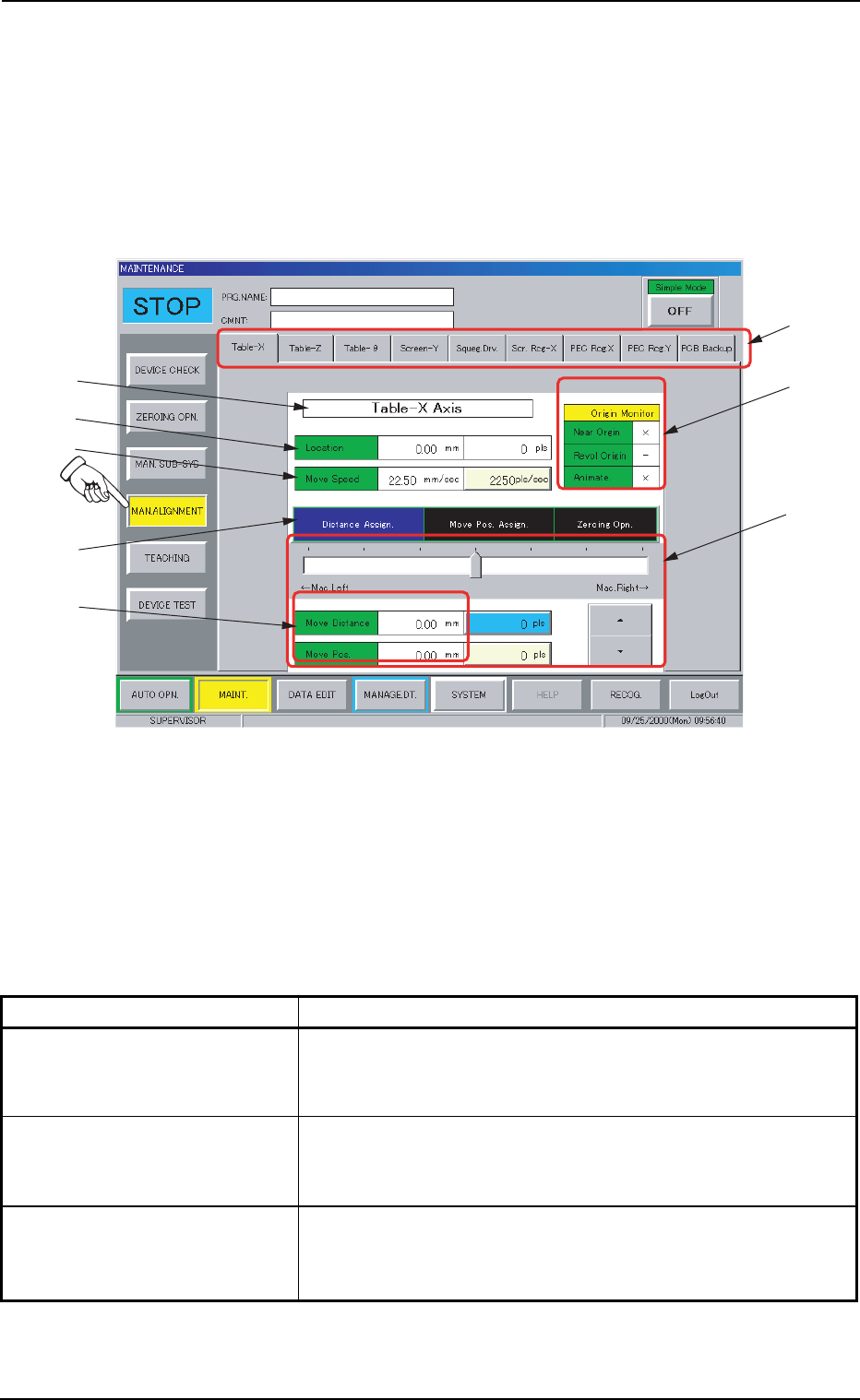
• Window Layout
When the [MAN.ALIGNMENT] button is pressed in the "MAINTE-
NANCE" submenu bar, the following window opens.
Fig. 2F14 "MANUAL ALIGNMENT" Window (Submenu)
• Window Composition
*1 Tabs
The "MANUAL ALIGNMENT" window (submenu) has 9 tab sheets.
When a tab is pressed, the corresponding tab sheet appears.
Table 2F3
Tabs Description
Table-X By specifying the move speed, the distance assignment, and
the move position assignment, the manual alignment opera-
tion can be performed for the X axis of the table.
Table-Z By specifying the move speed, the distance assignment, and
the move position assignment, the manual alignment opera-
tion can be performed for the Z axis of the table.
Table- θ By specifying the move speed, the distance assignment, and
the move position assignment, the manual alignment opera-
tion can be performed for the θ axis of the table.
5. "MANUAL ALIGNMENT" Window (Submenu)
*1
*5
*2
*3
*4
*6
*8
*7
0211-005 Chapter 2 6-21 Tg0582-PM-D1