1OM-1086-002.pdf - 第322页
7.1.4 Camera Monitor When the "P .E.C. Recog. T est" tab sheet becomes active, a recognition area appears on the camera monitor . When the setting of the recognition area is changed, the dis- play area also cha…
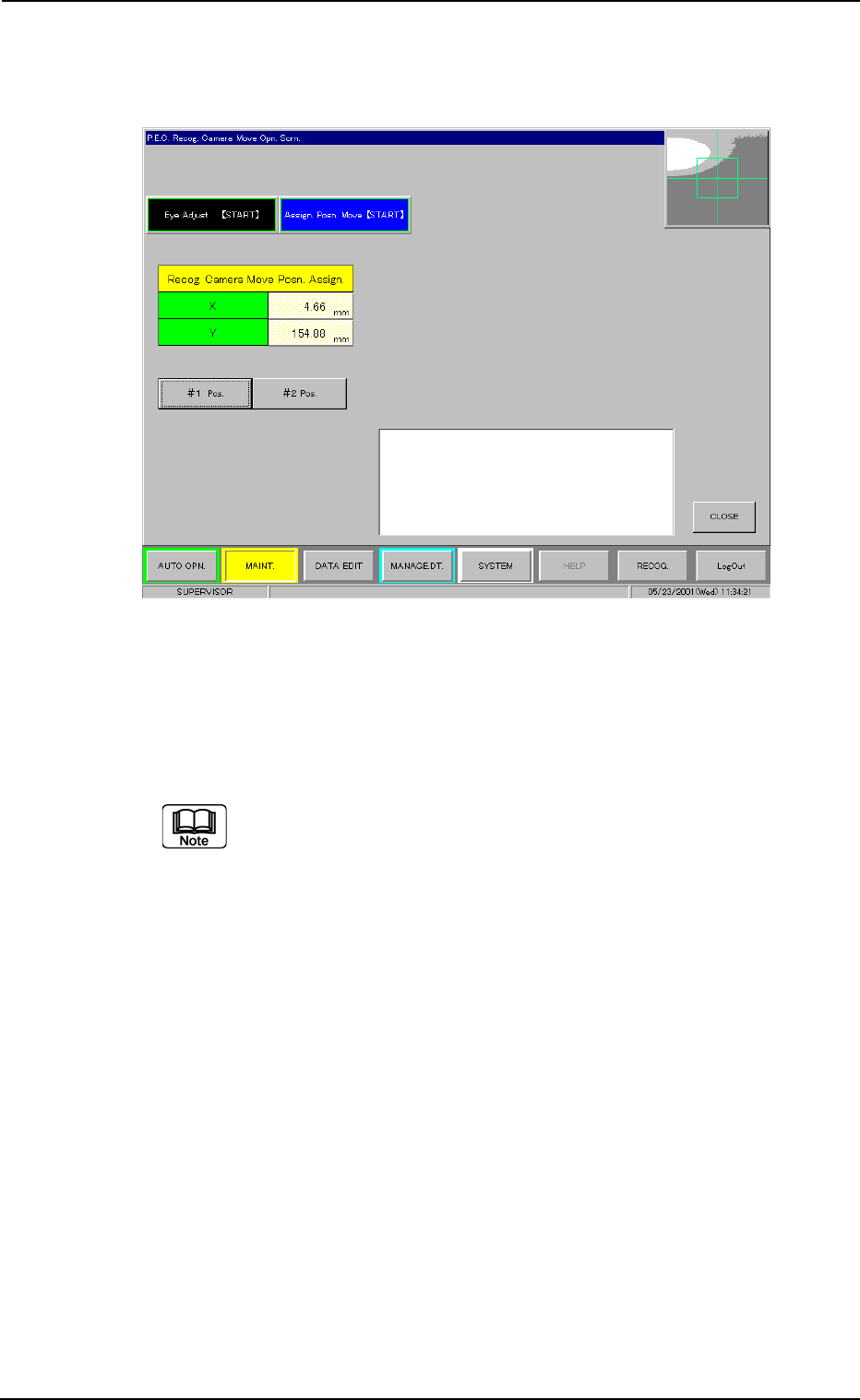
Movement to Assigned Position
Select the [Assign. Posn. Move (START)] button for "Fiducial Mark #2"
(Second P.E.C. Recognition Mark).
• Press the "X" or the "Y" data box under "Recog. Camera Move Posn.
Assign.". A ten-key window appears. Enter a value, using the panel.
Press the [AC] button whenever it is necessary to clear the data.
With the [#1 Pos.] or [#2 Pos.] buttons, the designated coor-
dinates in the pattern program can be copied in the "Recog.
Camera Move Posn. Assign." data boxes.
• When the [START] button on the front operation panel is pressed,
the P.E.C. recognition camera moves to the assigned position.
• Press the [Eye Adjust (START)] button to perform the same opera-
tion as "Manual Alignment" and move the P.E.C. recognition mark to
the position where the mark should be recognized.
7.1
"
P.E.C. Recog. Test
"
Tab
0211-005 Chapter 2 6-64 Tg0582-PM-D1
Fig. 2F51-1
7.1.4 Camera Monitor
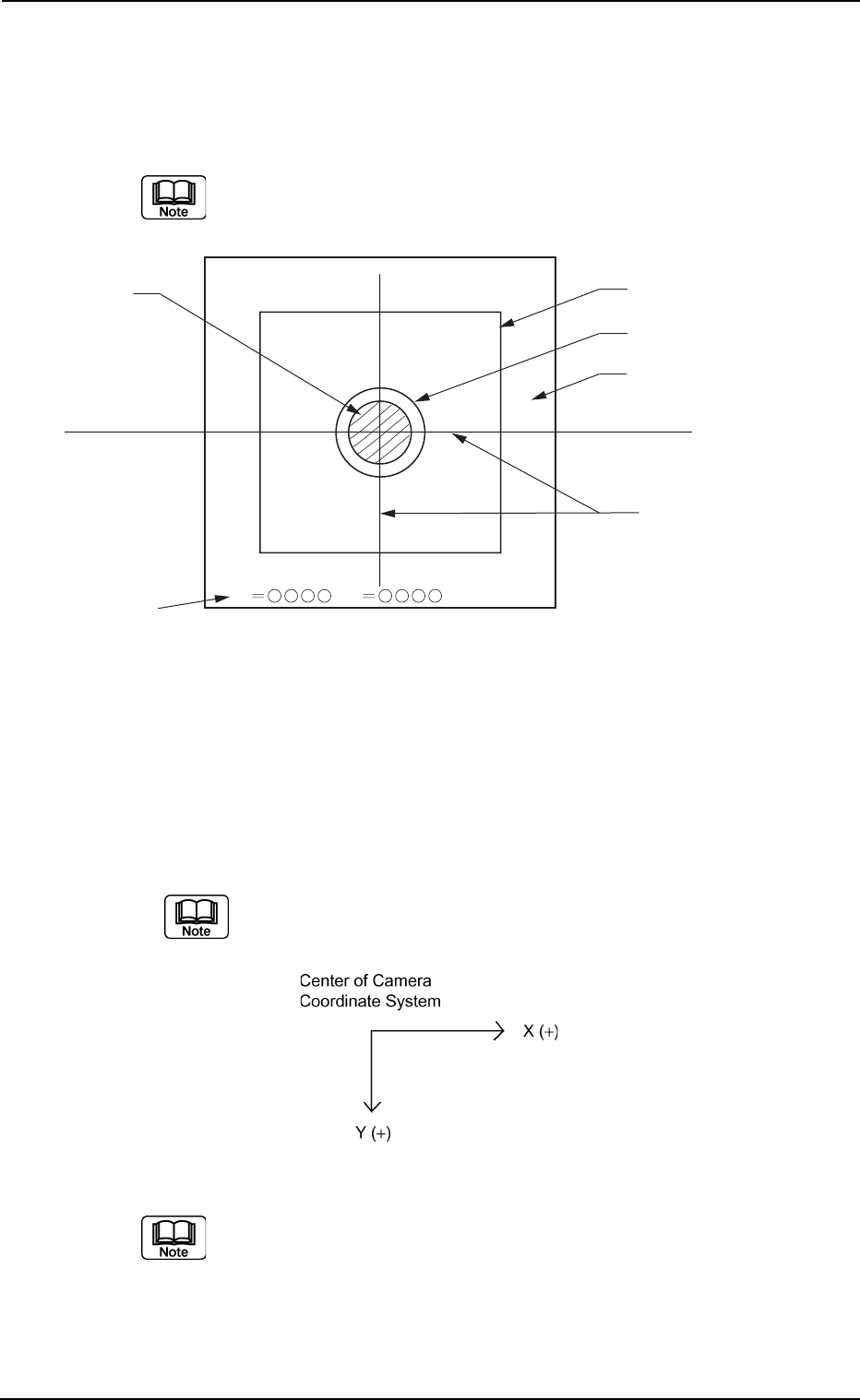
When the "P.E.C. Recog. Test" tab sheet becomes active, a recognition
area appears on the camera monitor.
When the setting of the recognition area is changed, the dis-
play area also changes.
Fig. 2F52
• When the recognition is made normally, the table moves, the image
of the fiducial mark moves to the camera center, and the outline of
the mark shape and the cross hairs appear in the window (recogni-
tion area).
The positional deviation (X and Y) of the fiducial mark from the cam-
era center is displayed in the "A"-marked area of the window.
The displayed positional deviation shows the deviation de-
tected before testing.
Fig. 2F53
The point of the cross hairs intersection is the camera center.
• When the results of the recognition is "NG (No Good)", the outline of
the mark shape and the cross hairs do not appear and an error mes-
sage (recognition error) is issued on the touch screen.
7.1
"
P.E.C. Recog. Test
"
Tab
X Y
A
Image of
Fiducial Mark
Recognition Range (Area)
Outline of Mark Shape
Window (Recognition Area)
Cross Hairs
0211-005 Chapter 2 6-65 Tg0582-PM-D1
7.2 "Screen Recog. Test" Tab
• Sheet Layout
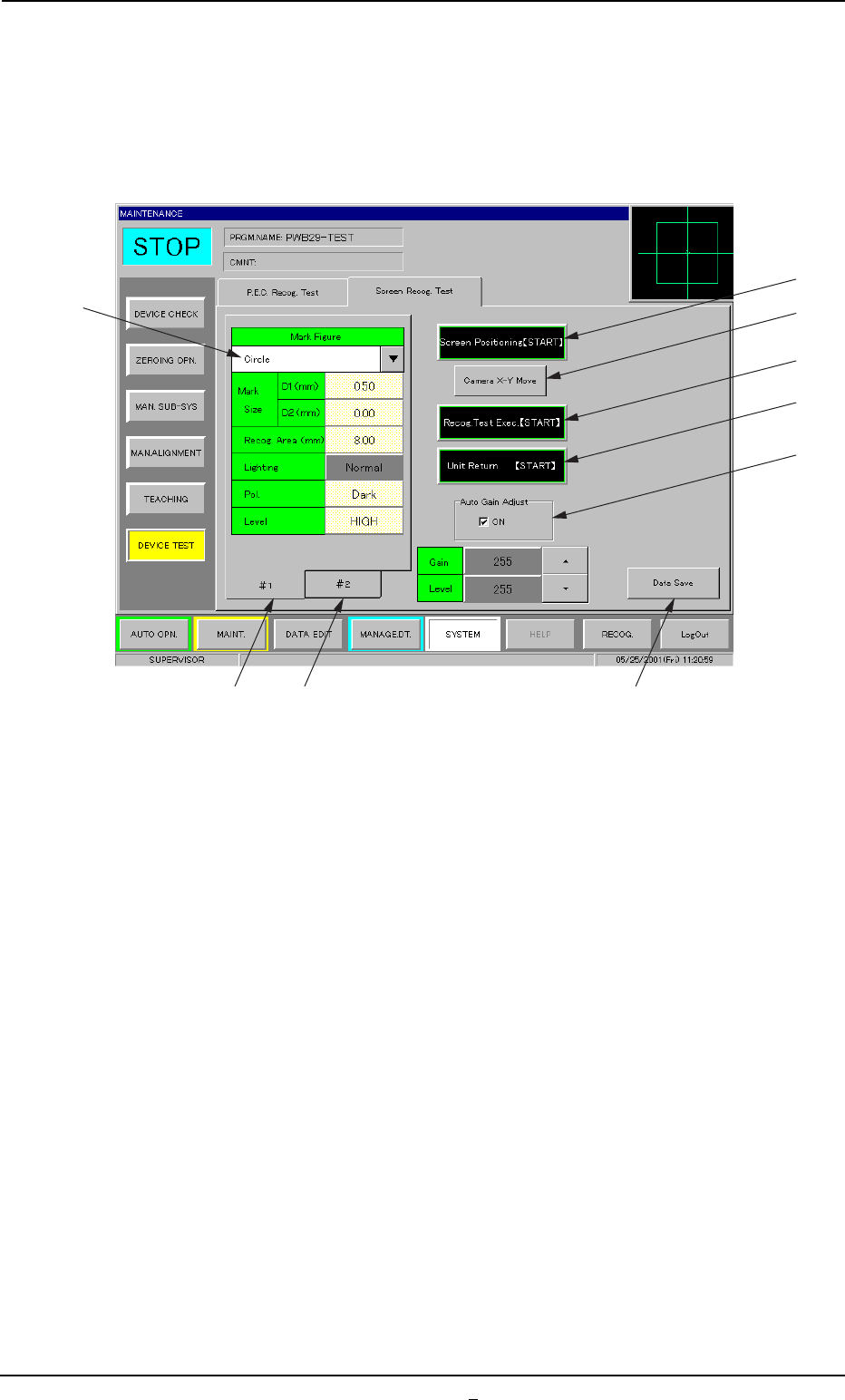
When the [Screen Recog. Test] tab is pressed in the "DEVICE TEST"
window (submenu), the following tab sheet opens.
Fig. 2F54
• Sheet Composition
*1 Edit Box for Screen Recognition Mark Data
This edit box is used to edit the screen recognition mark data.
*2 [Screen Positioning (START)] Button
This button is used for screen positioning.
*3 [Camera X-Y Move] Button
When this button is pressed, the "Screen Recog. Camera Move
Opn. Scrn." window opens, enabling you to move the screen rec-
ognition camera to the X and Y directions.
*4 [Recog. Test Exec. (START)] Button
This button is used to execute the screen recognition test.
*5 [Unit Return (START)] Button
This button is used to return the screen recognition camera to its
origin.
*2
*1
*3
*4
*5
*6
*9
*8*7
0211-005 Chapter 2 6-66 Tg0582-PM-D1
7.2
"
Screen Recog. Test
"
Tab