1OM-1086-002.pdf - 第86页
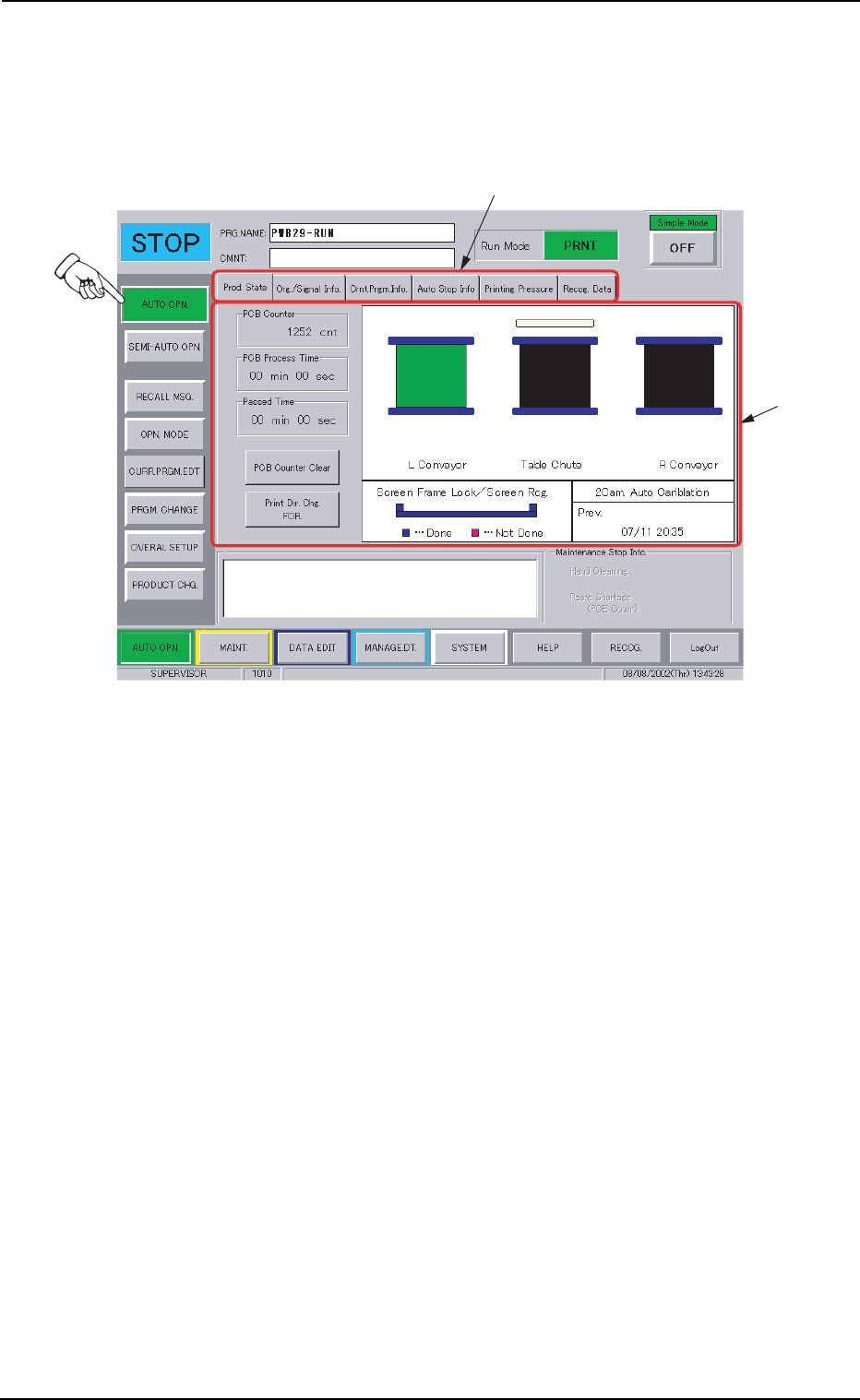
• Window Structure *1 T abs The "AUTO OPERA TION" window (submenus) is provided with 6 tabs. When the tab is pressed, the corresponding tab sheet appears inside the window . T able 1B1 T abs Description Prod. S…
1.2.2 "AUTO OPERATION" Window (Submenus)
When the [AUTO OPN.] button on the submenu bar is pressed in the
"AUTO OPERATION" window, the following window opens.
Fig. 1B3
0211-005
Chapter 1 2-5 Tg0582-PM-D1
CURR. PRGM. EDT.
*2
*1
1.2 "AUTO OPERATION" Window (Main Menus)
• Window Structure
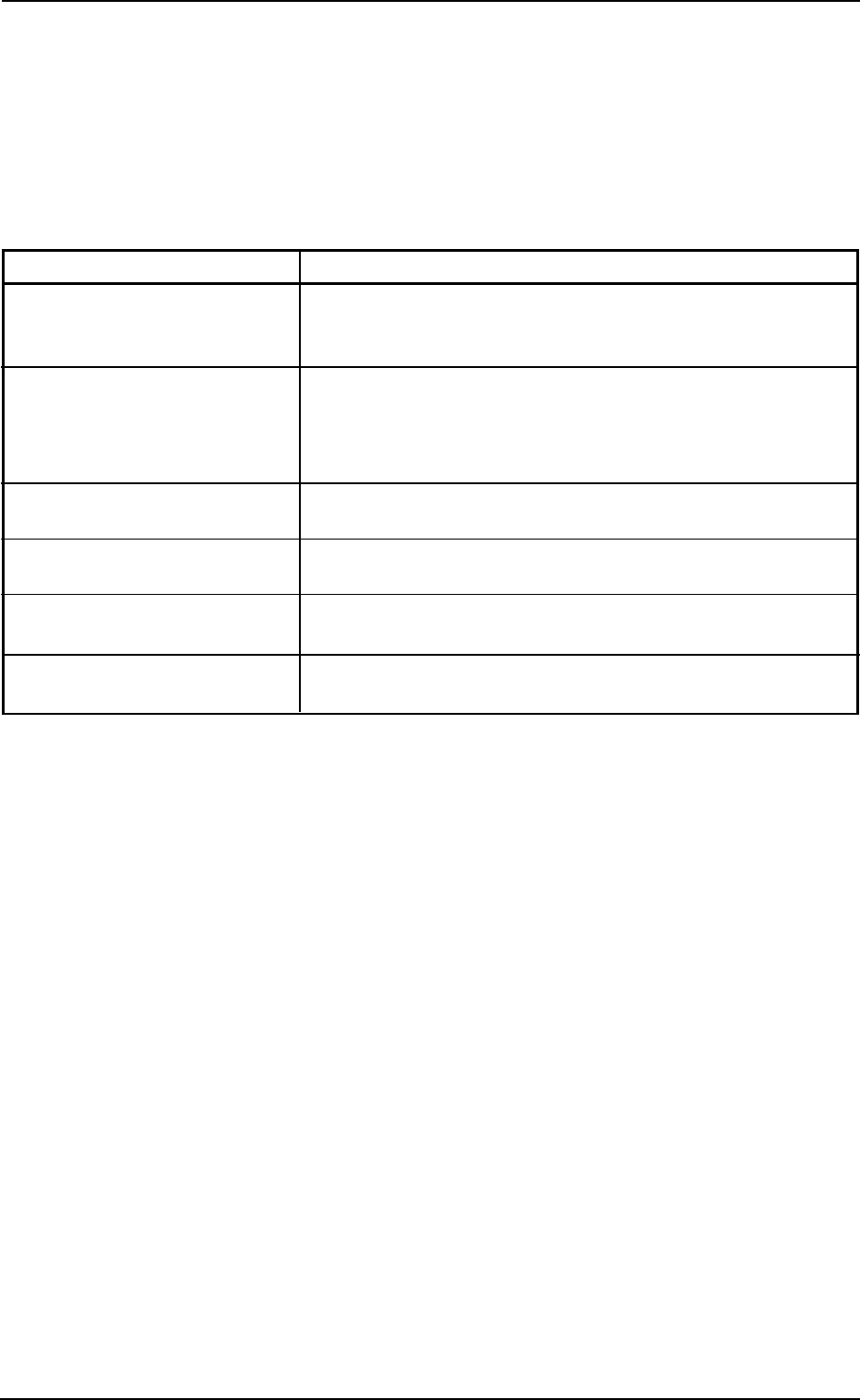
*1 Tabs
The "AUTO OPERATION" window (submenus) is provided with 6
tabs. When the tab is pressed, the corresponding tab sheet appears
inside the window.
Table 1B1
Tabs Description
Prod. State Displays the production condition at real time.
Refer to "2.1 "Prod. State" Tab in Section 5 of Chapter 2" for
details.
Org./Signal Info. Green marks are displayed before the zeroed devices in the
"Origin Monitor" field.
Refer to "2.2 "Org./Signal Info." Tab in Section 5 of Chapter 2"
for details.
Crnt.Prgm.Info. Refer to "2.3 "Crnt.Prgm.Info." Tab in Section 5 of Chapter 2"
for details.
Auto Stop Info. Refer to "2.4 "Auto Stop Information" Tab in Section 5 of Chapter
2" for details.
Printing Pressure Refer to "2.5 "Printing Pressure" Tab in Section 5 of Chapter
2" for details.
Recog. Data Refer to "2.6 "Recognition Data" Tab in Section 5 of Chapter
2" for details.
*2 Tab Sheet
Displayed in this field are the contents related to the selected tab.
0211-005
Chapter 1 2-6 Tg0582-PM-D1
1.2 "AUTO OPERATION" Window (Main Menus)
1.3 Exiting from Operation Window
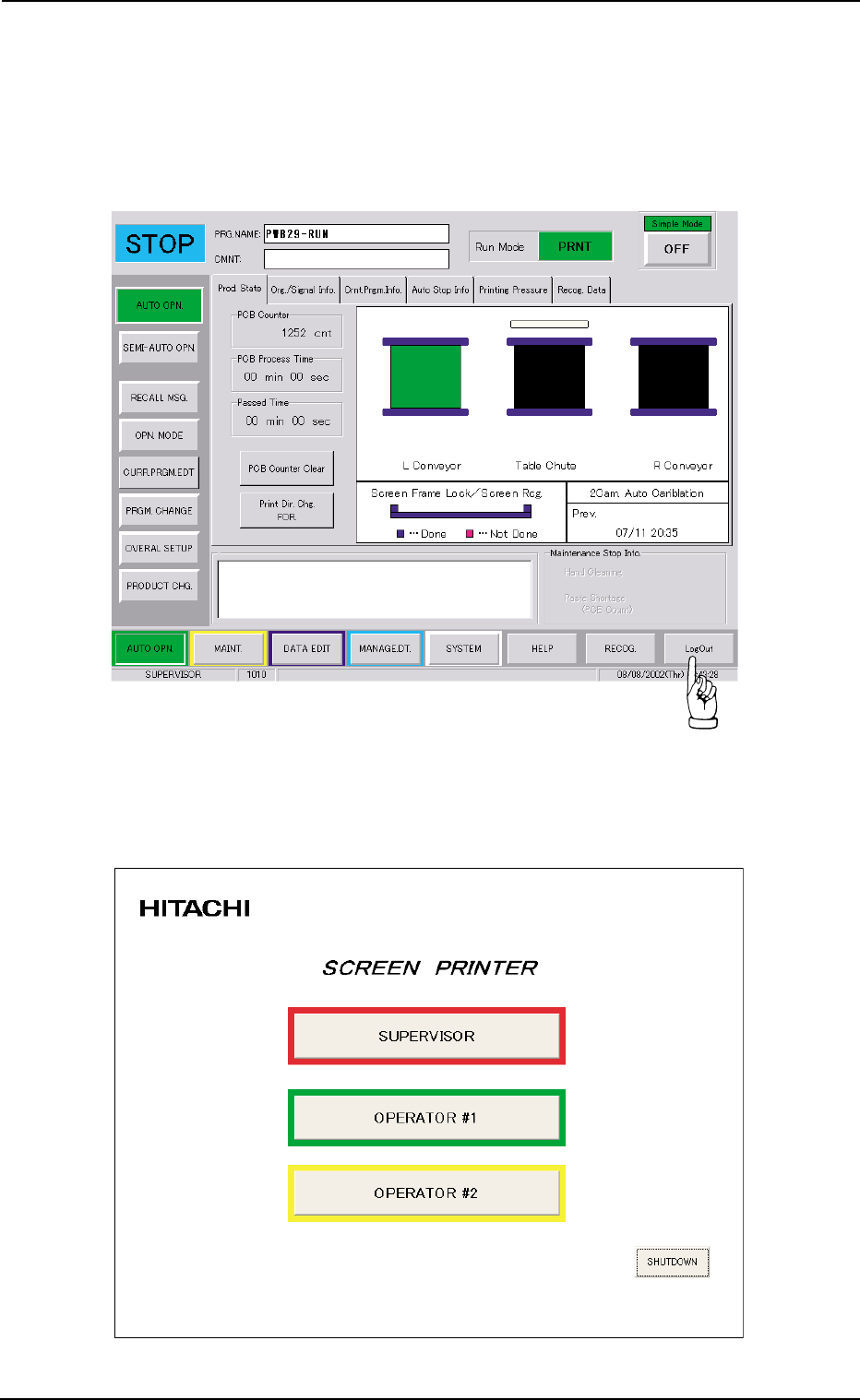
(1) To exit from an operation window ("AUTO OPERATION" or "MAIN-
TENANCE" window), press the [LogOut] button located at the bot-
tom right of the window.
Fig. 1B4
(2) The window for "Log In" type selection opens.
Fig. 1B5
1.3 Exiting from Operation Window
0509-006 Chapter 1 2-7 Tg0582-PM-D1