OM-1352-003_w.pdf - 第48页
5-7 Tg1357-ID-SO 0703-003 [4] "Result of Hysteresis T est" Group Box Displayed are the results of a component recognition test. [5] [ZERO] Button When pressed, this button zeroes all axes on the stage side wher…

5-6
Tg1357-ID-SO
0703-003
[Flux Application Linkage (Cmp Rcg. Cmp dip)] Button
This button is used when the flux is applied to the component.
When the [START] button on the operation panel is pressed in
ten seconds after this button, the head on the X/Y beam selected
in [1] moves the component recognition camera position and
implements component recognition test.
[Move to Recog Pos & comp recog (Full Auto)] Button
This button makes is possible for the machine to perform a
series of operations (full automatic operations) that cover all the
operational sequences between the movement to the recognition
position and the implementation of a recognition operation.
When the [START] button on th
e operation panel is pressed in
ten seconds after this button, the head on the X/Y beam selected
in [1] moves the component recognition camera position and
implements component recognition test.
[Move to Recog Pos] Button
When the [START] button on th
e operation panel is pressed in
ten seconds after this button, the head on the X/Y beam selected
in [1] moves the component recognition camera position.
[Recog component]
Button
When pressed, this button opens the "COMPONENT
RECOGNITION (MANUAL)" window that can be used for a
component recognition operation, rotational actions, etc.
[Comp collection] Button
When pressed, this button moves the head on the X/Y beam to
the center (zero) position.
Notice
After the component collection manually, press the
[Vacuum ON/OFF] button to set the vacuum valve to
"OFF".
[Comp Dscd] Button
When pressed, this button activates the component discarding
function according to the library data.
[Move to beam zero] Button
When pressed, this button zeroes the X/Y beam.
[Flux Apply Equip.] Button
Pressing this button displays the "Flux Dispensing Unit" window.
5.2 Component Recognition Test

5-7
Tg1357-ID-SO
0703-003
[4] "Result of Hysteresis Test" Group Box
Displayed are the results of a component recognition test.
[5] [ZERO]
Button
When pressed, this button zeroes all axes on the stage side where the
selected X/Y beam is located. For example, when Beam #1 or #2 is
selected, all axes on Stage #1 are zeroed. Selection of Beam #3 or #4
zeroes all axes Stage #2.
[6] [Save Image] Button
When this button is pressed, the "Save Image" window appears.
This button can also be used to save the test results.
[7] [Noz exchange] Button
When this button is pressed, the "Noz exchange" window appears.
[8] Camera Center
[Head] Button
This button is used to align the center of the camera with that of the
head.
[Comp.] Button
This button is used to align the componenet with the center of the
camera.
5.2 Component Recognition Test
5-8
Tg1357-ID-SO
0703-003
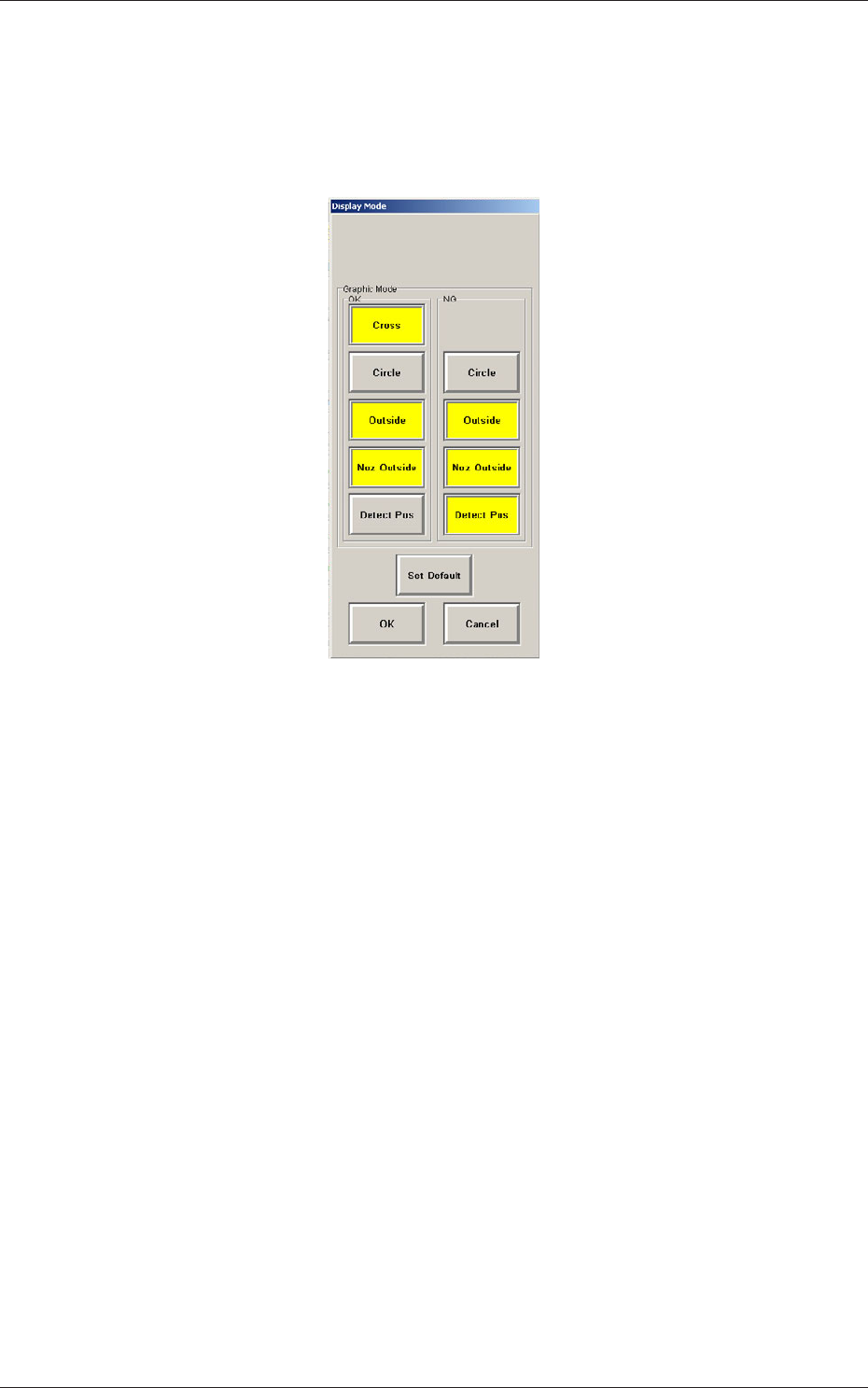
[9] [Recog Dsp setup] Button
When this button is pressed, the following window opens, enabling the
operator to specify a graphic desplay mode for the recognized image,
depending on whether the results of a recognition operation are normal
or abnormal.
Fig.17 "Display Mode" Window
[Cross] :
When this is selected and the results of a
recognition operation are normal, a cross-
hair appears at the center of the recognized
object.
[Circle] :
When this is selected, a circle appears on
the recognized object.
[Outside] :
When selected, this displays the outline of
the recognized object.
[Noz Outside] :
When selected, this displays the vacuum
nozzle that was used to recognize a
component.
[Detect Pos] :
When selected, this displays the detection
position and area.
[Set Default] :
When pressed, this button sets the defaults.
When several display types (multiple selection possible) are selected
and the [OK] button is pressed, the specified types (modes) are saved.
When the [Cancel] button is pressed, the selection is canceled.
5.2 Component Recognition Test