00193688-03.pdf - 第118页
4 Configuration Installation and Configuration Guide SIPLACE Explorer 4.3 Database Settings Edition 02/2005 EN 118 → If you click Setup DB Connection ... in the DB error dialog box, you will start the setup sequence f or…
Installation and Configuration Guide SIPLACE Explorer 4 Configuration
Edition 02/2005 EN 4.3 Database Settings
117
→ Click on the Login - and enter the same user name and password you configured in the MS
SQL Server Enterprise Manager.
4
Fig. 4 - 58 User name and password
→ Ensure that you press Enter after each entry.
4.3.2 Testing and Configuring the DB Connection
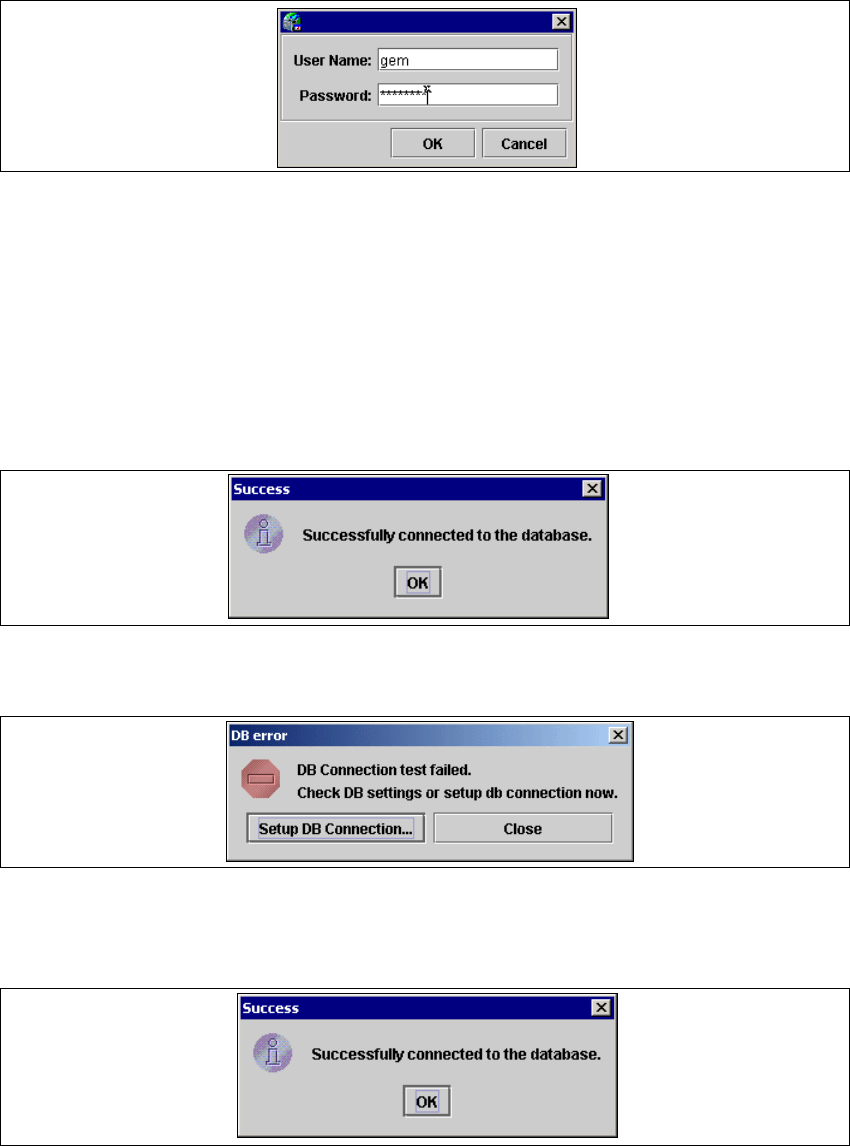
→ Now, click Test in the DB Settings dialog box to make sure that the System Database has
been properly configured. If you see the Success dialog box as shown below, save this setting
to the project (gms File). This means that the connection to the database will be saved for the
next time you open the project.
4
Fig. 4 - 59 Success dialog box
→ If the test fails, you will see the DB error dialog box.
4
Fig. 4 - 60 DB error dialog box
→ If you click Close in the DB error dialog box, the login dialog box will appear and you can try
to login again.
4
Fig. 4 - 61 User name and password
4 Configuration Installation and Configuration Guide SIPLACE Explorer
4.3 Database Settings Edition 02/2005 EN
118
→ If you click Setup DB Connection... in the DB error dialog box, you will start the setup
sequence for the DB Connection Wizard to configure the system database from SIPLACE
Explorer. For a detailed description, please see “Intermediate Step - Database Connection
Wizard” on page 74.
4

Installation and Configuration Guide SIPLACE Explorer 5 Deinstallation
Edition 02/2005 EN
119
5 Deinstallation
SIPLACE Explorer V2.0 has a so-called modify dialog for deinstallation purposes. This can be
started from the Windows menu. There will then be three deinstallation procedures at your
disposal: 5
–Modify
Use this function if you want to add individual features to the current SIPLACE Explorer
V2.0 or if you want remove installed features from the current SIPLACE Explorer V2.0.
(see page 121)
–Repair
Use this function if the current installation of SIPLACE Explorer V2.0 no longer functions
properly or if individual features have been unintentionally removed. This option recovers
the previous setup.
(see page 124)
–Remove
Use this function if you want to completely remove SIPLACE Explorer V2.0 from your
computer.
(see page 126)