00193688-03.pdf - 第126页
5 Deinstallation Installation and Configuration Guide SIPLACE Explorer 5.4 Remo ve Edition 02/2005 EN 126 5.4 Remove 5 Fig. 5 - 9 SIPLACE Explorer 2.0 - install shield wizard → Click on Remove and then on Next to c ontin…
Installation and Configuration Guide SIPLACE Explorer 5 Deinstallation
Edition 02/2005 EN 5.3 Repair
125
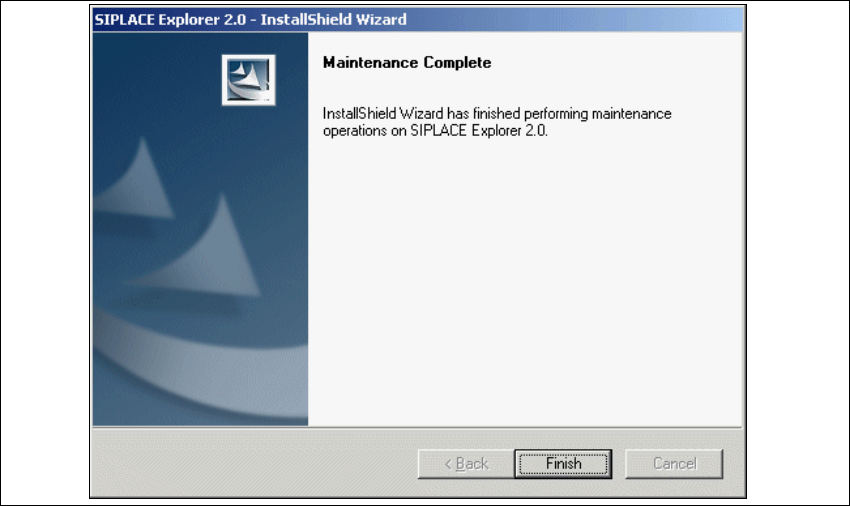
→ SIPLACE Explorer 2.0 recovery has been completed.
5
Fig. 5 - 8 Repair complete
→ Click on Finish to close the SIPLACE Explorer 2.0 - InstallShield Wizard.
5 Deinstallation Installation and Configuration Guide SIPLACE Explorer
5.4 Remove Edition 02/2005 EN
126
5.4 Remove
5
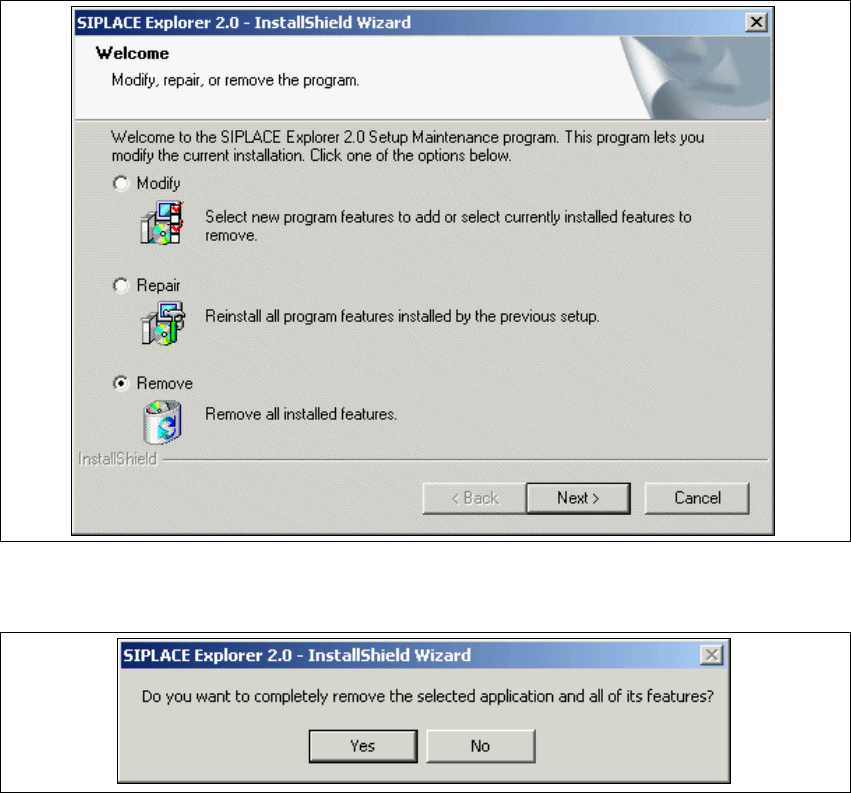
Fig. 5 - 9 SIPLACE Explorer 2.0 - install shield wizard
→ Click on Remove and then on Next to continue.
5
Fig. 5 - 10 Deinstallation query: confirm deletion of file
→ Confirm deletion with Yes.
The deinstallation process will be performed. 5
Installation and Configuration Guide SIPLACE Explorer 5 Deinstallation
Edition 02/2005 EN 5.4 Remove
127
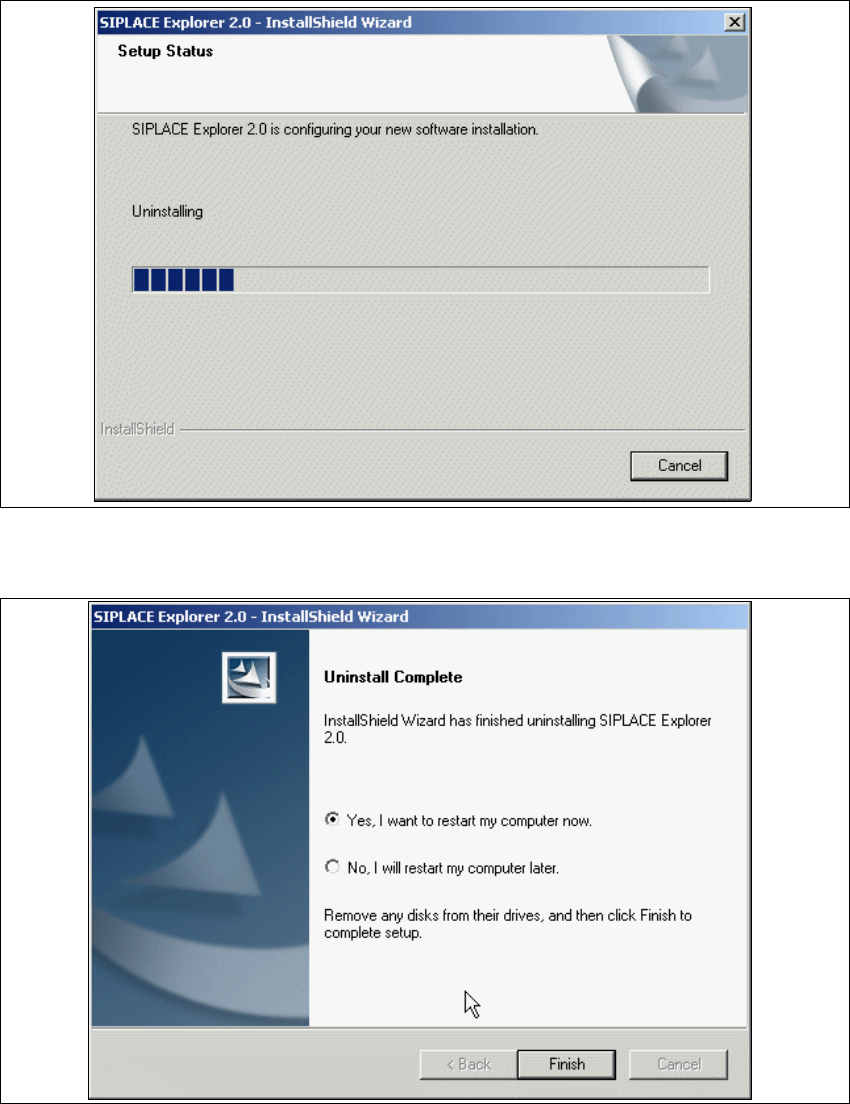
The Setup Status dialog box will show the deinstallation status. 5
5
Fig. 5 - 11 Deinstallation process
→ SIPLACE Explorer V2.0 deinstallation has been completed.
5
Fig. 5 - 12 Deinstallation complete
→ Click on Finish to close the SIPLACE Explorer 2.0 - InstallShield Wizard.
→ After you have rebooted your computer, SIPLACE Explorer 2.0 will not be available.