00193688-03.pdf - 第33页
Installation and Configuration Guide SIPLAC E Explorer 3 Installing SIPLACE Explorer Edition 02/2005 EN 3.2 Java 2 SDK 1.4 Installation Procedure 33 → Once the installation procedure has finished, the fo llowing dialog b…
3 Installing SIPLACE Explorer Installation and Configuration Guide SIPLACE Explorer
3.2 Java 2 SDK 1.4 Installation Procedure Edition 02/2005 EN
32
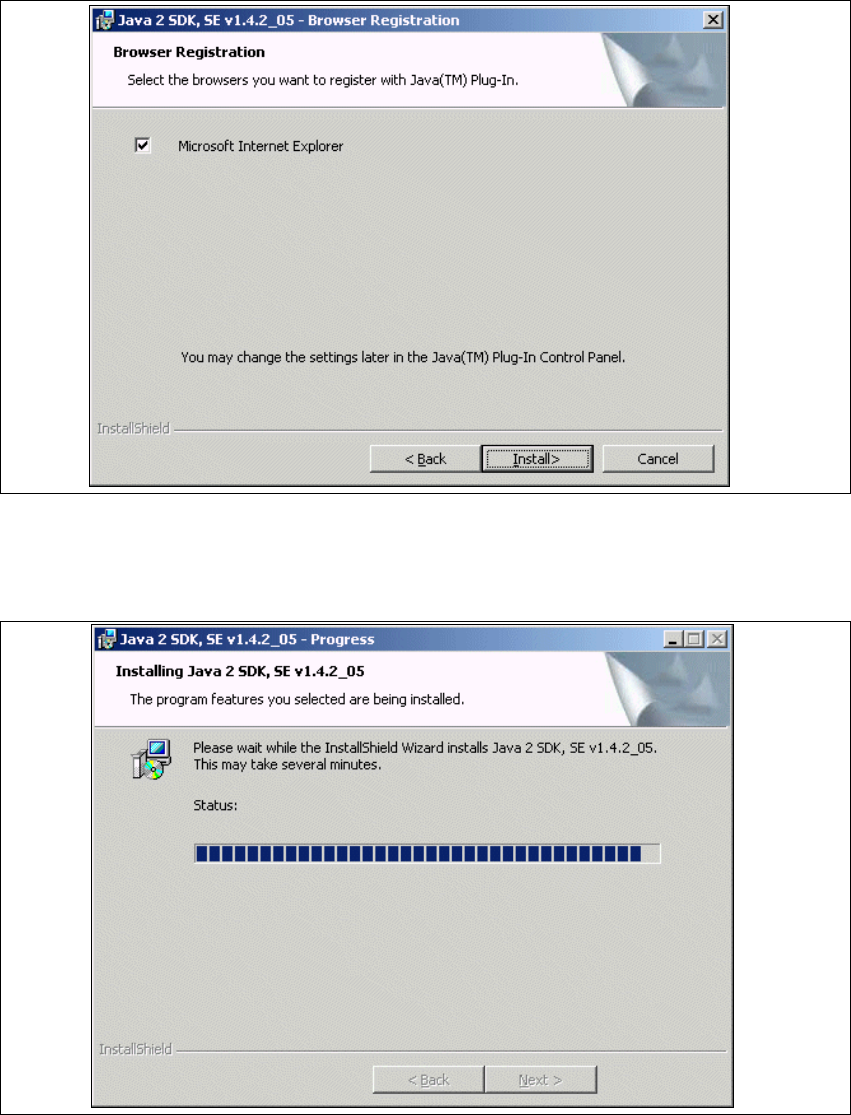
→ You will see the Browser Registration dialog box. Select the default browser for the
application, here.
3
Fig. 3 - 10 Java 2 SDK setup - 'browser registration' dialog box
→ Select the required browser by enabling the relevant checkbox.
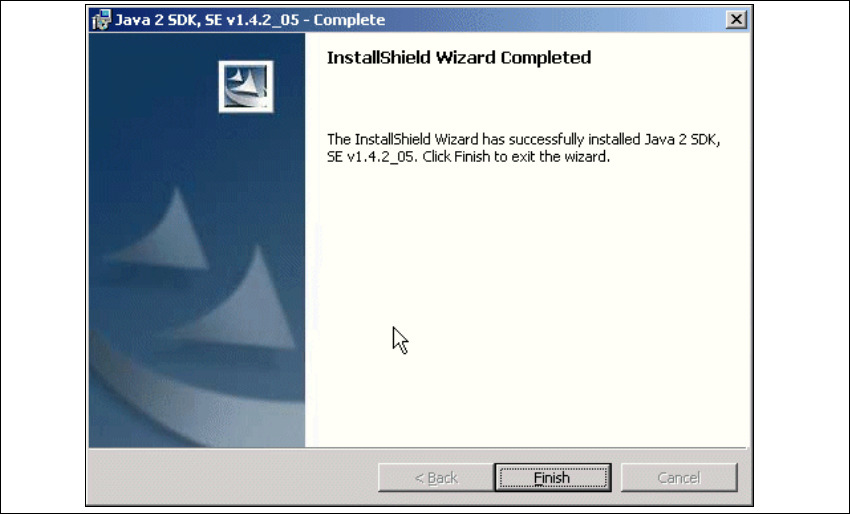
→ Click on Install to begin the actual installation of Java 2 SDK.
3
Fig. 3 - 11 Java 2 SDK setup - installation
→ The selected installation options will be installed in the correct order.
Installation and Configuration Guide SIPLACE Explorer 3 Installing SIPLACE Explorer
Edition 02/2005 EN 3.2 Java 2 SDK 1.4 Installation Procedure
33
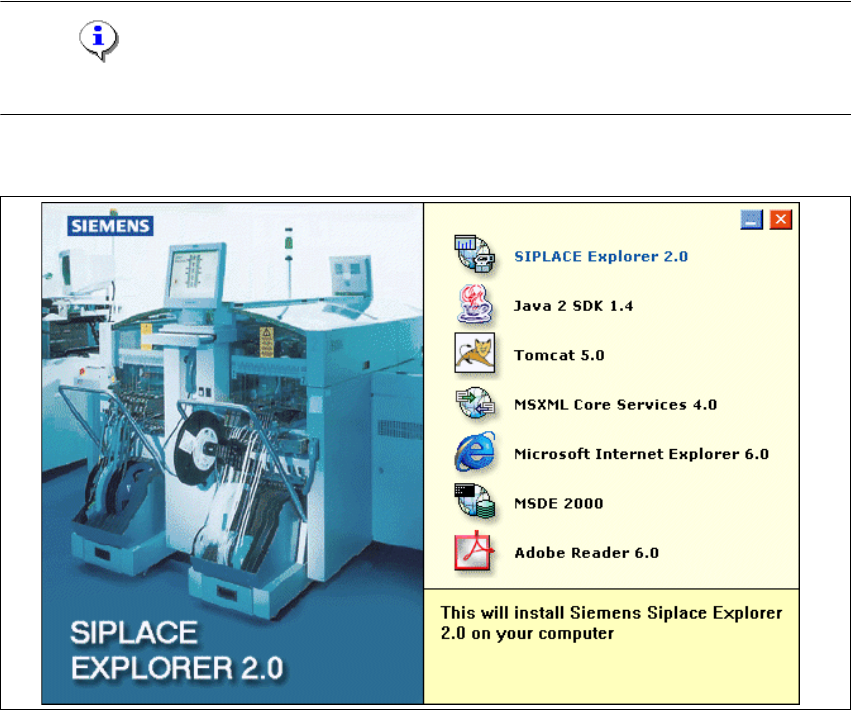
→ Once the installation procedure has finished, the following dialog box will appear.
3
Fig. 3 - 12 Java 2 SDK setup - installation complete
→ Click on Finish.
3 Installing SIPLACE Explorer Installation and Configuration Guide SIPLACE Explorer
3.3 SIPLACE Explorer 2.0 Installation Edition 02/2005 EN
34
3.3 SIPLACE Explorer 2.0 Installation
NOTE
You must have Windows 2000 administrator privileges to perform installation. 3
→ Place the SIPLACE Explorer CD in your CD-ROM drive. The Start screen will appear.
3
Fig. 3 - 13 SIPLACE Explorer setup - Start screen
→ Select SIPLACE Explorer 2.0.