00193688-03.pdf - 第51页
Installation and Configuration Guide SIPLAC E Explorer 3 Installing SIPLACE Explorer Edition 02/2005 EN 3.5 MSDE 2000 Installation Procedure 51 3 Fig. 3 - 39 MSDE 2000 - Installation → Once the installation proc edure ha…
3 Installing SIPLACE Explorer Installation and Configuration Guide SIPLACE Explorer
3.5 MSDE 2000 Installation Procedure Edition 02/2005 EN
50
→ Tomcat 5.0 runs as a Windows service and is automatically started whenever you reboot your
computer. You will see the icon in your console.
NOTE
Tomcat 5.0 needs to be manually reconfigured for working with SIPLACE Explorer in the following
cases:
- When using Windows XP Professional with SP2
- For port configuration, when changing the Tomcat port number
- When extending the memory capacity for Tomcat.
For a detailed description of these points, please see Section “Tomcat Configuration” on page 53.3
3.5 MSDE 2000 Installation Procedure
NOTE
You must have Windows 2000 administrator privileges to perform installation. 3
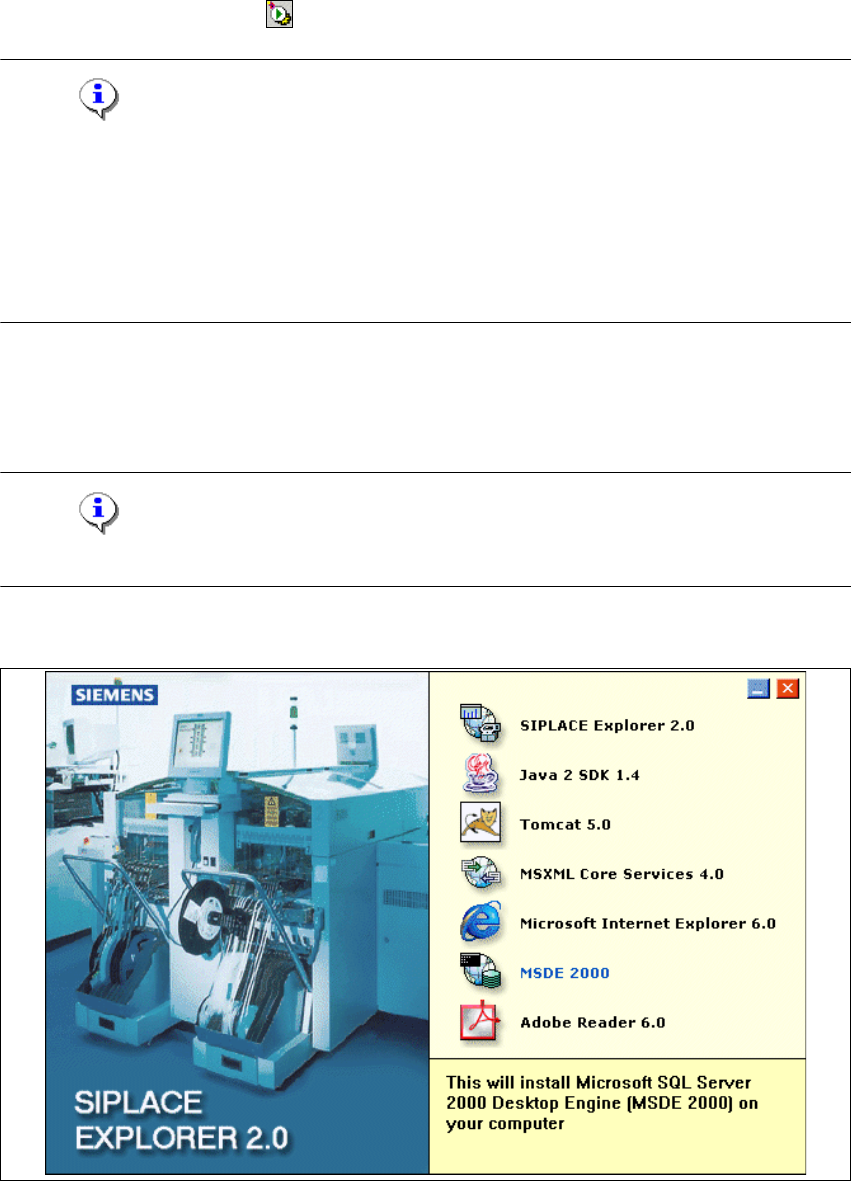
→ Place the SIPLACE Explorer CD in your CD-ROM drive. The Start screen will appear.
3
Fig. 3 - 38 SIPLACE Explorer setup - Start screen
→ Select MSDE 2000. The MSDE 2000 installation procedure will run automatically.
Installation and Configuration Guide SIPLACE Explorer 3 Installing SIPLACE Explorer
Edition 02/2005 EN 3.5 MSDE 2000 Installation Procedure
51
3
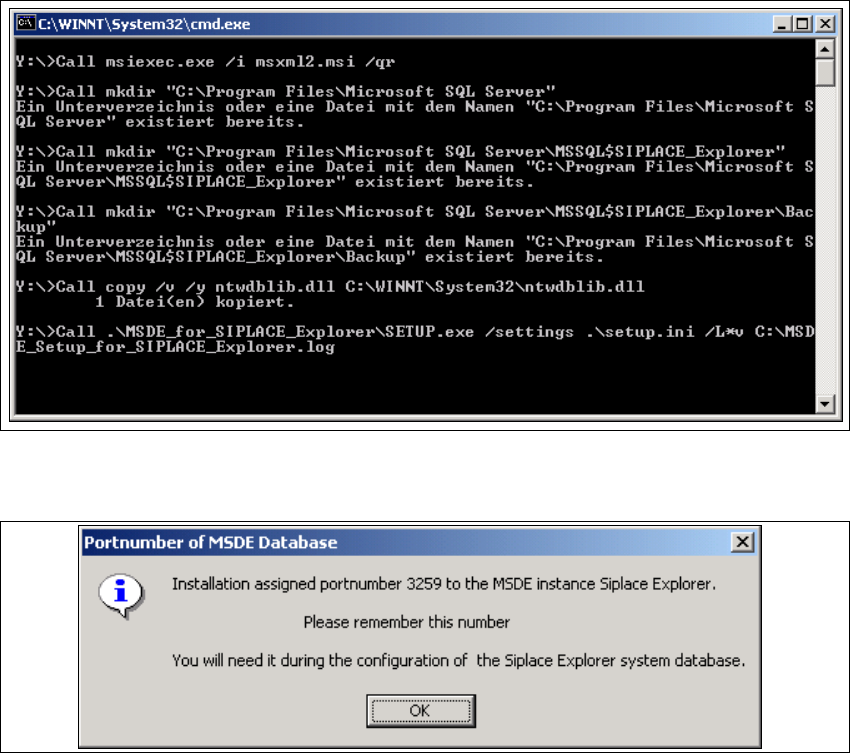
Fig. 3 - 39 MSDE 2000 - Installation
→ Once the installation procedure has finished, the following pop-up window will appear.
3
Fig. 3 - 40 MSDE 2000 - Port number
→ Make a note of this port number. You will need it later, when using SIPLACE Explorer.

3 Installing SIPLACE Explorer Installation and Configuration Guide SIPLACE Explorer
3.5 MSDE 2000 Installation Procedure Edition 02/2005 EN
52
3.5.1 Changing Password for "sa" Account Manually
If you want to change the password of the MSDE installation manually, you can do that via the
command line. 3
→ Open a command prompt window on the computer hosting MSDE and to which you wish to
establish a connection.
→ Type the following command, and then press ENTER:
osql -U sa 3
This command connects you to the local, default instance of MSDE by using the SA account.3
→ Type the following commands on two separate lines, and then press ENTER:
sp_password null, 'mynewpassword', 'sa' 3
go 3
NOTE
Replace 'mynewpassword' with the new password. 3
→ You will receive a message, informing you that your password was changed successfully.