00193688-03.pdf - 第53页
Installation and Configuration Guide SIPLAC E Explorer 3 Installing SIPLACE Explorer Edition 02/2005 EN 3.6 Tomcat Configuration 53 3.6 T omcat Configuration 3.6.1 Using Windows XP Professional with SP2 If you have insta…

3 Installing SIPLACE Explorer Installation and Configuration Guide SIPLACE Explorer
3.5 MSDE 2000 Installation Procedure Edition 02/2005 EN
52
3.5.1 Changing Password for "sa" Account Manually
If you want to change the password of the MSDE installation manually, you can do that via the
command line. 3
→ Open a command prompt window on the computer hosting MSDE and to which you wish to
establish a connection.
→ Type the following command, and then press ENTER:
osql -U sa 3
This command connects you to the local, default instance of MSDE by using the SA account.3
→ Type the following commands on two separate lines, and then press ENTER:
sp_password null, 'mynewpassword', 'sa' 3
go 3
NOTE
Replace 'mynewpassword' with the new password. 3
→ You will receive a message, informing you that your password was changed successfully.
Installation and Configuration Guide SIPLACE Explorer 3 Installing SIPLACE Explorer
Edition 02/2005 EN 3.6 Tomcat Configuration
53
3.6 Tomcat Configuration
3.6.1 Using Windows XP Professional with SP2
If you have installed Windows XP Professional with SP2 as your operating system, you will need
to reconfigure the XP firewalls before using SIPLACE Explorer. This involves releasing the ports
Tomcat 5.0 and SIPLACE Explorer V2.0. 3
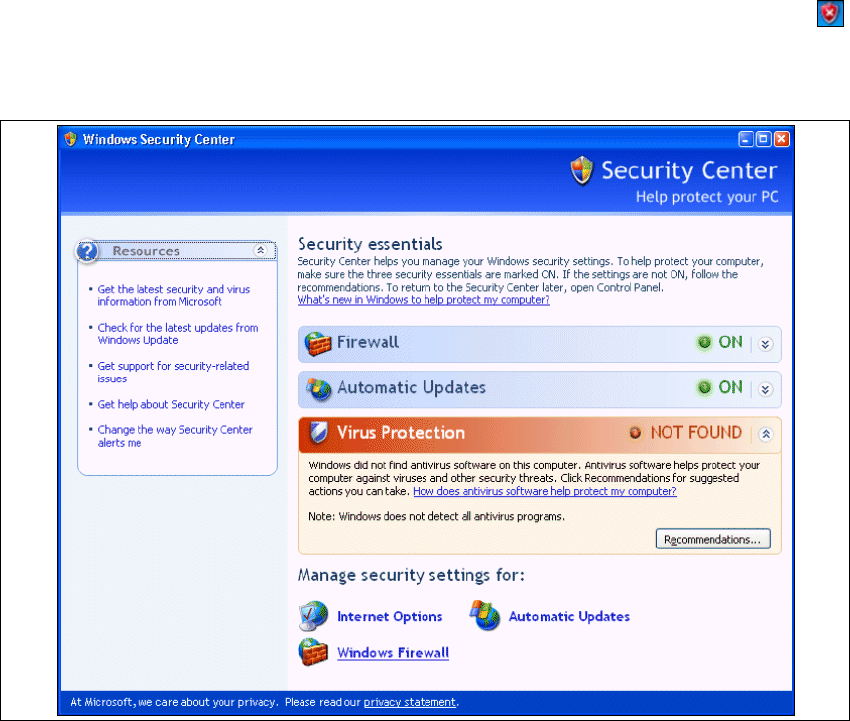
→ Start the Windows Security Center by double-clicking on the Windows Security Alerts
icon in the console.
→ The Windows Security Center dialog box will open:
3
Fig. 3 - 41 Windows Security Center
→ Proceed to Manage security settings for and select the option Windows Firewall.
3 Installing SIPLACE Explorer Installation and Configuration Guide SIPLACE Explorer
3.6 Tomcat Configuration Edition 02/2005 EN
54
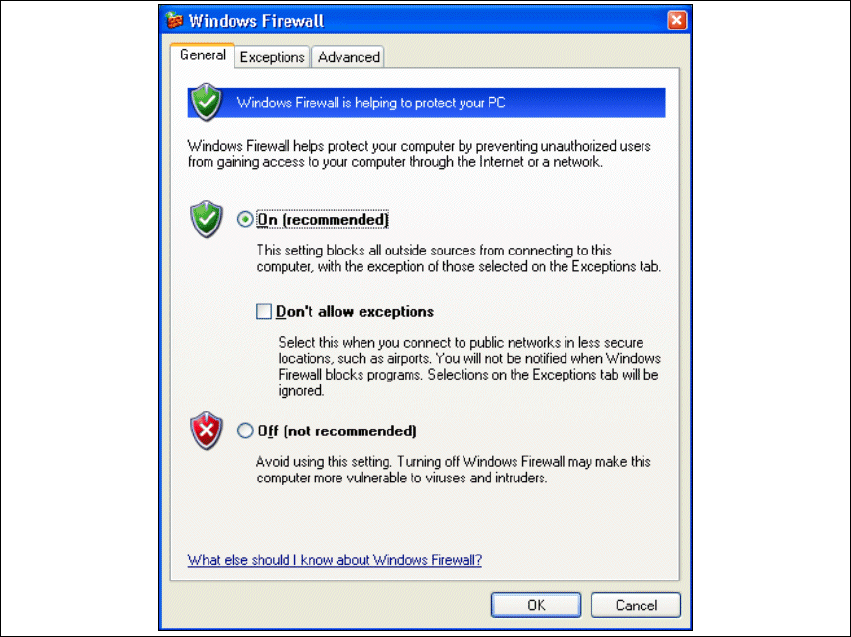
→ The Windows Firewall dialog box will open:
3
Fig. 3 - 42 Windows firewall
→ Select the Exceptions tab.