00193688-03.pdf - 第99页
Installation and Configuration Guide SIPLACE Explorer 4 Configuration Edition 02/2005 EN 4.2 Configuring the Factor y Configuration Utility 99 → Enter the following information here : – the website URL; This URL contains…
4 Configuration Installation and Configuration Guide SIPLACE Explorer
4.1 Standard Monitoring Application (SMA) Edition 02/2005 EN
98
4.1.2.9 Step 8 - Generate Website
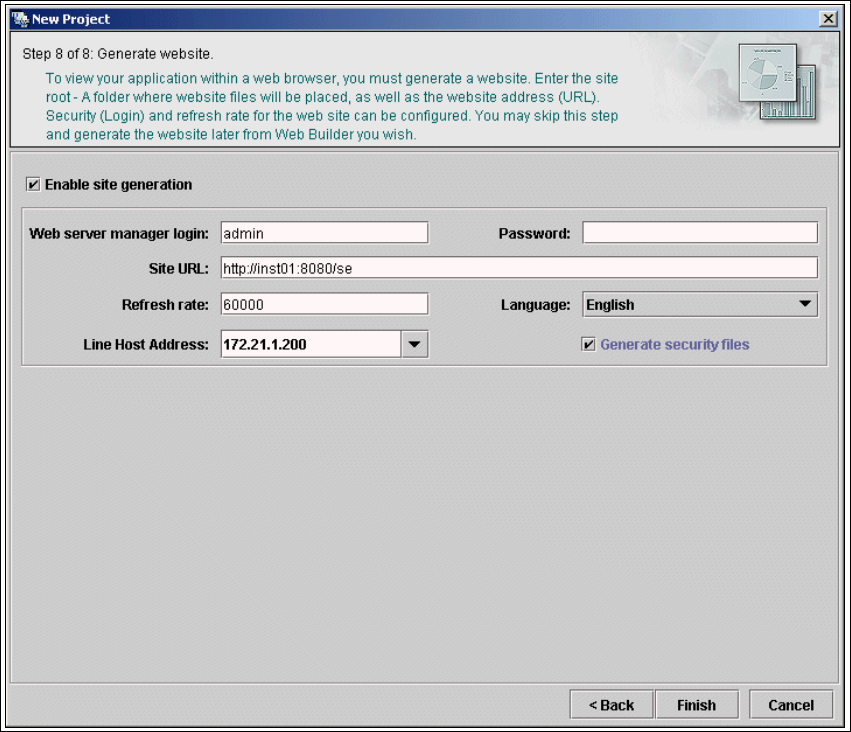
→ In order to monitor your production line in the web browser, you will need to generate a website.
For this purpose, you require web server manager privileges (Tomcat administrator) and the
corresponding password.
4
Fig. 4 - 38 Step 8: generate website
→ Specify the access data for the Tomcat administrator. If you entered admin and an empty
password during Tomcat configuration, this data will be automatically used as a default login.
If this is not the case, use the data you specified during Tomcat configuration.
Installation and Configuration Guide SIPLACE Explorer 4 Configuration
Edition 02/2005 EN 4.2 Configuring the Factory Configuration Utility
99
→ Enter the following information here:
– the website URL;
This URL contains a port number, which applies to the web server (Tomcat 5.0) e.g. "8080".
If you change the port number here, you will also need to update the port number of the web
serversiehe “Port Configuration after Changing Tomcat Port Number” auf Seite 60.
– the refresh rate;
For capacity purposes, we recommend a refresh rate of at least one minute (60000 ms).
– website language
– line host address;
– specify whether a login page is to be generated
→ Also you can uncheck the Enable site generation check box in order to skip website
generation and do it later while editing the generated application. After the website settings
have been defined or if you decide to skip this step, click Finish.
At this point, the application is generated automatically and is loaded into SIPLACE Explorer.4
4.2 Configuring the Factory Configuration Utility
4.2.1 Starting the SIPLACE Factory Configuration Utility
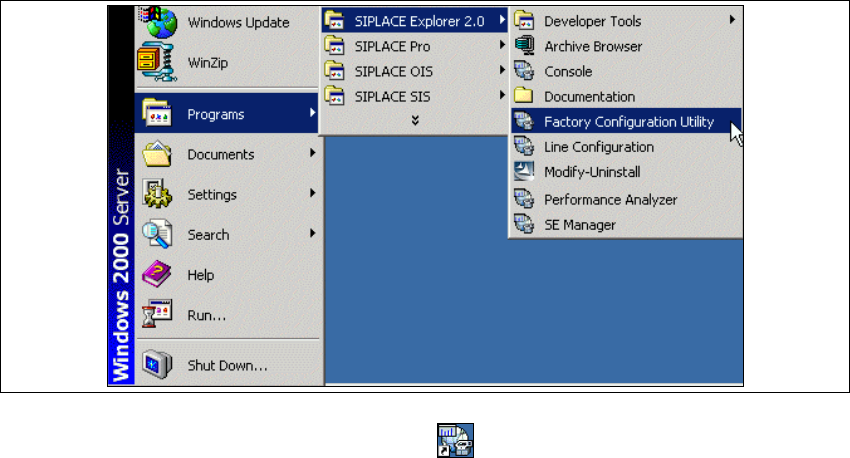
→ Start the SIPLACE Factory Configuration Utility via the Programs → SIPLACE Explorer
2.0 → Factory Configuration Utility menu in Windows.
4
Fig. 4 - 39 RTE Windows Start menu
→ Or click on the Factory Configuration Utility icon on your desktop.
4 Configuration Installation and Configuration Guide SIPLACE Explorer
4.2 Configuring the Factory Configuration Utility Edition 02/2005 EN
100
NOTE
The access to the Runtime Environment tools is restricted or permitted as required, by using
the SE Security Manager. For details of the relevant settings in the SE Security Manager,
please refer to the Getting Started for SIPLACE Explorer 2.0. 4
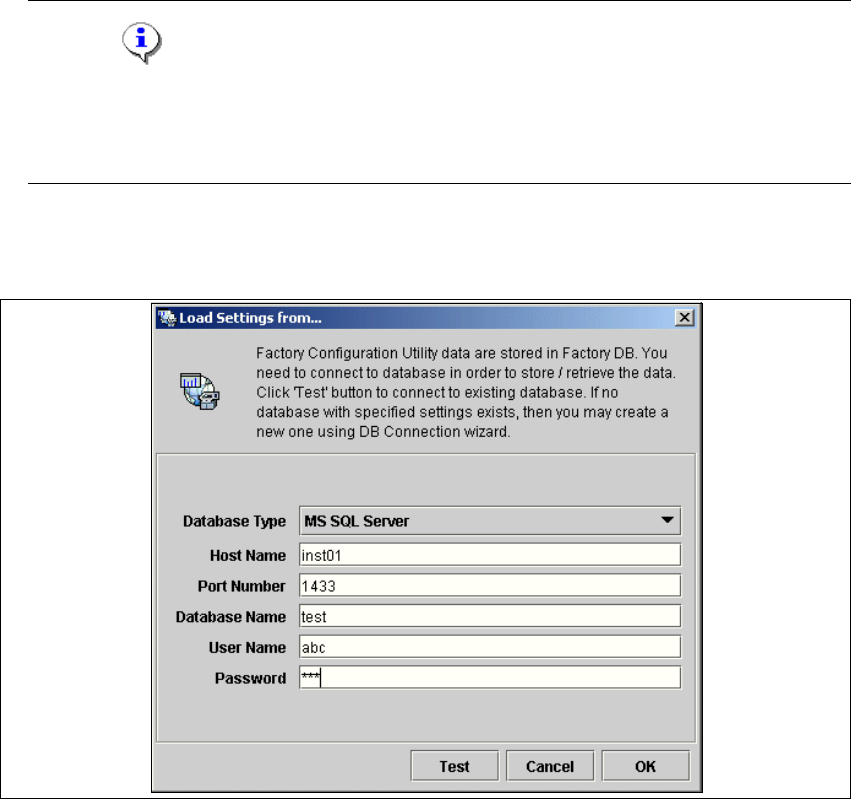
→ The Load settings from... dialog box will open. You need to establish the connection to the
factory database, before data can be called up.
4
Fig. 4 - 40 Factory - load settings from
→ Please specify the following information:
–Host name
– Port number
– Database name
–User name
– Database password
→ Confirm your entries with OK.
→ The Factory Configuration Utility dialog box will open.