00900085-04_IG_ASMProcessEngine_2.0-R18-1_EN - 第21页
4 Installation 4.2 Installing ASM ProcessEngine Installation Guide ASM ProcessEngine 2.0 (Pre-Placement) (R18-1) 10/2018 21 4.2.1 Restarting the Computer If a restart of the computer is required after the Setup Wizard ha…
4 Installation
4.2 Installing ASM ProcessEngine
20 Installation Guide ASM ProcessEngine 2.0 (Pre-Placement) (R18-1) 10/2018
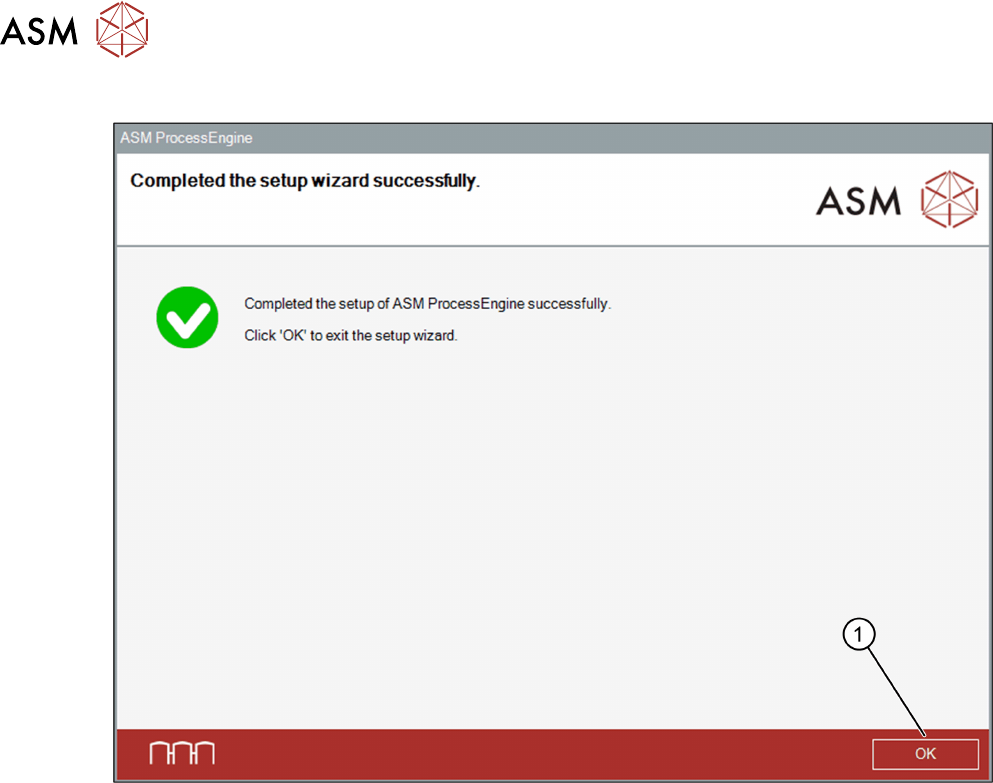
Completed… dialog box
► Click OK (1) to exit the Setup Wizard.
4 Installation
4.2 Installing ASM ProcessEngine
Installation Guide ASM ProcessEngine 2.0 (Pre-Placement) (R18-1) 10/2018 21
4.2.1 Restarting the Computer
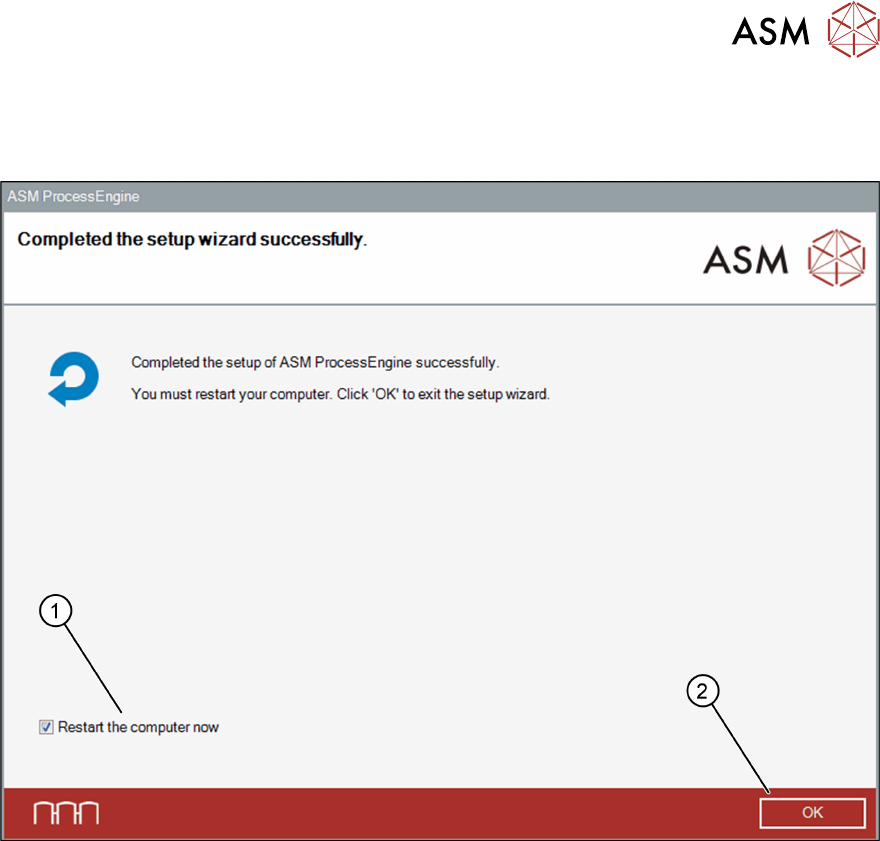
If a restart of the computer is required after the Setup Wizard has been completed, the following
dialog box opens.
The Restart the computer now checkbox (1) is selected by default.
► Click OK (2) to force a shutdown and automatically restart the computer.
Or
► Deselect the Restart the computer now checkbox (1) and click OK (2) to manually restart
the computer at a later point in time.
4 Installation
4.3 Starting ASM ProcessEngine
22 Installation Guide ASM ProcessEngine 2.0 (Pre-Placement) (R18-1) 10/2018
4.3 Starting ASM ProcessEngine
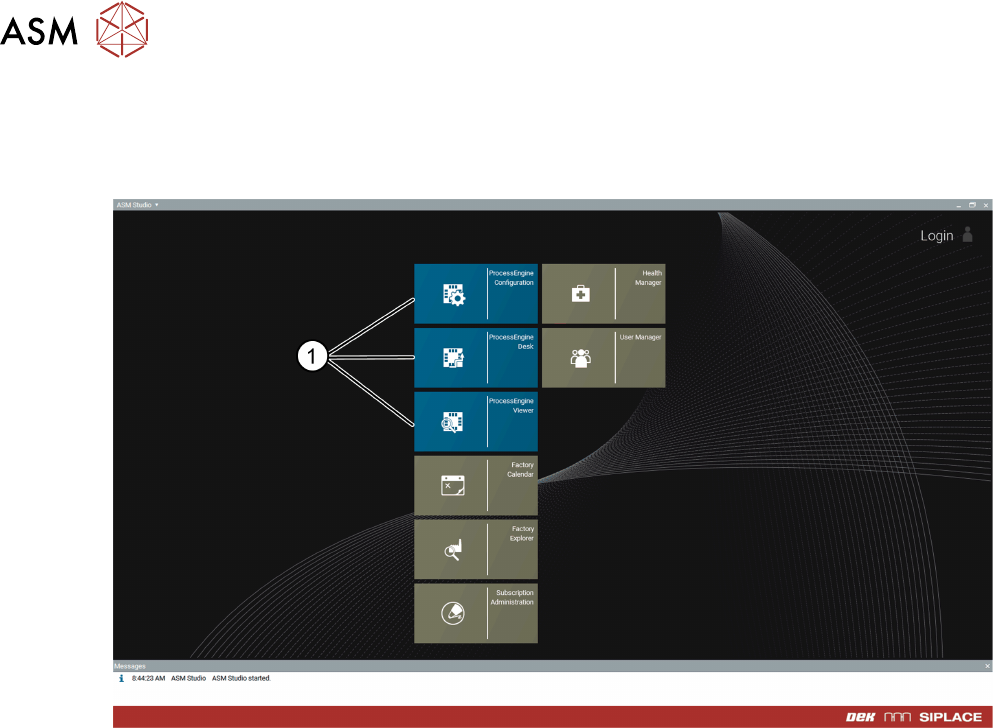
► Click the ASM Studio desktop icon.
ASM Studio opens and displays the installed ASM ProcessEngine modules (1).