00198015-01_IM_SQL_Server_2014_Express_EN - 第10页
SQL Server 2014 Ex press / Installation Manual 11/2015 Edition 10 4.2 Installing S QL Server 2014 Express with Tools E dition F ollow the instructi ons below for the manual inst allation of SQL Server 2014 Exp ress with …
SQL Server 2014 Express / Installation Manual 11/2015 Edition
9
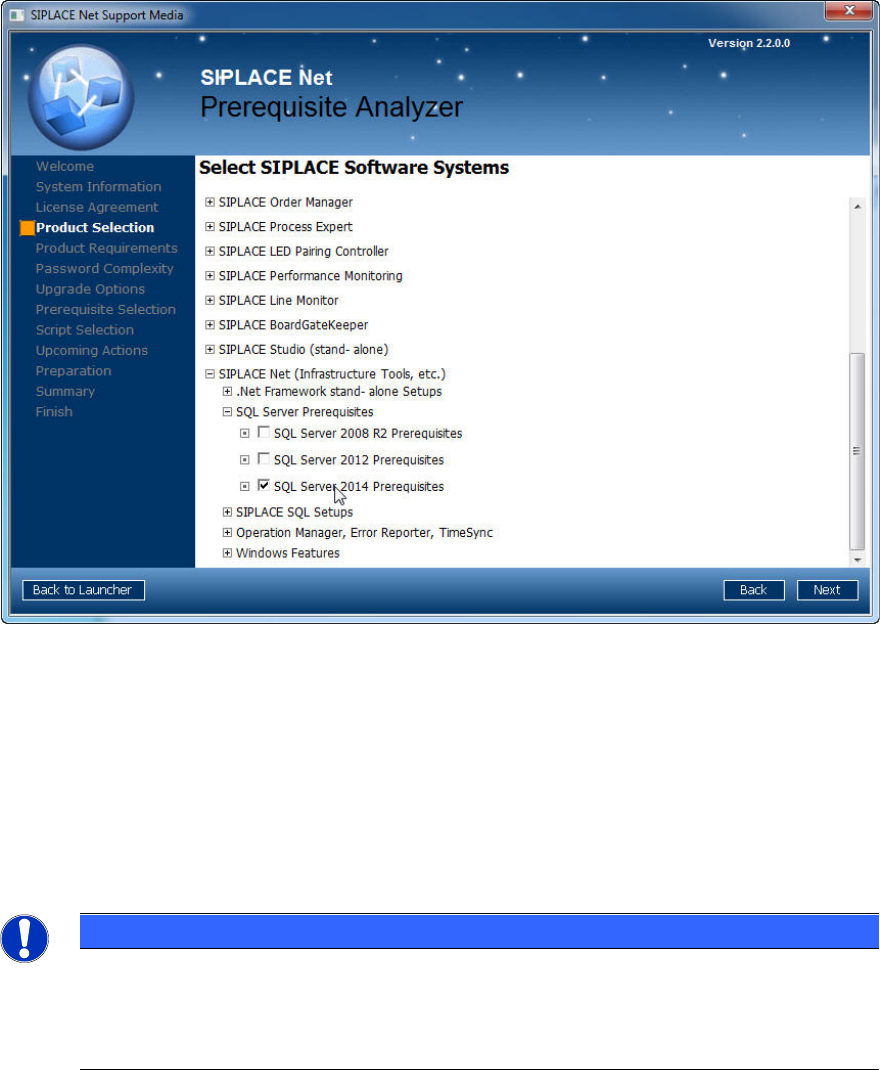
Figure 4-1: Product Selection page of Prerequisite Analyzer
► Expand the SIPLACE Net (Infrastructure Tools, etc.) profile group.
► Expand the SQL Server Prerequisites profile group.
► Select SQL Server 2014 Prerequisites.
► Click the Next button.
► Continue preparing your computer with the Prerequisite Analyzer. The Prerequisite Analyzer
will automatically install all packages as required for SQL Server/Express 2014.
NOTICE
Internet connection possibly required
Because of limited redistribution permissions, some required packages might be missing
on Support Media. In this case, the Prerequisite Analyzer will offer the possibility to
automatically download the missing packages.
SQL Server 2014 Express / Installation Manual 11/2015 Edition
10
4.2 Installing SQL Server 2014 Express with Tools Edition
Follow the instructions below for the manual installation of SQL Server 2014 Express with Tools.
► Ensure that you have installed the SQL 2014 SQL Server 2014 Express Prerequisites as
described in section 4.1.
► Close all other applications before you start the installation.
► Select the appropriate Setup package suitable for the architecture of your operating system –
SQLEXPRWT_X64_ENU.EXE for 64-bit, SQLEXPRWT_X86_ENU.EXE for 32-bit.
► After you have downloaded the package from the Internet or copied the package from Support
Media, double-click the Setup package.
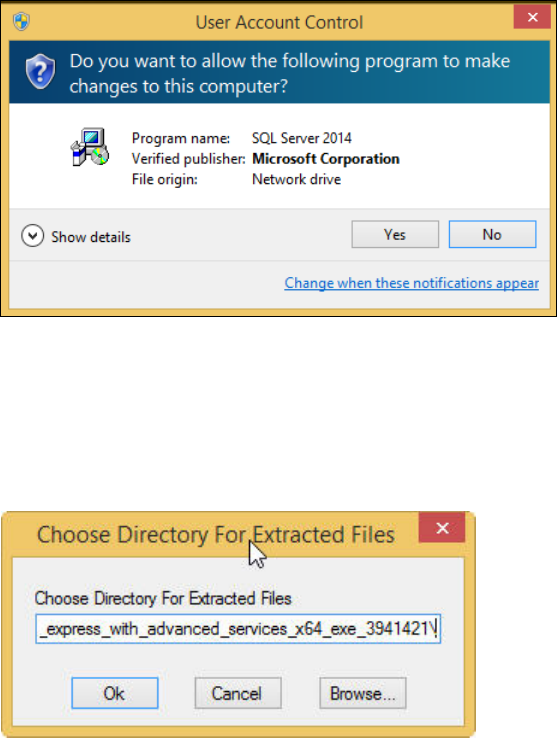
The Setup will extract files to a temporary location. After extraction, the UAC (User Account
Control) warning may occur:
Figure 4-2: User Account Control warning message
This message informs you that the started application requires permissions above the standard
user (in this case administrative permissions).
► Click the Yes button.
The following window is displayed.
Figure 4-3: Choosing directory for extracted files
► Select the directory in which the extracted files shall be stored.
► Click the OK button to continue.
SQL Server 2014 Express / Installation Manual 11/2015 Edition
11
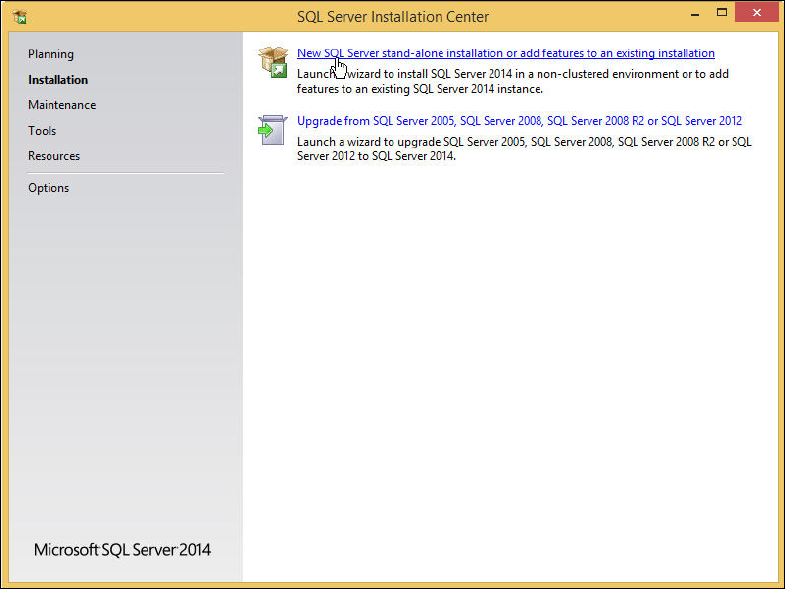
The SQL Server Installation Center is displayed.
Figure 4-4: SQL Server Installation Center
► Ensure that the Installation option is selected on the left side.
► Click the New SQL Server stand-alone installation or add features to an existing installation
link.