00198015-01_IM_SQL_Server_2014_Express_EN - 第22页
SQL Server 2014 Ex press / Installation Manual 11/2015 Edition 22 The group should no w be automatically detecte d and underlined, as displayed i n the following figure. Figure 4-19: Adding the adminis trators group – st…
SQL Server 2014 Express / Installation Manual 11/2015 Edition
21
After the current account has been removed, the local administrators group has to be added
instead.
► Click the Add… button.
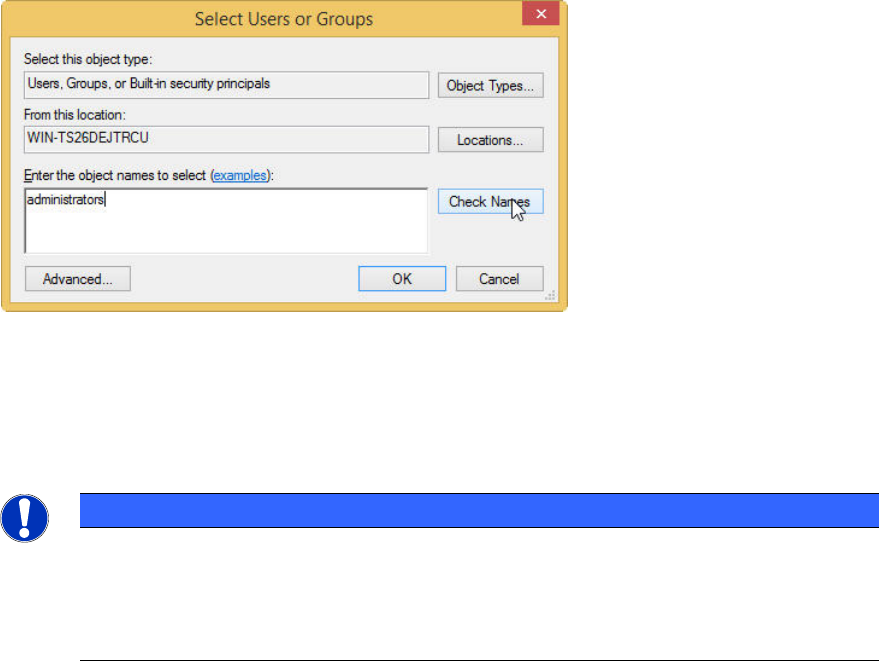
The Select Users or Groups window is displayed.
Figure 4-18: Adding the administrators group – step 1
► Ensure that the local computer name is selected under From this location: – otherwise you will
have to select it using the Locations… button.
► Enter the name of the administrators group in the text field.
NOTICE
Naming of local administrators group depends on OS language
The name of the local administrators group may vary if you have an operating system
with another language than English.
► In this case, ensure to enter the proper name of the group.
► Click the Check Names button.
SQL Server 2014 Express / Installation Manual 11/2015 Edition
22
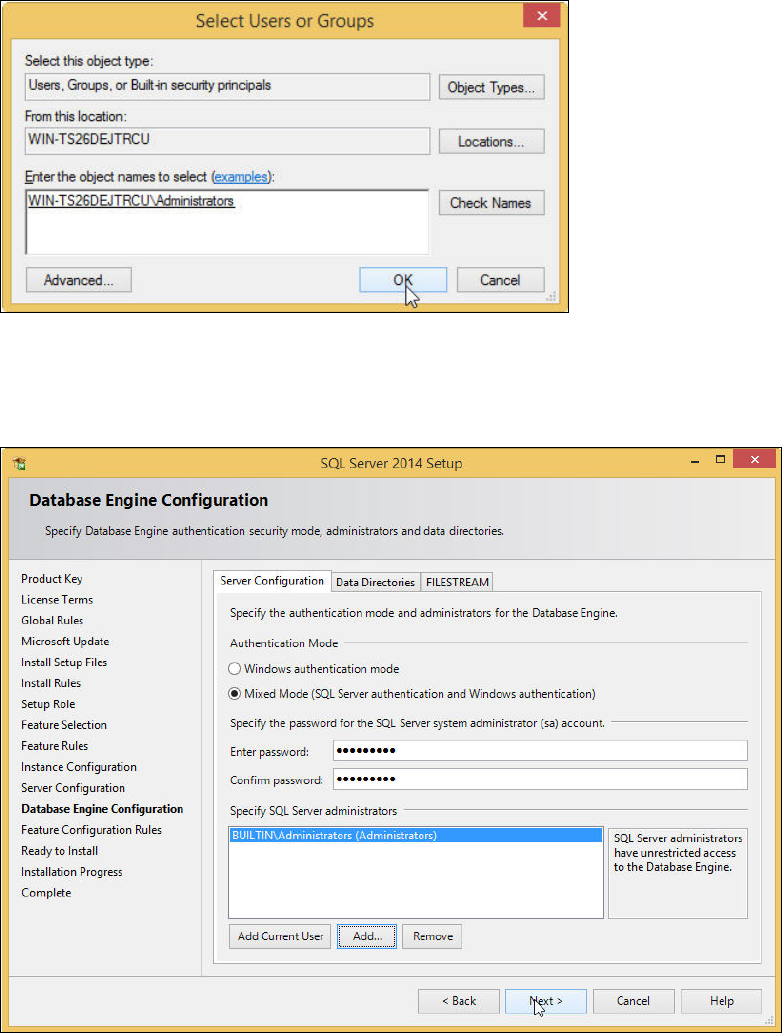
The group should now be automatically detected and underlined, as displayed in the following
figure.
Figure 4-19: Adding the administrators group – step 2
► Click the OK button to close the window.
After you have performed all settings as described, the window should look like this:
Figure 4-20: Database Engine Configuration window with SIPLACE compatible settings
► Click the Next > button to continue.
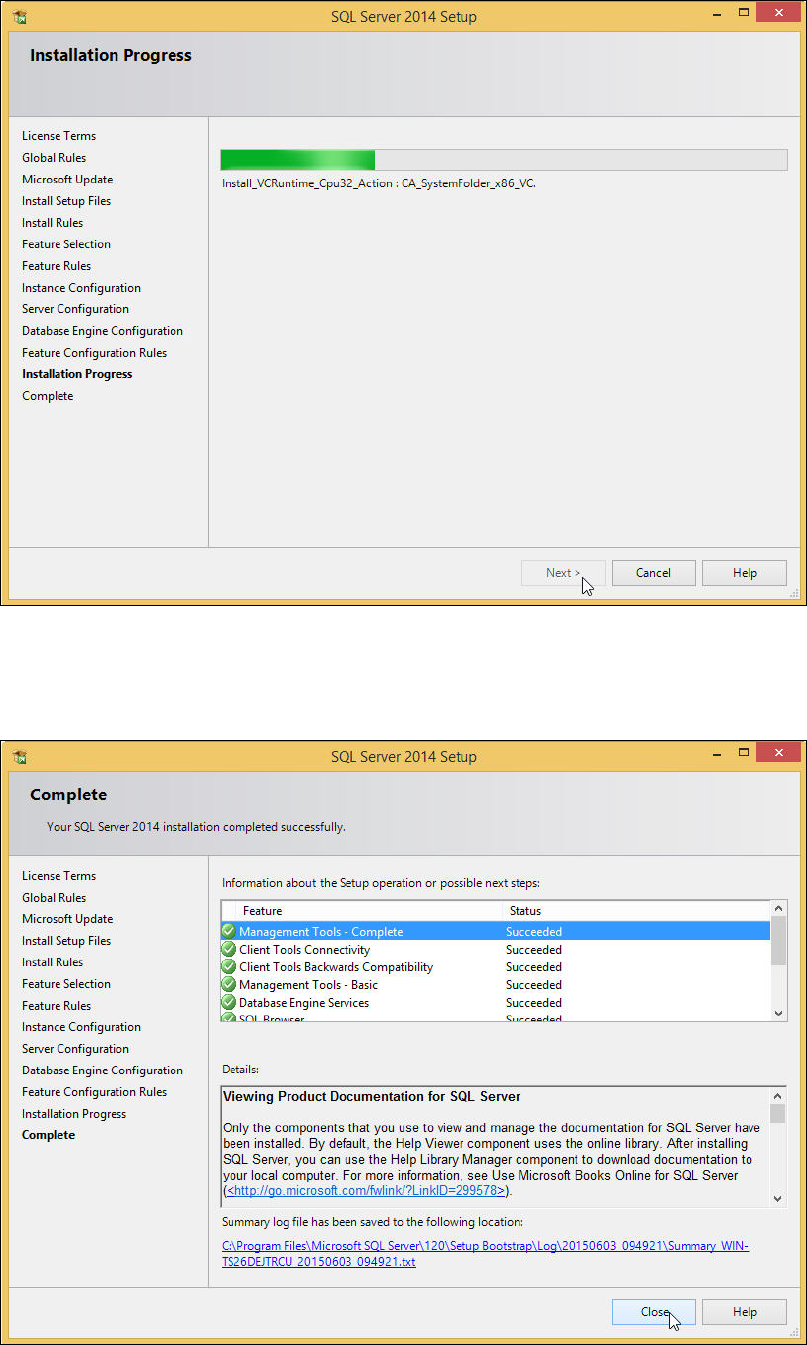
The installation begins.
SQL Server 2014 Express / Installation Manual 11/2015 Edition
23
Figure 4-21: Installation Progress window
► Wait for the installation to complete. This may take 30 minutes or more.
After installation has finished, the Complete window is displayed.
Figure 4-22: Setup completed