00198015-01_IM_SQL_Server_2014_Express_EN - 第24页
SQL Server 2014 Ex press / Installation Manual 11/2015 Edition 24 ► Examine the status of all features – they should be Suc ceeded . ► Click the Clo se button to close the setup . You return to the initial window. ► Clos…
SQL Server 2014 Express / Installation Manual 11/2015 Edition
23
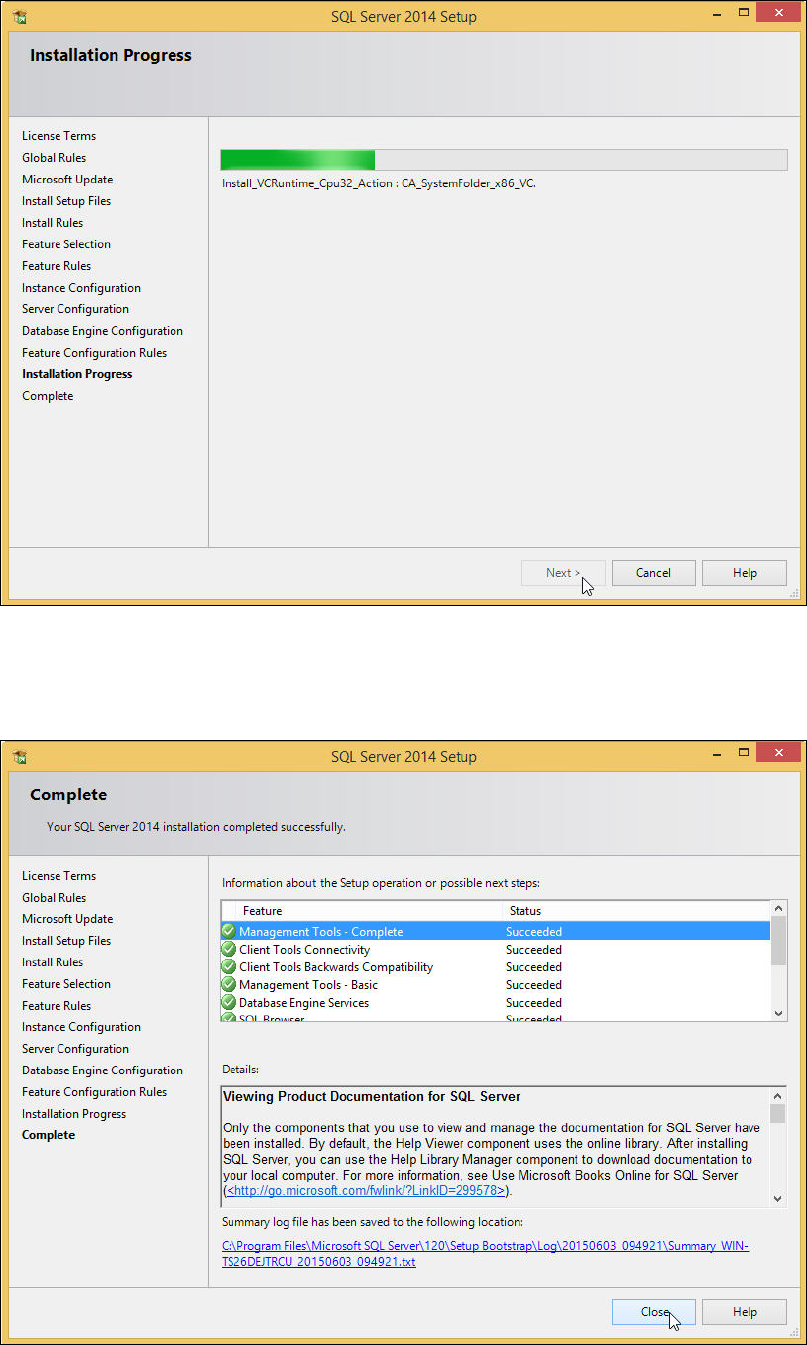
Figure 4-21: Installation Progress window
► Wait for the installation to complete. This may take 30 minutes or more.
After installation has finished, the Complete window is displayed.
Figure 4-22: Setup completed
SQL Server 2014 Express / Installation Manual 11/2015 Edition
24
► Examine the status of all features – they should be Succeeded.
► Click the Close button to close the setup.
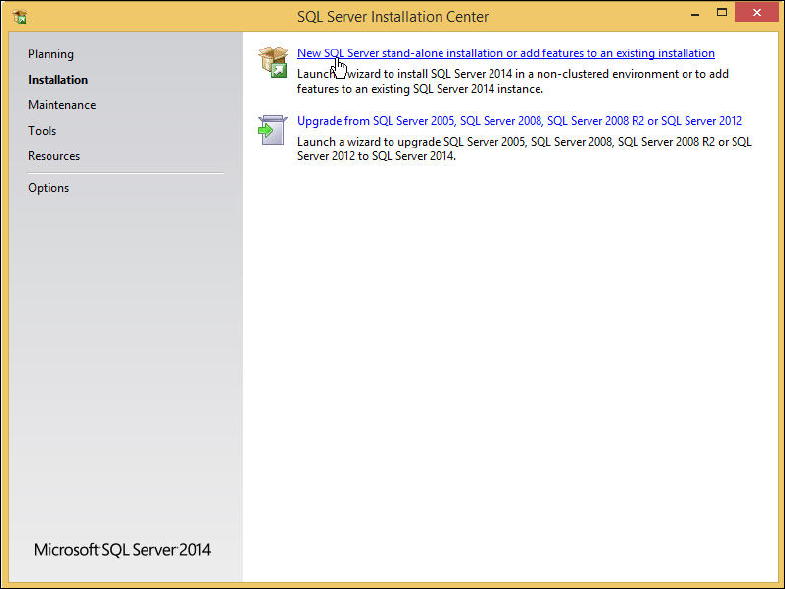
You return to the initial window.
► Close the window by clicking on the X in the right upper corner.
► Restart the computer to ensure proper function of your SQL installation.
► Continue with the following chapter which describes additionally settings.
SQL Server 2014 Express / Installation Manual 11/2015 Edition
25
5 After Installation
This chapter describes how to perform some additionally required and optional settings after the
SQL installation and how to define settings you missed to set during the installation.
5.1 Additionally Required Settings
5.1.1 TCP/IP Network Protocol Enabled
After installation, you have to verify that the TCP/IP network protocol is enabled for communication.
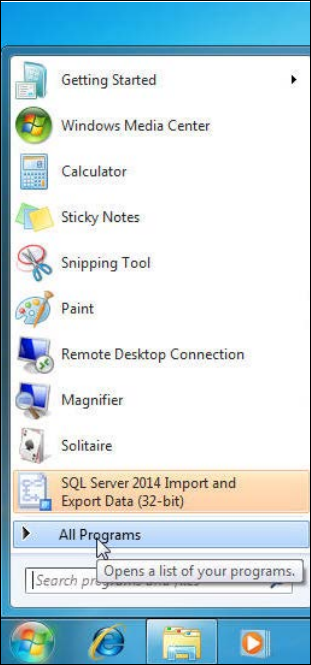
► Click the Start/Windows button.
► Expand the All Programs or Programs group respectively – depending on your operating
system.
Figure 5-1: Expanding "All Programs" group in Windows 7