00198015-01_IM_SQL_Server_2014_Express_EN - 第30页
SQL Server 2014 Ex press / Installation Manual 11/2015 Edition 30 ► Expand Microsoft SQL Server 2014 . Figure 5-9: Starting SQL Server 2 014 Management Studio ► Right - click the SQL Server 2014 Management Studio . ► Sel…
SQL Server 2014 Express / Installation Manual 11/2015 Edition
29
5.1.2 Windows Fibers Disabled
After installation you have to verify that the Windows Fibers setting is disabled.
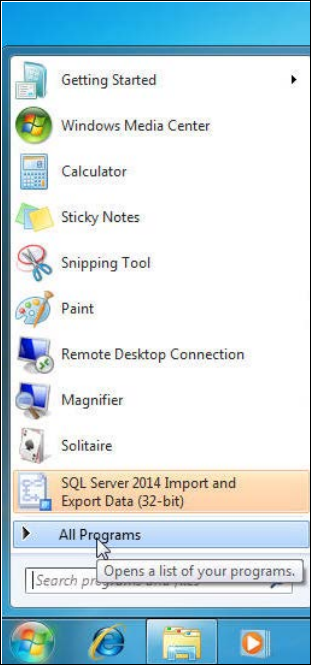
► Click the Start/Windows button.
► Expand the All Programs or Programs group respectively – depending on your operating
system.
Figure 5-8: Expanding "All Programs" group in Windows 7
SQL Server 2014 Express / Installation Manual 11/2015 Edition
30
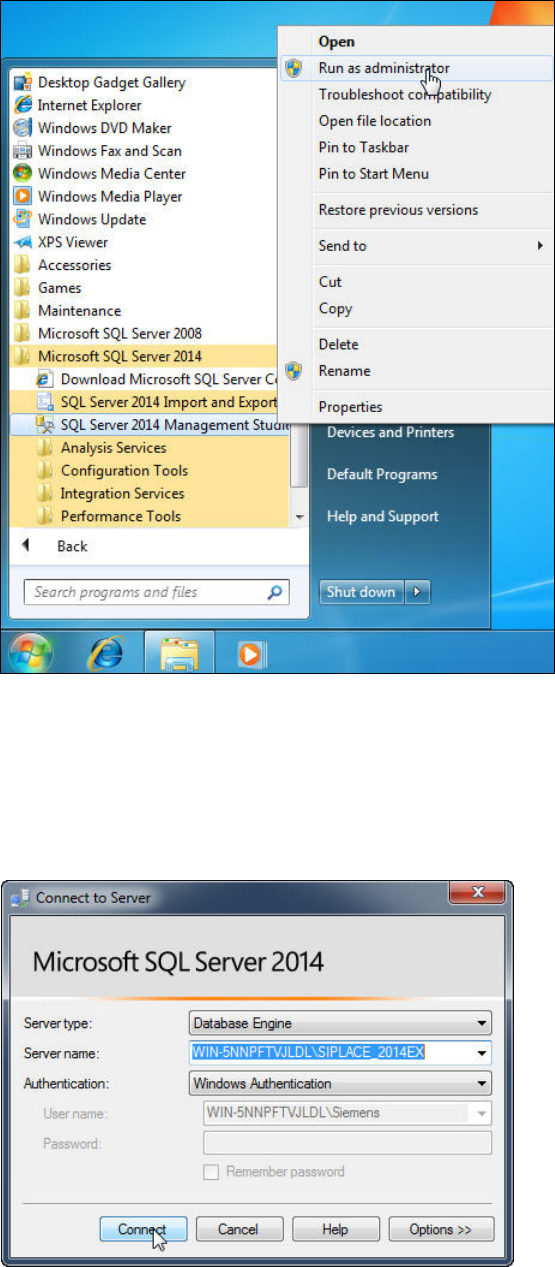
► Expand Microsoft SQL Server 2014.
Figure 5-9: Starting SQL Server 2014 Management Studio
► Right- click the SQL Server 2014 Management Studio.
► Select Run as administrator.
► Accept any possibly appearing User Account Control message by clicking its Yes button.
SQL Server 2014 Management Studio starts and the Connect to Server window is displayed.
Figure 5-10: Connecting to the SQL instance
SQL Server 2014 Express / Installation Manual 11/2015 Edition
31
► Ensure that the correct SQL instance is entered as Server name:.
The correct naming is <ComputerName>\<InstanceName> for user defined instances. If you
installed a default SQL instance (internal name MSSQLSERVER), you only have to enter the
computer name instead.
► Select the appropriate authentication method. If you have installed SQL correctly giving the
administrators group full permissions, you may use Windows Authentication.
► If you select SQL Authentication, enter the sa user name and the appropriate password.
► Click Connect to connect to the SQL instance.
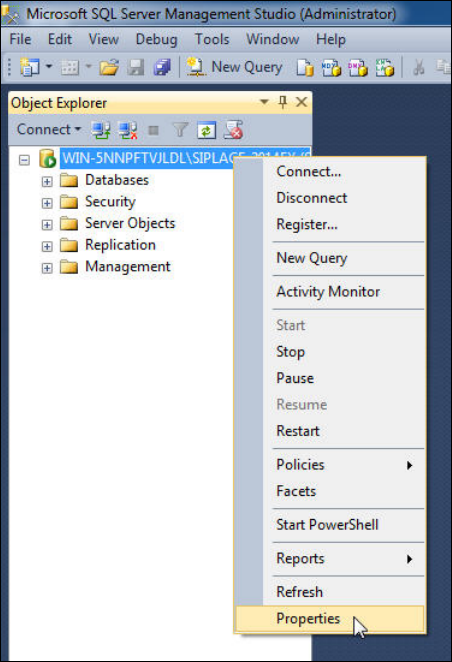
SQL Server 2014 Management Studio connects to the SQL instance.
Figure 5-11: Selecting Properties of the SQL instance
► On the left side of the window, click the SQL instance you have connected to select it.
► Right- click and select Properties.