00198015-01_IM_SQL_Server_2014_Express_EN - 第34页
SQL Server 2014 Ex press / Installation Manual 11/2015 Edition 34 5.2 Optional Sett ings 5.2.1 Proxy Account Setting After installati on you may enable the prox y server account option, requir ed for some SIPLACE product…
SQL Server 2014 Express / Installation Manual 11/2015 Edition
33
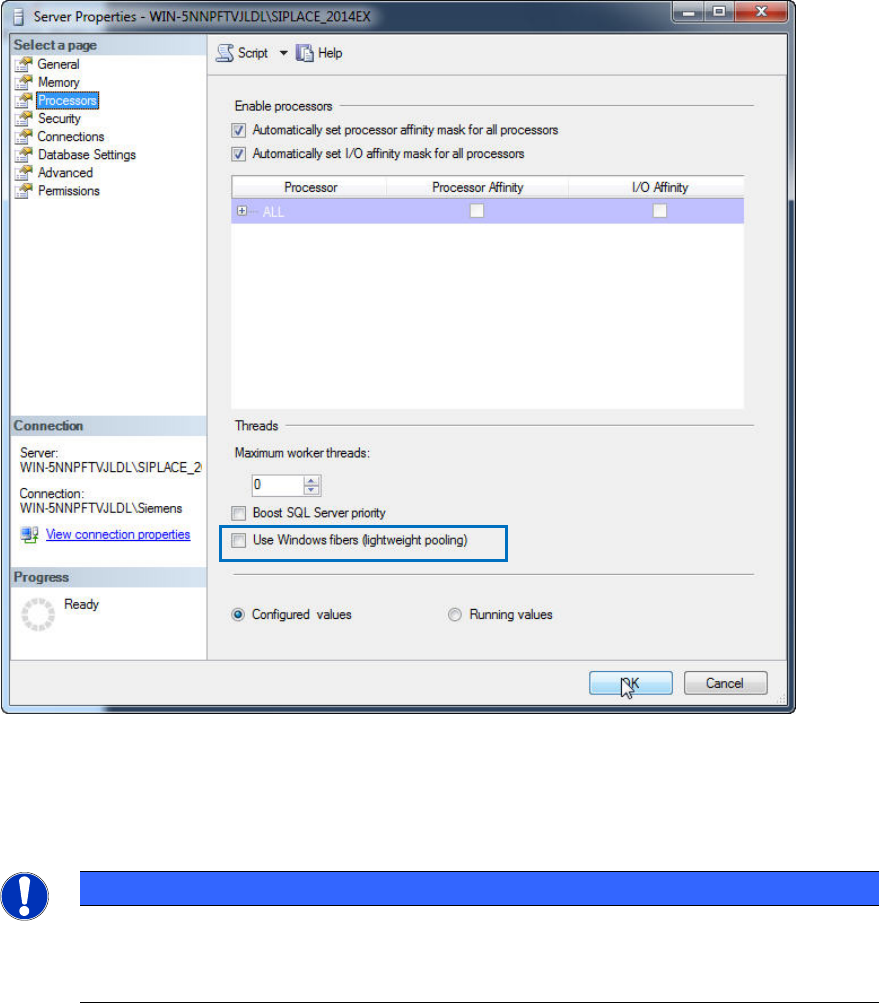
The Processors settings are displayed.
Figure 5-13: Processors settings
► Ensure that the Use Windows fibers (lightweight pooling) check box is NOT selected.
► Click the OK button to close the settings window.
NOTICE
Maximum worker threads value
Unlike the SQL Server 2000 setting that was 255, this value is set to zero by default
which causes SQL to automatically configure this value at start-up.
SQL Server 2014 Express / Installation Manual 11/2015 Edition
34
5.2 Optional Settings
5.2.1 Proxy Account Setting
After installation you may enable the proxy server account option, required for some SIPLACE
products, like SIPLACE Explorer.
This setting is required if you have to use an account with permissions other than the configured
SQL service account for executing specific tasks. A more detailed description can be found in the
Microsoft Knowledge Base: http://support.microsoft.com/?id=kb;en-us;890775
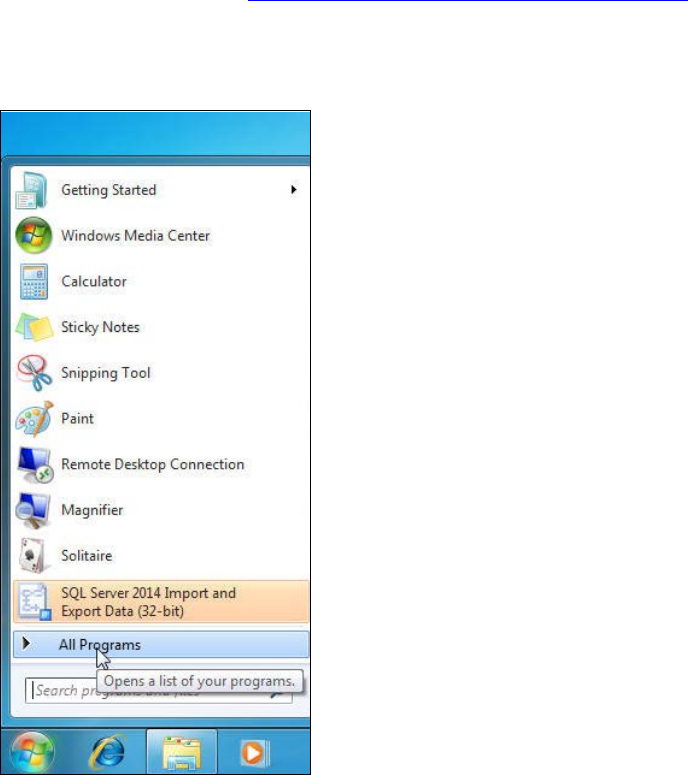
► Click the Start/Windows button.
► Expand the All Programs or Programs group respectively – depending on your operating
system.
Figure 5-14: Expanding "All Programs" group in Windows 7
SQL Server 2014 Express / Installation Manual 11/2015 Edition
35
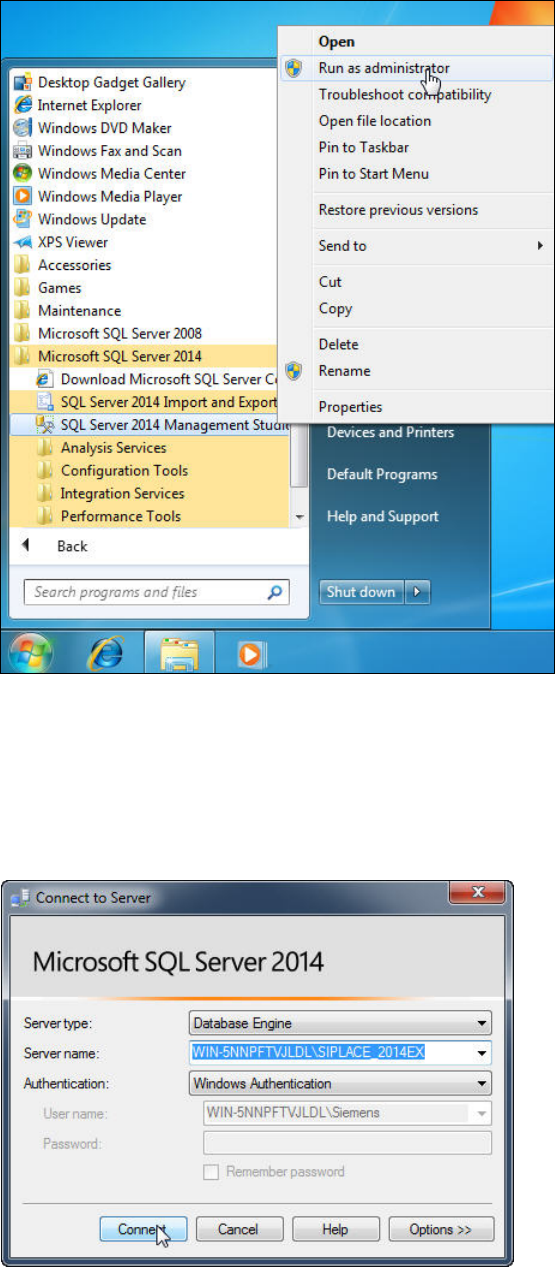
► Expand Microsoft SQL Server 2014.
Figure 5-15: Starting SQL Server 2014 Management Studio
► Right- click the SQL Server 2014 Management Studio.
► Select Run as administrator.
► Accept any possibly appearing User Account Control message by clicking its Yes button.
SQL Server 2014 Management Studio starts and the Connect to Server window is displayed.
Figure 5-16: Connecting to the SQL instance