3_AVS-V2_MCT-UM-internal_EN_07-2019 - 第101页
ASM AVS - U SER M ANUAL P AGE 101 OF 182 5.2.24.2 Existing Projects Ex isti ng pr ojec ts c an st ill be e dite d Cli ck w ith the rig ht mo use b utto n o n t he d edic ated proje ct. The fun ctio ns in t his pop up me …
ASM AVS - USER MANUAL
PAGE 100 OF 182
5.2.24.1.6 Project - Report
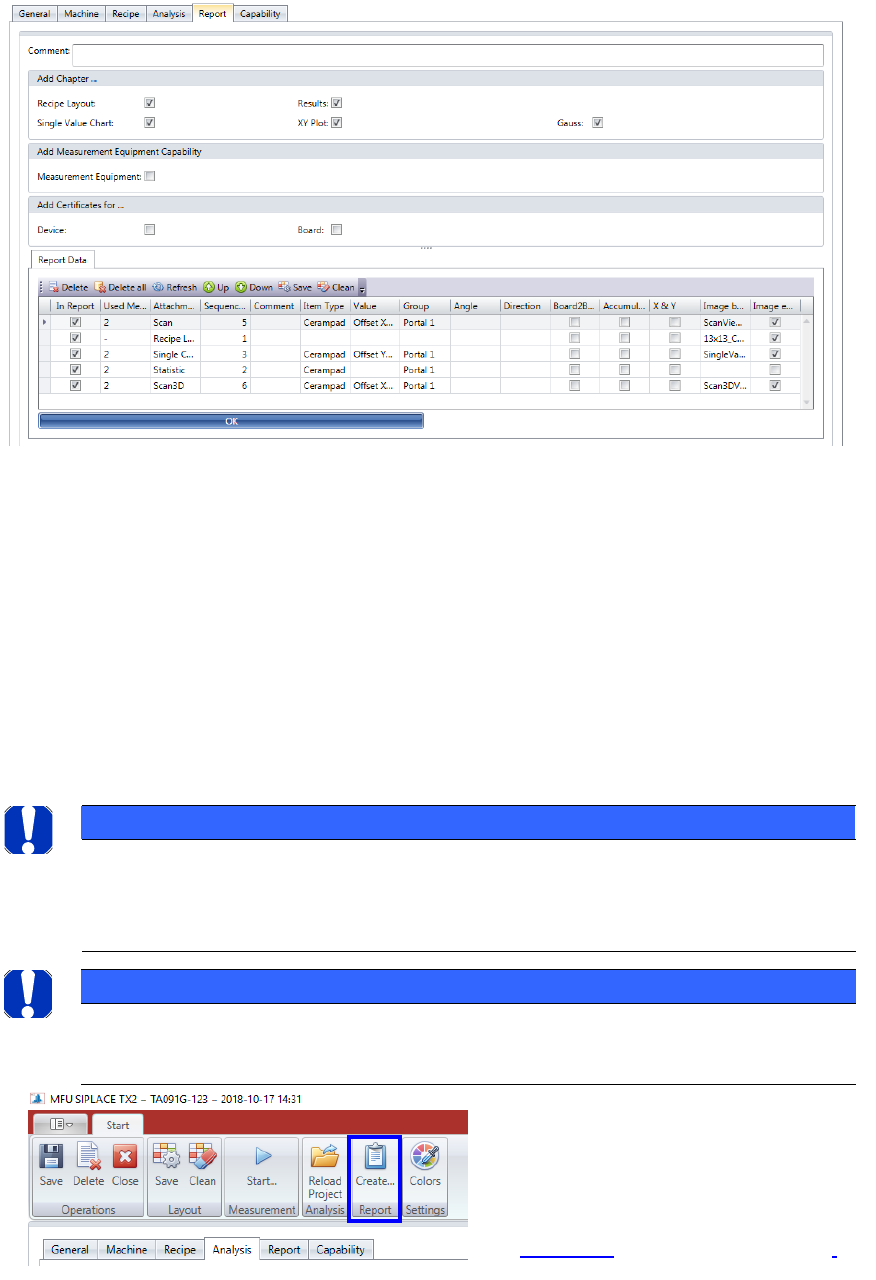
All the views collected with the “Add to Report” button, are listed in the “Report” tab.
• The different chapters of the report can be selected and deselected.
• An explanatory text for the certification of the measuring tools can also be added to the
report. This text is prepared per default in the tab “Capability”. The text is editable.
• The “Report Data” are listed in the table. Each line stands for one view which was collect-
ed by the “Add to Report” function. Each part can be deselected with the checkbox in the
first column. You can delete either single lines of the table (like selected with the Check-
box), or all entries at once.
You can change the Sequence of the single entries in the report, by using the “Up” and
“Down” button!
NOTICE
Reihefolge der Einträge
Die Anteile am Report können frei sortiert werden. Jedoch gibt es eine Einschränkung, dass Als Eintrag 1
stets das Recipe Layout stehen muss und an Stelle 2 eine Statistic. Er Rest ist frei.
NOTICE
Always remember to click on the “OK” button after the change on a filter tab.
Otherwise the changes will not be saved.
Press the „Create…“ button in the menu
bar to create a *.pdf file as report.
The file will going to be saved under the
name of the project folder (date time).
See 5.2.24.2.3 Mark a project as closed.
ASM AVS - USER MANUAL
PAGE 101 OF 182
5.2.24.2 Existing Projects
Existing projects can still be edited
Click with the right mouse button on the dedicated project.
The functions in this pop up menu are depending on the state of the project.
If you click on the project to get the project name highlighted, the right side of the window
will show you all the information of the project
5.2.24.2.1 Edit an existing project
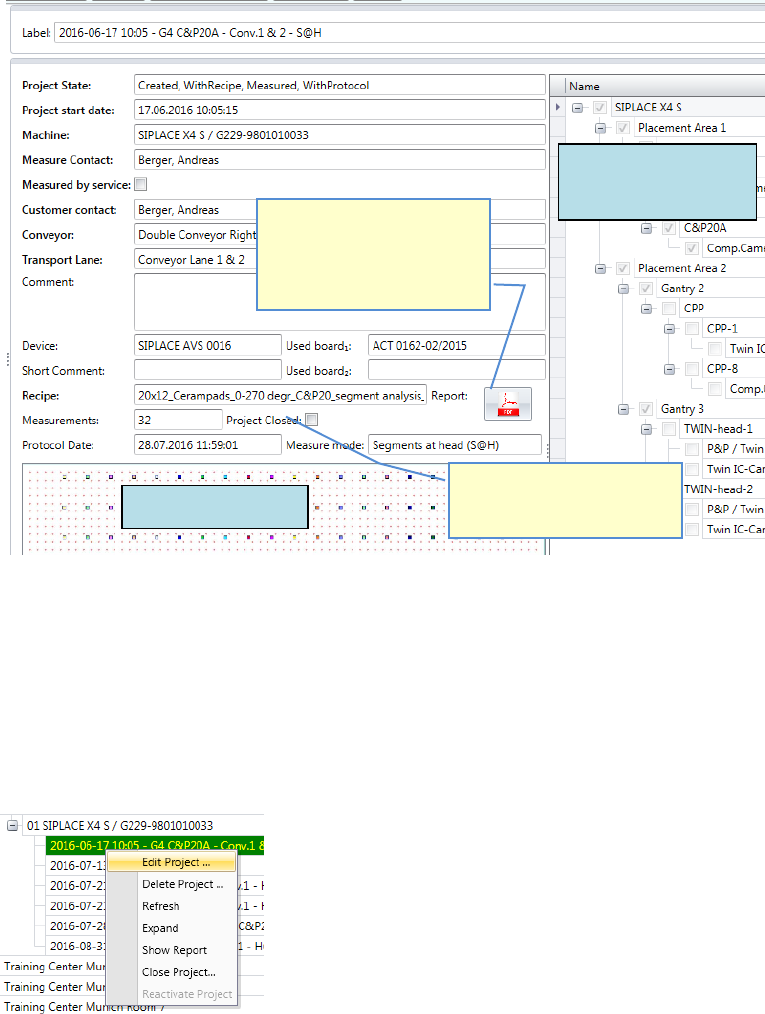
It is possible to edit projects at any time, as long as they are not marked as finished.
Click with the right mouse button on the project in the structure tree and
choose the function »Edit Project…«
If a Report in PDF-format is
available in the project folder,
this button is active and can
be used as a button to open
the report.
Recipe Layout
machine and
specification
If the project is already
closed, you cannot continue
with new measurements.
ASM AVS - USER MANUAL
PAGE 102 OF 182
5.2.24.2.2 Delete project
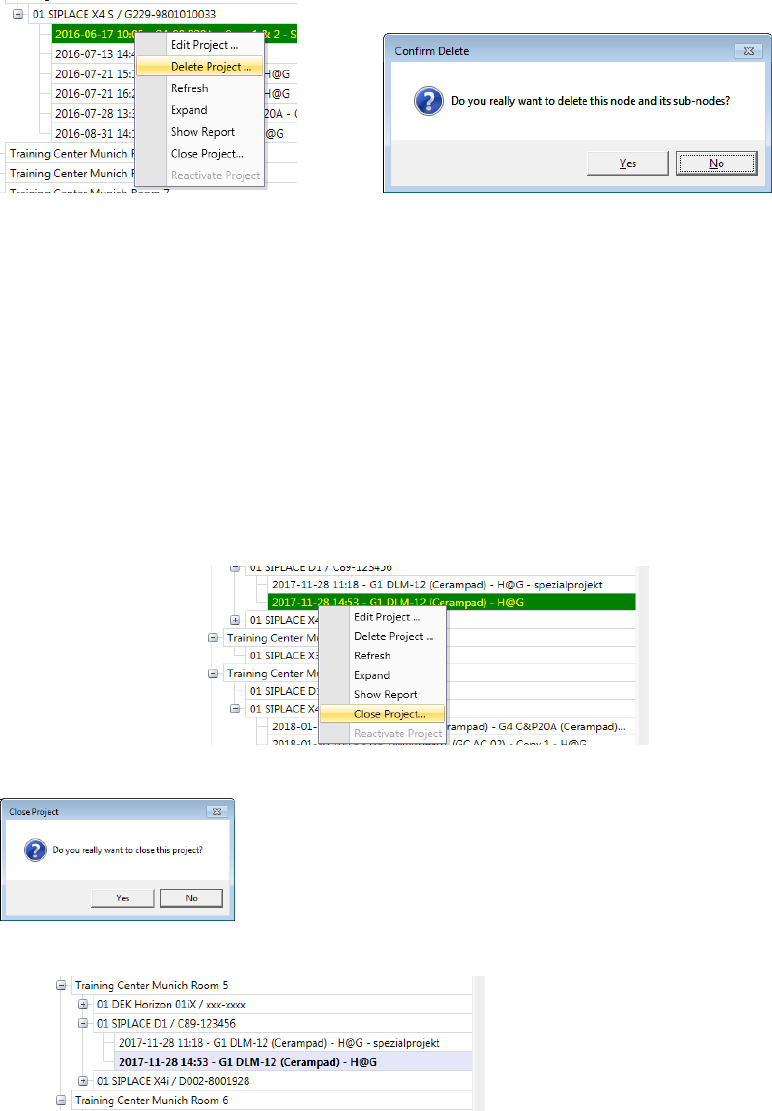
To delete a project, click with the right mouse button on the desired project and choose »De-
lete Project…«
After you have confirmed the confirmation prompt, the project in the
database and the folder in the data directory will be deleted.
5.2.24.2.3 Mark a project as closed
If you finished a project by creating a report and you decide, that the project is going to be
the one, whose report you hand out to the customer, you can mark this project as closed.
Click with the right mouse button in the structure tree on the project and
choose the function »Close Project…«
A confirmation prompt will appear.
1. The project name in the tree will be highlighted in bold fond.
2. The report (pdf-file) in the project folder is going to be copied to the folder
C:\AVS\reports\Customer name\....