3_AVS-V2_MCT-UM-internal_EN_07-2019 - 第127页
ASM AVS - U SER M ANUAL P AGE 127 OF 182 5.3.2.4 »Current Results« , »Scan view « The Sc an vi ew has alrea dy be en p rese nte d in t he prev iou s sect ion s. The pres ent sect ion sim ply indi cat es ce rta in s peci …
ASM AVS - USER MANUAL
PAGE 126 OF 182
5.3.2.3 »Current Results«, selecting the result display
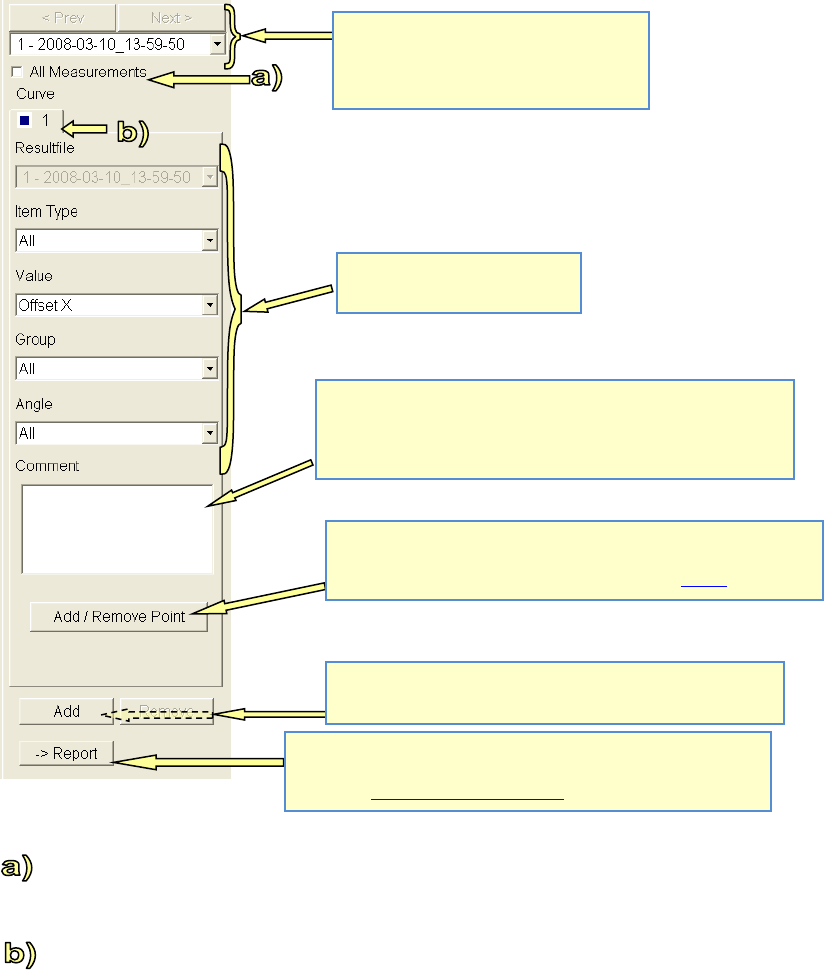
To If the »All Measurements« switch is activated then all the measurements in the project are
summarized in a single result. All the statistical values are then calculated and displayed using
this multiple basis.
To The individual results are displayed as tabs with colored and symbolic labels.
For all views apart from »Single Value« (single value chart) and »XY Plot«, the active tab is re-
sponsible for the display in the »Results« area.
In the two above-mentioned graphical display modes, this result tab can be used to construct a
result chart with up to 6 different graphs.
Switches between the individual project
measurements.
The measurement chosen here is used as
the basis for Graph 1!
Filter options for the display in
the result view:
You can add a comment for the corresponding measurement here.
This makes it possible to manage a project history.
This comment is an internal comment! It is not possible to show
this comment in the report!
The "Add / Remove Point" button is only active in Scan view!
This makes it possible to eliminate any outliers, for example due to
dirt on the board, or restore such points. See also 4.3.2.4
Click the "Add" button to add a further analysis (e.g. another
graph). "Remove" removes it again.
When you click on the "-> Report" button, the exact screen dis-
played in the results area is taken over into the report. (e.g. screen-
shot). See 4.3.2.10 »Current Results« – »Report«:
ASM AVS - USER MANUAL
PAGE 127 OF 182
5.3.2.4 »Current Results«, »Scan view«
The Scan view has already been presented in the previous sections.
The present section simply indicates certain special characteristics of this view.
5.3.2.4.1 Detailed information on the measurement points
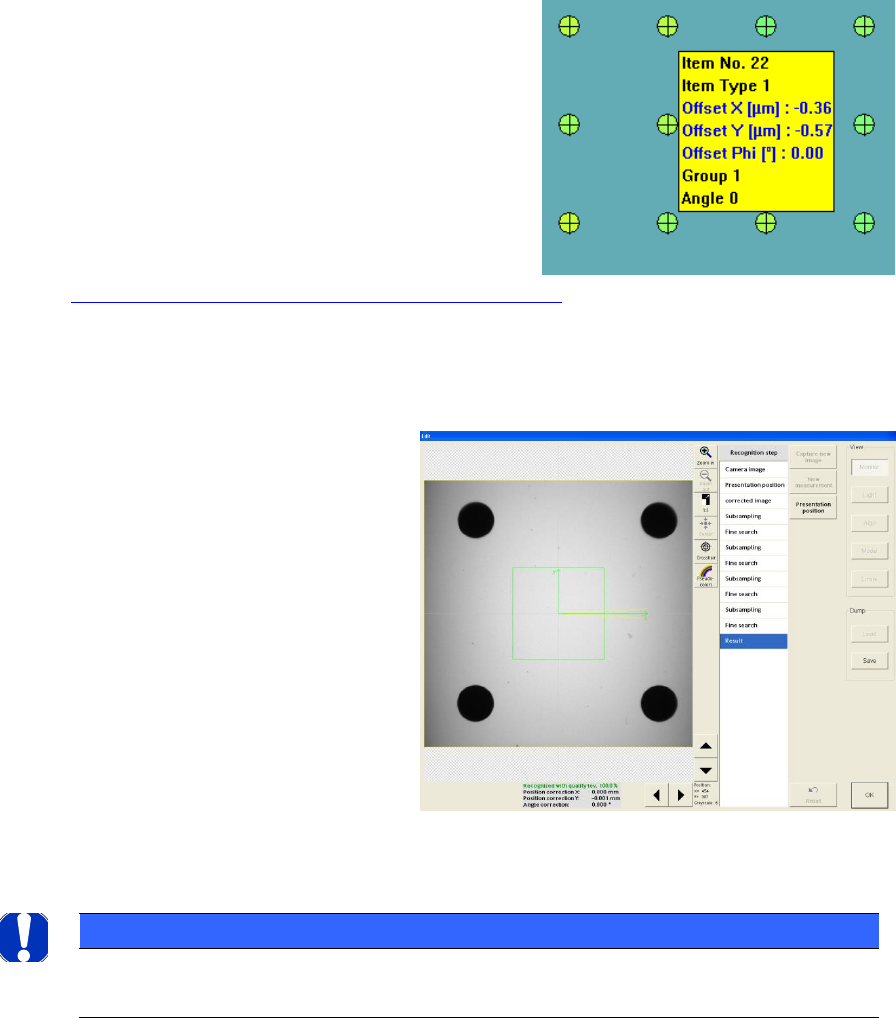
If you move the mouse over a colored point in
the result view then you will see a pop-up menu
containing detailed information on the corre-
sponding measurement point.
In this way, it is also possible to determine the
number of the measurement point, for example
in order to remove a measurement point from
the result.
See »Add/Remove Point« in
4.3.2.3 »Current Results«, selecting the result display.
5.3.2.4.2 Viewing Vision dumps
When you click on the correspond-
ing measurement point (colored
circle), the system switches to the
Siplace Vision software and the cor-
responding Vision dump is dis-
played.
In this way, it is possible, for exam-
ple, to examine a point that was not
measured or was measured badly
and draw conclusions concerning
the measurement result
NOTICE
Due to the large data volumes involved, the Vision dumps are only stored temporarily and are only availa-
ble for the last "current" measurement.
ASM AVS - USER MANUAL
PAGE 128 OF 182
5.3.2.5 »Current Results« – »Recipe«
Here you can view the project to the corresponding recipe
5.3.2.6 »Current Results« – »Statistic«
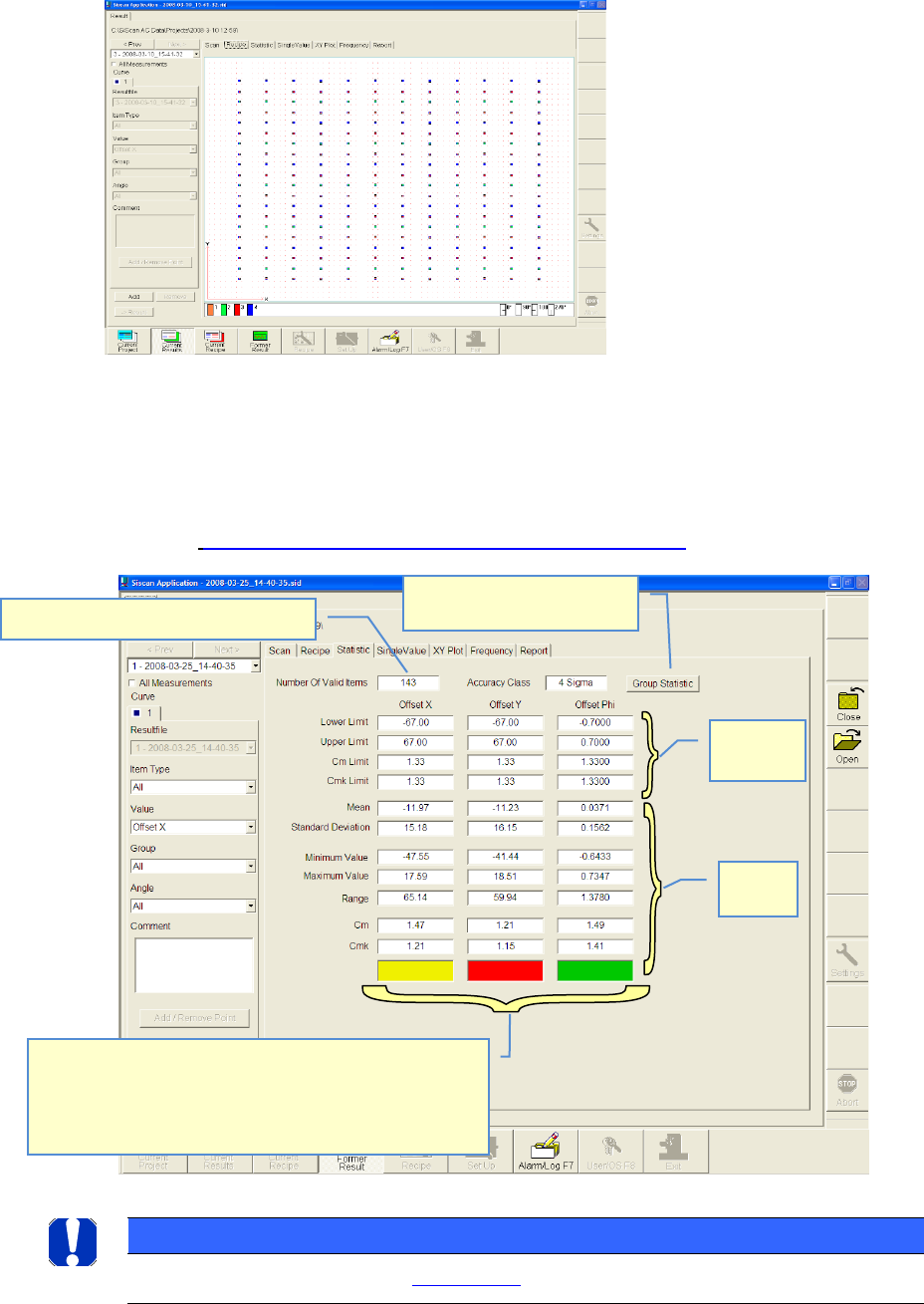
The tables shown in statistic view, are resulting from the settings on the left side of the win-
dow.
See also 4.3.2.3 »Current Results«, selecting the result display
NOTICE
Details on the result assessment see: 6.4.1 Statistics
Numbers of valid measuring points
Nominal
values
Actual
values
Fast result evaluation:
gn = cmk-value within nominal value
rd= cm-value out of nominal value
ye= cm- value OK, but cmk-value out of nominal value
→ Offset correction is necessary
Overview of all the single
groups and items