3_AVS-V2_MCT-UM-internal_EN_07-2019 - 第136页
ASM AVS - U SER M ANUAL P AGE 136 OF 182 5. 3.5 »Cr eat e/c han ge re cip es« Th e cre at ion / edi tin g of recip es have alw ays to be sta rt ed f rom t he ASM AVS app licat ion ! See also 4.2 .2.1 1 Base Dat a – Rec i…
ASM AVS - USER MANUAL
PAGE 135 OF 182
5.3.3 »Current Recipe«
The recipe (measuring plan) which belongs to the project can be seen here,
but it cannot be changed.
The functions for the navigation within the recipe can be used.
See also link 4.3.5 »Create/change recipes«.
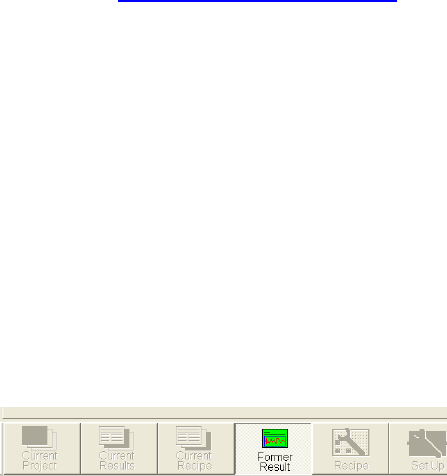
5.3.4 »Former Result«
Using the main view »Former Result« a comparison between 2 measurements can be done.
Thereby the measurement in »Current Results« which should be compered, must be selected via
the windows file structure window and can`t be searched by the ASM AVS software.
The interpretation of the statistical significance of such a comparative analysis is the responsibil-
ity of the user
The advantage of this function is, that 2 results can be opened and the
respective partial views can be compared by toggling the view in the “main view bar”
ASM AVS - USER MANUAL
PAGE 136 OF 182
5.3.5 »Create/change recipes«
The creation / editing of recipes have always to be started from the ASM AVS
application! See also 4.2.2.11 Base Data – Recipes.
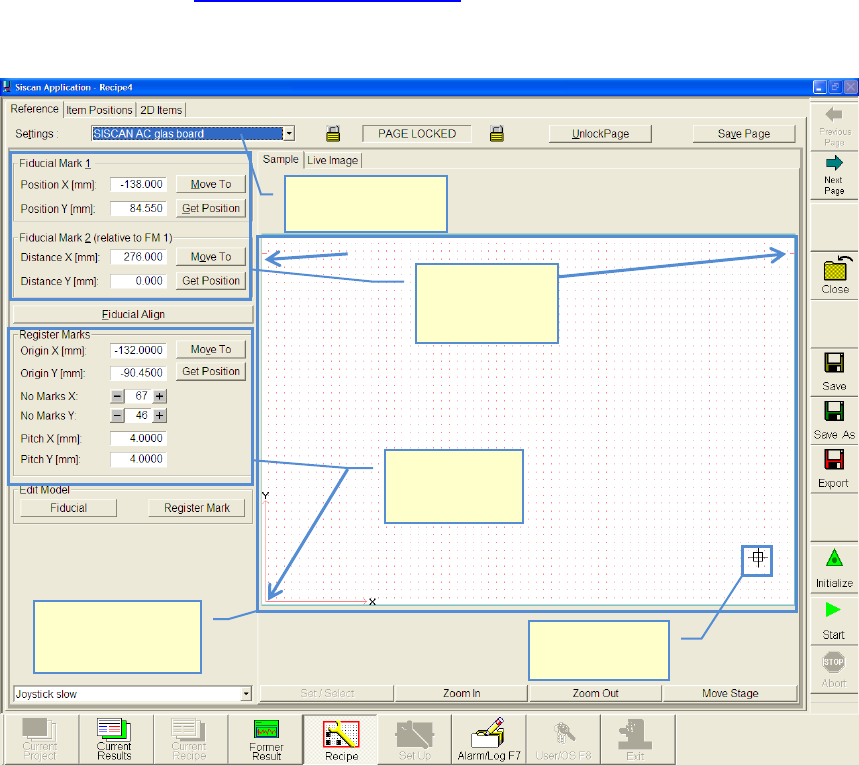
This page is to describe the glass board for the measurement.
Basically, standard boards are available. These can be selected from a list.
The standard board is locked by default, in order that no unintentional changes can be done.
To create a new recipe it is not necessary to change the settings of the board.
In case it is necessary to change the board or create a new one, follow the
next instructions.
Select glass board
from list
Glass board with
grid points.
Top view
Actual camera
position
Description of
register mark
positions.
Description of
global fiducial
positions
ASM AVS - USER MANUAL
PAGE 137 OF 182
5.3.5.1 Change glass board / describe new
If you want to create a complete new board, choose »user defined«
from the list.
NOTICE
Once you choose the glass board template on which you like to build up your recipe, you have to “UNLOCK
PAGE” and answer the following question (should the board be copied to the Recipe?) with “YES”.
5.3.5.1.1 Global fiducials
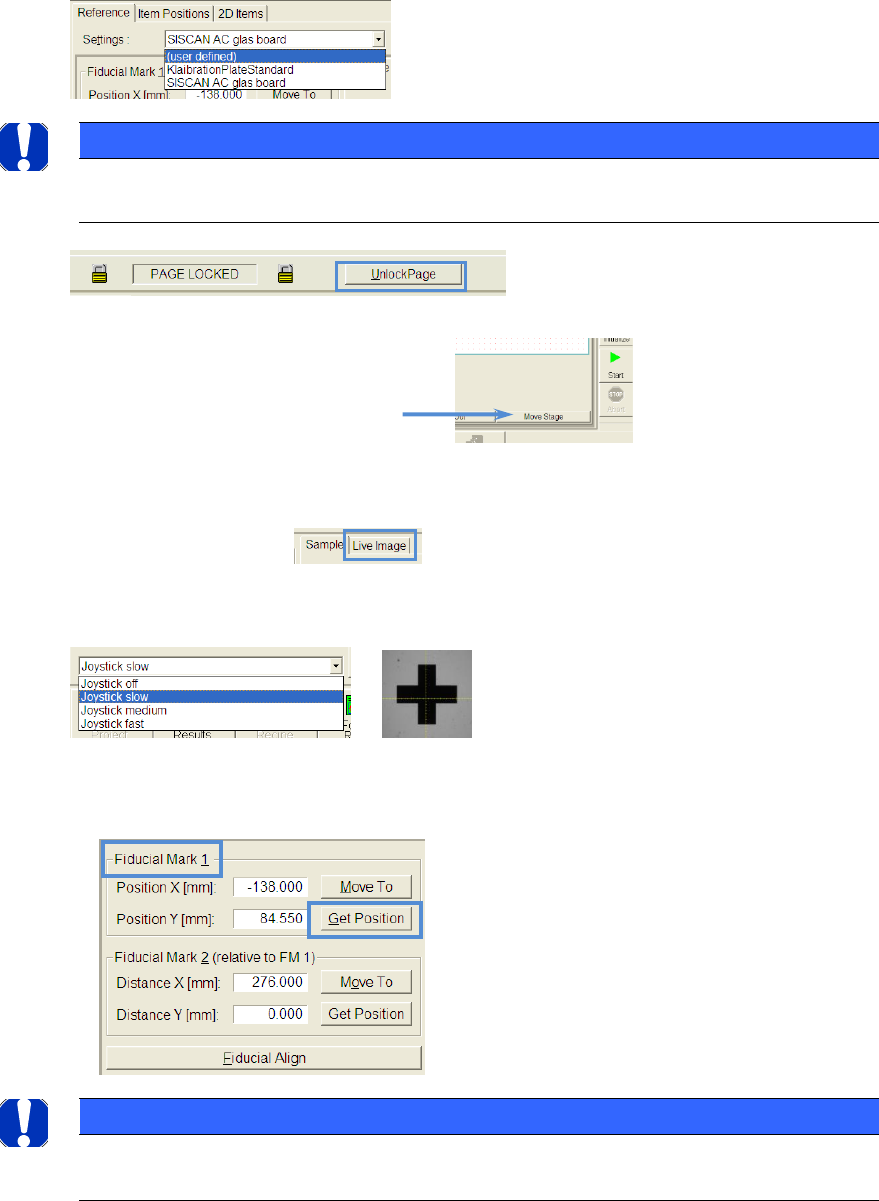
Click on the button »Move Stage«
Now you can click on the position in the view, where you assume the
fiducial 1 is supposed to be. The camera will move to this position
(view »Sample«)
Switch to the live image.
Turn on the joystick and choose the right speed to move the camera
manually.
If the yellow cross is in the middle of the fiducial, you can apply this position with the button
»Get Position«.
NOTICE
The approach and apply of position can only be done for »Fiducial Mark 1«, because the position of »Fidu-
cial Mark 2« is relative specified to »Fiducial Mark 1« and has to be taken from drawings from the board.