3_AVS-V2_MCT-UM-internal_EN_07-2019 - 第141页
ASM AVS - U SER M ANUAL P AGE 141 OF 182 5.3.5.2.1 Create n ew componen t • C lick on butto n » New « in the gro up t ask • A » Wind ows « di alo g ap pears an d yo u ca n cho ose betwe en 3 di ffere nt ver sion s. • T h…
ASM AVS - USER MANUAL
PAGE 140 OF 182
5.3.5.2 Components (Items)
After the glass board for the recipe was chosen like described in 4.3.5.1, in the next step com-
ponents (Items) can be selected.
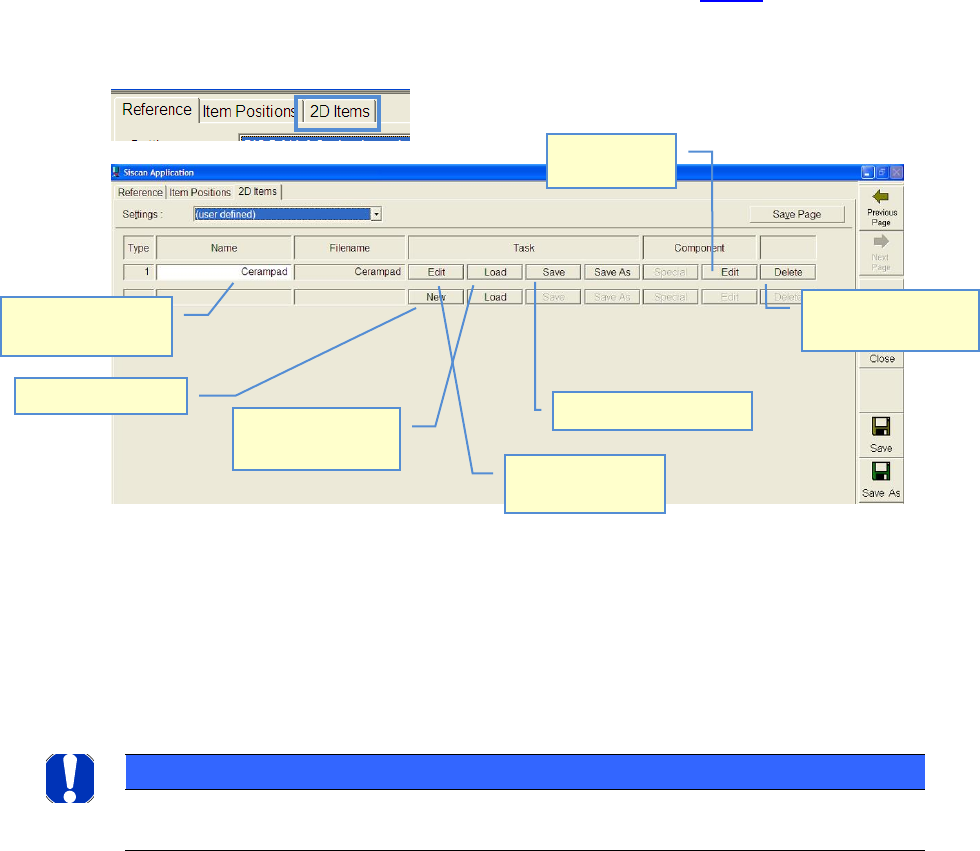
Therefor switch to partial view »2D Items«.
The list shows all components (Items) added to the recipe.
At the description of items, in principle, you distinguish between »Component« and »task«
Under »Component« you understand the component itself.
The component together with the surrounding register marks is named »Task«
NOTICE
Generally speaking:
»Item« always means the »Task«, as a description of the measuring process.
In case you want to add a component, either you can create a new one or you can load an exist-
ing component into the recipe.
Name of item can be
changed
Create new item
Load available item
into recipe.
Edit task
(Measuring Step)
Save of loaded task
Edit the com-
ponent
Delete component
from the list
ASM AVS - USER MANUAL
PAGE 141 OF 182
5.3.5.2.1 Create new component
• Click on button »New« in the group task
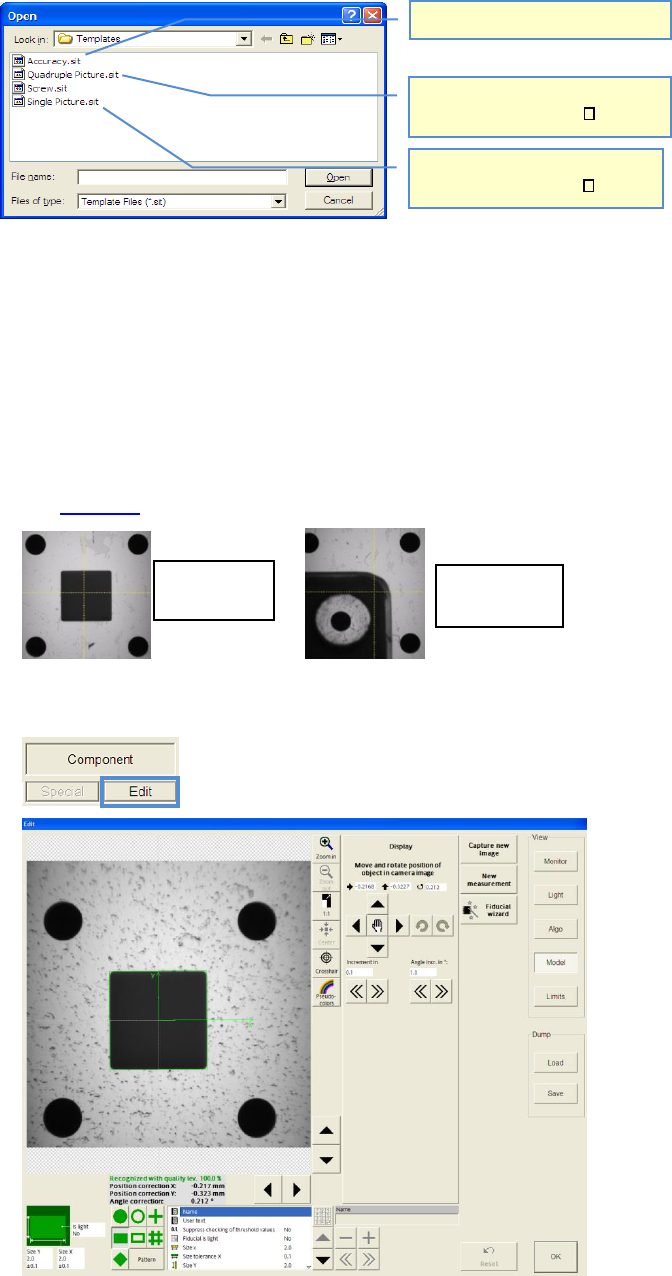
• A »Windows« dialog appears and you can choose between 3 different
versions.
• The component can be renamed afterwards. Use the emty field
• After you have select the »Task« version, you can teach the component with
the »Siplace Vision« software
5.3.5.2.2 Teaching components
• Ensure that the camera is centered above the middle of a component.
If you work on a »Quadruple measurement Item«, place the camera over an edge of the
component.
See 4.3.5.1.1!
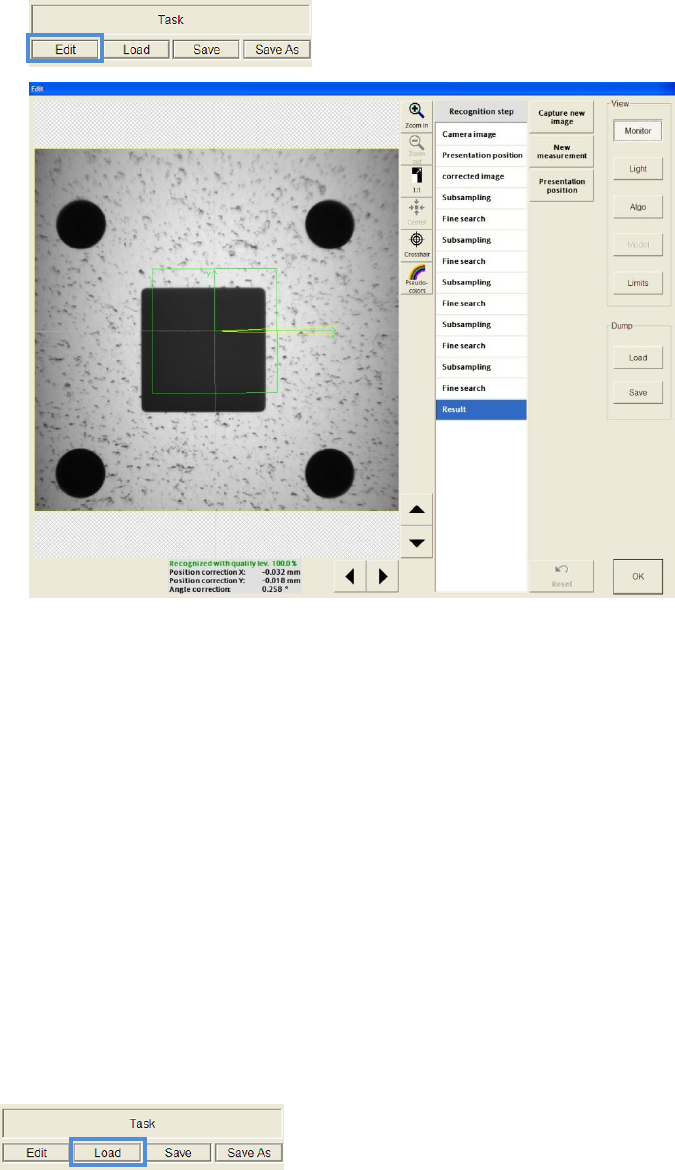
• Click on »Edit« in the group »Component« and edit the component like a fiducial in Siplace
Vision
Only for selftest (dummy)
Four times measurement!
For components >3mm
Single measurement!
For components < 3mm
Four times
measurement
Single
measurement
ASM AVS - USER MANUAL
PAGE 142 OF 182
• To adjust the SIPLACE Vision settings of the Task, click on »Edit« in the group
»Task«. But here it is not possible to edit the component settings!
5.3.5.2.3 Save component(s),tasks
If you have created a new item (task), you can save this as a template for further recipes
Click on »Save As« in the group »Task«
5.3.5.2.4 Delete component(s) / tasks
You can delete items from the list of recipe
Click on »Delete« in the row of item
But only the component from the list of recipe will be deleted!
Templates from the template directory cannot be deleted over this mask
but have to remove via the Windows Explorer.
5.3.5.2.5 Load components
You can load an available component into the recipe.
Click on »Load« in the group »Task«.
Choose the required component (item) from the dialog.
If you want to load more than one item into the recipe, you should consider using well distin-
guishable names of items.