3_AVS-V2_MCT-UM-internal_EN_07-2019 - 第20页
ASM AVS - U SER M ANUAL P AGE 20 OF 182 2.1.3.6.2 Sof tware (SIPLACE Pro) Feeding in dual conveyor In machines with dual co nvey or, the glass plate can be fed in one lane and the tra y in the other lane. • Set the conve…
ASM AVS - USER MANUAL
PAGE 19 OF 182
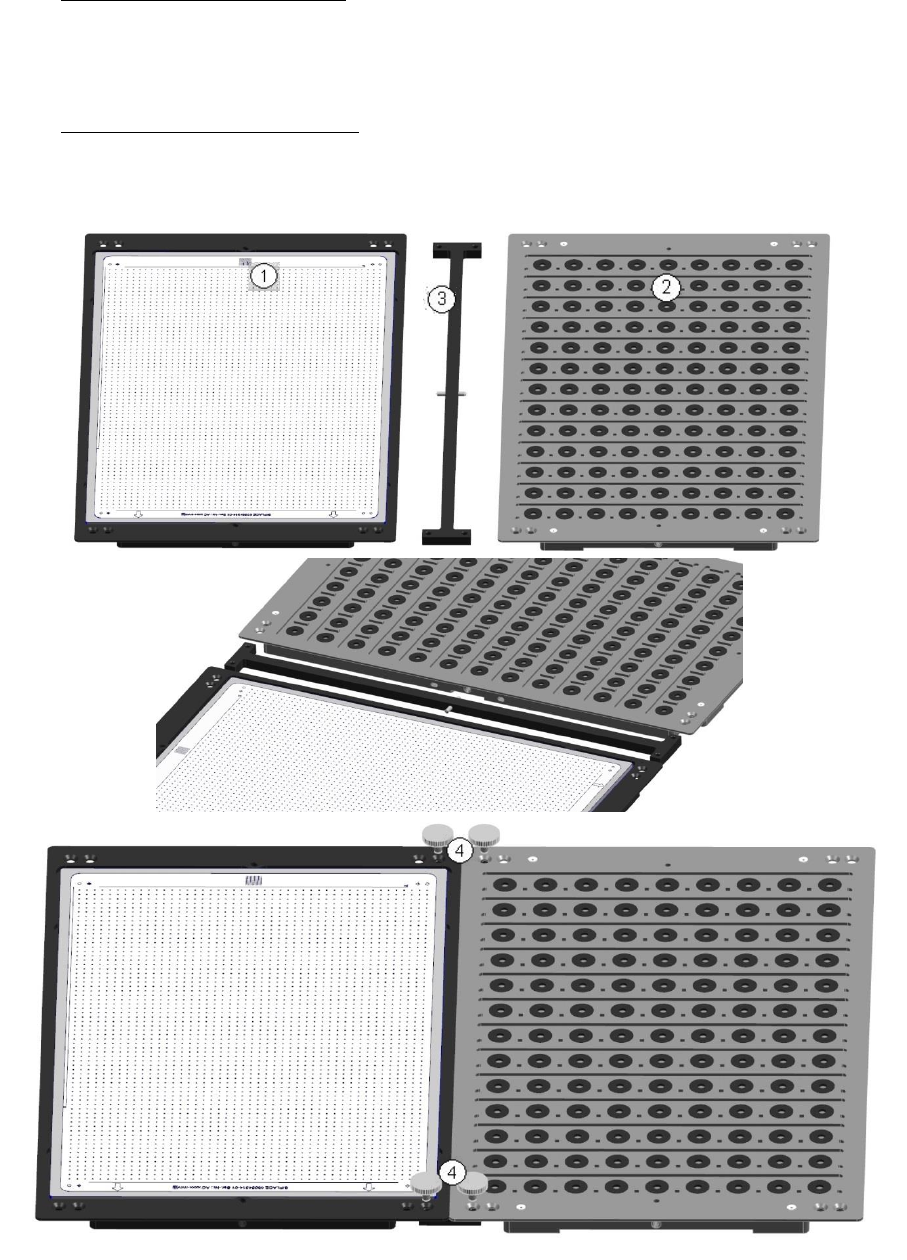
2.1.3.6.1 Hardware
Feeding in dual conveyor mode
In machines with dual conveyor, the glass plate can be fed in one lane and the tray in the other
lane.
Feeding in single conveyor mode
Connect the tray (1) with the glass plate (2), using the supplied adapter (3) and fasten the con-
nection with the 4 knurled screws (4) „DIN 464 M4 x 12-St (knurled screw)“ [03031103-01].
ASM AVS - USER MANUAL
PAGE 20 OF 182
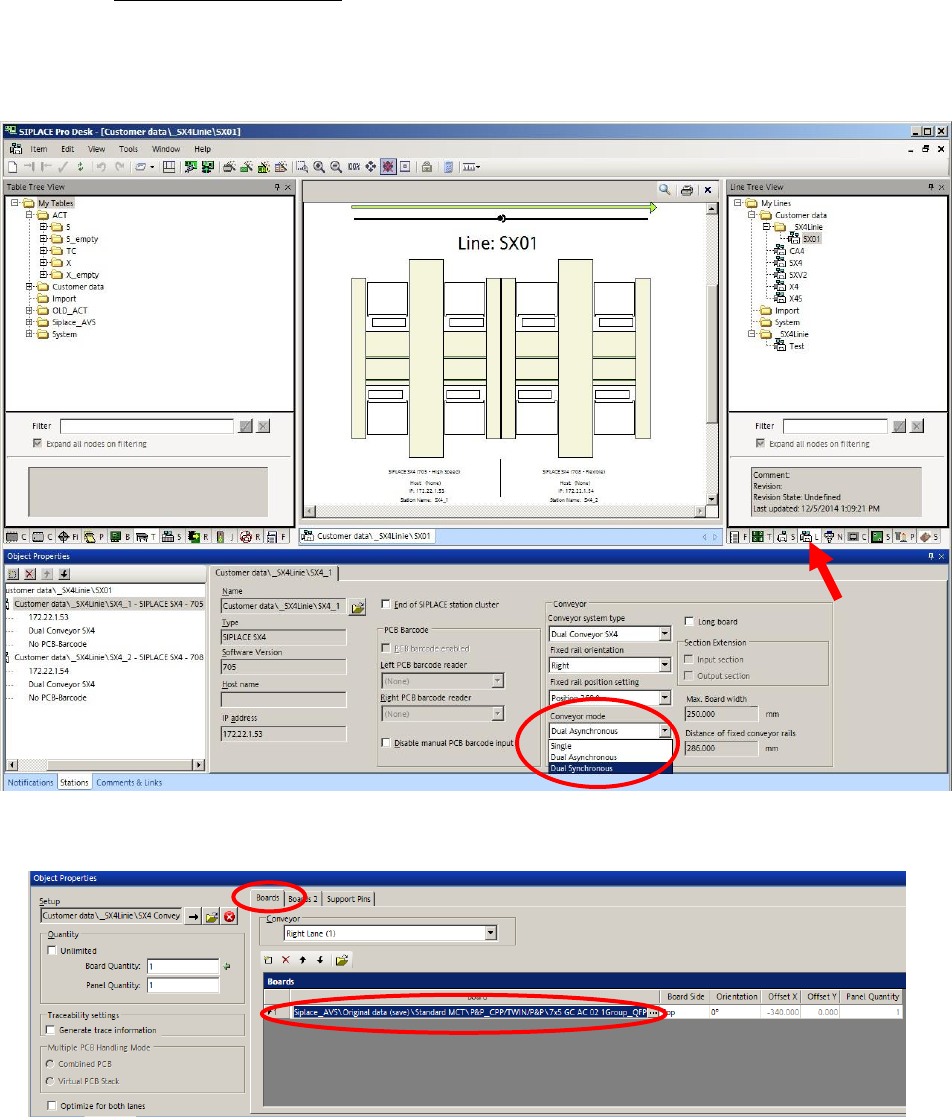
2.1.3.6.2 Software (SIPLACE Pro)
Feeding in dual conveyor
In machines with dual conveyor, the glass plate can be fed in one lane and the tray in the other
lane.
• Set the conveyor system in the line to double synchron mode.
• Create a recipe.
• Use a standard PCB description.
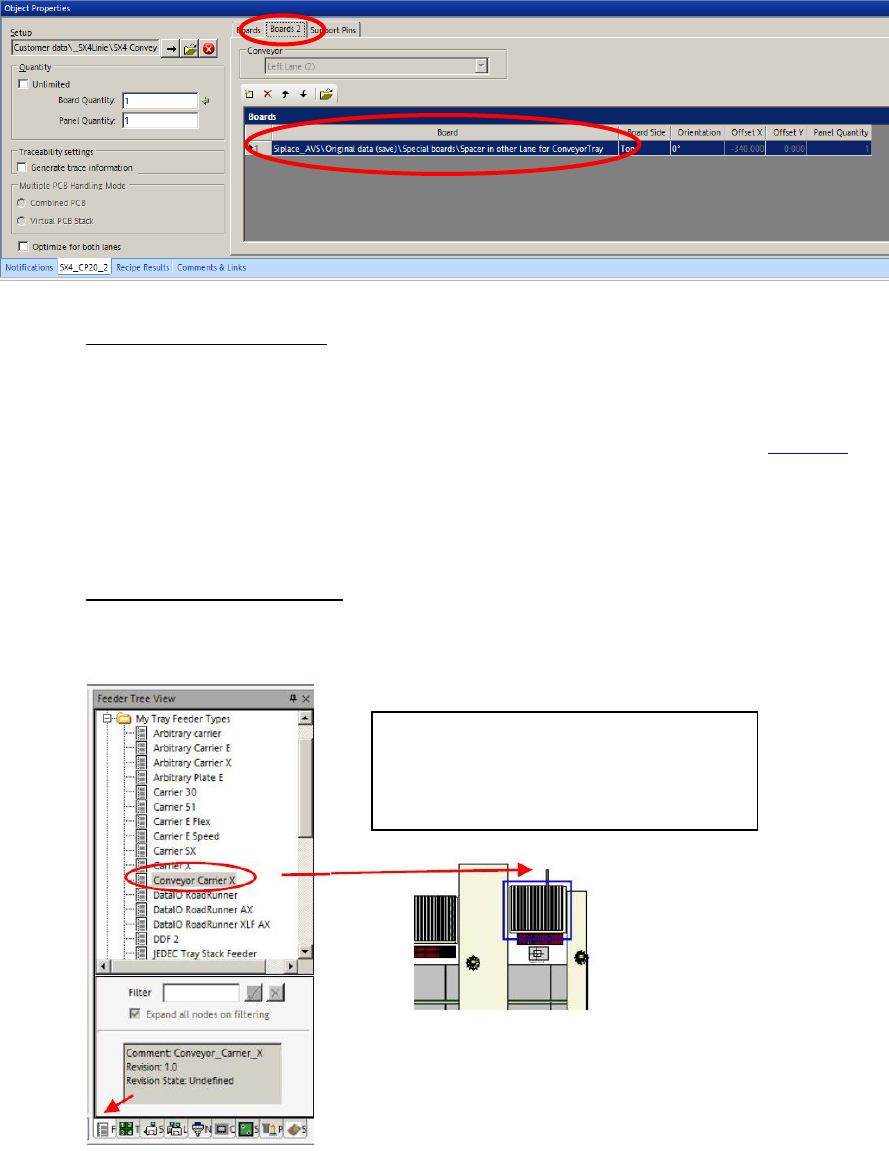
• For the second conveyor lane, in which the tray is transported, choose the empty PCB de-
scription => Siplace_AVS\Original data (save)\Special boards\Spacer in other Lane for Con-
veyorTray as a placeholder in the lane where you want to support the tray.
ASM AVS - USER MANUAL
PAGE 21 OF 182
Feeding in single conveyor
In machines with dual conveyor, the glass plate can be fed in one lane and the tray in the other
lane.
• Connect the tray with the glass plate, as described above in the section 2.1.3.6.1.
• Set the conveyor width to 428.00 mm, or use the automatic conveyor with adjustment.
The Tray is going to be moved into the machine, together with the glass plate.
SIPLACE Pro – Setup (tables)
• In SIPLACE Pro, take the tray carrier Coveyor Carrier X, from the My Tray Feeder Types di-
rectory and set it on the table on the gantry that you want to measure.
• Select the tray carrier so that it is displayed in the editor screen below.
• Click on the button in the field of the Tray column and, e.g. select the tray Conveyor Tray
GCAC02 from the folder My Tables => Siplace_AVS\Original data (save)\Trays for X-Series
Machines\X-Feeder docking unit\GC-AC-02\.
• Or, drag and drop a table which is already prepared, from the folder My Tables =>
Siplace_AVS\Original data (save)\Tables for X-Series Machines\Conveyor Tray from 708, di-
rectly to the Location in the setup, beside your conveyor lane, where you like to present
your Tray.
• Pull the tray carrier Coveyor Carri-
er X, from the My Tray Feeder
Types directory, to a free trck on
the table.