3_AVS-V2_MCT-UM-internal_EN_07-2019 - 第42页
ASM AVS - U SER M ANUAL P AGE 42 OF 182 5.2 »A SM A VS Sof tw are« 5. 2.1 ASM AV S Sof tw are unde r SIP LACE Ic on 5. 2.2 Pro perti es In “Properties, y ou find all relevant in formation to the present AVS devi ce. (1) …
ASM AVS - USER MANUAL
PAGE 41 OF 182
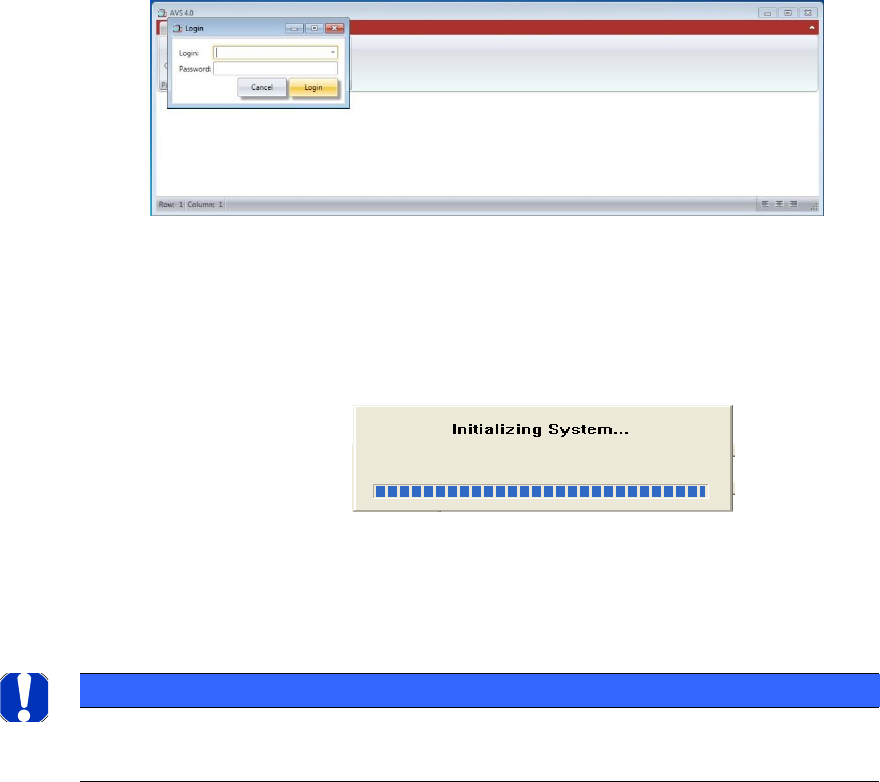
When the software is started, both software components are started at once.
A login window is displayed for the »ASM AVS Software« component. Logging in to the software
using login data has the advantage that users are known during subsequent processing and are
able to use their own data in reports.
The AVS_Scan Software is started too.
The window of this software is coming to the front shortly and shows the progress identifier for
the reference run of the axis system.
The system is initialized, and the axes move to the reference position.
NOTICE
If the software does not now revert to the part 1 of the software, ("ASM AVS Soft-ware"),
press the »Alt« +»Tab« keys to switch.
ASM AVS - USER MANUAL
PAGE 42 OF 182
5.2 »ASM AVS Software«
5.2.1 ASM AVS Software under SIPLACE Icon
5.2.2 Properties
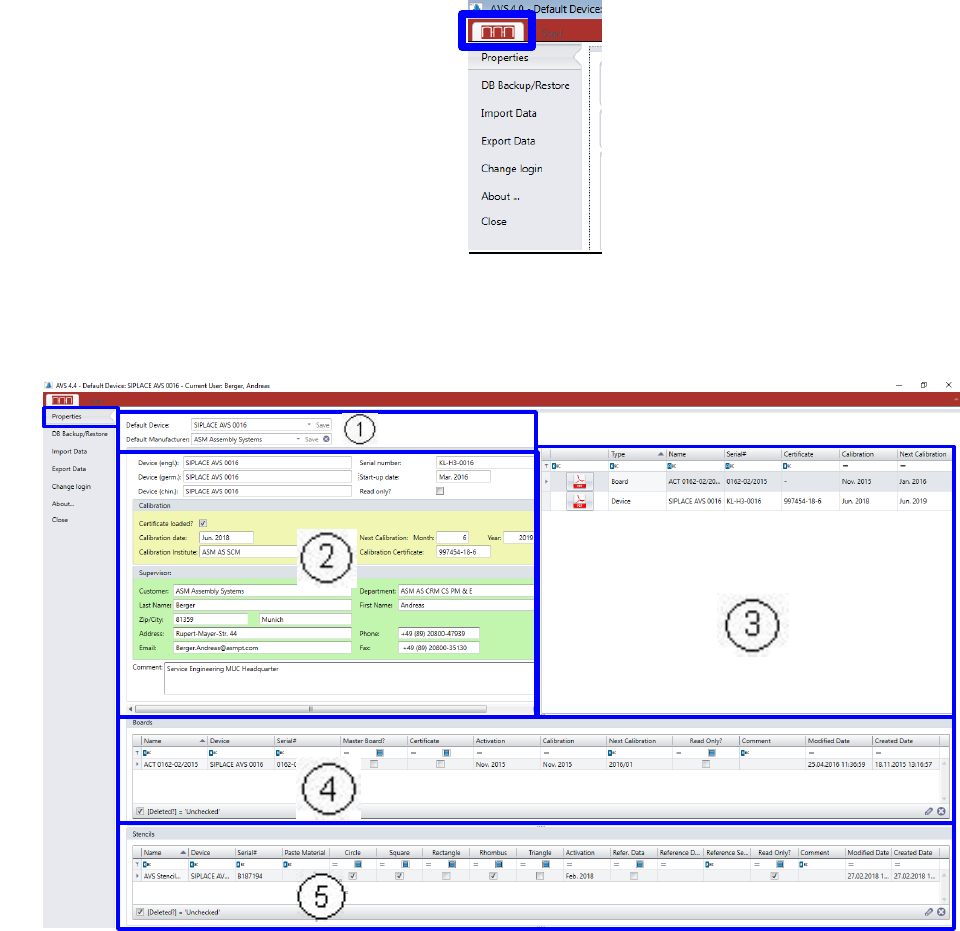
In “Properties, you find all relevant information to the present AVS device.
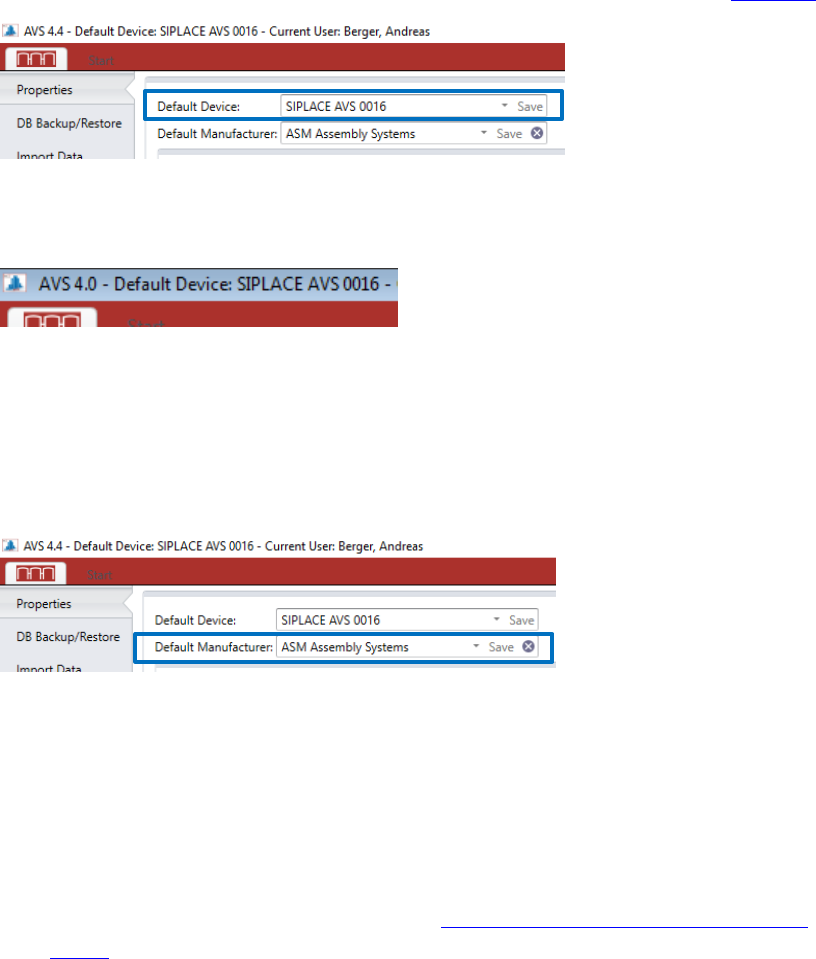
(1) Default Device:
Each device must be signed as default in the software.
Thus, the software must be informed about which device number it is in the present case.
Click on the SIPLACE icon in the menu bar and then click the area “Properties”.
In the top menu row, beside the
„Start“ panel, you find a SIPLACE
Icon. Under this panel there are
some general functions of the
AVS Software.
ASM AVS - USER MANUAL
PAGE 43 OF 182
To select a device, this must already be created in the database, as described in 5.2.18.13.
After selecting the device, the button "Save" on the left side must be pressed.
The name of the selected device is in the taskbar also displayed at the top.
Also choose a standard manufacturer here (e.g. ASM Assembly Systems)!
As a result, in the individual dialogs, in which modules must be selected, the modules of
the standard manufacturer are always listed by default, and it is then possible to switch
over to other manufacturers.
(2) General Information to the device. Shows the same like in the view “Base Data” – “De-
vices” – “Details”.
(3) In this area, all relevant Certificates are listed:
- AVS Device Certificate
- Glass plates (Boards) Certificate, which are connected to the device.
- Certificate of the reference-machine (see “4_AVS-V2_Certification_Edition_E_MM-
YYYY ”)
Click on the pdf file to open it.
The files you found in the folder C:\AVS\Certificates\....
(4) Boards:
In this area, all boards (glass plates) are listed, that are allocated to the default device.
(5) Stencils:
In this area, all stencils are listed, that are allocated to the default device.