3_AVS-V2_MCT-UM-internal_EN_07-2019 - 第44页
ASM AVS - U SER M ANUAL P AGE 44 OF 182 5. 2.3 Data Tr ansf ers 5. 2.4 Chan ge User It is poss ible to c han ge t he us er w itho ut havi ng to re star t t he so ftwa re. Thi s ha s a dvan tage s es pecia lly for devi ce…
ASM AVS - USER MANUAL
PAGE 43 OF 182
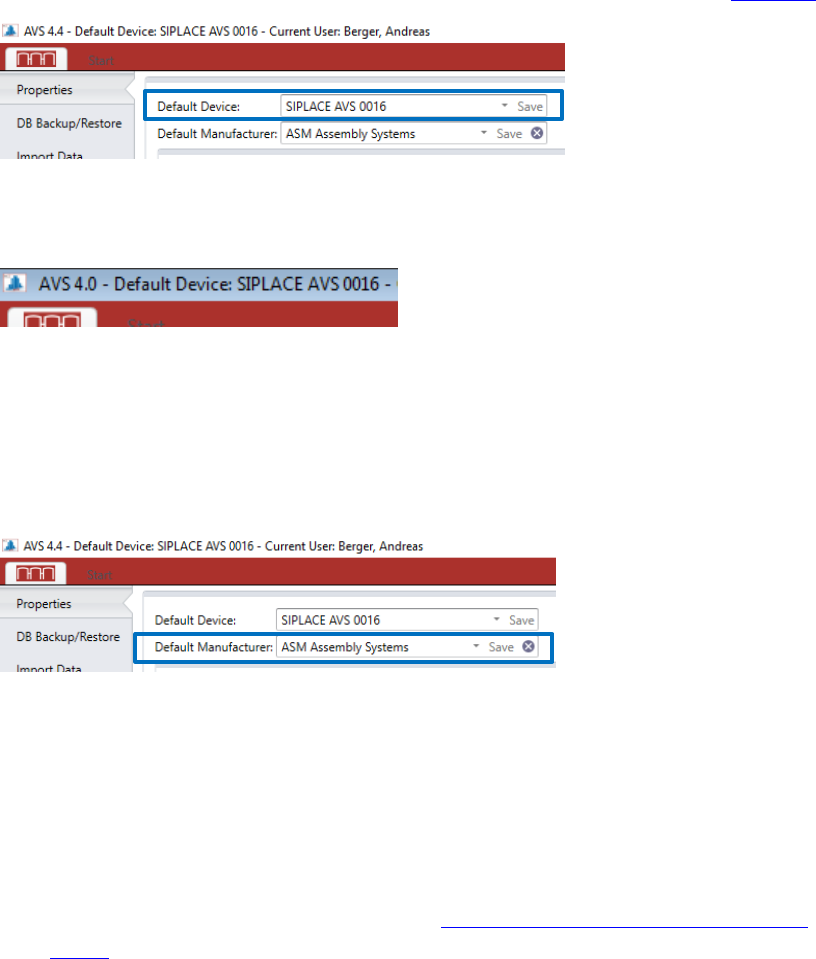
To select a device, this must already be created in the database, as described in 5.2.18.13.
After selecting the device, the button "Save" on the left side must be pressed.
The name of the selected device is in the taskbar also displayed at the top.
Also choose a standard manufacturer here (e.g. ASM Assembly Systems)!
As a result, in the individual dialogs, in which modules must be selected, the modules of
the standard manufacturer are always listed by default, and it is then possible to switch
over to other manufacturers.
(2) General Information to the device. Shows the same like in the view “Base Data” – “De-
vices” – “Details”.
(3) In this area, all relevant Certificates are listed:
- AVS Device Certificate
- Glass plates (Boards) Certificate, which are connected to the device.
- Certificate of the reference-machine (see “4_AVS-V2_Certification_Edition_E_MM-
YYYY ”)
Click on the pdf file to open it.
The files you found in the folder C:\AVS\Certificates\....
(4) Boards:
In this area, all boards (glass plates) are listed, that are allocated to the default device.
(5) Stencils:
In this area, all stencils are listed, that are allocated to the default device.
ASM AVS - USER MANUAL
PAGE 44 OF 182
5.2.3 Data Transfers
5.2.4 Change User
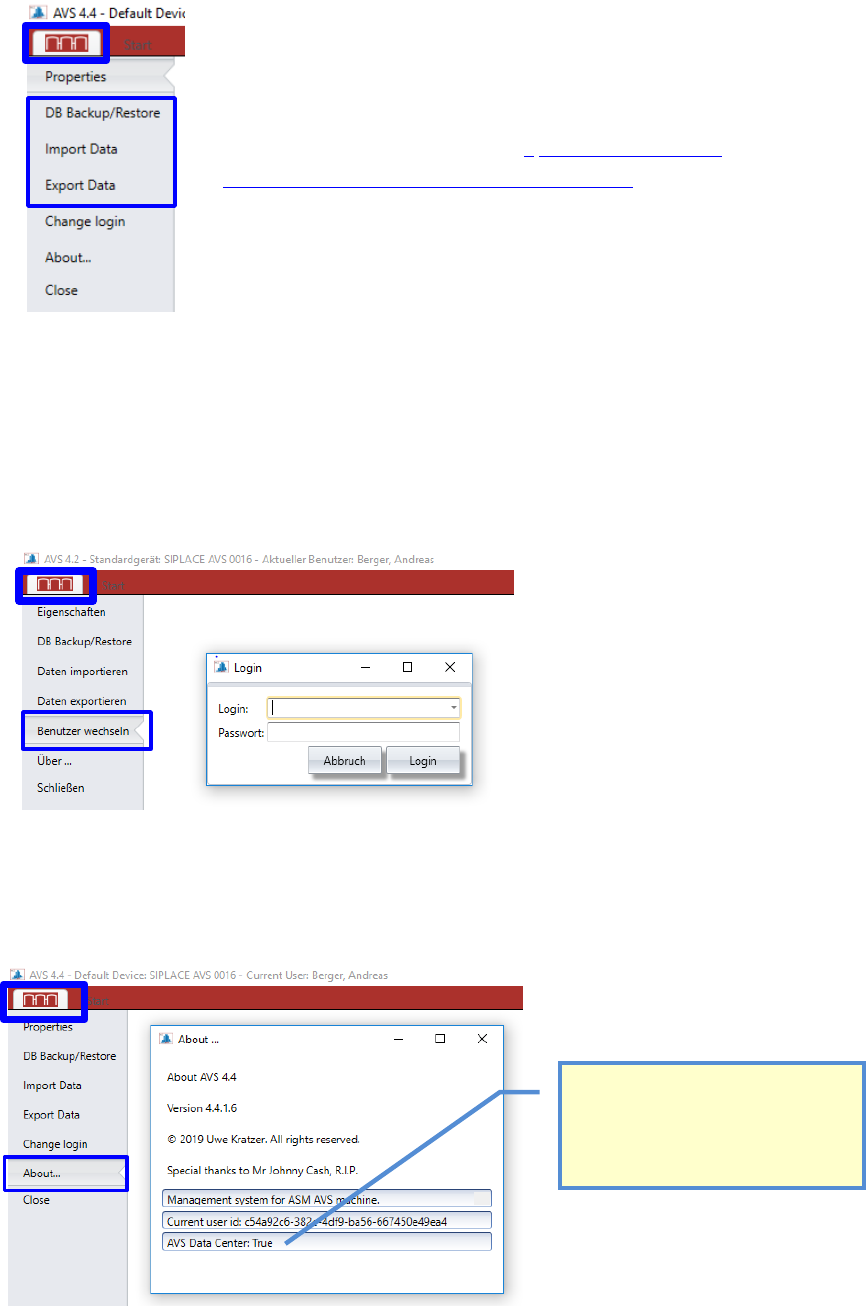
It is possible to change the user without having to restart the software.
This has advantages especially for devices that are used in manufacturing, because the device is
often used by different users.
5.2.5 About….
Here you find the information about the software version which is installed on the device.
Detailed Information to the menu points of the Data
Transfers you find in the manual „ 2_AVS-V2_Software
Installation_Edition_12-2017_EN_MM-YYYY“
This Boolean is only True on the AVS
Software Server in MUC Headquarter.
Different functions can only be used on
this PC (e.g. Create Master-Boards for
Calibration,….).
ASM AVS - USER MANUAL
PAGE 45 OF 182
5.2.6 ASM AVS Software under Start panel
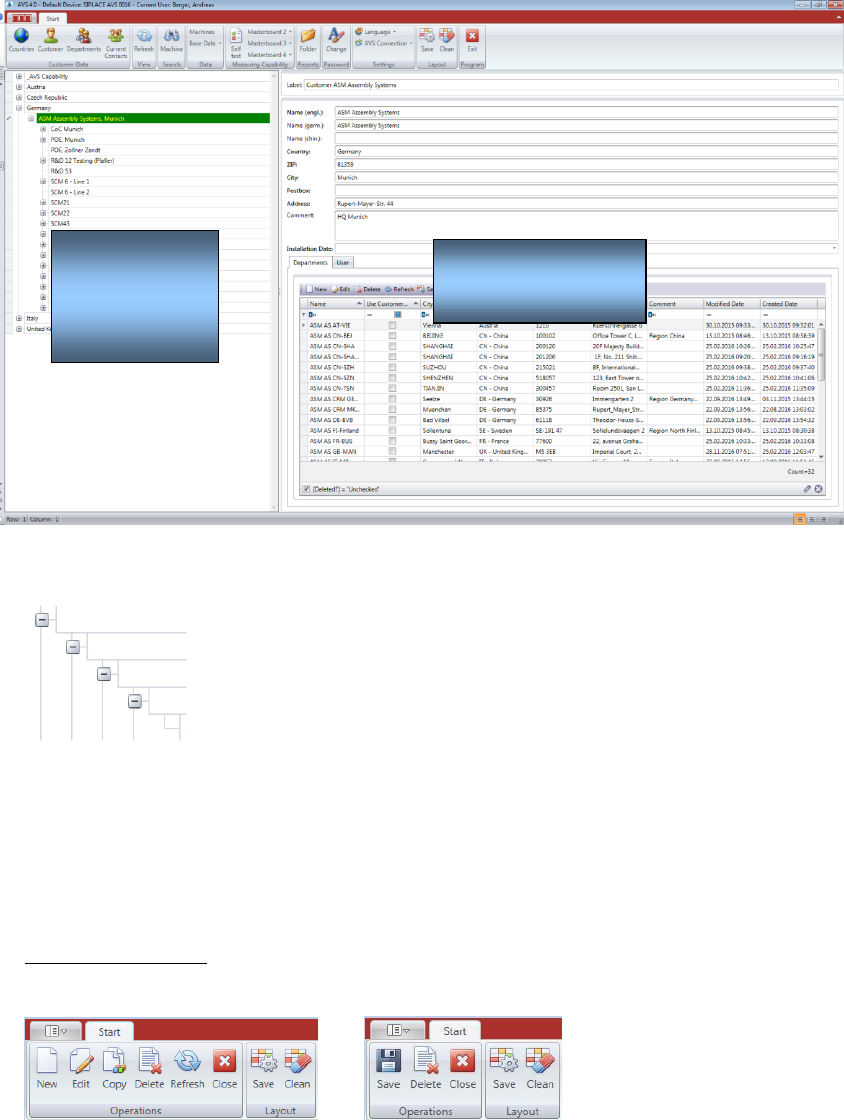
The structure tree in the left part is built on as follows:
Country,
Customer,
Line,
Machine,
Project
The part on the right side, shows the detailed information to the selected element in the struc-
ture tree.
5.2.7 Principles of the AVS SW views
Top of the window:
The different views of the software have principle structure, which is similar to each view.
Menu area in windows for selection Menu area in Editing windows
Each dialog, has an “Operations” group and a “Layout” group.
In the dialogs for selection you find the functions “New”, “Edit”, “Copy” and “Refresh”, beside
the standard functions “Save”, “Delete” and “Close”.
If you press the “Save” button in the layout group, you save the settings for the Window, regard-
ing size and division of the different areas in the view.
The button “Save” in the Operations group saves the valid data, listed in the view.
Information
Navigation
(structure
tree)