3_AVS-V2_MCT-UM-internal_EN_07-2019 - 第48页
ASM AVS - U SER M ANUAL P AGE 48 OF 182 5. 2.13 Pl ac emen t F orc e Me asur emen t From th e re leas ed so ftwa re v ers ion 4 .4. 1.4 , a s etu p wi th im plem ente d pla cemen t f orce mea s- urem ent can al so be i n…
ASM AVS - USER MANUAL
PAGE 47 OF 182
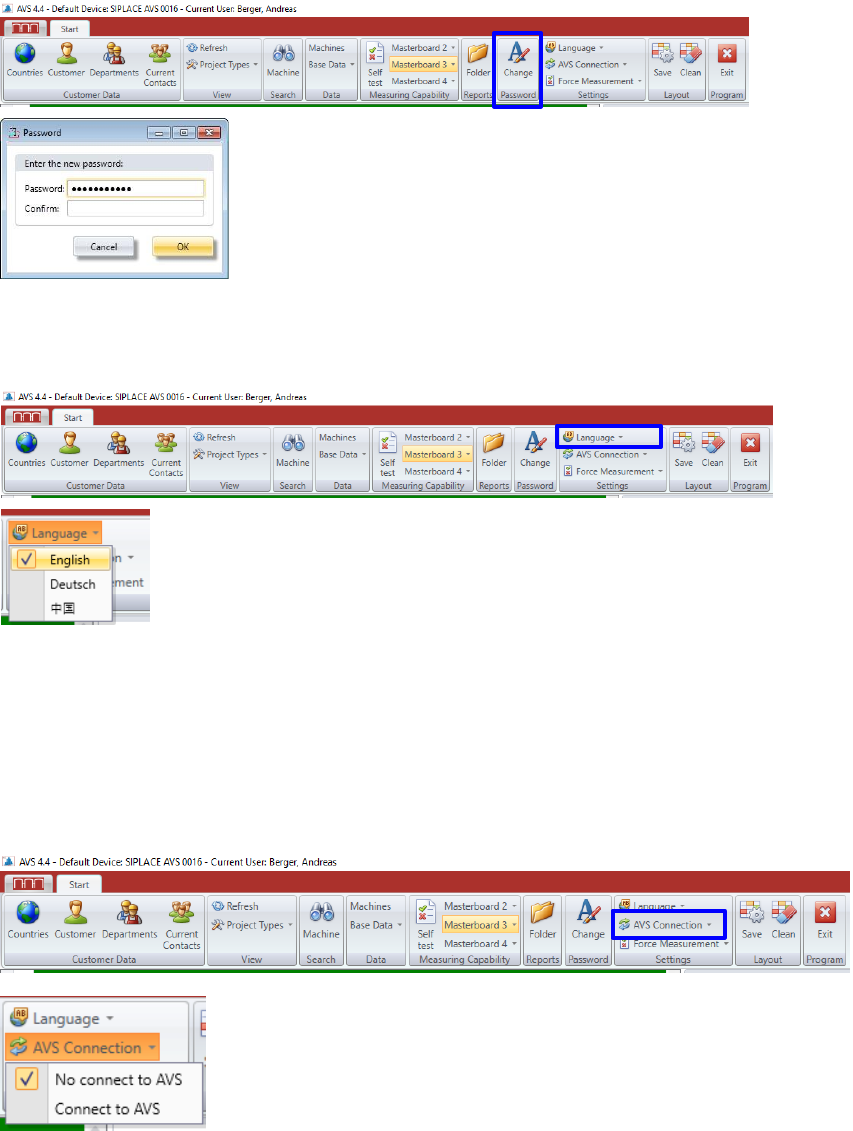
5.2.10 Change User Password
Here you can change the password.
5.2.11 Setting the Language
Click on the Button “Language” in the Group Settings of the menu bar.
5.2.12 AVS Connection
The AVS software can be installed on the AVS device as well as on another computer (e.g. work
notebook).
In order to operate the software on another computer, the connection to the device, i.e. to the
AVS_Scan software, must be interrupted.
It opens a list from which the desired language can be selected.
It is the language of the software interface.
It is currently available in 3 languages, with only English and German
fully available. The language of the later generated protocol is set in the
project.
ASM AVS - USER MANUAL
PAGE 48 OF 182
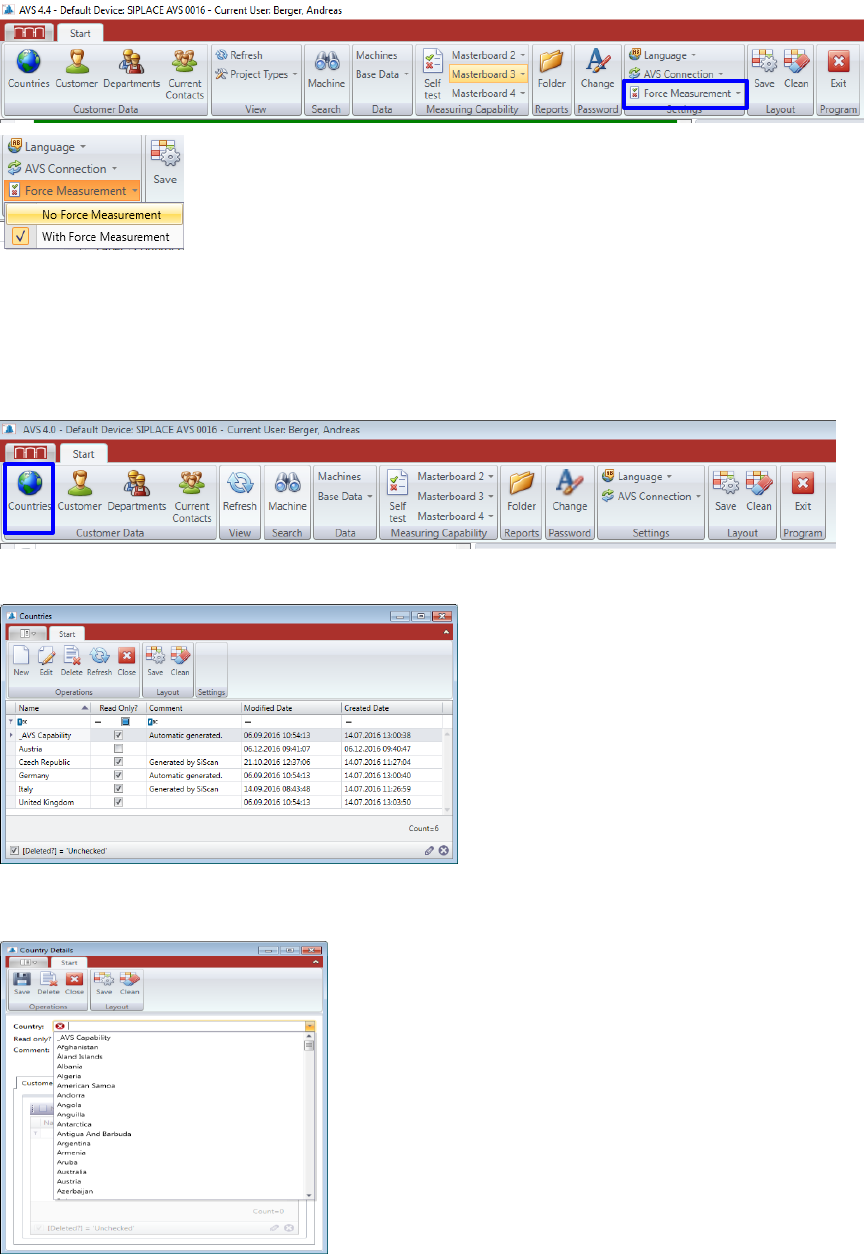
5.2.13 Placement Force Measurement
From the released software version 4.4.1.4, a setup with implemented placement force meas-
urement can also be installed.
The function of the force measurement can still be switched off for the entire software.
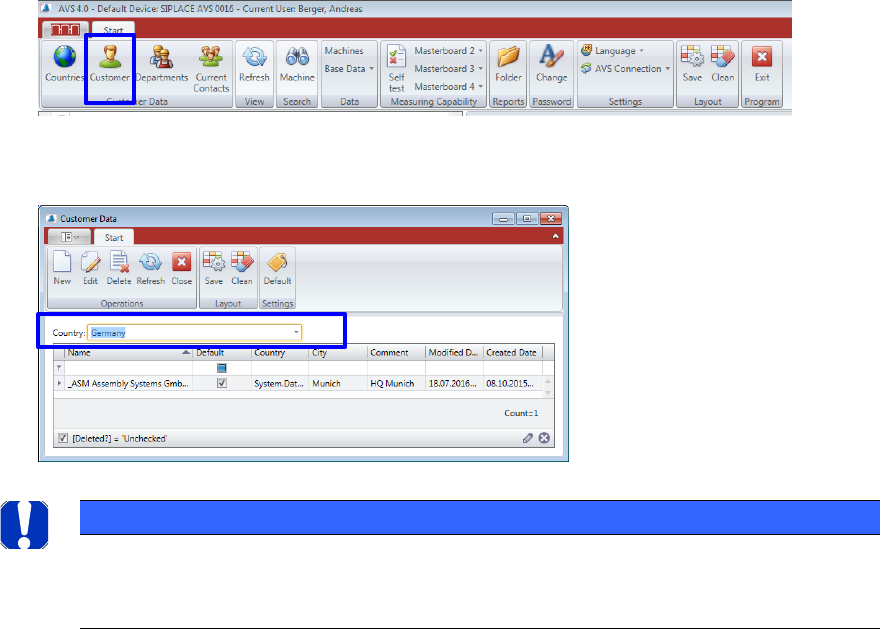
5.2.14 Countries
If a country is missed in the tree, it can be applied via the menu item "Countries”.
Click on the button "countries" in the menu bar.
The following window shows the list of all countries, which are already listed in the tree.
Here you can remove countries from the list and create “New” ones.
When applying new countries, you can select the country names from an existing list (standard
ASM AVS - USER MANUAL
PAGE 49 OF 182
5.2.15 Customer Data
Click the “Customer” Button in the Menue bar.
In the following window, select the country from which you want to process customer data.
A list with all customers of this country, opens.
To define a customer as the default, select the appropriate customer in the list and press the
button "Default" in the menu area.
Double Click the Customer you want to change, or mark the line and press “Edit” to open the
“Customer Details” view.
Press “New” if you want to add another customer to the database.
NOTICE
For the basic function of the Software, a standard customer must be advised.
Means, a customer must be defined as standard.
At the Login, when starting the Software, only users from this standard customer are listed for the login.