3_AVS-V2_MCT-UM-internal_EN_07-2019 - 第63页
ASM AVS - U SER M ANUAL P AGE 63 OF 182 Yo u mus t se lect the ma nufact ure r fi rst, to s how the list o f came ra types . Dou ble Clic k t he Came ra Type yo u wa nt to cha nge o r ma rk the li ne and pre ss “ Edit ” …
ASM AVS - USER MANUAL
PAGE 62 OF 182
2. Name as known from the official documentation.
3. For Printers we can distinguish various head types.
At the present stage 2 types are entered into the software.
A squeegee with steel sheets and a squeegee with polyurethane strips.
4. The following parameters must be added to the data set:
• Material (plastic, alu, steel, …..)
• Length
• Angle (in which angle is the slider standing to the stencil)
• Overhang (how far are the lateral oblique metal strips sticking out from the slider)
A comment as well as an image of the head can be allocated, too.
The buttons for loading the image to the data set is going to be visible by moving the mouse
over the image, or the empty image field.
5.2.18.8 Base Data – Camera Types
Each placement head needs a camera in combination to measure the component.
The camera head combination is the main configuration for the specification.
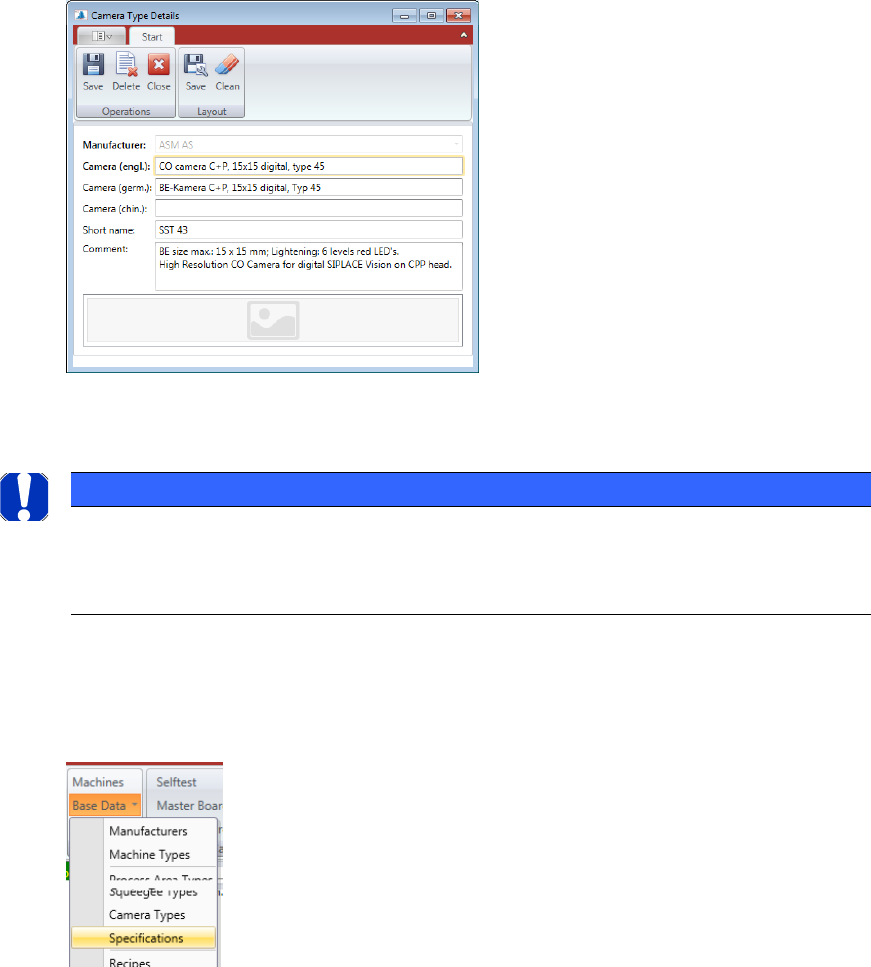
Select a manufacturer to
show the list of camera
types.
ASM AVS - USER MANUAL
PAGE 63 OF 182
You must select the manufacturer first, to show the list of camera types.
Double Click the Camera Type you want to change or mark the line and press “Edit” to open
the “Camera Type Details” view.
Press “New” if you want to add another Camera Type into the database.
5.2.18.9 Base Data – Specifications
NOTICE
The dialog for the specifications is only used as an overview of all existing specifications, as well as for the
subsequent modification (correction) of values!
The creation of specifications is realized via the dialog "Machine types"!
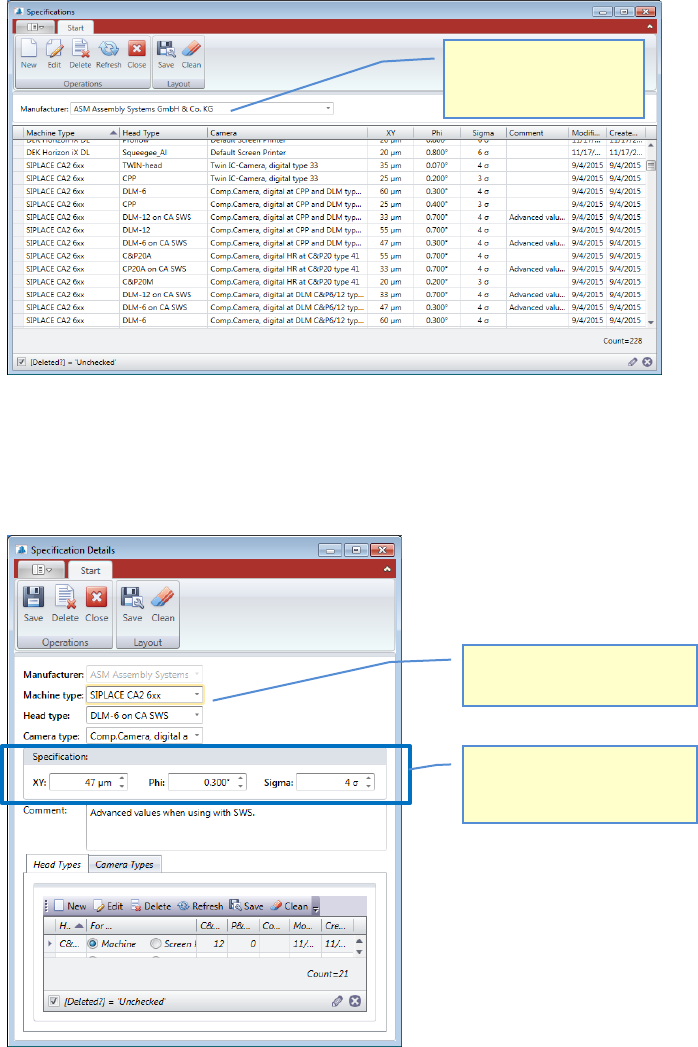
The configuration of „Machine Type” -> “Head Type” -> “Camera type” leads to a specifica-
tion.
These default specifications are listed in this view.
ASM AVS - USER MANUAL
PAGE 64 OF 182
You must select the manufacturer first, to show the list of specifications.
Double Click the specification you want to change or mark the line and press “Edit” to open
the “Specification Details” view.
Press “New” if you want to add another specification into the database.
In the “Specification Details”, you must configure “Machine Type”, “Head type” and “Camera
type” and then type in the required specification values.
If you miss required Head and Camera types, you can directly add new types in the area be-
low, or you can edit available values.
You can automatically create a specification during the configuration of a machine Type too.
See next chapter.
Select a manufacturer to
show the list of specifi-
cations.
Combination of machine type,
head type and camera type!
Specification limits as written
in the documentation for the
above combination.