3_AVS-V2_MCT-UM-internal_EN_07-2019 - 第83页
ASM AVS - U SER M ANUAL P AGE 83 OF 182 5.2.23.2 Moving a Machine Yo u ca n mov e a m ach ine by r ight mou se cl ick o n i t, choo sin g the fu nctio n „Mo ve M ac hine … „ in the P op - up me nu. Now yo u ca n rea ssig…
ASM AVS - USER MANUAL
PAGE 82 OF 182
Now you can configure your machine, setting the checkboxes on the relevant heads, and camer-
as.
When you activate the box “Show active only”, you can see the configuration of your machine,
without all other possible configurations.
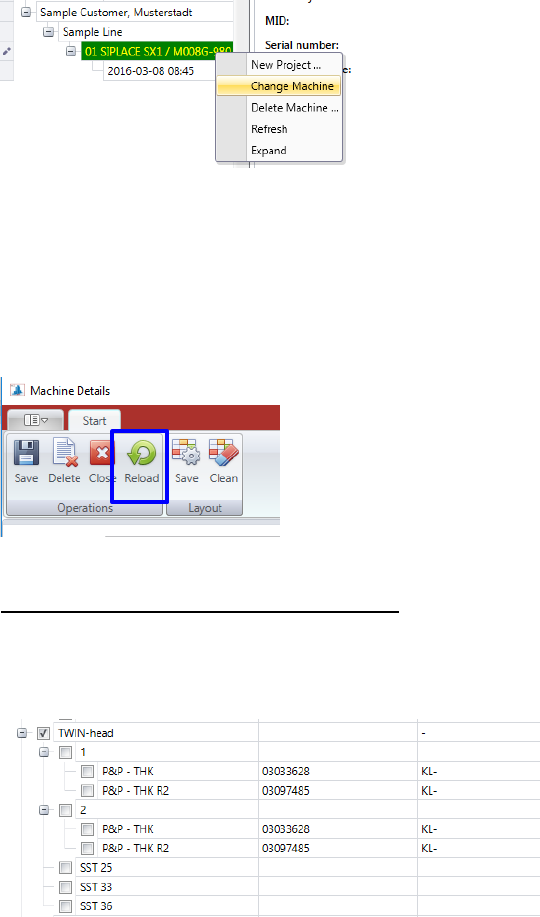
You can change a machine which is already existing, right-click on the corresponding machine
(machine number) and choose the »Change Machine« function.
The same “Machine Details” view is opening as shown above for the configuration of a new ma-
chine.
If machines have already been configured with older software versions of the AVS software, the
machine type data must be reloaded due to changes in the structure, in order then to be able to
select the actual machine configuration.
Use the button “Reload” therefore.
Special feature TWI head (head hierarchy):
If a TWIN-head, or any other head with head hierarchy selected, thus, after activating the check-
box, a substructure is opened in which the headers (modules), which are created in the header
hierarchy, are listed. These must then be selected accordingly.
The specification limits are set automatically depending on the corresponding machine
type/head/camera configuration.
ASM AVS - USER MANUAL
PAGE 83 OF 182
5.2.23.2 Moving a Machine
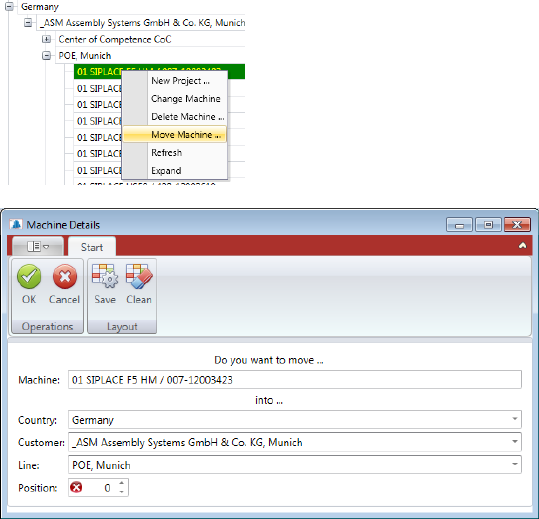
You can move a machine by right mouse click on it, choosing the function „Move Machine … „
in the Pop-up menu.
Now you can reassign "Country", "Customer", "Line" and the "Position" of the machine in the
line. Exit the dialog with "OK" and the machine will be moved to the desired location.
ASM AVS - USER MANUAL
PAGE 84 OF 182
5.2.24 Projects for placement MCT
Click on the in front of the machine, to list the projects, which are depending to this machine.
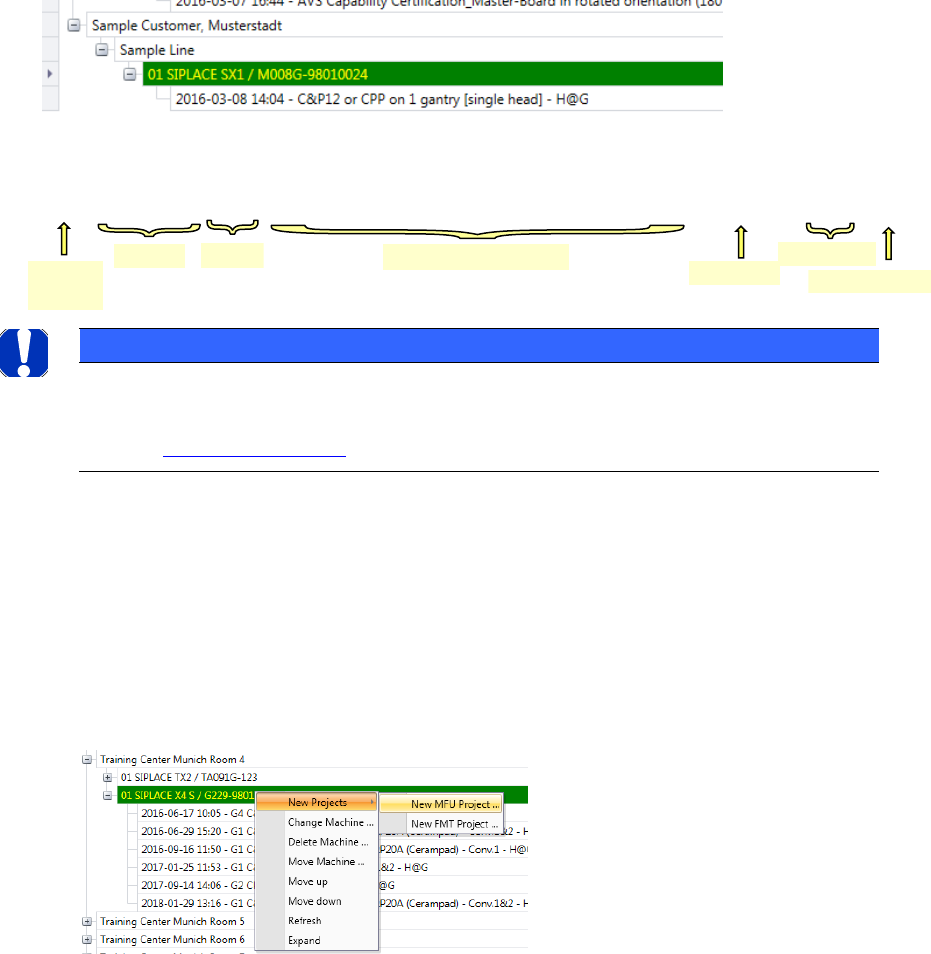
The project names are made up as follows:
• Date and Time, of the project creation
• Track No. for dual conveyor machines
• Conveyor Track which is measured in the Project.
• Measurement mode (head @ gantry, segments @ head).
Example:
NOTICE
If you click on a project, so as this is signed green, then you find further information to the project in the
information area on the right side.
See also: 5.2.24.2 Existing Projects.
5.2.24.1 New Project
When you have found the corresponding machine and have established that the machine pa-
rameters are correct, you can create a project for the machine.
To do this, right-click on the machine and choose the »New Project …« => »New MCT Project
…« function.
The Project view will open in a new window.
Date
Time
Conv.-Track
Meas.-Mode
Gantry and Head Type
Short comment
MCT_2016-03-08 14:04 - G1 CP20P (Cerampad) - G4 CP20P (Cerampad) – Conv.1&2 - K@P - TEST
Project
type