3_AVS-V2_MCT-UM-internal_EN_07-2019 - 第90页
ASM AVS - U SER M ANUAL P AGE 90 OF 182 5.2.24.1.5 Project – Analysis (placement machine) On ce t he m eas uremen t i n th e AVS_ Scan So ftware h as f inish ed, the softw are swi tche s ba ck to the ASM AV S so ftw are,…
ASM AVS - USER MANUAL
PAGE 89 OF 182
(5) Recipe Layout:
In this area, the layout of the recipe (measurement plan) is always displayed, which you
have marked in the table on the top left.
If you double-click on this layout, the image is displayed in a new window, which you can
then enlarge across the entire screen.
(6) Standard values:
If you have changed the specification limits for the individual groups in area (4), you can
return to the standard specification for the combination (machine/head/camera), stored
in the database, via the "Defaults" button.
5.2.24.1.4 Starting measurement
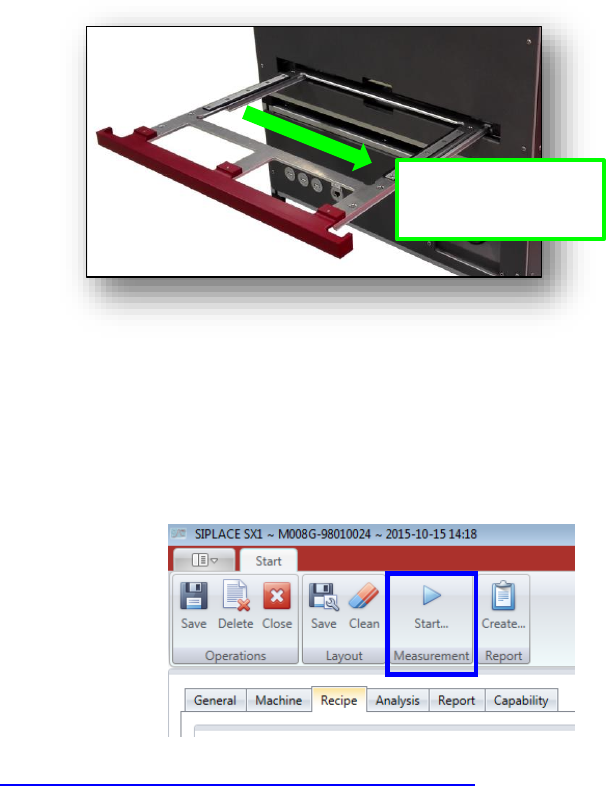
You have inserted a populated glass plate in the drawer of the AVS and pushed it into the de-
vice as far as it will go.
AVS insertion tray for ACT glass plate
When you have done all the settings in the Tabs “General”, “Machine” and “Recipe”, you can
directly click the “Start” Button in the Menu.
The Software switches to the measuring software AVS_Scan and a measurement starts direct-
ly.
See 4.3.2.1 »Current Results« during the measurement«
Insertion direction:
Arrows on plate must
point to the right.
ASM AVS - USER MANUAL
PAGE 90 OF 182
5.2.24.1.5 Project – Analysis (placement machine)
Once the measurement in the AVS_Scan Software has finished, the software switches back to
the ASM AVS software, onto the “Analysis view”.
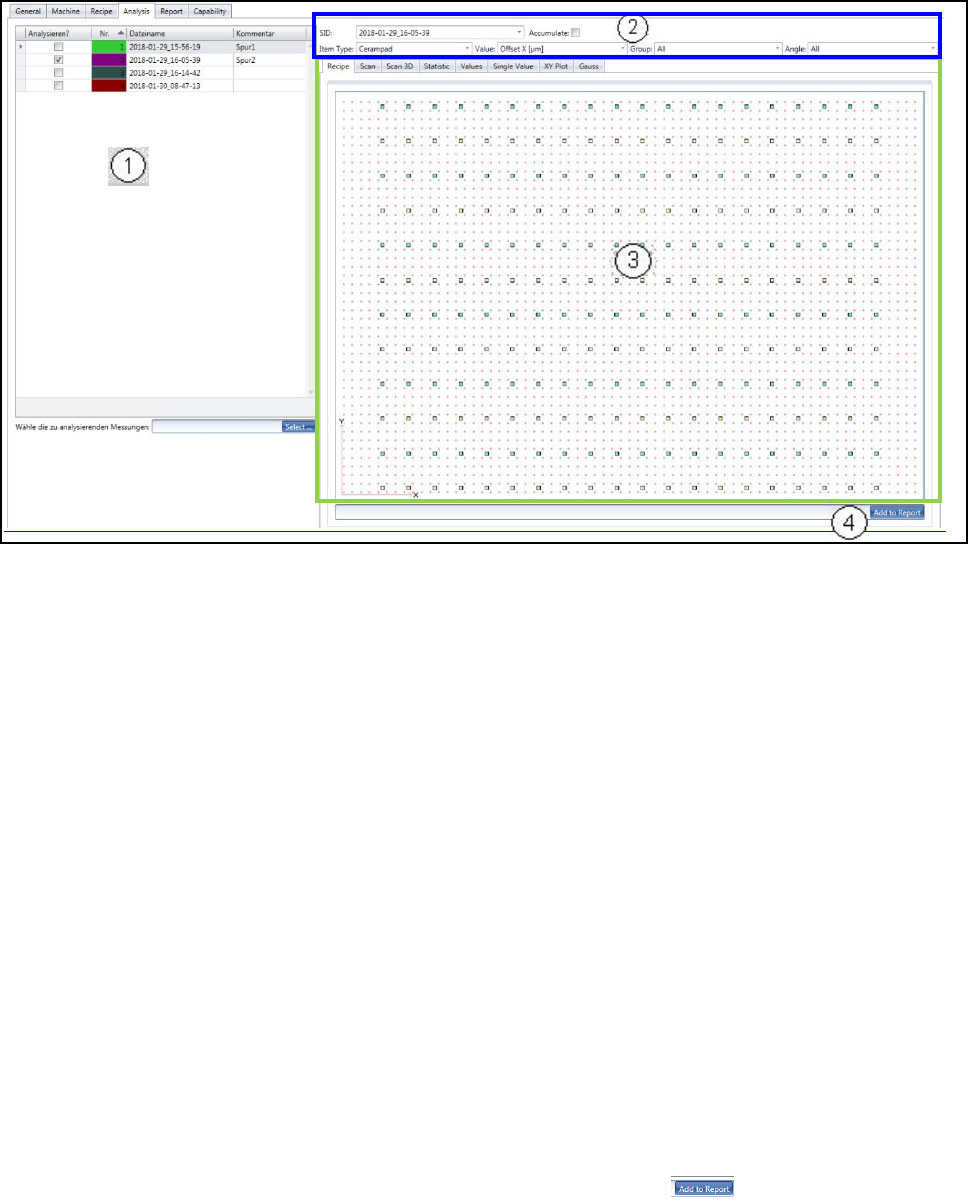
The “Analysis view” has 4 parts.
(1) List of measurements in the project.
In this view, the highlighting of a line (measurement) does not mean anything.
To see the measurement details, you need to activate the measurement via the check-
box!
You can select more than one measurement for the analysis.
(2) Filter for measurement data:
On top of the different tabs for analysis, you have one line (if necessary 2 lines) with
drop-down lists (and in some cases check boxes) to filter the results for all the tabs bel-
low!
(3) Result Area:
In this area, all calculations and drawn graphs are displayed, corresponding to the filter
setting above (area 2).
(4) Collecting Report Views:
Each view of area (3) can be add to the report, including a comment.
Just add the comment in the editor field and press the button .
ASM AVS - USER MANUAL
PAGE 91 OF 182
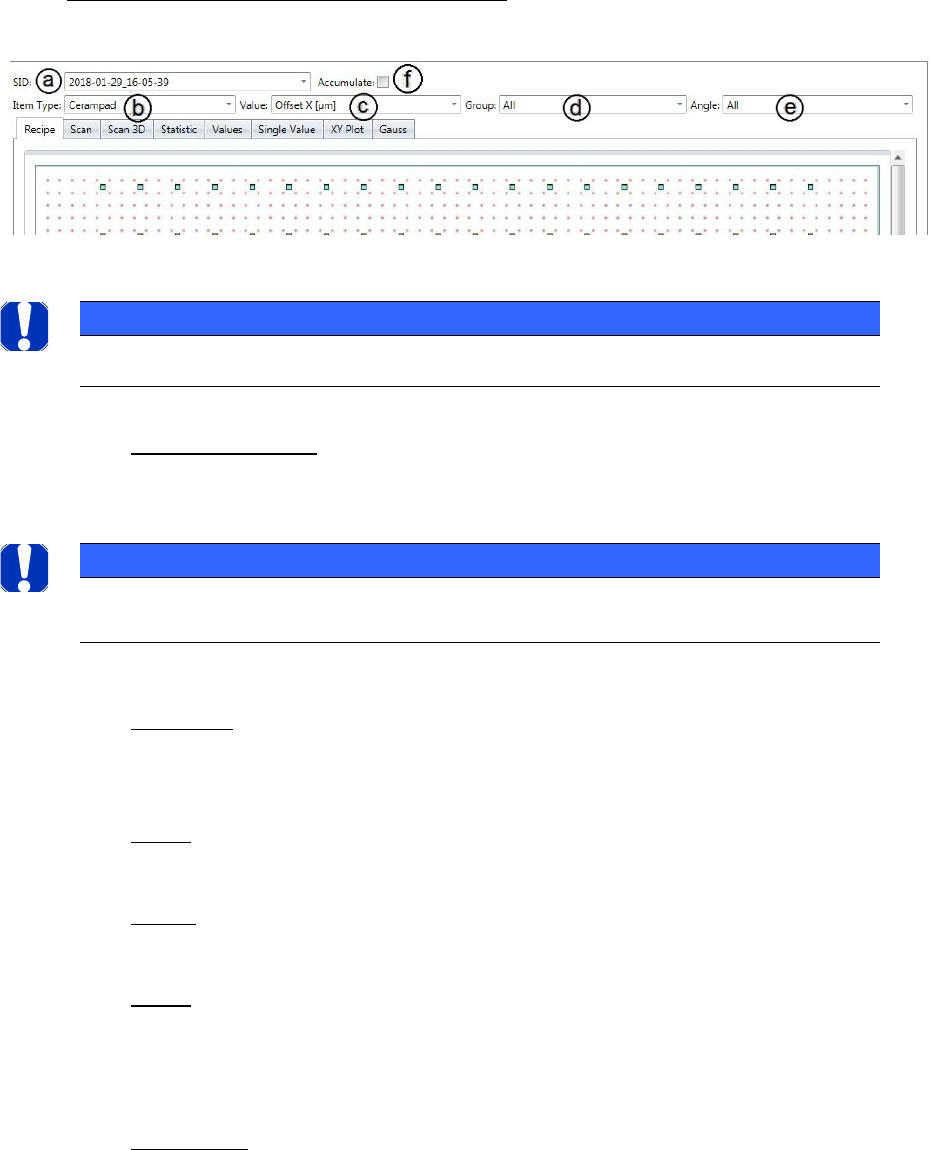
Details to the area (2) „Filter for measurement“
a. SID - Measurement: If you select more than one measurement in the list on the left
hand side, you can then select the measurement you like to see in the tabs bellow, at
this point.
b. Item type: If your recipe consists of more than one Item type, you can change here
between the different types for analysis. Usually you need more than one Item type
for a recipe, if different specifications need to be measured.
c. Value: You can switch between X, Y and phi, for views in the tabs, which can only
show one axis.
d. Group: If your recipe consists of more than one group (e.g. different gantries), you can
switch between the groups here.
e. Angle: The most recipes have placement plans with changing angles of 0°, 90°, 180°,
270°.
These angles can be seen as a group and you can filter your result below regarding this
angle group!
f. Accumulate: If this button is activated, all the measurements selected in the list on
the left side are calculated and presented all together. E.g. if a measurement has 100
measurement points and 3 measurements are selected, the analysis view shows the
result of 300 measurement points all together.
NOTICE
All changes in this area are effecting all different tabs down under!
NOTICE
If more than one measurement is activated, in the “Single Value” tab all measurements are shown togeth-
er, each in the color as allocated in the list beside.