TS555R-UserGuide - 第8页
8 5.1.2 Pressure Calibration Note: Pressure calibration must be performed when the unit is activated for the first time. 1. Using a pressure gauge, verify that the input pressure line is deliveri ng approximately 100 psi…
7
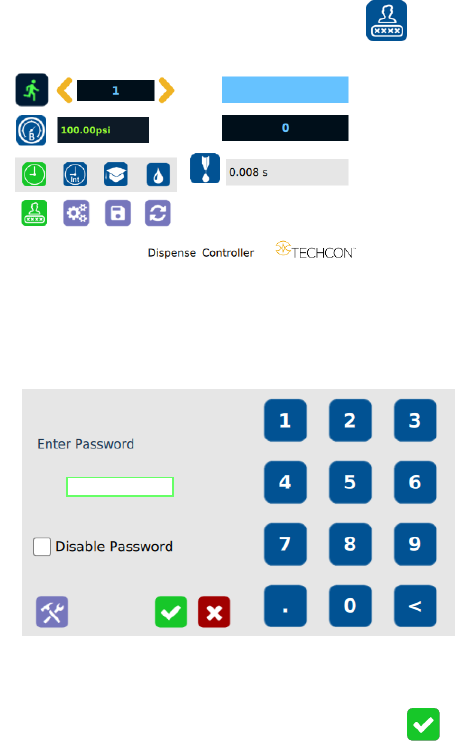
5.1.1 Login
1. Touch the Login icon to enter the login screen
2. Enter “0000” in Password window
The password can be disabled by check the box next to it.
3. Touch the Green Check Mark icon to save and exit
8
5.1.2 Pressure Calibration
Note: Pressure calibration must be performed when the unit is activated for
the first time.
1. Using a pressure gauge, verify that the input pressure line is delivering
approximately 100 psi
Note: If input pressure is not 100 psi, calibration will result in a
mismatch between the display pressure and the actual pressure on output
port B
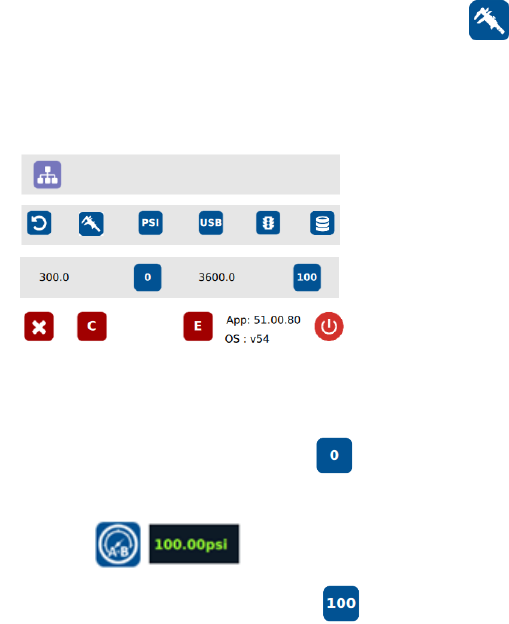
2. Once you have verified input pressure, touch the Calibration icon
to enter calibration screen.
Please keep in mind that the exact pressure being fed must be indicated
correctly in this menu prior to calibrating the pressure. Not doing so may
cause the pressure display to show the incorrect pressure.
3. Turn pressure adjustment knob counterclockwise until the wheel can no
longer be turned.
4. Touch the 0 icon to set the pressure to 0
5. Turn pressure adjustment knob clockwise until display output pressure is
100 psi
6. Touch the 100 icon to set the pressure to 100
Warning: Do not turn knob all the way clockwise. 100 psi upper bound should
be set as soon as display output pressure goes from 99 to 100 psi. Continuing
to turn knob clockwise despite pressure on display already being set at
100psi will result in incorrect output pressure readings if the 100 icon were to
be pressed at that time.
9
Note: The digital values shown at “0” and “100” icons are for reference only.
The actual calibrated values will be different
7. Touch the Reboot icon to save the settings and reboot the system
8. Wait until the system completes the rebooting sequence and the home
screen is displayed
The unit is now calibrated and ready to operate
5.1.3 Controlling Mode
The TS555R can be used as stand-alone controller or integrated to any
robot/automation system.
A. To use as Stand-Alone Controller:
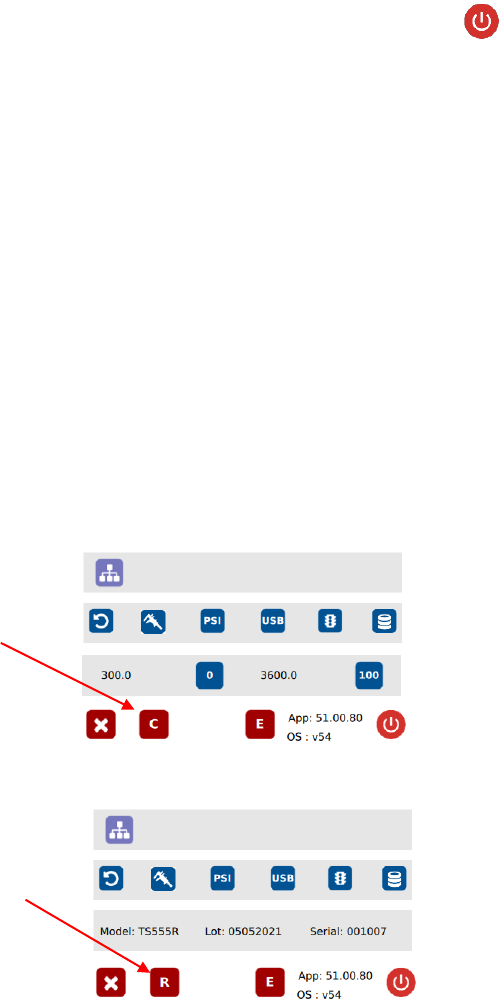
Go to setup screen to check for controlling mode. If the icon “C” is
showing, then it is already set as stand-alone controlling mode. If the
icon “R” is showing, press this icon to change to “C”
B. To use as integrated controller to robot/automation
Press icon “C” to change to “R”
Note: Users will experience inconsistent dispensing and intermittent
behaviors with their dispensing valves if attempting to run the TS550R
in controller mode when interfacing with the robot.
Stand-alone controlling
mode
Robot mode (integrate
to robotic system)