YSD_Users_E.pdf - 第142页
4-14 4 Making the dispensing stable 3.1.3 Creating the mark data for dot recognition T o correct the dispensing conditions, create the mark data for measuring the area of each dot. Set the mark data for correction on the…
4-13
4
Making the dispensing stable
3
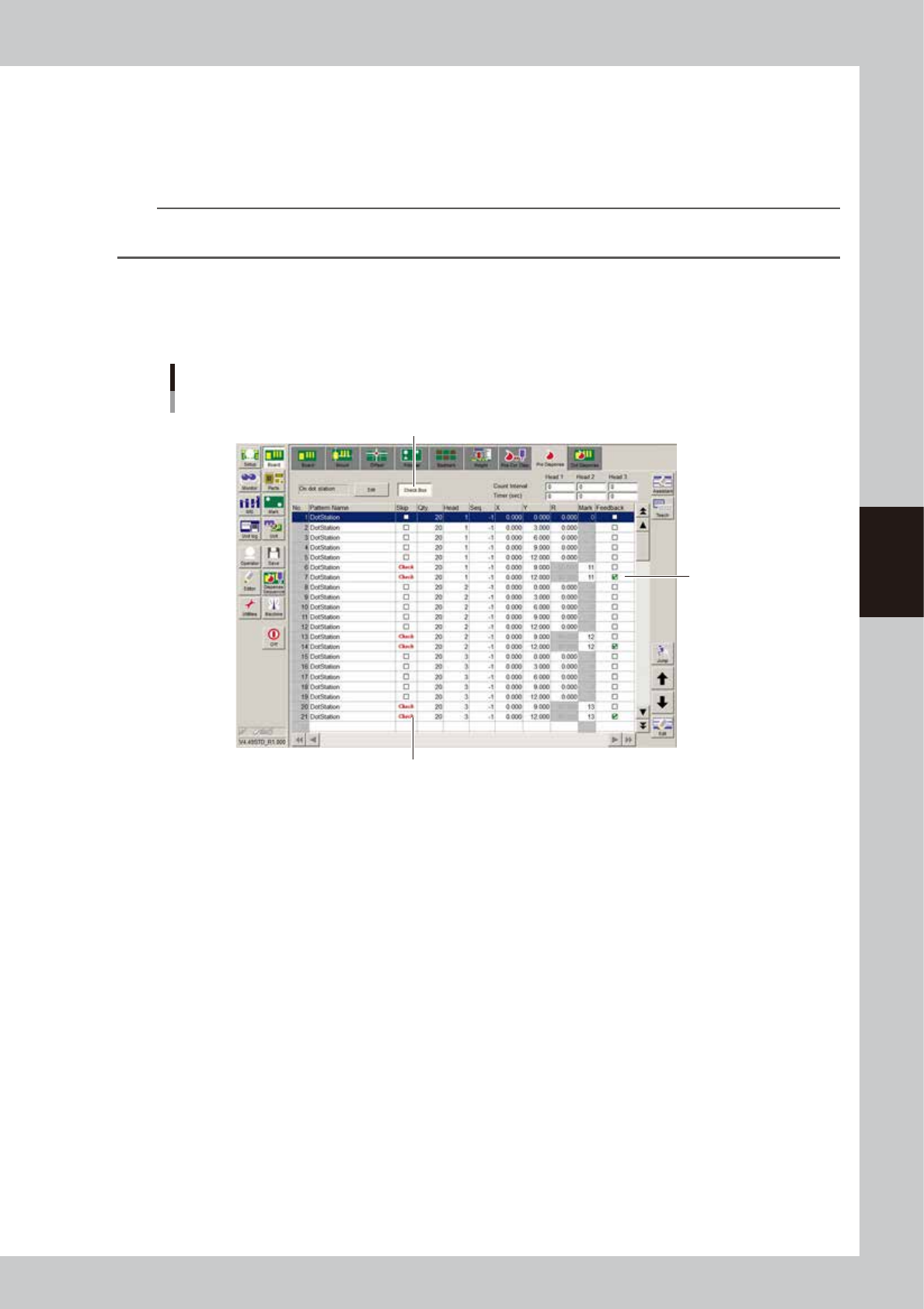
Set the predispensing location to “On dot station”.
Press the [Edit] button and select “On dot station” as the predispensing location.
4
Set the mark numbers.
Enter the mark numbers to use for correction. When a Type 111 nozzle is used, enter “11” in most cases.
n
NOTE
Any mark numbers can be used, but enter similar numbers to make them easier to group with other settings. For the
setting of each nozzle, see “
n
Nozzle setting values” in “3.1 Using the dispense correction function” in this chapter.
n
When not using the dispense correction function
Press the [Check Box] button to allow changing the check box setting, and clear the “Feedback” check box. To recognize
a predispensing dot, create the mark data for that dot.
Dispense correction is not used
[Check Box] button
Clear the check box.
Set to “Check” when recognizing the dot
64430-N7-00
4-14
4
Making the dispensing stable
3.1.3 Creating the mark data for dot recognition
To correct the dispensing conditions, create the mark data for measuring the area of each dot. Set the mark
data for correction on the mark No. specified in the predispense data. In most cases, copy the mark data from
other board data and paste it to create the necessary mark data.
n
NOTE
The data you have created can be stored in the database, which can then be used to create the same or similar
data easily and efficiently. For more details, see “2. Creating the user database” in Chapter 8.
1
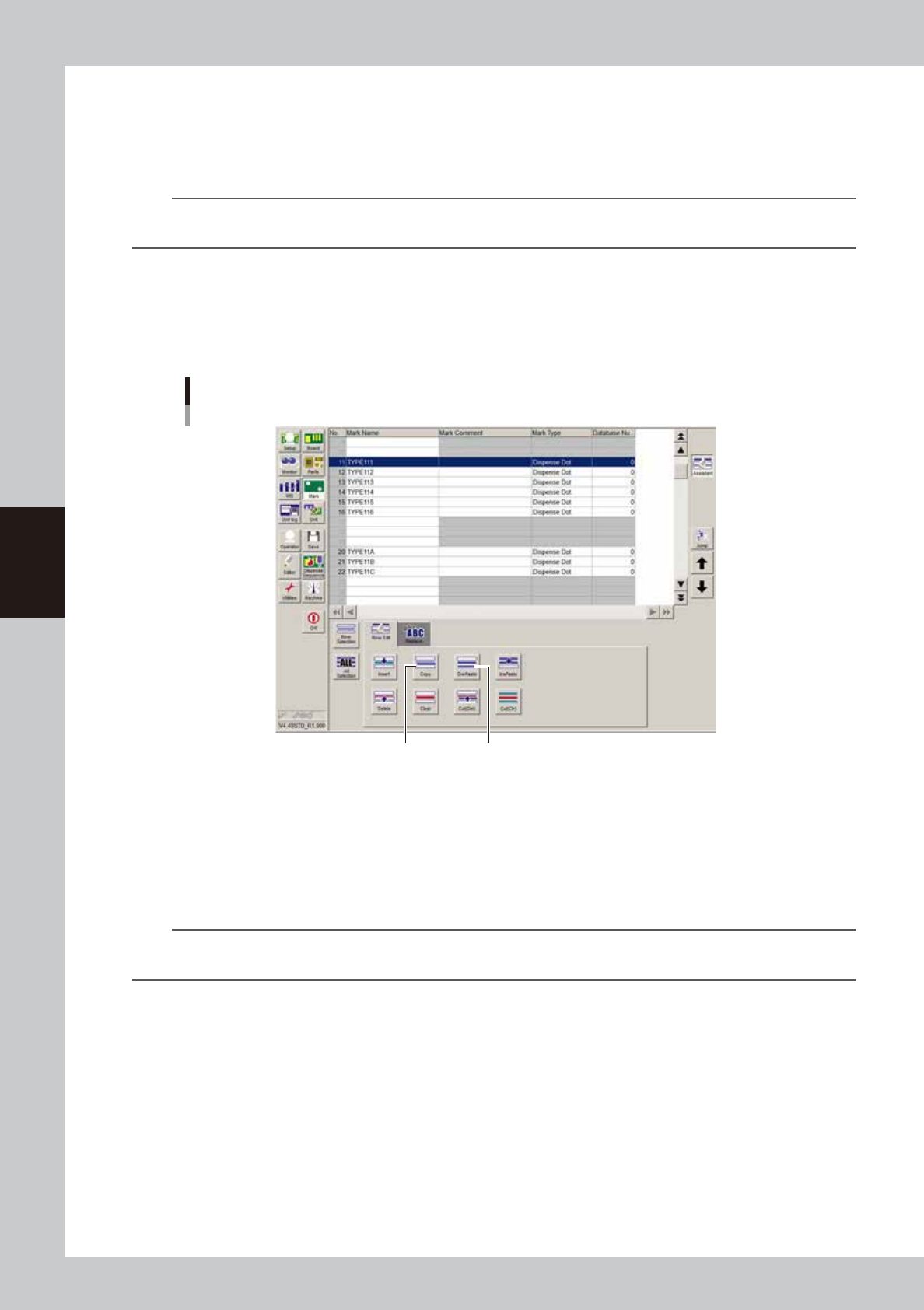
Copy the mark data.
1. Open the board data from which you want to copy the mark data.
2. Press the [Mark] button to open the Mark screen, and press the [Assistant] button.
3. Select the mark data you want to copy and press the [Copy] button.
Mark screen
[Copy] button [Ow Paste] button
64431-N7-00
2
Paste the mark data.
1. Open the board data where you want to paste the data.
2. Open the Mark screen, select the mark No. where you want to paste the data, and press the
[OwPaste] button. When a Type 111 nozzle is used, select No.11 in most cases.
3. Change the mark name and comment as needed.
n
NOTE
Any mark numbers can be used, but enter similar numbers to make them easier to group with other settings. For the
setting of each nozzle, see “
n
Nozzle settings” in “3.1 Using the dispense correction function” in this chapter.
4-15
4
Making the dispensing stable
3
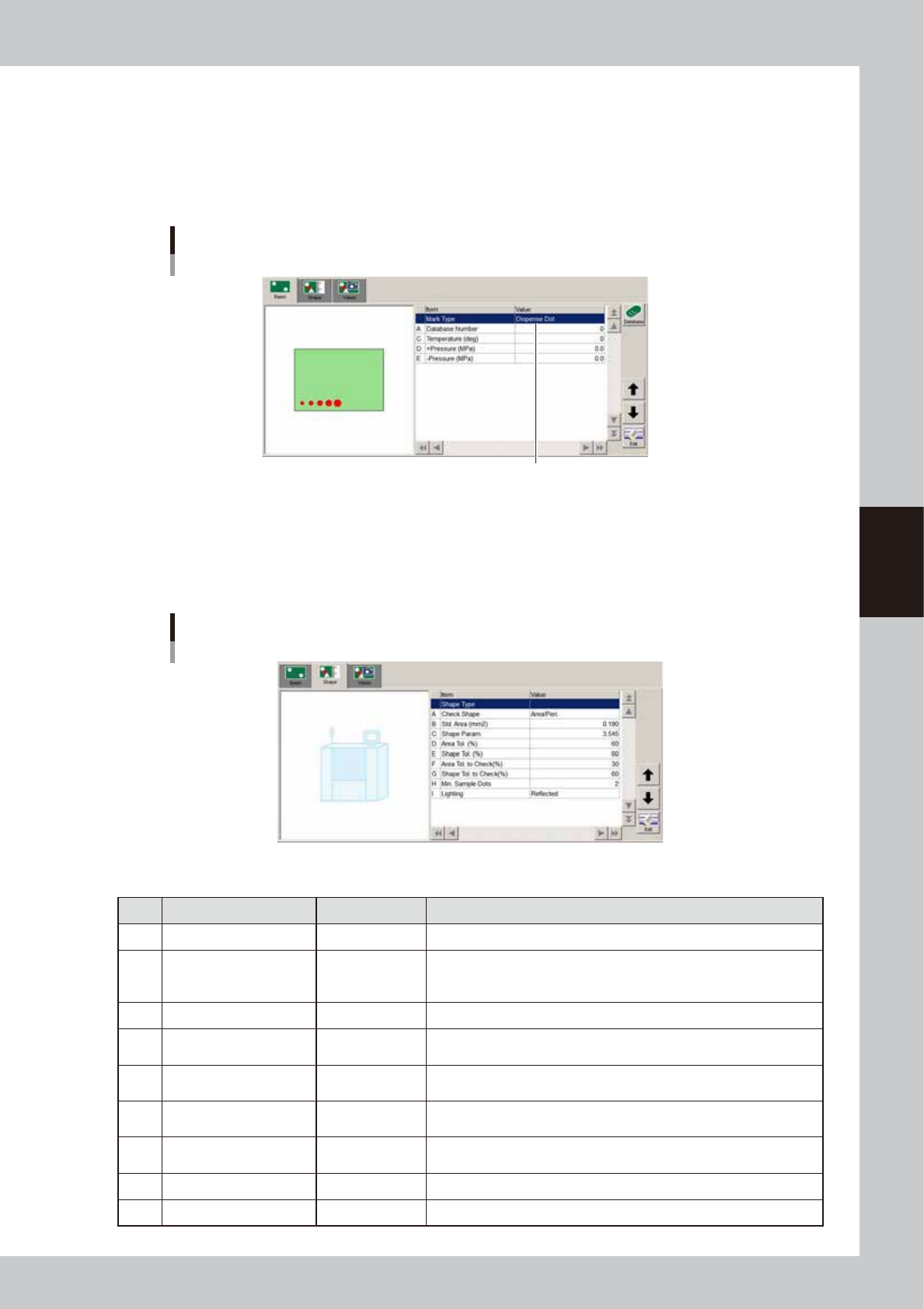
Set the “Mark Type” parameter to “Dispense Dot”.
1. Open the [Mark]-[Basic] tab.
2. Set “Mark Type” to “Dispense Dot”.
4
Set each parameter.
Set the "Temperature", "+Pressure" and "-Pressure" parameters.
Mark type information screen
Set to "Dispense Dot".
64432-N7-00
5
Set the mark shape information.
Open the [Mark]-[Shape] tab and make the necessary settings.
The following is an example of settings for Type 111 nozzle. For more details on each parameter, see
“
n
Mark shape information”.
Mark shape information
64433-N7-00
n
Example of settings for Type 111 nozzle
Parameter Setting Description
A Check Shape Area/Peri. In most cases, use “Area/Peri.” to check the shape.
B Std. Area (mm
2
) 0.190
Enter the main dispensing amount as the area.
For the settings for other nozzles, see “
n
Nozzle settings” in “3.1 Using
the dispense correction function” in this chapter.
C Shape Param 3.545 Set to “3.545” when the Check Shape” parameter is set to “Area/Peri.”.
D Area Tol (%) 60
In most cases, set to 60%. Change the setting as needed, according to
the dot recognition state.
E Shape Tol (%) 60
In most cases, set to 60%. Change the setting as needed, according to
the dot recognition state.
F
Area Tol. To Check
(for check) (%)
30
In most cases, set to 30%. Set the allowable tolerance for dot
recognition after correction.
G
Shape Tol. To Check
(for check) (%)
40
In most cases, set to 40%. Set the allowable tolerance for dot
recognition after correction.
H Min. Sample Dots 2 Set to “2” since Type 111 is a 2-point dispensing nozzle.
I Lighting Reflected In most cases, set to “Reflected”.