YSD_Users_E.pdf - 第171页
4-43 4 Making the dispensing stable 2 Set the predispensing location. 1. Open the [Board]-[Pre Dispense] tab. 2. Press the [Edit] button. Pre-dispense information Press the [Edit] button. 64411-N7-00 3 Set the predispens…
4-42
4
Making the dispensing stable
5.2 Setting the board information
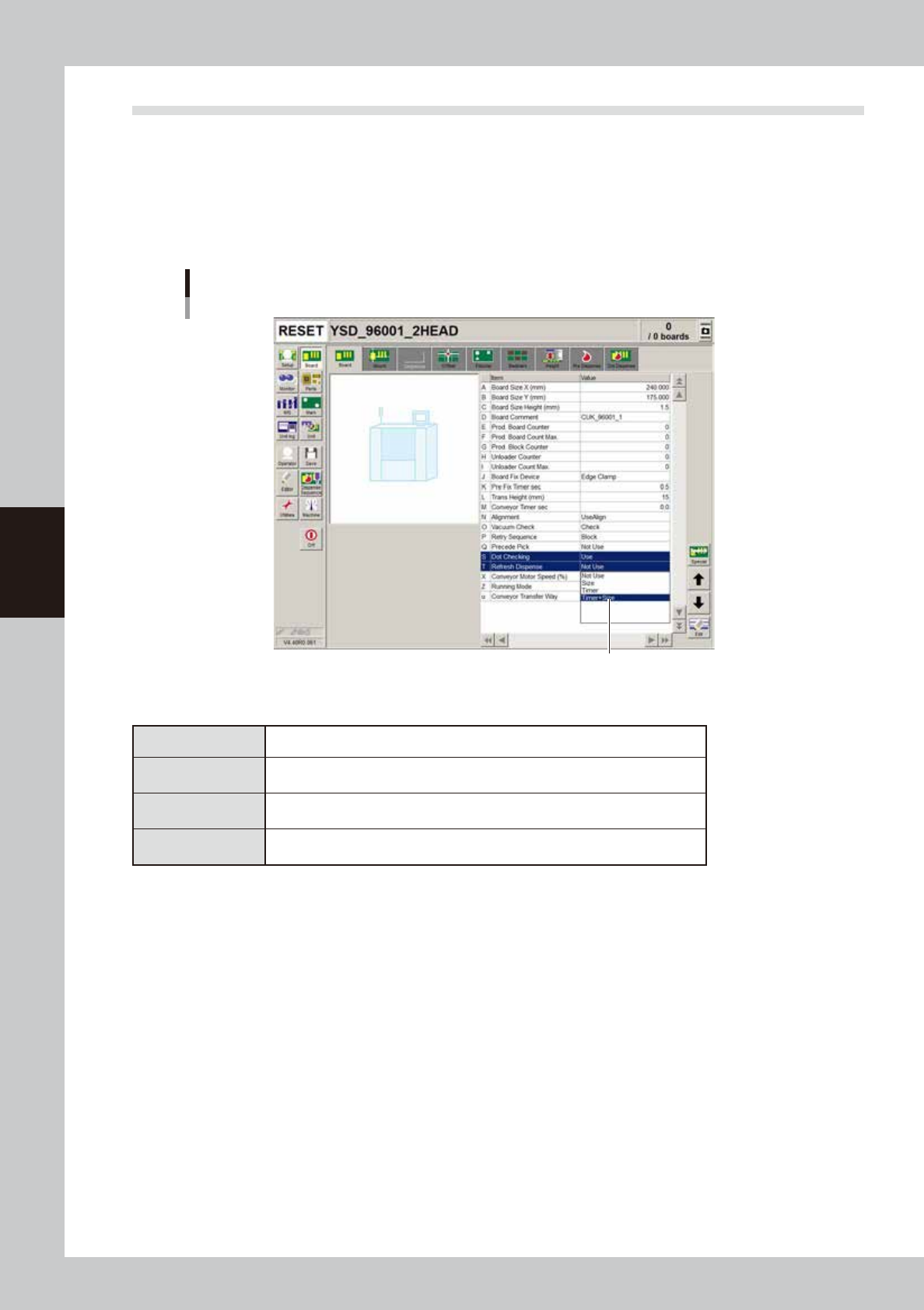
For each board data, set whether the dot station is to be used.
1
Set the automatic predispensing function.
1. Open the board data.
2. Open the [Board] - [Board] tab.
3. Set the "Refresh Dispense" parameter.
"Refresh Dispense" parameter
Set the automatic predispensing function.
64410-N7-00
n
Automatic predispensing setting
Not use This function is not used.
Size
Automatically performs predispensing if the difference in the dot size between
successive dispensings is larger than the size specified here.
Time
Automatically performs predispensing if the head does not dispense for longer
than the time specified here. (Recommended)
Time+Size
Automatically performs predispensing if either of the "time" and size" conditions
above is met.
4-43
4
Making the dispensing stable
2
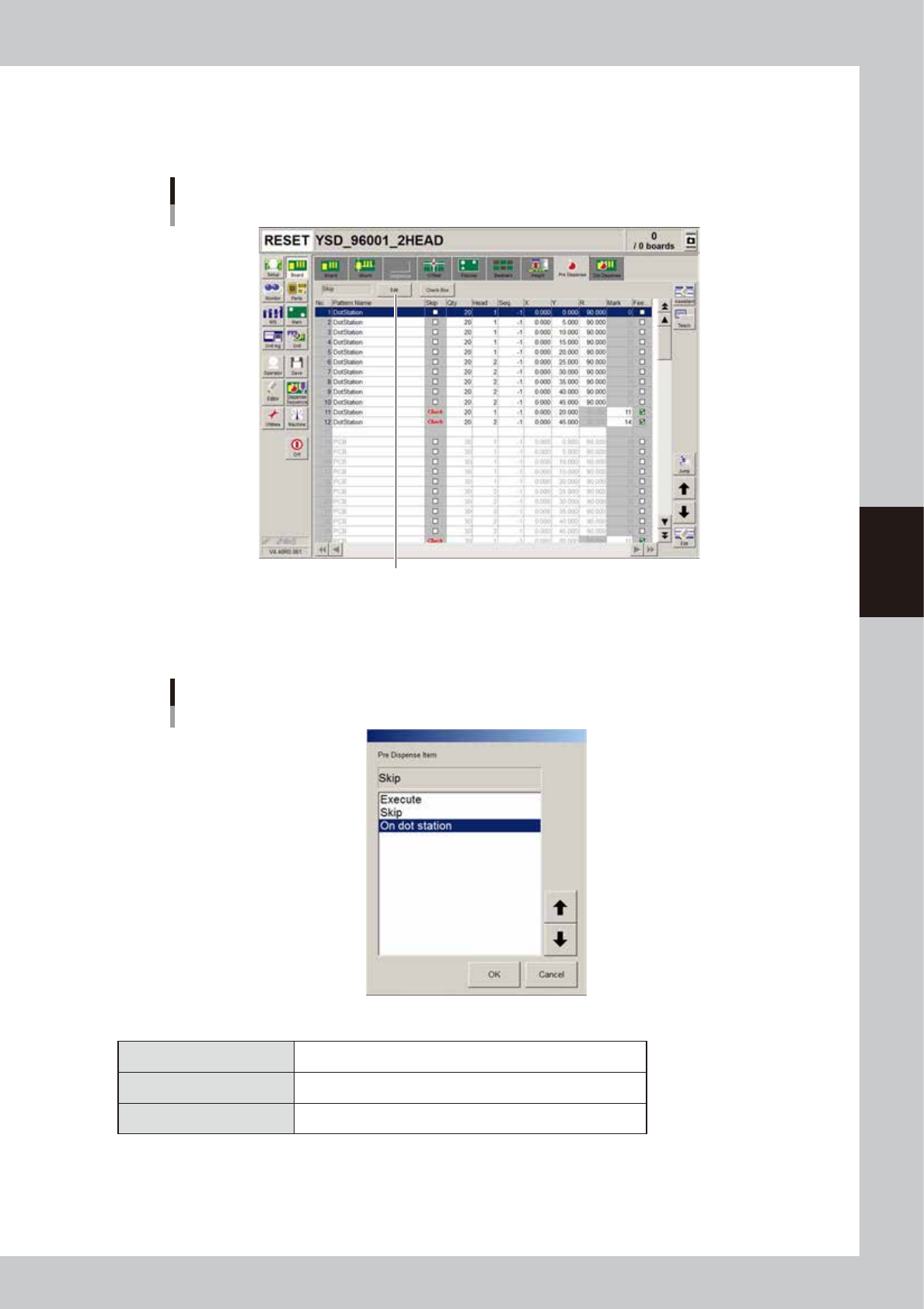
Set the predispensing location.
1. Open the [Board]-[Pre Dispense] tab.
2. Press the [Edit] button.
Pre-dispense information
Press the [Edit] button.
64411-N7-00
3
Set the predispensing location.
Select the desired items and press the [OK] button.
Pre-dispense item dialog box
64412-N7-00
n
Predispensing setting
Skip Predispensing is not performed.
Execute Performs predispensing on a board.
On dot station Performs predispensing on the dot station.
4
Set the predispensing coordinates.
If "Execute" has been selected, the relative coordinates from the board origin must be entered. To
predispense on the dot station, the coordinates of the dot datum entered in "5.1.2 Entering the
predispensing coordinates" must be used as the origin. Make sure that the coordinates are not outside
the paper.
4-44
4
Making the dispensing stable
5.3 Dispense correction limit check
When correcting the dispense amount by dispense check, this function checks whether the correction amount
(calculated as described below) is within the maximum and minimum correction limits specified beforehand in
the machine data setting (VmSpec window). If the correction amount exceeds the maximum or minimum limit,
the machine automatically stops due to an error and prompts the operator to check the error.
n
NOTE
The software that supports this function is V4.49STD R1.000 or later versions.
5.3.1 Correction amount calculation
The correction amount is calculated according to the “Calc. Type” setting in “Dispense Correction” in the
“VmSpec” window for machine data setting.
• Proportion : Correction amount = Standard area / Measured area (recommended)
• Constant : Correction amount = (Dispense timer calculated from standard area) - (Dispense timer calculated from
measured area)
The machine starts dispensing when the calculated correction amount is within the maximum and lower limits
of the correction range.
n
NOTE
This function does not work if the maximum correction limit is set to 0.001 or less.
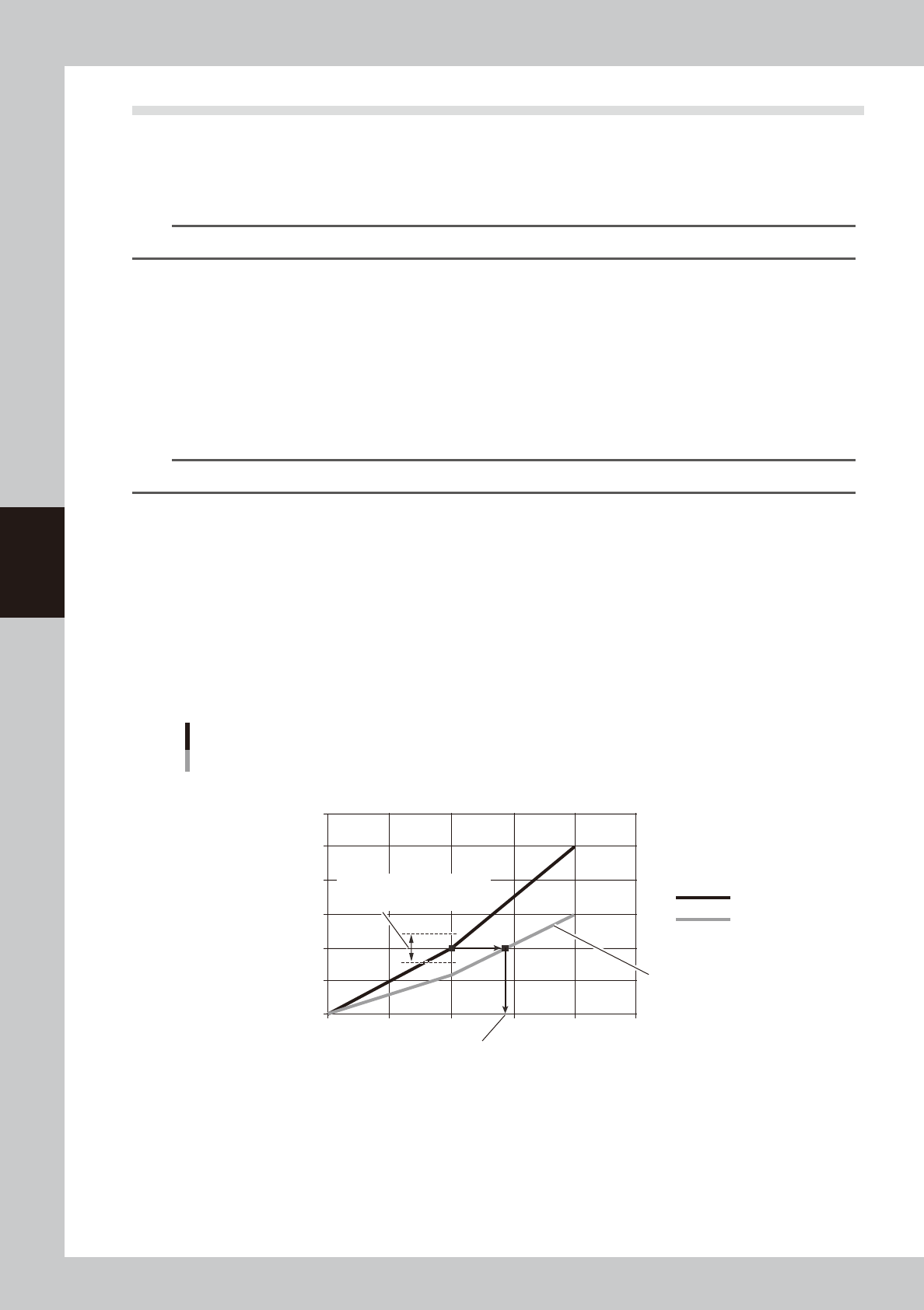
• Proportion type
The correction amount (standard area / correction area) is the ratio of the area to be dispensed with the predispensed
liquid amount (timer) to the actually dispensed area (with the area corrected).
(The standard area is calculated from [Machine] - “Dispense Correction” - “Std. Area”.)
(Example)
When the liquid amount (timer) is 20, and if the standard area is 0.20, minimum correction is 0.8, and maximum
correction is 1.2, then the correction range is as follows:
Minimum correction: 0.20 × 0.8 = 0.16
Maximum correction: 0.20 × 1.2 = 0.24
If the actually dispensed area is outside this range (0.16 to 0.24), an error message will appear.
0
0.1
0.2
0.3
0.4
0.5
0.6
0 10 20 30 40 50
Proportion type
Example
Dispensing liquid amount [msec]
Dispensed area [mm
2
]
Standard area
Correction area
Corrected liquid amount (timer)
Correction amount limit range
(setting range: 0.8 to 1.2)
Standard area / correction amount
63418-N7-00