YSD_Users_E.pdf - 第183页
4-55 4 Making the dispensing stable 7. Checking/correcting dispensing positions This section explains how to check and correct the dispensing position specified in the dot dispense information, using the trace function a…

4-54
4
Making the dispensing stable
8. Down Speed (%)
Set the speed at which the Z axis moves down to dispense adhesive. The speed must be set in percentage to the maximum
rpm of the Z-axis motor. Normally, set 100%.
However, if the adhesive on the nozzle tip is not dispensed on the board but adheres to the external surface of the
nozzle, decrease this speed.
9. Time before up (msec)
Set the time to be elapsed before the Z axis starts to ascend after reaching the target descent position. Set this parameter
if no adhesive is dispensed on the board or if it scatters.
To prevent cobwebbing when using adhesive (e.g. cream solder) that requires sometime before it familiarizes with the
board, set this parameter to between 50 and 200 ms.
10. Slow Down Distance (mm)
Set the height where the Z axis starts to slow down during descent.
11. Slow Down Speed (%)
Set the speed at which the Z axis starts to move down. The speed must be set in percentage to the maximum rpm of the
Z-axis motor. However, if the adhesive on the nozzle tip is not dispensed on the board but adheres to the external surface
of the nozzle, decrease this speed.
12. Upend Position (mm)
Set the target position to which the Z axis moves up after dispensing. A height from the board surface must be entered. A
value that is equal to or larger than "Z height for next job" must be entered.
Set a larger value if the summit of dots is drawn in the direction the head moves.
If the height can be decreased, make it as small as possible to improve tact.
13. Up Speed (%)
Set the speed at which the Z axis starts to move up after dispensing. The speed must be set in percentage to the maximum
rpm of the Z-axis motor. Decrease the speed if adhesive drips or scatters due to cobwebbing.
If cobwebbing occurs even if the nozzle has proper contact with the board, decrease this speed by 10%.
14. Timer Bedor XY move (msec)
Set the time to be elapsed before the XY axes start to move at the top-end position after the Z axis completes dispensing.
If you are using adhesive that often causes cobwebbing but does not require the Up Speed to be reduced, set this
parameter to between 30 and 100.
15. Slow Up Distance (mm)
Set the height where the Z axis starts to slow down before moving to the target position after dispensing. A height from
the board surface must be entered.
16. Slow Up Speed (%)
Set the speed at which the Z axis starts to slow down before reaching the target position after dispensing. The speed must
be set in percentage to the maximum rpm of the Z-axis motor. Decrease the speed if adhesive drips or scatters due to
cobwebbing.
17. Z height for next job (mm)
Set the height where the XY axes can be operated when the Z axis moves up after dispensing. A value from the board
surface must be set, and if obstructions (e.g. components) that project beyond the board surface are present, a value that
is larger than the highest obstruction by one mm or more must be entered. If adhesive drips or scatters due to
cobwebbing, such problems may be reduced by increasing this parameter together with "Up Speed". If this height is not
appropriate, there is a possibility that the nozzle collides with the obstructions on the board.
Set a larger value if the summit of dots is drawn in the direction the head moves.
If the height can be decreased, make it as small as possible (minimum: 35) to improve tact.
18. Comment
Enter a comment regarding the dispense sequence.
19. Dispense Pulse Width (msec)
Normally, set "0".
20. Dispense Pulse Interval (msec)
Normally, set "0".
4-55
4
Making the dispensing stable
7. Checking/correcting dispensing positions
This section explains how to check and correct the dispensing position specified in the dot dispense
information, using the trace function and teaching function or direct data input. The trace function moves the
teaching unit to the coordinates displayed on the screen. If you select “Camera” for the teaching unit, you
can visually check the position on the vision monitor.
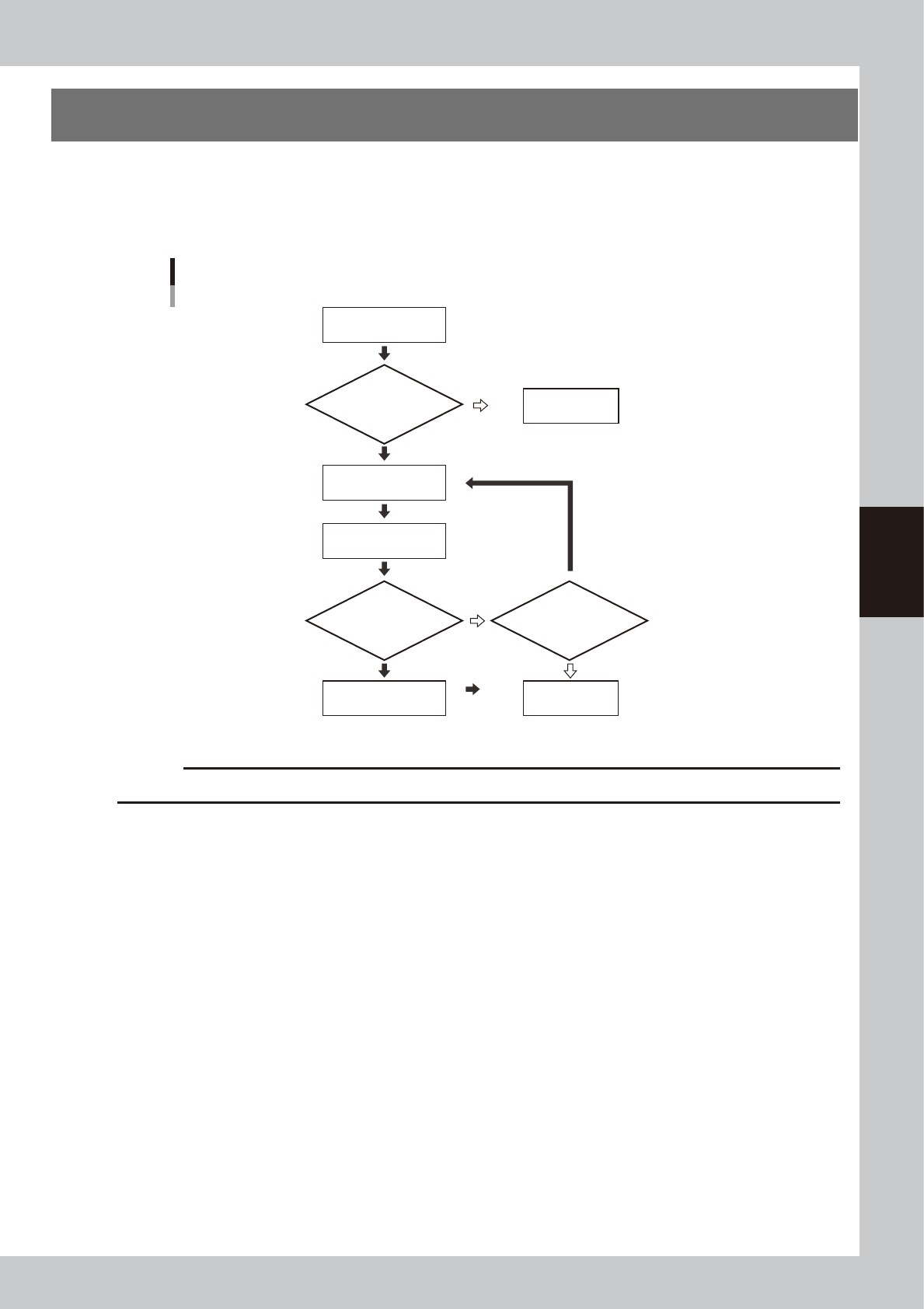
Flow chart for checking and correcting the dispensing position
Select dispense
No. to check position
Open dot dispense
information
Check dispensing
position
Enter correct coordinate
data by teaching
Save data
Is board clamped?
Correct dispensing
position?
Continue work?
Secure board.
YES
YES NO
NO
NO
YES
63421-N7-00
c
CAUTION
Dot dispense information will be overwritten if you perform dispensing distribution again.
4-56
4
Making the dispensing stable
1
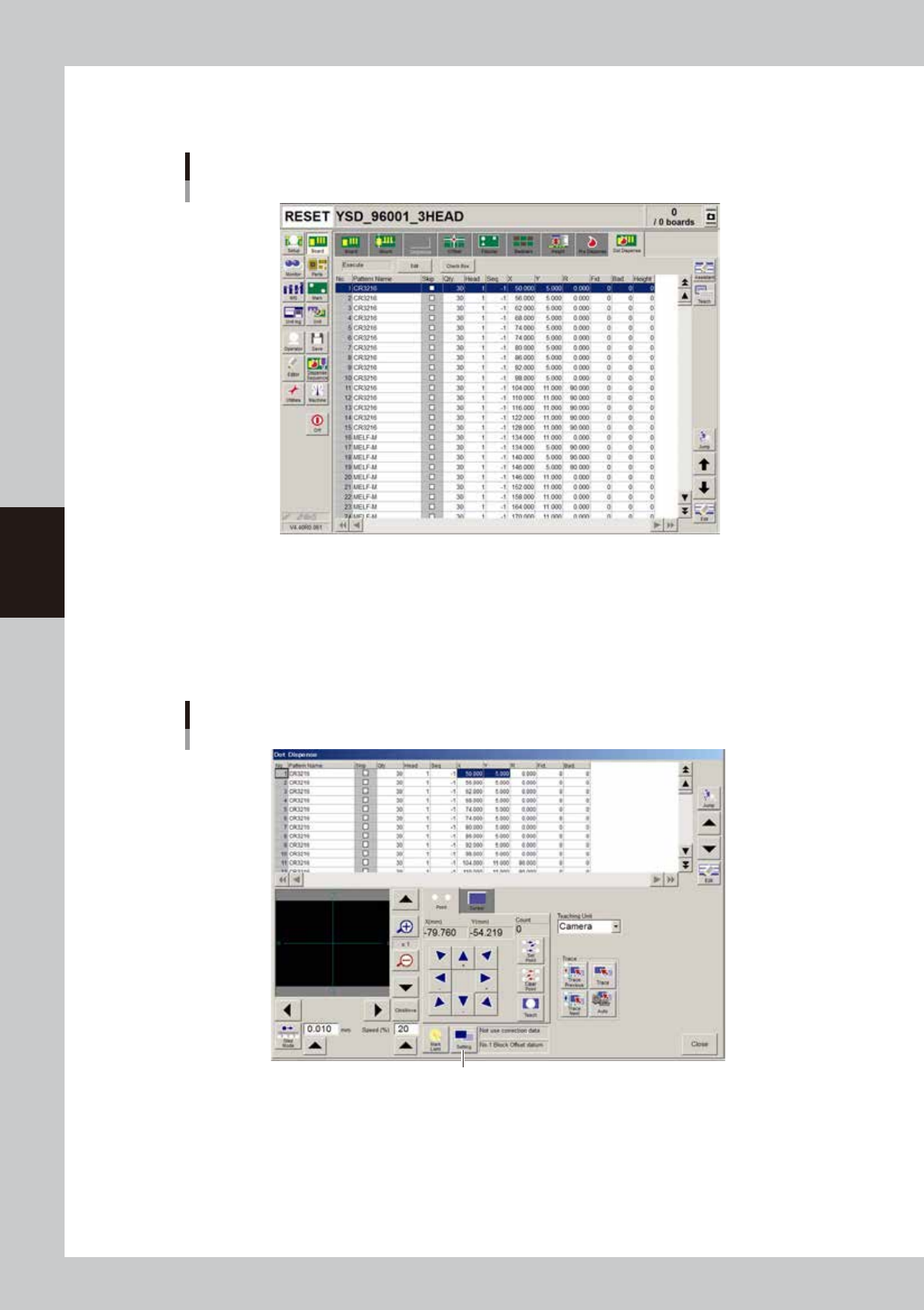
Display the dot dispense information.
On the Board screen, select the [Dot Dispense] tab to display the dot dispense information.
Dot dispense information
64453-N7-00
2
Make trace setting.
1. Press the [Teach] button.
The "Dot Dispense" window for teaching appears.
2. Press the [Setting] button.
A dialog box appears for fiducial correction setting.
"Dot Dispense" window
[Setting] button
64454-N7-00