YSD_Users_E.pdf - 第185页
4-57 4 Making the dispensing stable 3. If the board data uses fiducial correction, select the [Fiducial Correction] check box in the dialog box. Fiducial correction setting 64455-N7-00 n Note When you correct, add or cre…
4-56
4
Making the dispensing stable
1
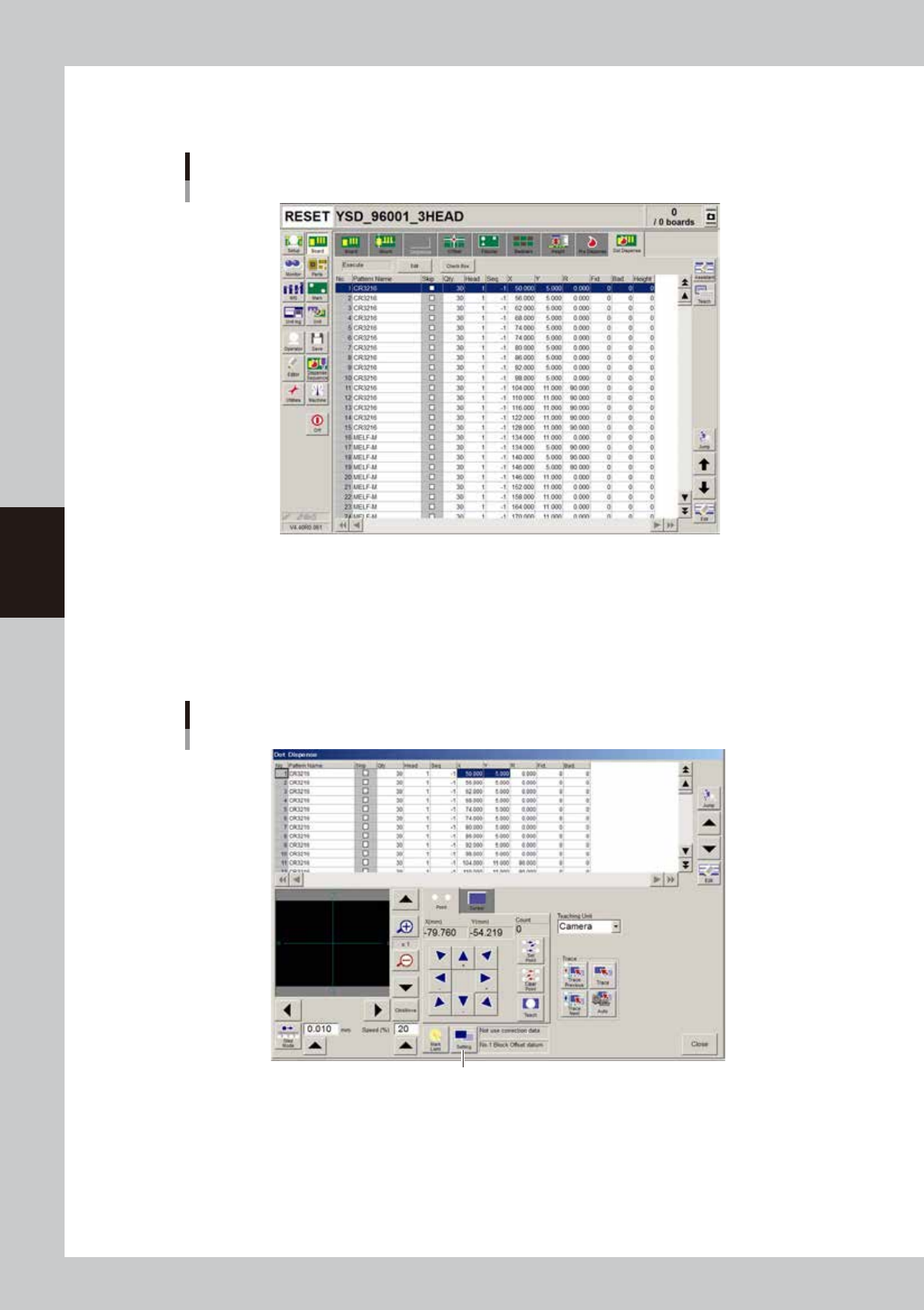
Display the dot dispense information.
On the Board screen, select the [Dot Dispense] tab to display the dot dispense information.
Dot dispense information
64453-N7-00
2
Make trace setting.
1. Press the [Teach] button.
The "Dot Dispense" window for teaching appears.
2. Press the [Setting] button.
A dialog box appears for fiducial correction setting.
"Dot Dispense" window
[Setting] button
64454-N7-00
4-57
4
Making the dispensing stable
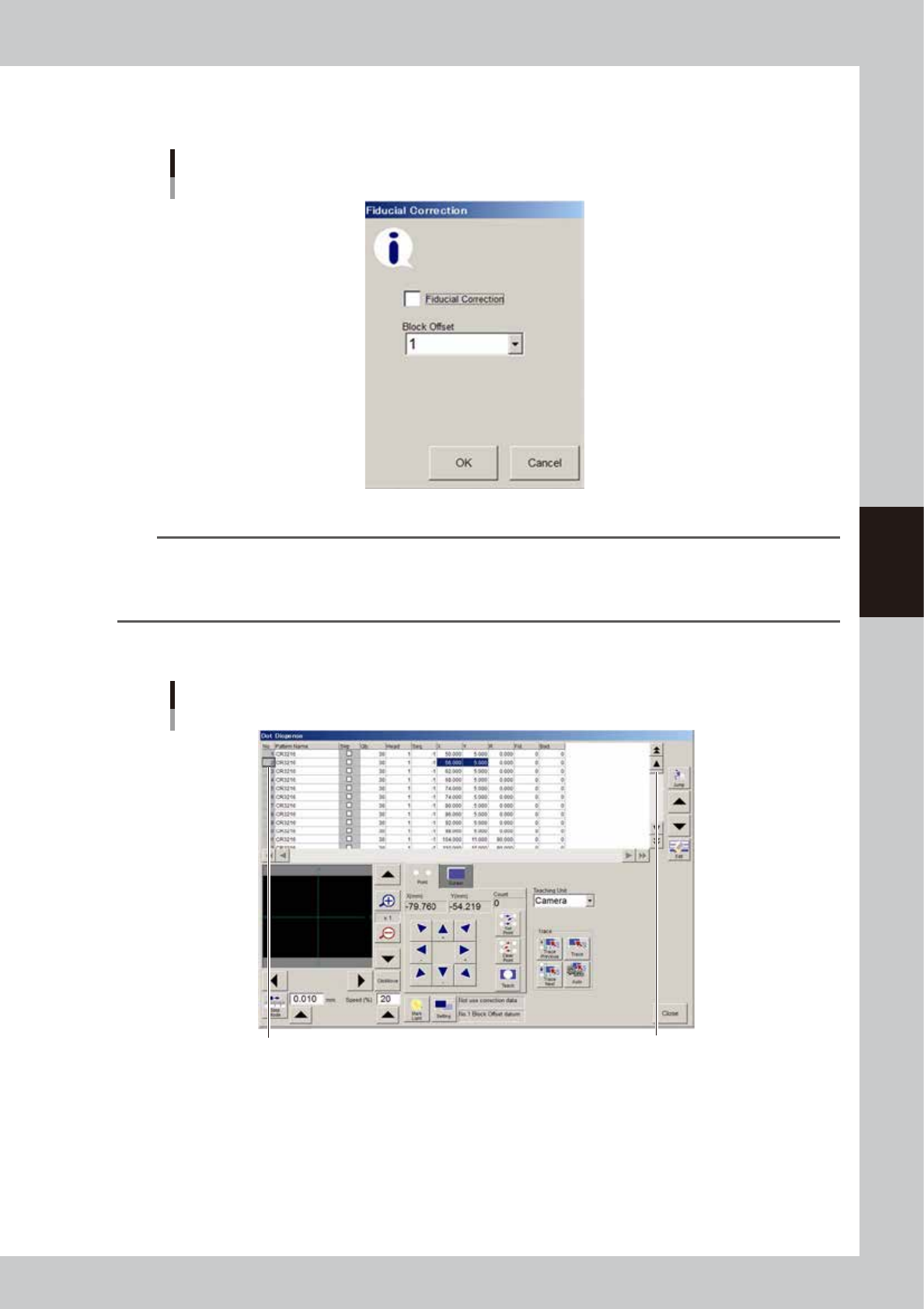
3. If the board data uses fiducial correction, select the [Fiducial Correction] check box in the dialog
box.
Fiducial correction setting
64455-N7-00
n
Note
When you correct, add or create the board data using fiducial marks, selecting the "Fiducial Correction" check box
allows the machine to recognize fiducial marks on the board so that corrected dispense data is automatically
obtained. This makes it possible to perform accurate teaching or tracing of the specified position. To use this function,
the fiducial mark coordinates and mark data must be set correctly in advance.
3
Select the dispense No. of the position you want to check.
Selecting dispense No.
Select the dispense No. Press this until the desirewd
data row appears.
64456-N7-00
4-58
4
Making the dispensing stable
4
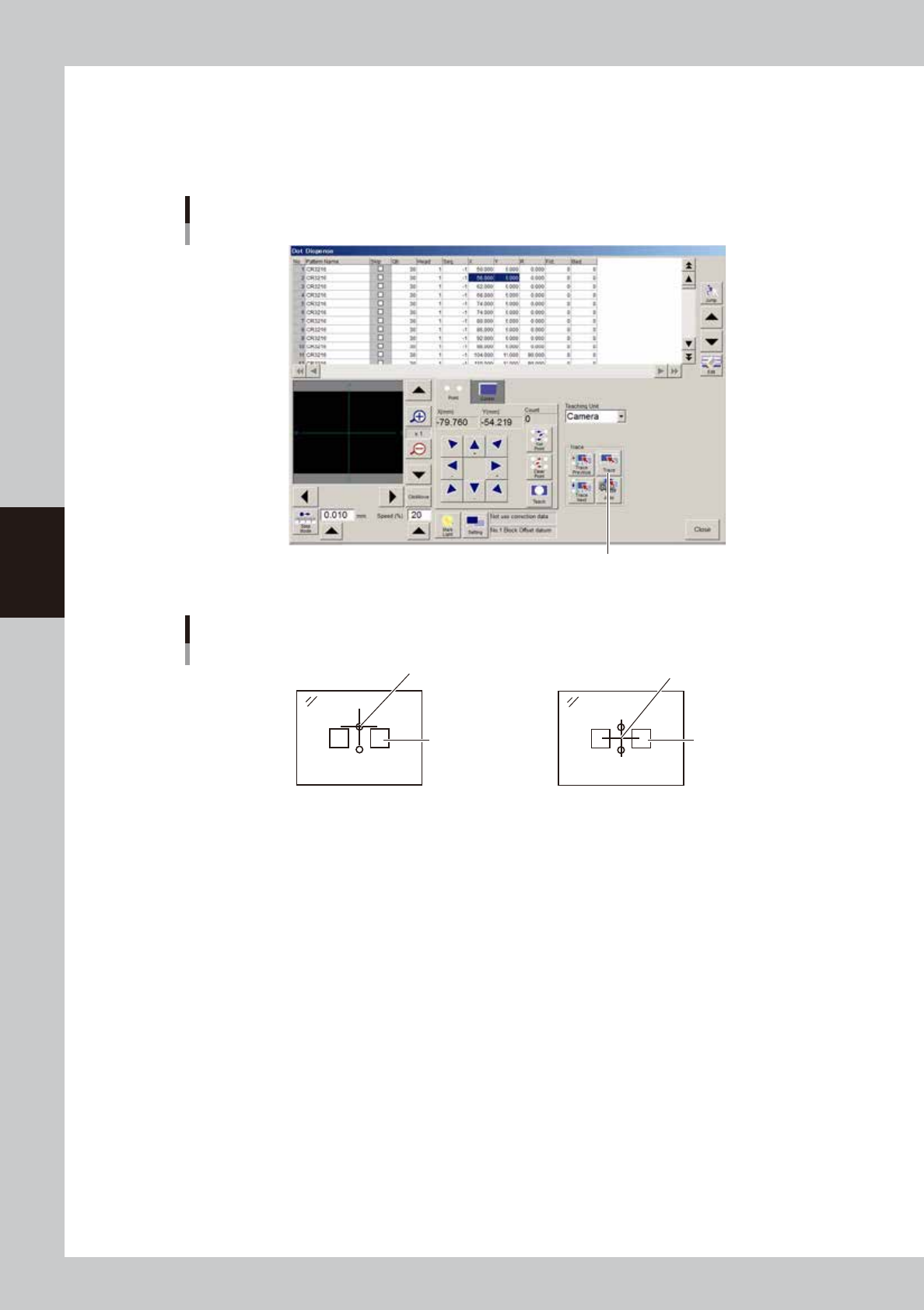
Check dispense positions.
1. Press the [Trace] button.
2. The camera moves to the selected dispense position. Check that the center cursor in the vision
monitor is located at the center of the dispense position.
[Trace] buttons
[Trace] button
64457-N7-B0
Displaying in the vision monitor
Land pattern
Center cross cursor
2-shot nozzle1-shot nozzle
Land pattern
Center cross cursor
63422-N7-00