YSD_Users_E.pdf - 第256页
5-67 5 Creating the board data 6.6.2 Using the data for pattern matching P attern matching can be used in the same wa y as the fiducial marks. In this case, enter the mark No. registered as the pattern in the Mark 1 and …
5-66
5
Creating the board data
w
Perform the vision test.
Press the [Test] button and check to see if the pattern is correctly recognized. Repeat this test several
times. When no error occurs, the pattern data is appropriate.
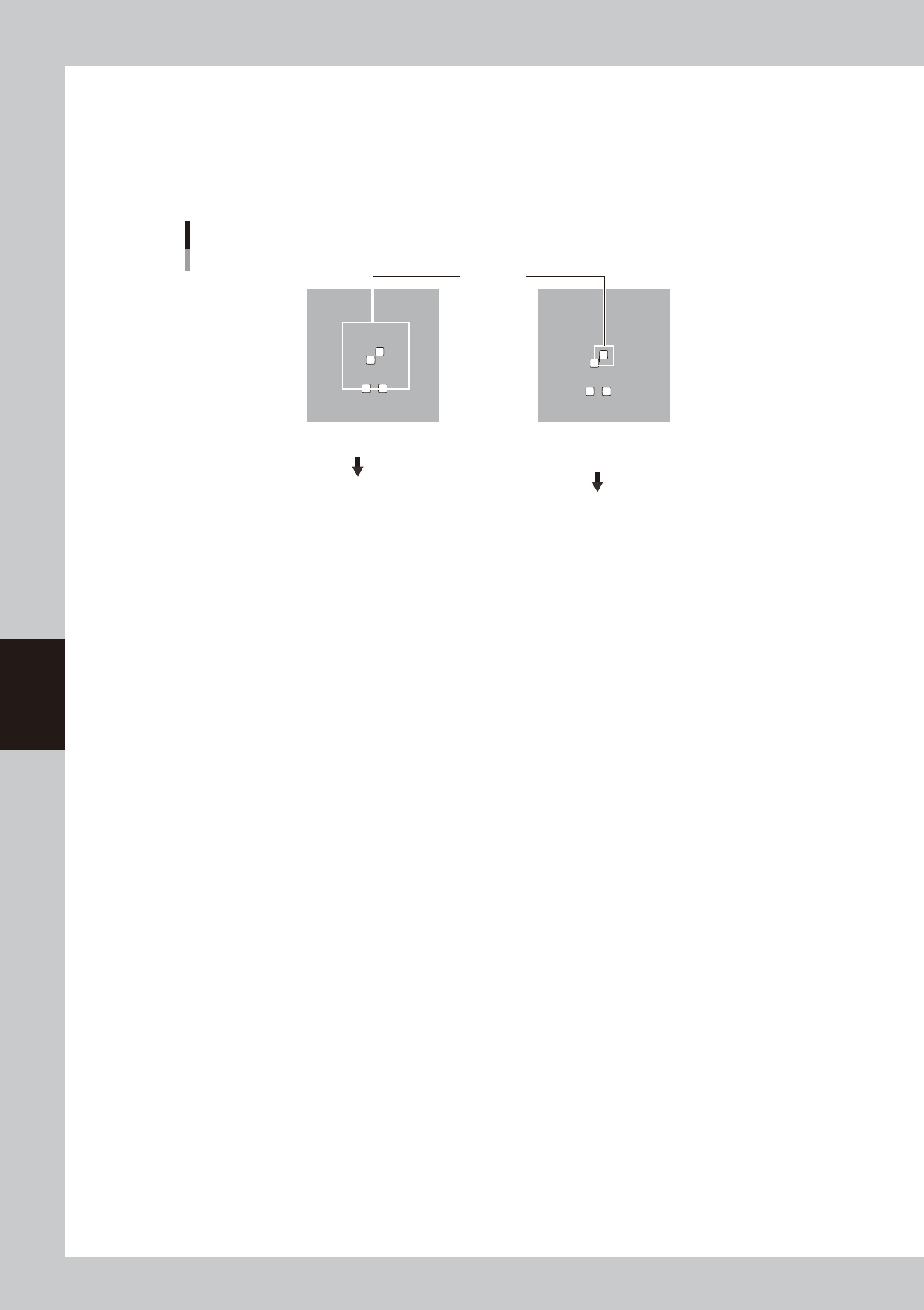
If an error occurs, check whether "Search Area" of the Vision parameters is appropriate. If the search
area is too large so that other marks are located within the search area, then reduce the search area.
Conversely, if the search area is too small, then enlarge the search area.
Search area adjustment
Search area
Search area is too large, so
other marks are recognized.
Reduce the search area
Search area is too small,
so the target pattern is not
inside the search area.
Enlarge the search area.
63549-N7-00
e
Close the Mark Adjust window.
Press the [OK] button to close the Mark Adjust window.
r
Save the data.
Press the [Save] button in the main menu button area and save the data.
5-67
5
Creating the board data
6.6.2 Using the data for pattern matching
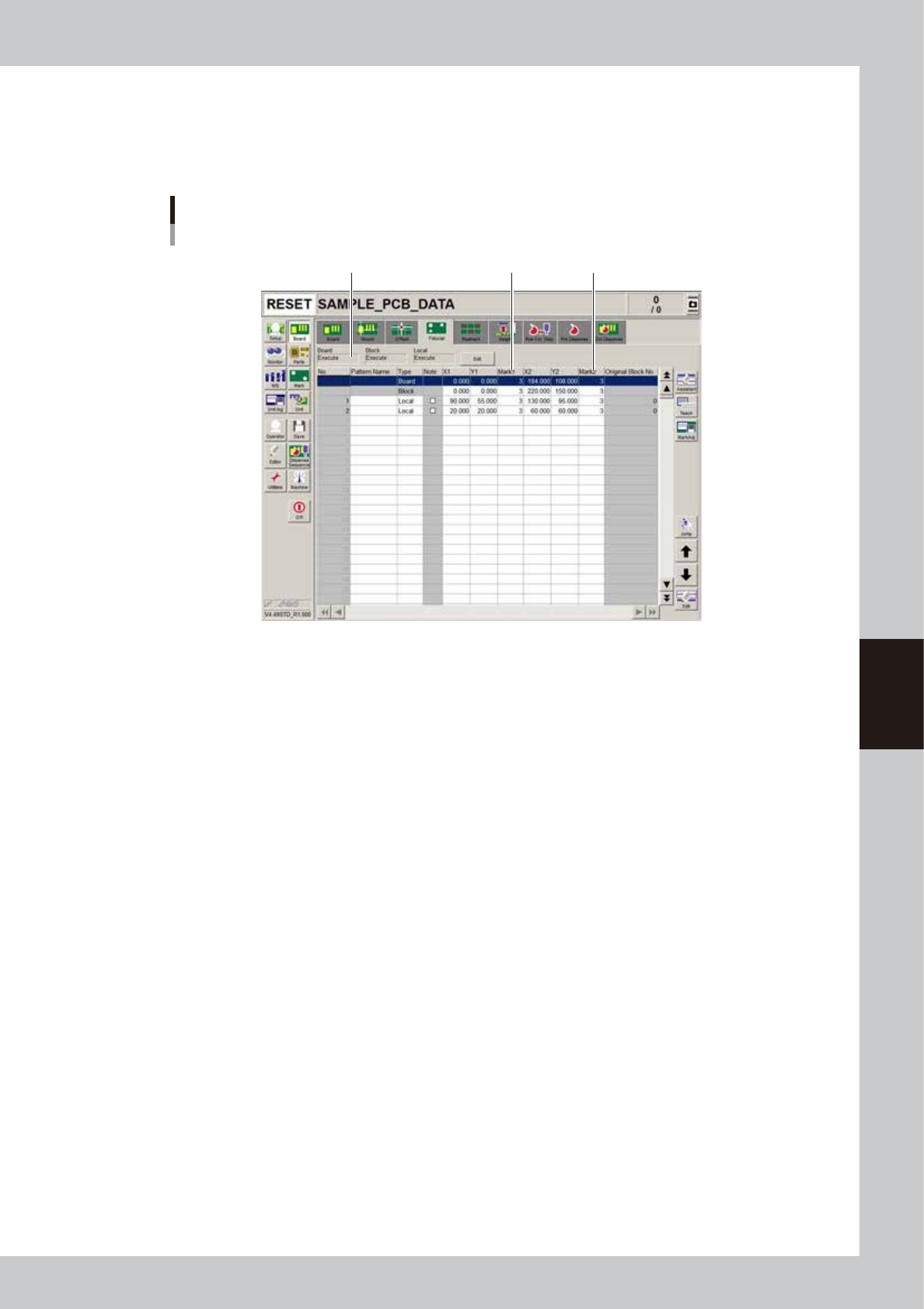
Pattern matching can be used in the same way as the fiducial marks. In this case, enter the mark No. registered
as the pattern in the Mark 1 and Mark 2 columns on the [Board] - [Fiducial] tab screen. (The figure below
shows an example when using pattern matching as board fiducial marks.)
Example of using pattern matching
Set mark No. registered as pattern in
"Mark 1" and Mark 2" columns.
Set to "Execute".
64540-N7-00
5-68
5
Creating the board data
7. Creating dot dispense information
The dot dispense information allows you to set dispense related information such as dispense position and
amount.
7.1 Dispense distribution
Executing dispense distribution using dispense parameters in the component mount information and
component information creates dot dispense data automatically.
This section explains how to execute dispense distribution.
1
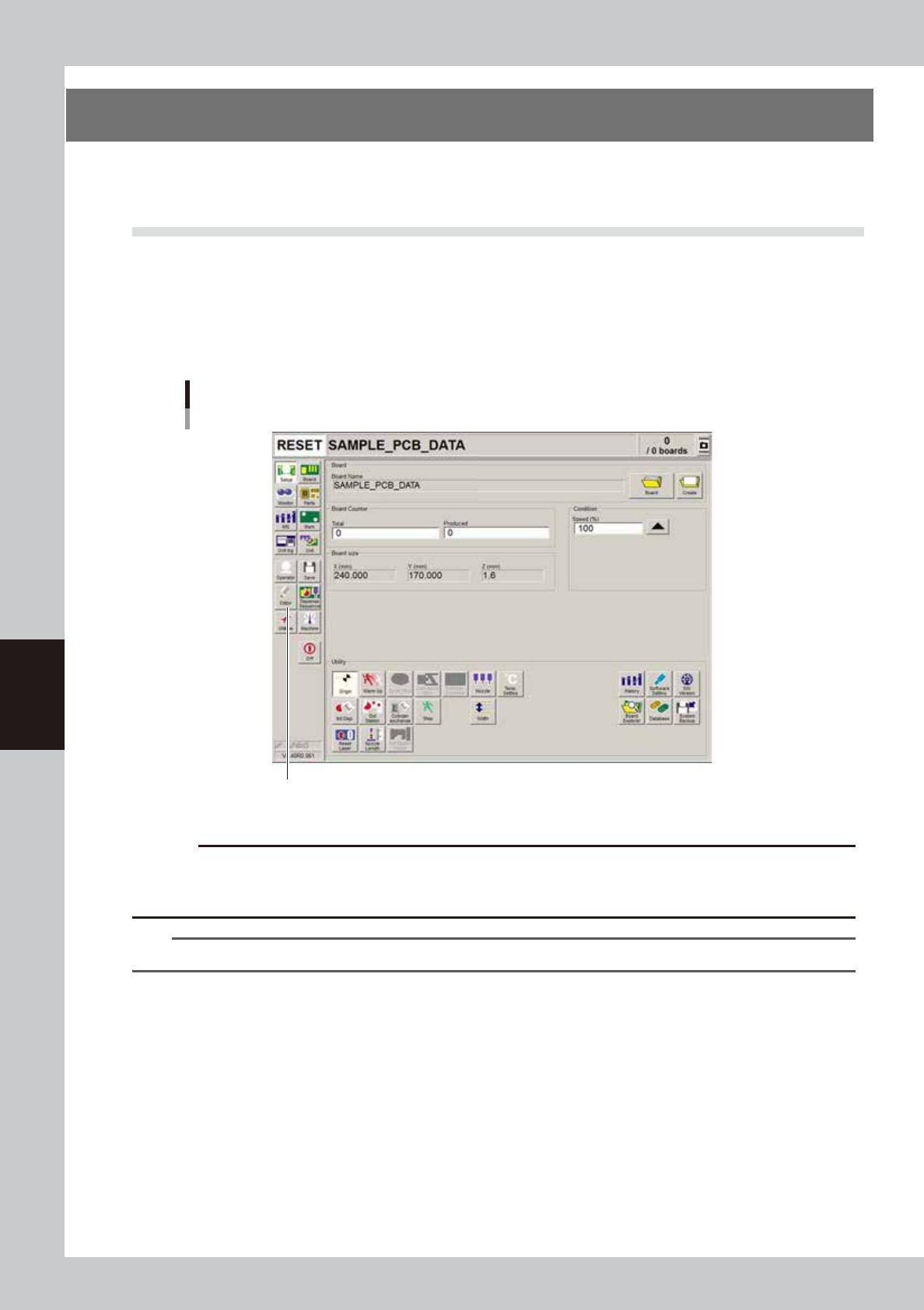
Start the Editor.
Press the [Editor] button.
Starting the editor
Press the [Editor] button.
64541-N7-00
c
CAUTION
Dispense distribution cannot be executed for the file that is currently edited.
When you are editing the board data to be subjected to dispense distribution, save that board data, execute dispense
distribution, then open the board data again.
TIP
For detailed information on the Editor window, see "1.2 Editor window" in Chapter 7.