YSD_Users_E.pdf - 第266页
5-77 5 Creating the board data 2 Select the board to be subjected to height correction distribution. Select "Open Board Data" from the File menu or click the [Open B oard Data] button on the toolbar . The "…
5-76
5
Creating the board data
8.2 Height correction distribution
As the height correction distribution is executed using the dot dispense data of the board data, height
correction data is created automatically.
This section describes how to distribute the height correction.
c
CAUTION
Data once distributed cannot be restored. We recommend saving the original board data before performing height
correction distribution.
n
NOTE
• The numbers in the "Mark" column on the [Height] tab are set to "0" by default, so you must re-enter the correct
numbers after height correction distribution.
• The Height Correction Distribution function does not work for 2-point height correction.
• If information exists in some data rows on the [Height] tab, then height correction distribution is sequentially
performed on the other rows that are not used.
1
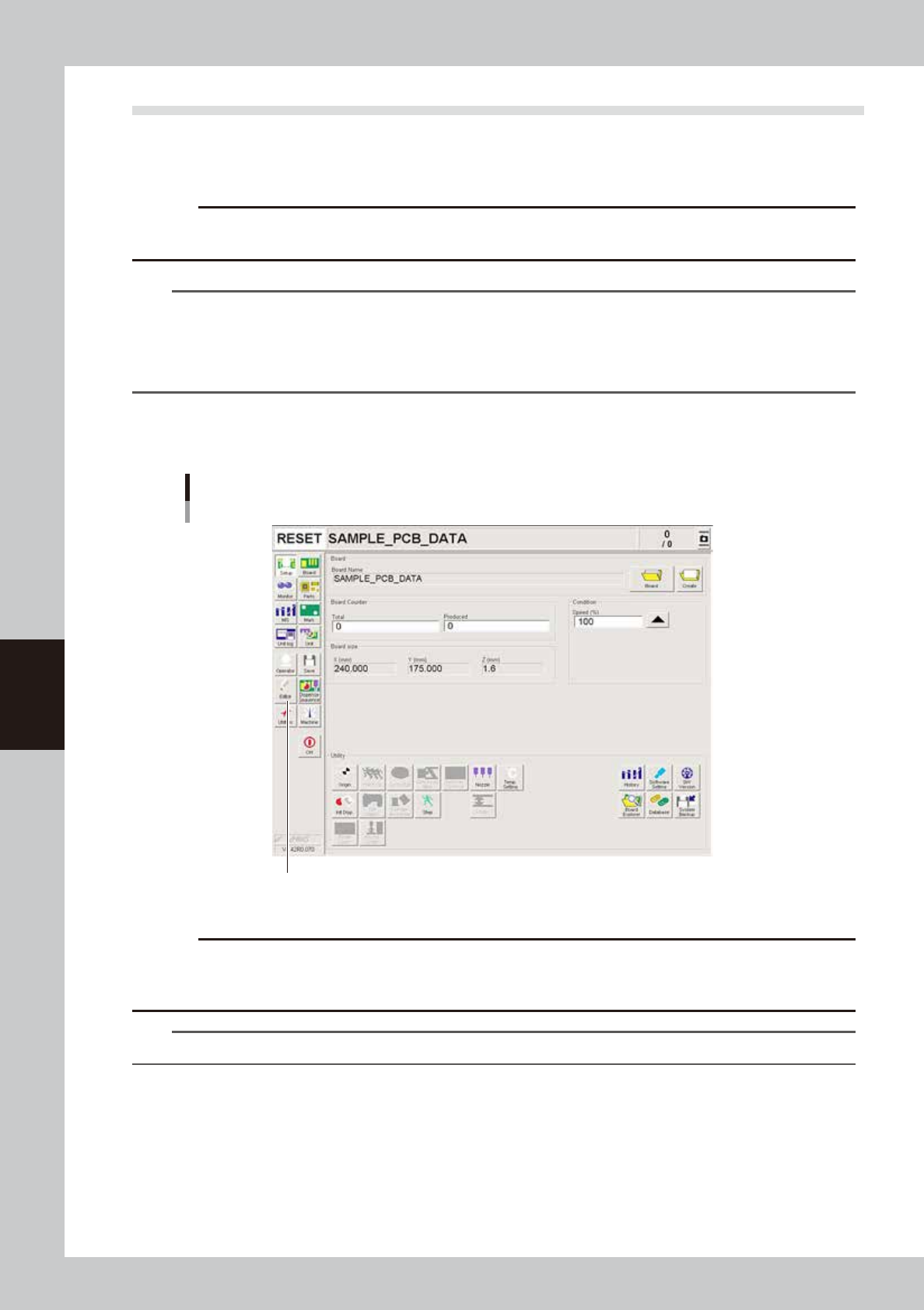
Start the Editor.
Press the [Editor] button.
Starting the editor
Press the [Editor] button.
64550-N7-00
c
CAUT ION
The height correction distribution cannot be executed for the file that is currently edited. When you are editing the
board data to be subjected to height correction distribution, save the board data, execute the height correction
distribution, and then open the board data again.
TIP
For detailed information on the Editor window, see "1.2 Editor window" in Chapter 7.
5-77
5
Creating the board data
2
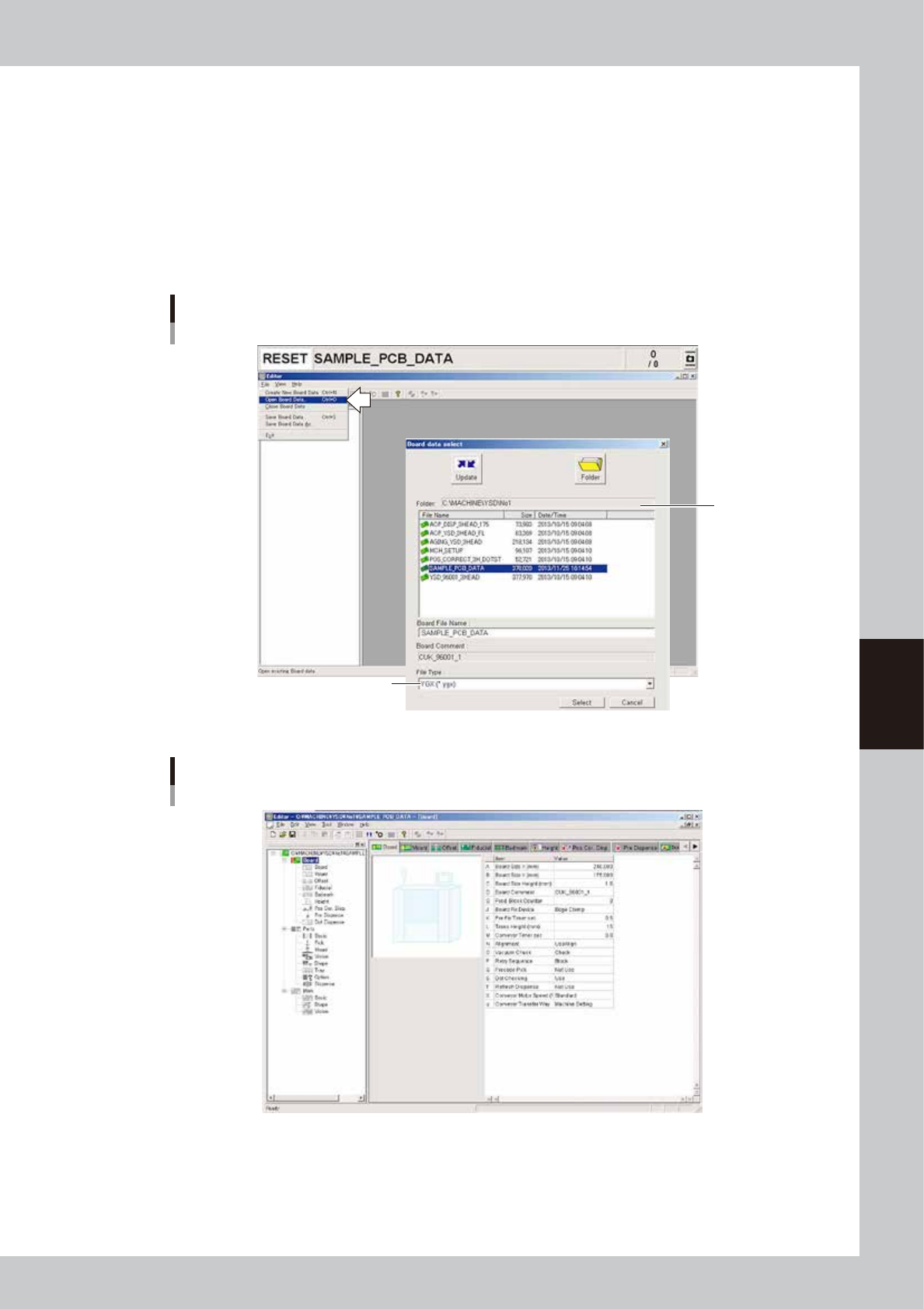
Select the board to be subjected to height correction distribution.
Select "Open Board Data" from the File menu or click the [Open Board Data] button on the toolbar. The
"Board data select" dialog box appears.
1. Check that the "Folder" box shows the path to the folder that contains the board data you want to
select. If not, press the [Folder] button and specify the folder containing the board data and press
the [OK] button.
2. Select the file type from the File Type drop-down list.
3. Select the board data and click the [Select] button.
The selected board data is loaded and displayed in the Editor window.
Selecting the board data
Check the
folder path.
Select the file type.
64551-N7-00
Editor window
64552-N7-00
5-78
5
Creating the board data
3
Display the dot dispense parameters.
Click the Dot Dispense icon in the tree view (left pane) or click the [Dot Dispense] tab in the main view
(right pane).
4
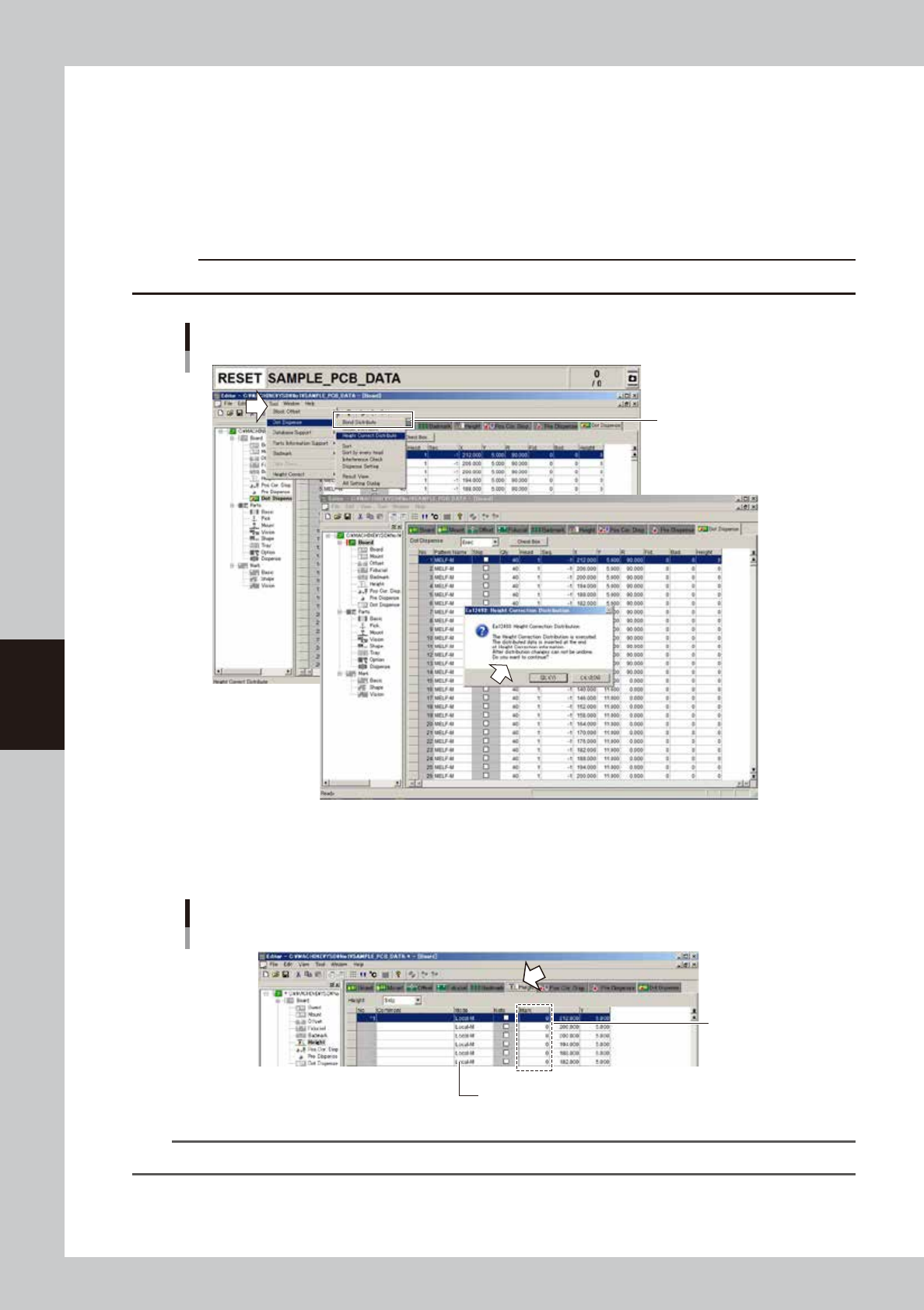
Perform the height correction distribution.
From the [Edit] menu, select [Dispense Distribute] - [Height Correct Distribute].
The height correction distribution will start to create height correction coordinates according to the dot
dispense data.
c
CAUT ION
Performing the height correction distribution will overwrite the height correction of the dot dispense data.
Height correction Distribution
Select eithter command.
64553-N7-00
5
Enter the mark number.
Open the [Height] tab and enter the mark number for height correction.
Entering the mark number
Enter the mark
number for
height correction.
DIstributed data is displayed.
64554-N7-00
TIP
When entering the same mark number in all fields, use [Replace] from the [Edit] menu.