YSD_Users_E.pdf - 第293页
6-24 6 Using the advanced functions 6 Pr ess the [Dispense] button. When the following dialog appears, check the safety and press the [OK] button. Disp ense test will start. Dispense test start confirmation 64628-N7-00 7…
6-23
6
Using the advanced functions
• Mark No.
Select the mark No. if a dispensed dot is to be recognized as a mark.
Among the marks registered in the board data, select the one you want to use.
• Speed
Set the speed at which dispense is to be performed.
n
Dispensing dots on board
Dispensing dots on board
64626-N7-00
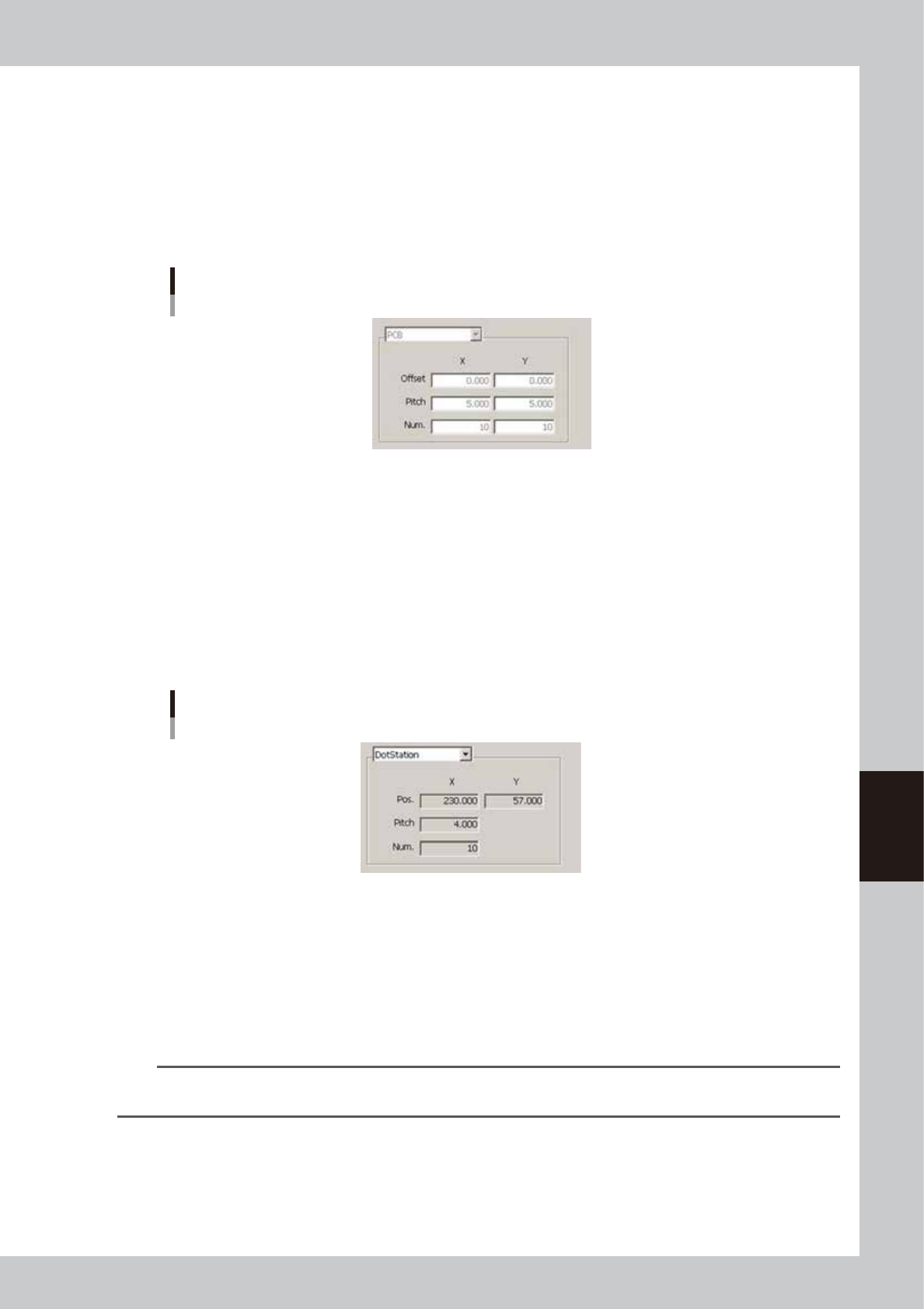
• Offset XY
Set the XY position offset from the board reference position.
• Pitch (mm)
Set the dot intervals in millimeters at which dispense will be performed.
• Num.
Set the number of dots that will be dispensed in the X and Y directions.
n
Dispensing dots on dot station
Dispensing dots on dot station
64627-N7-00
• Pos.
Shows the dot reference position. The first dot will be dispensed at this position on the dot station.
• Pitch (mm)
Shows the pitch between dots to be dispensed.
• Num.
Shows the number of dots to be dispensed in a row on the dot station.
n
NOTE
When dispensing dots on the dot station, the above parameters will be automatically entered and you do not have
to set them.
6-24
6
Using the advanced functions
6
Press the [Dispense] button.
When the following dialog appears, check the safety and press the [OK] button. Dispense test will start.
Dispense test start confirmation
64628-N7-00
7
Check the results.
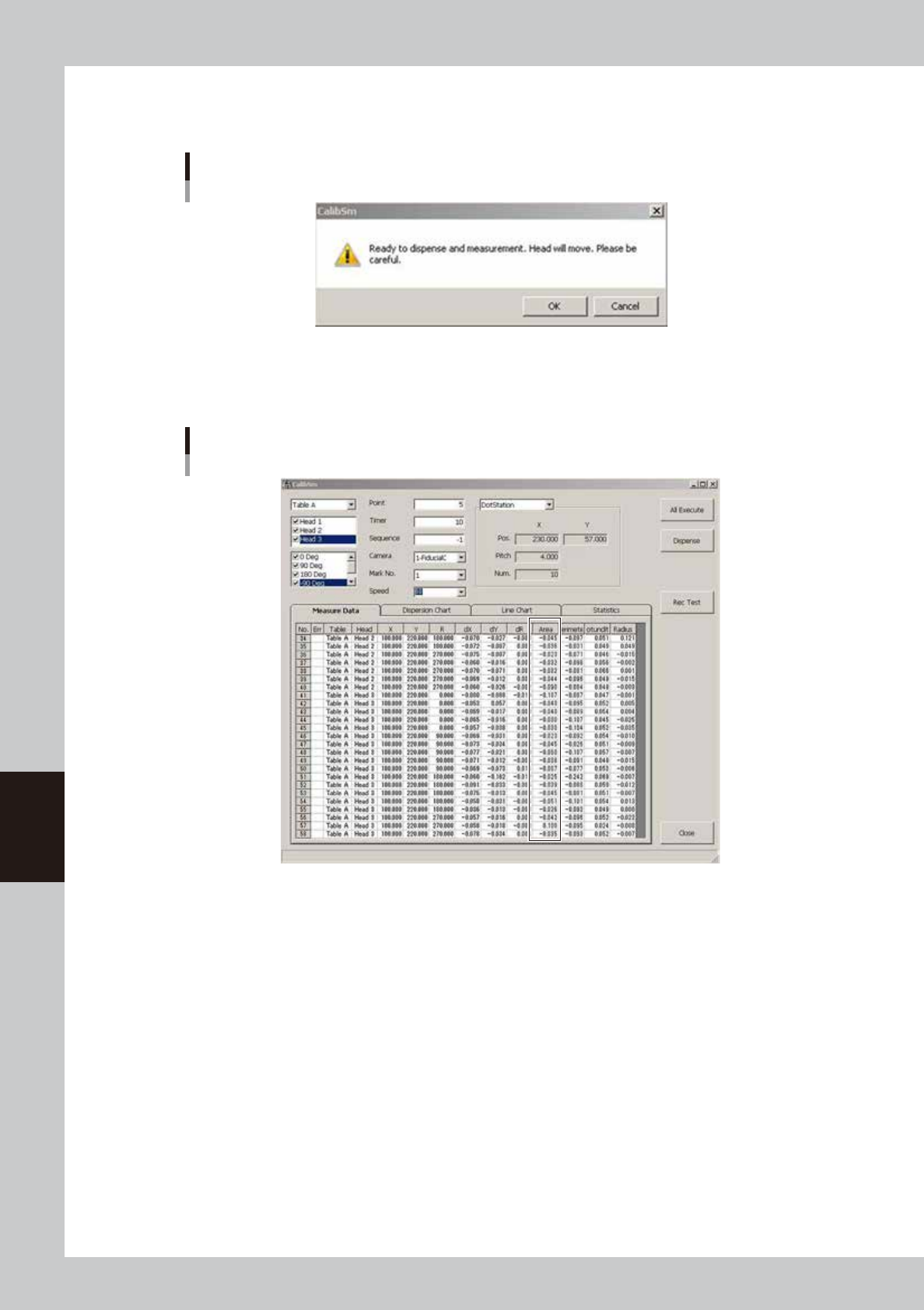
Check the values shown in the “Area” column. Use these values as the standard area.
Measurement results
64629-N7-00
dx, dy : Shows the positional deviation of each dispensed dot.
This value will be larger if the dispense test is performed on the dot station.
dR : Shows how much each dispensed dot is angled.
This value will be larger if the dispense test is performed on the dot station.
Area : Shows the area of each dispensed dot.
Perimeter : Shows the perimeter of each dispensed dot.
Rotundity : Shows the roundness of each dispensed dot.
Radius : Shows the radius of each dispensed dot.
8
Make adjustment as needed.
If the dispensed dots are outside the standard area, make adjustment using the dispense pressure
adjustment knob while visually checking the dispensed dots.
Repeat steps 6 and 7 until the dispensed dots fall within the standard range.

Chapter 7 Editing the board data
Contents
1. Using the Editor 7-1
1.1 Starting the Editor 7-1
1.2 Editor window 7-2
1.3 Jump 7-5
1.3.1 Specifying the row to jump 7-5
1.3.2 Jump to the first row 7-6
1.3.3 Jump to the last row 7-6
1.3.4 Moving one row up or down 7-6
1.4 Copying and pasting the data 7-7
1.5 Find and replace 7-9
1.5.1 Find 7-9
1.5.2 Replace 7-10
1.6 Renumbering the parts number 7-12
1.7 Sort 7-13
2. Block offset 7-14
2.1 Creating the block offset data 7-14
2.2 Block offset distribution and return 7-17
2.2.1 Block offset distribution 7-17
2.2.2 Returning to the block offset data 7-19
3. Board file format conversion 7-20
3.1 Converting VIOS data into YGX data 7-20
3.2 Converting YGX data into VIOS data 7-22
4. Adding or deleting the dispensing points 7-24
4.1 Adding the dispensing points 7-24
4.2 Deleting the dispensing points 7-25