YSD_Users_E.pdf - 第299页
7-5 7 Editing the board data 1.3 Jump On the Editor window , the cursor can be jumped to the top, end or any desired data row . T his function can be used on the "Mount", "Offset", "Fiducial"…
7-4
7
Editing the board data
Database toolbar
Use this tool bar when using the database function.
1. [Overview Database] button
Shows the database list dialog box.
TIP
This button performs the same function as the "Database Support" – "Overview Database" command in the Tool menu.
2. [Set from Database] button
Copies the contents of the database into the board data.
TIP
This button performs the same function as the "Database Support" – "Set from Database" command in the Tool menu.
3. [Copy Back to Database] button
Copies the board data setting into the database.
TIP
This button performs the same function as the "Database Support" – "Copy Back to Database" command in the Tool
menu.
Tree view
The tree view in the left pane hierarchically displays the icons representing board data items.
The tree view can be hidden and redisplayed by selecting the "Tree View" command from the Tool menu.
Item icons
An item icon represents a group of various data items. Clicking an item icon displays the corresponding information in
the main view or detail view.
Main view
Displays the contents of the selected item icon.
7-5
7
Editing the board data
1.3 Jump
On the Editor window, the cursor can be jumped to the top, end or any desired data row.
This function can be used on the "Mount", "Offset", "Fiducial", "Badmark", "Pre Dispense" and "Dot Dispense"
tab grids, as well as "Parts" grid and "Mark" grid displayed in the main view.
1.3.1 Specifying the row to jump
A jump can be made to a specified row.
1
Click any row in the main view.
2
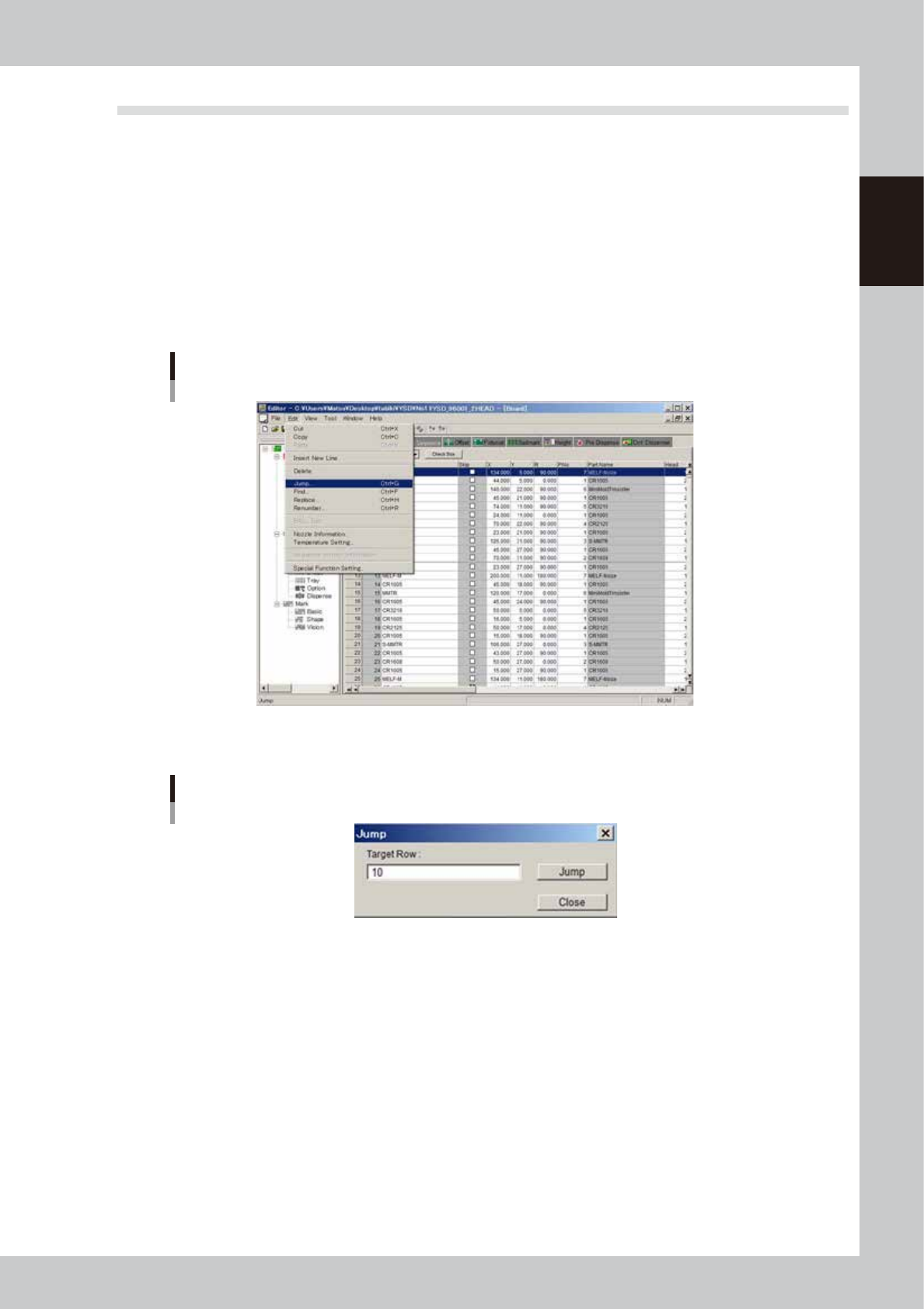
Select the "Jump" command to jump to the specified row.
1. Select "Jump" from the Edit menu.
Edit menu
“Jump”
64703-N7-00
2. The "Jump" dialog box appears. Enter the row number to jump to, and click the [Jump] button.
“Jump” dialog box
64704-N7-00
7-6
7
Editing the board data
1.3.2 Jump to the first row
To jump to the first row, proceed as follows.
1. Click any row in the main view.
2. Press the [Home] button while holding down the [Ctrl] button.
The cursor jumps to the first row.
1.3.3 Jump to the last row
To jump to the last row, proceed as follows.
1. Click any row in the main view.
2. Press the [End] button while holding down the [Ctrl] button.
The cursor jumps to the last row.
1.3.4 Moving one row up or down
The cursor can be moved one row up or down with the command in the Window menu.
1
Click any row in the main view.
2
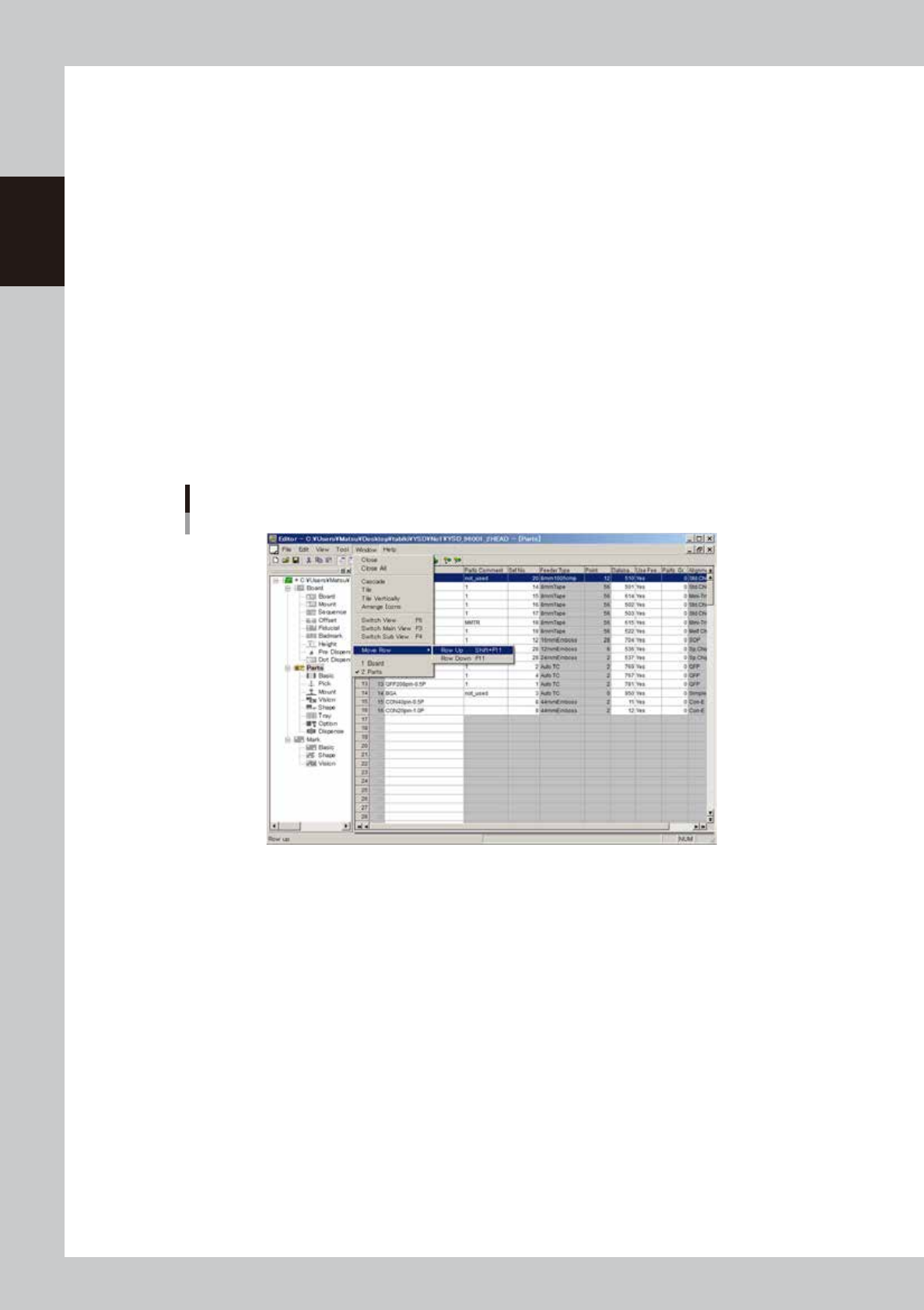
Select "Move Row" - "Row Up" or "Row Down" from the Window menu.
The cursor moves one row up or down.
"Move Row" command
64705-N7-00