YSD_Users_E.pdf - 第301页
7-7 7 Editing the board data 1.4 Copying and pasting the data T o copy and paste data on the specified rows, follo w these steps. 1 Select the rows y ou want to copy from. 1. Click the top of the data rows to be copied. …
7-6
7
Editing the board data
1.3.2 Jump to the first row
To jump to the first row, proceed as follows.
1. Click any row in the main view.
2. Press the [Home] button while holding down the [Ctrl] button.
The cursor jumps to the first row.
1.3.3 Jump to the last row
To jump to the last row, proceed as follows.
1. Click any row in the main view.
2. Press the [End] button while holding down the [Ctrl] button.
The cursor jumps to the last row.
1.3.4 Moving one row up or down
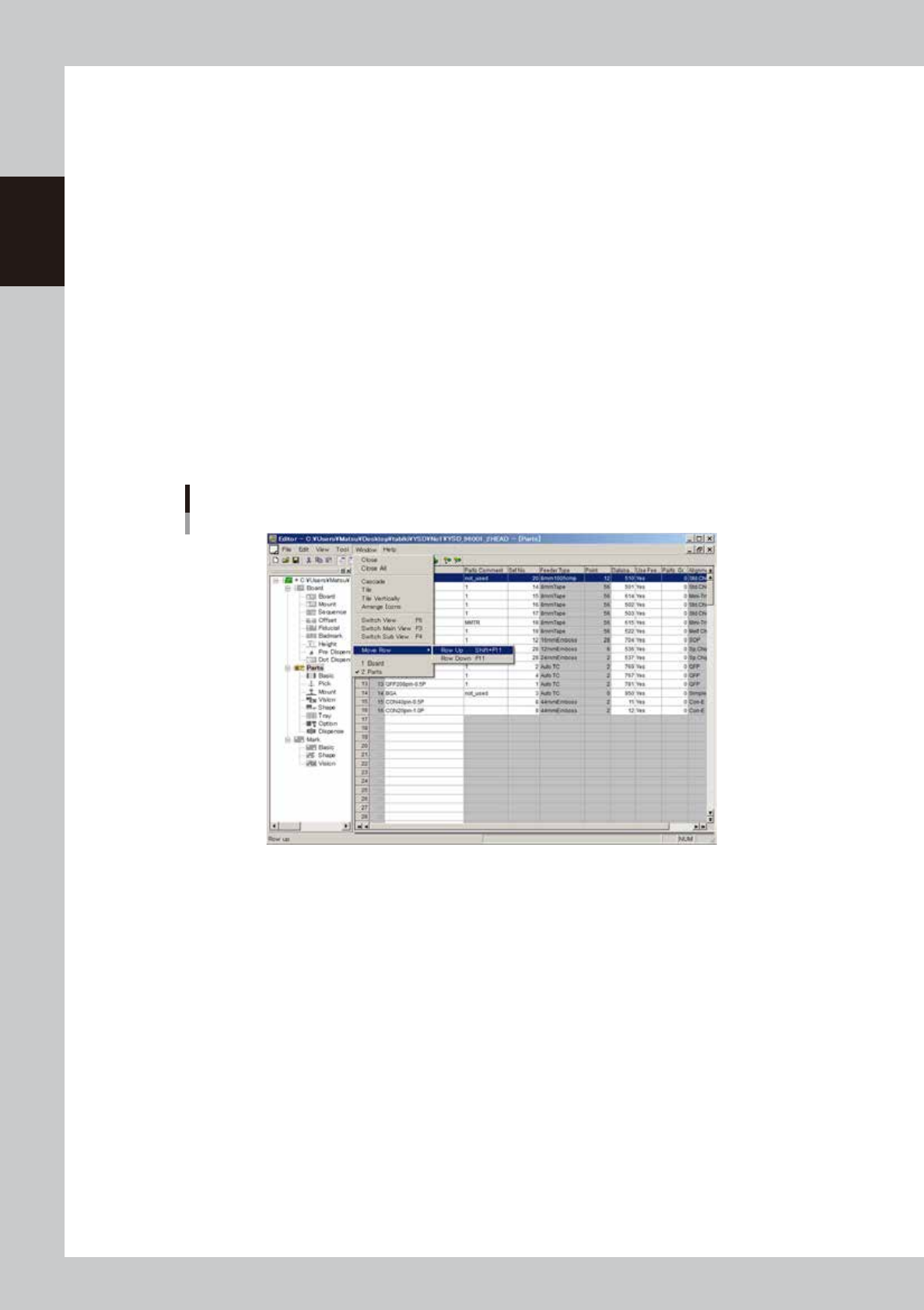
The cursor can be moved one row up or down with the command in the Window menu.
1
Click any row in the main view.
2
Select "Move Row" - "Row Up" or "Row Down" from the Window menu.
The cursor moves one row up or down.
"Move Row" command
64705-N7-00
7-7
7
Editing the board data
1.4 Copying and pasting the data
To copy and paste data on the specified rows, follow these steps.
1
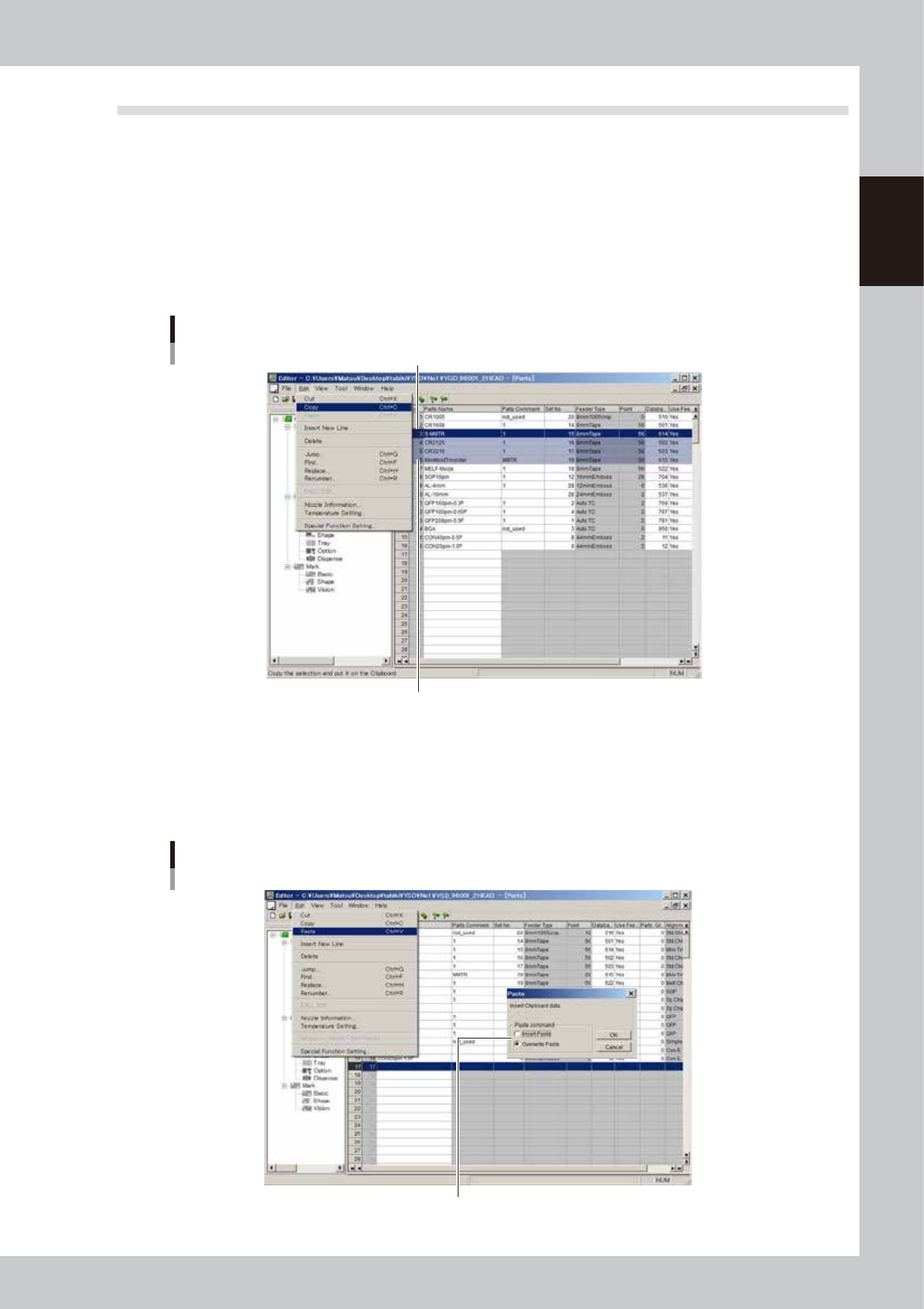
Select the rows you want to copy from.
1. Click the top of the data rows to be copied.
The selected row is highlighted.
2. While holding down the [Shift] key, click the leftmost cell on the last rows to be copied.
All rows between the two rows you clicked are now selected and highlighted.
2
Select "Copy" from the Edit menu.
Copying the data in the selected range
Click the leftmost cell while holding down the [Shift] key.
Top of selected range
64706-N7-00
3
Click the first row where you want to paste the copied data.
4
Select the method for pasting the data.
Select "Paste" from the Edit menu. The "Paste" dialog box appears asking how to paste the data.
Pasting the data
Select the paste method.
64707-N7-00

7-8
7
Editing the board data
When "Insert Paste" is selected:
The data rows below the insertion point will be shifted down by the number of inserted rows. A confirmation message
will appear. Click the [Yes] button to paste the data while keeping the data number matching or click the [No] button to
paste the data without keeping the data number matching.
Confirmation dialog box for numbering correction
64708-N7-00
• When [Yes] is selected:
The data will be pasted while keeping the data number matching.
• When [No] is selected:
The current data numbers will be changed, so the data number matching will be lost. This might
cause data errors in some cases.
When "Overwrite Paste" is selected:
The data rows below the insertion point will be overwritten by the number of inserted rows.
c
CAUTION
The previous data in the paste range will be lost.