YSD_Users_E.pdf - 第306页
7-12 7 Editing the board data 1.6 Renumbering the par ts number P arts data not used in the mount information can be deleted to renumber the parts data currently being used. 1 Select the "parts" icon in the tre…
7-11
7
Editing the board data
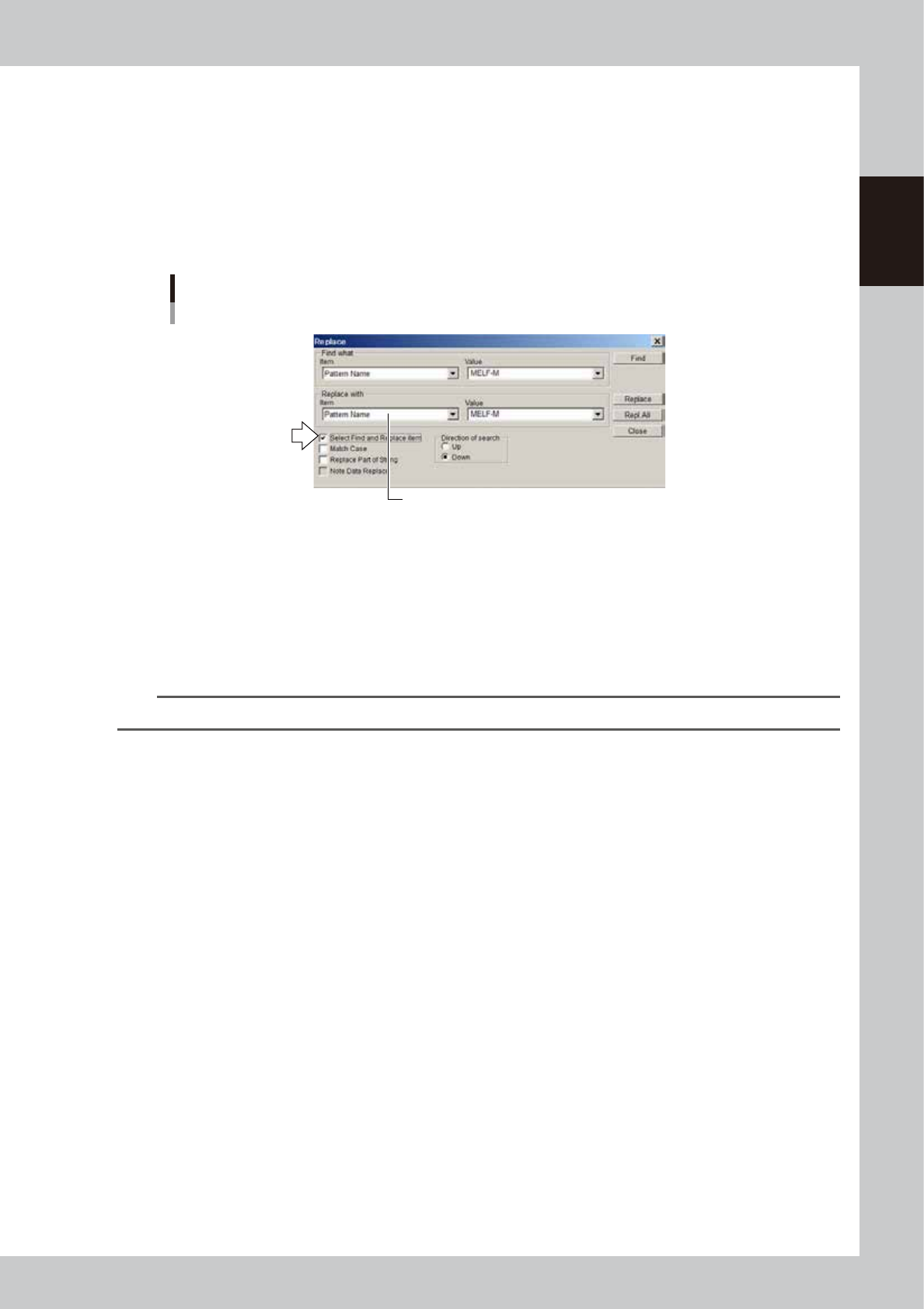
4. In the "Value" box in the "Replace with" group box, specify the character string or value to replace
the target item.
5. To distinguish between uppercase and lowercase letters, select the "Match Case" check box to
place a check mark.
6. If you want to replace a part of the character string, select the “Replace Part of String” check box
to place a check mark.
7. If you want to specify the "Item" box in the "Find what" and "Replace with" group boxes separately,
select the "Select Find and Replace item" check box to place a check mark.
"Replace" dialog box
"Select Find and Replace" check box
The desired item can also be selected from this "Item" box.
64512-N7-00
8. Select the direction to perform search.
Click the "To Up" radio button to perform search backward (toward the beginning of the data rows),
starting from the row you selected in step 2. Click the "To Down" radio button to search forward
(toward the end of the data rows), starting from the row you selected in step 2.
9. To search and replace the target items one by one, click the [Find] button.
When the target item is found, the row of the target item is highlighted. Click the [Replace] button
to perform replace. If no target item is found, a message dialog box will appear.
n
NOTE
If you want to replace all the found targets at once, click the [Repl. All] button.
4
Close the "Replace" dialog box.
Click the [Close] button to close the "Replace" dialog box.
7-12
7
Editing the board data
1.6 Renumbering the parts number
Parts data not used in the mount information can be deleted to renumber the parts data currently being used.
1
Select the "parts" icon in the tree view to display the parts data in the
main view.
2
Click any row in the main view.
3
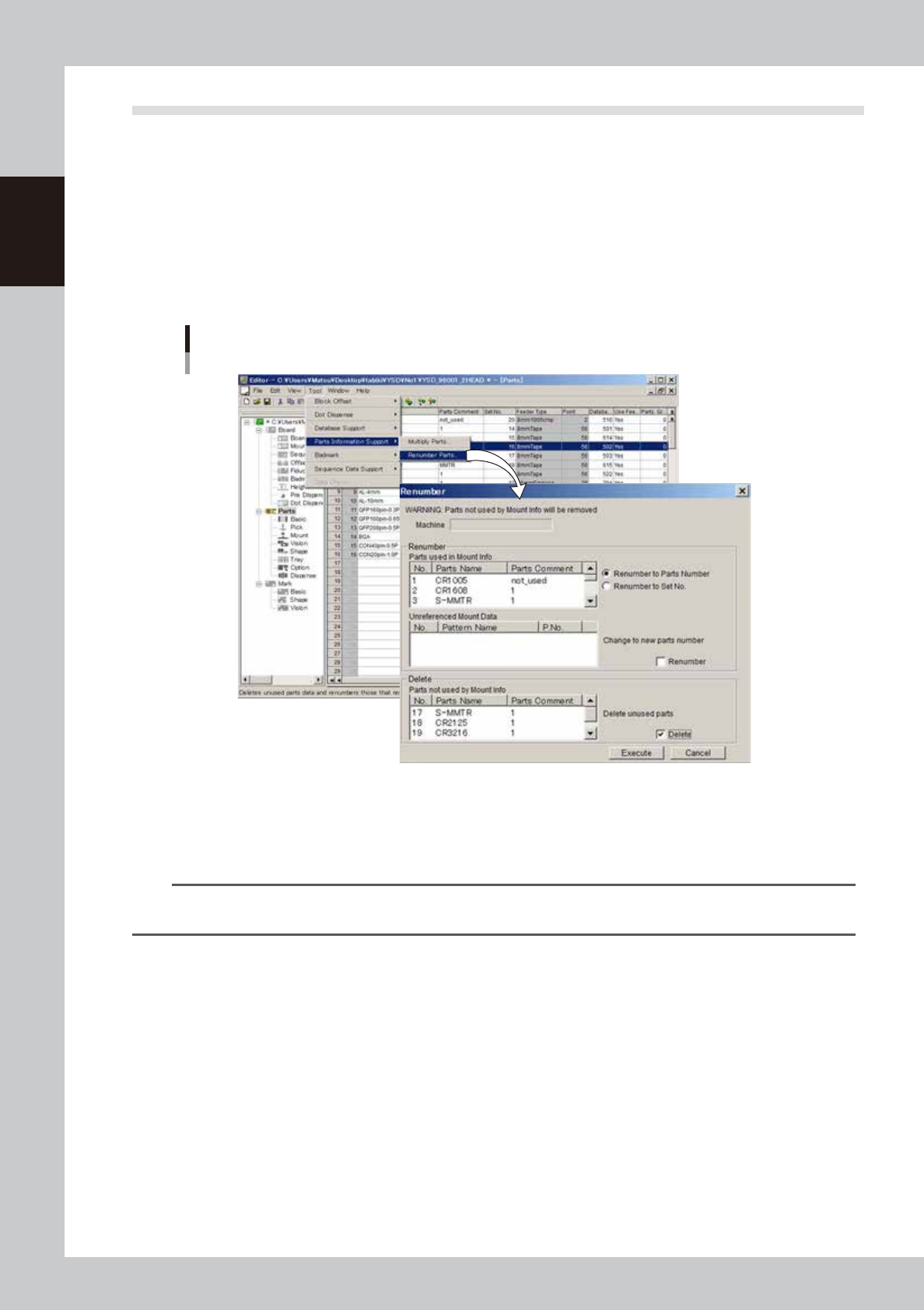
Renumber the parts data.
1. From the Tool menu, select "Parts information support"-"Renumber Parts".
The "Renumber" dialog box appears.
"Renumber" dialog box
64713-N7-00
2. Select the "Renumber to parts number" or "Renumber to feeder set number" radio button.
3. Select the "Renumber" check box.
At this point, a check mark is automatically placed in the "Delete" check box. Clear this check box
when you do not want to delete the parts data even if they are not used.
TIP
If you only want to delete the parts data not currently used. Select the "Delete" check box only. (Leave the
"Renumber" check box cleared.)
4. Check the setting and the click the [Execute] button.
5. When a dialog box appears indicating the task is complete, click the [OK] button.
7-13
7
Editing the board data
1.7 Sort
On the main view window, the data can be arranged into ascending or descending order by a desired data
item.
1
Display the data grid in which you want to arrange the data.
2
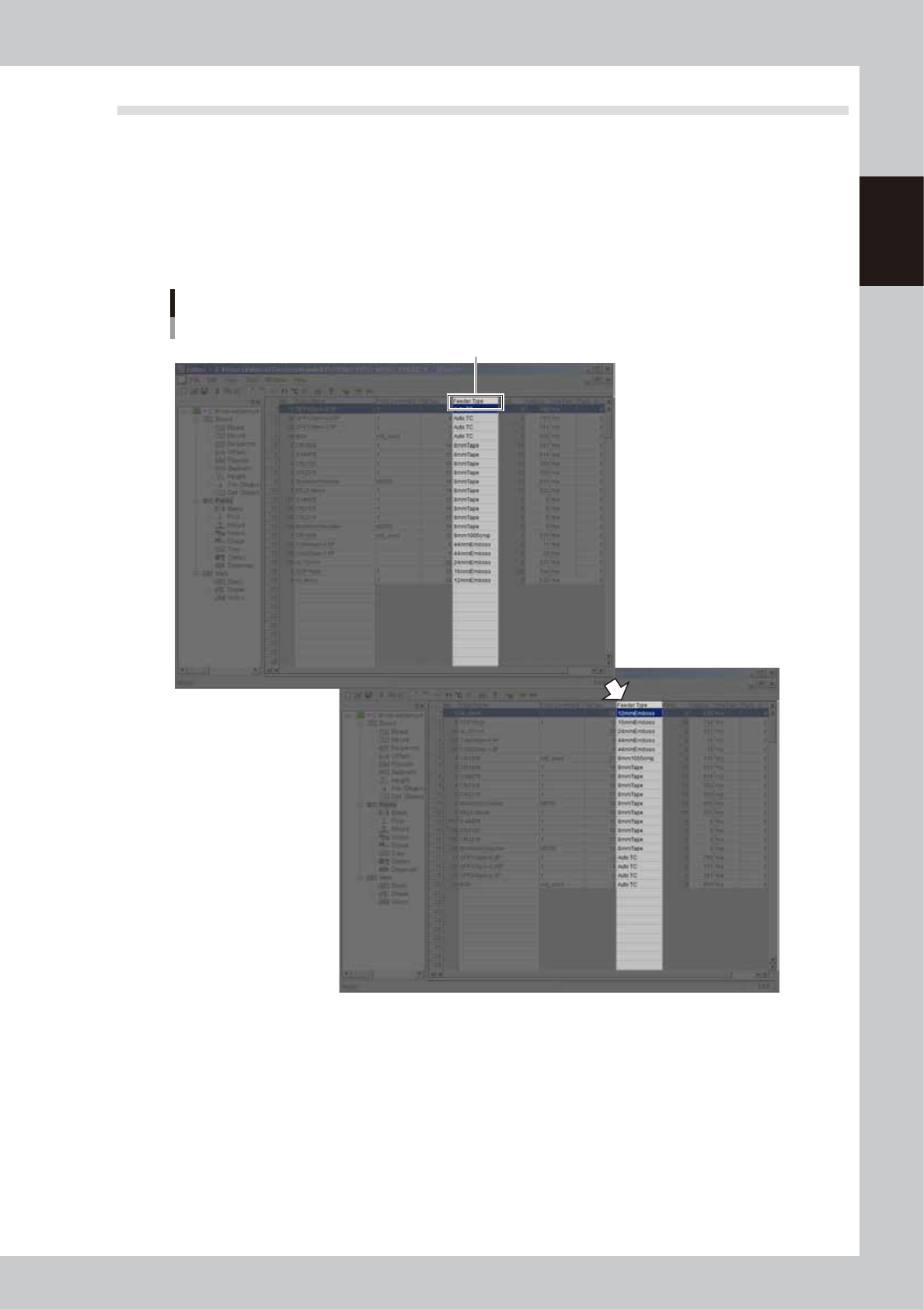
Click on the column label by which you want to arrange the data.
All the data is arranged in ascending order by the selected column. Clicking again rearranges all the
data in descending order by the selected column.
Click here.
Sorting
64714-N7-00