YSD_Users_E.pdf - 第307页
7-13 7 Editing the board data 1.7 Sor t On the main view window , the data can be arranged into ascending or descending order by a desired data item. 1 Displa y the data grid in which you w ant to arr ange the data. 2 Cl…
7-12
7
Editing the board data
1.6 Renumbering the parts number
Parts data not used in the mount information can be deleted to renumber the parts data currently being used.
1
Select the "parts" icon in the tree view to display the parts data in the
main view.
2
Click any row in the main view.
3
Renumber the parts data.
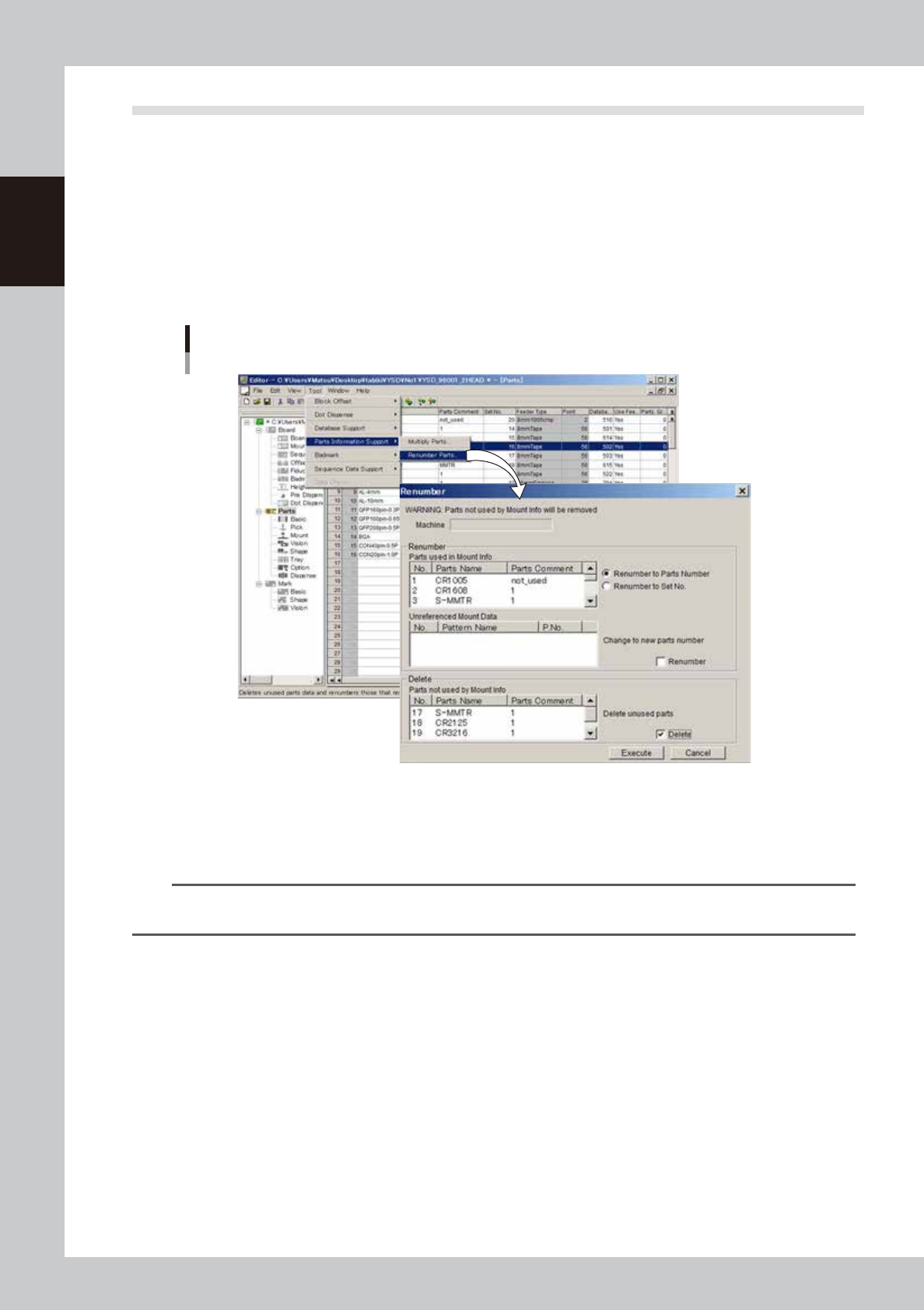
1. From the Tool menu, select "Parts information support"-"Renumber Parts".
The "Renumber" dialog box appears.
"Renumber" dialog box
64713-N7-00
2. Select the "Renumber to parts number" or "Renumber to feeder set number" radio button.
3. Select the "Renumber" check box.
At this point, a check mark is automatically placed in the "Delete" check box. Clear this check box
when you do not want to delete the parts data even if they are not used.
TIP
If you only want to delete the parts data not currently used. Select the "Delete" check box only. (Leave the
"Renumber" check box cleared.)
4. Check the setting and the click the [Execute] button.
5. When a dialog box appears indicating the task is complete, click the [OK] button.
7-13
7
Editing the board data
1.7 Sort
On the main view window, the data can be arranged into ascending or descending order by a desired data
item.
1
Display the data grid in which you want to arrange the data.
2
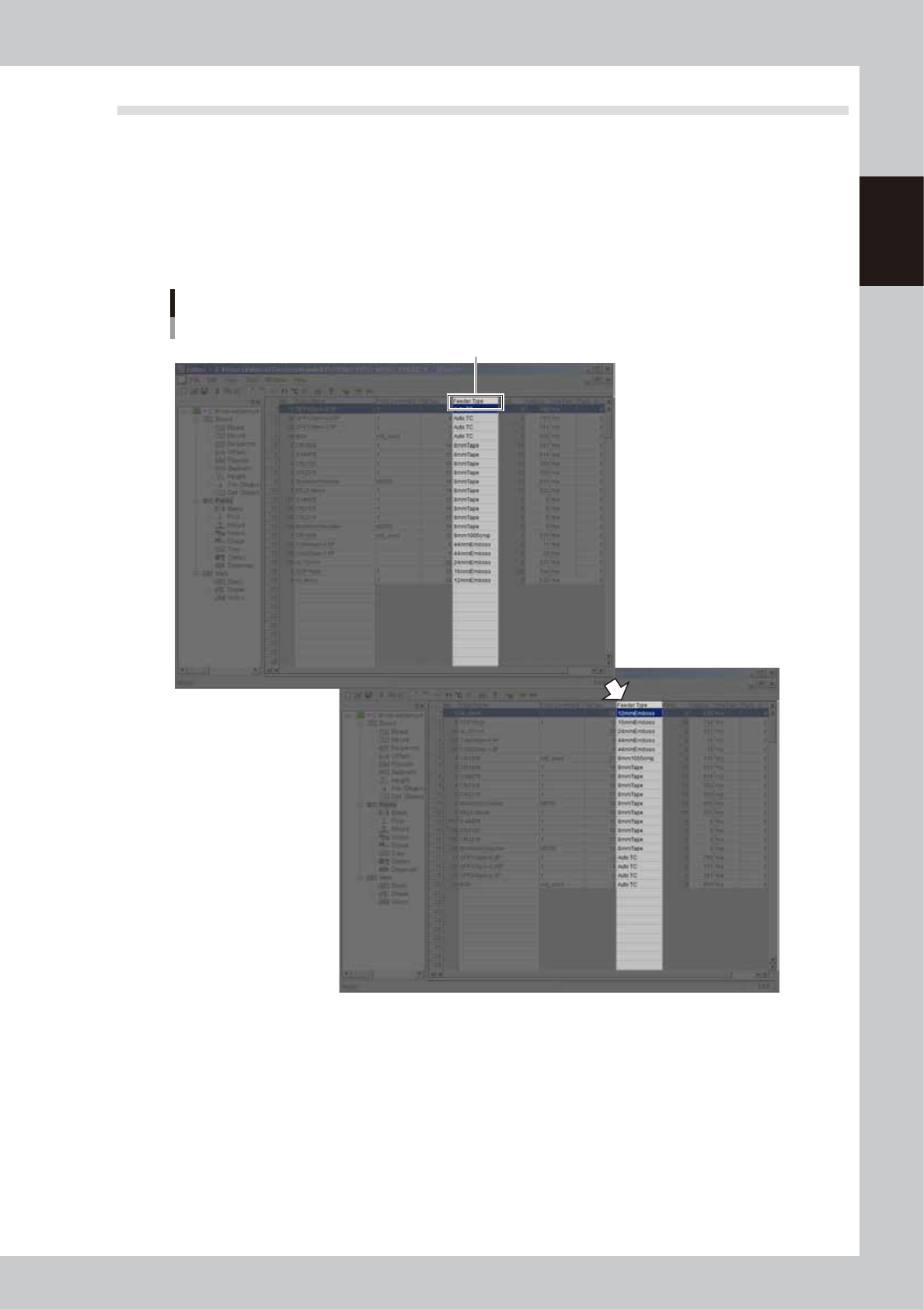
Click on the column label by which you want to arrange the data.
All the data is arranged in ascending order by the selected column. Clicking again rearranges all the
data in descending order by the selected column.
Click here.
Sorting
64714-N7-00
7-14
7
Editing the board data
2. Block offset
A multi-block board (also called multi-board panel) is a printed circuit board consisting of two or more
independent printed circuits of the same type. Each printed circuit on a multi-block board is called a "block".
Setting the block offset allows the machine to repeat the same operation in each block on a board, based on
the reference block data. This function therefore greatly saves the time required for creating data on multi-
block boards.
Block
Multi-block board
(multi-board panel)
The offset
function allows you
to change the entire
board data just by
editing the data for the
reference block.
Block offset function
63700-N7-00
2.1 Creating the block offset data
1
Display the "Offset" screen.
Click the [Offset] icon in the tree view or the [Offset] tab in the main view.
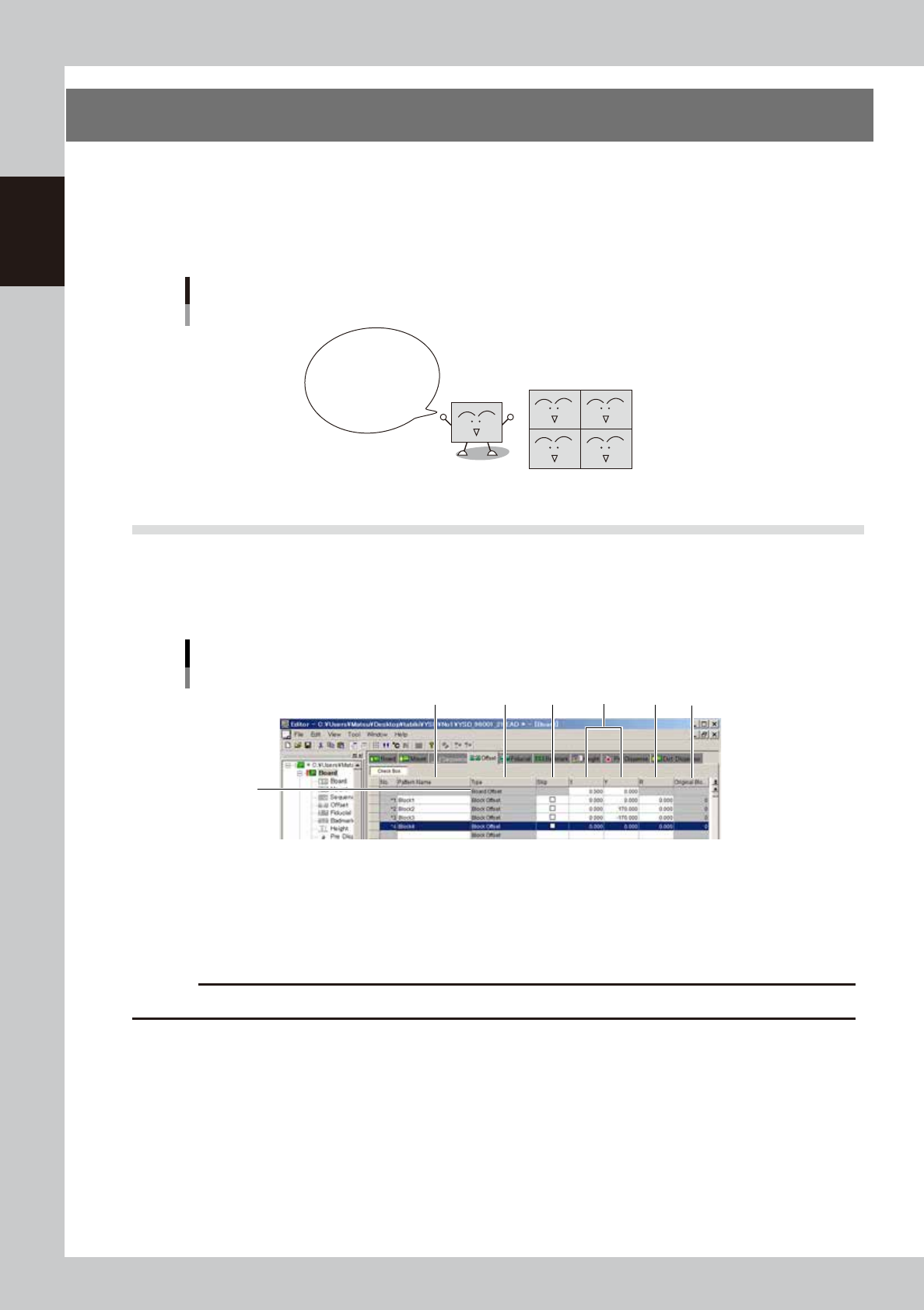
The block offset information is displayed in the main view.
Block offset information display
2
1
3 4 5 6 7
64715-N7-00
1. Board Offset
Enter the XY coordinates of the board origin.
2. Pattern Name
Enter the block name.
c
CAUT ION
Spaces cannot be used. Use underbars ( _ ) for spaces.
3. Type
The board origin is specified in the top row, and block offset is specified in the second and subsequent rows. (These
items cannot be changed.)