YSD_Users_E.pdf - 第315页
7-21 7 Editing the board data 2 Sav e the board data in YGX format. 1. Select "Save Board Data As" from the File menu. A dialog box appears to let you save the board data. 2. Select "YGX" from the Fil…
7-20
7
Editing the board data
3. Board file format conversion
This section explains the procedure to perform data conversion between VIOS format board data and XML
format board data.
3.1 Converting VIOS data into YGX data
1
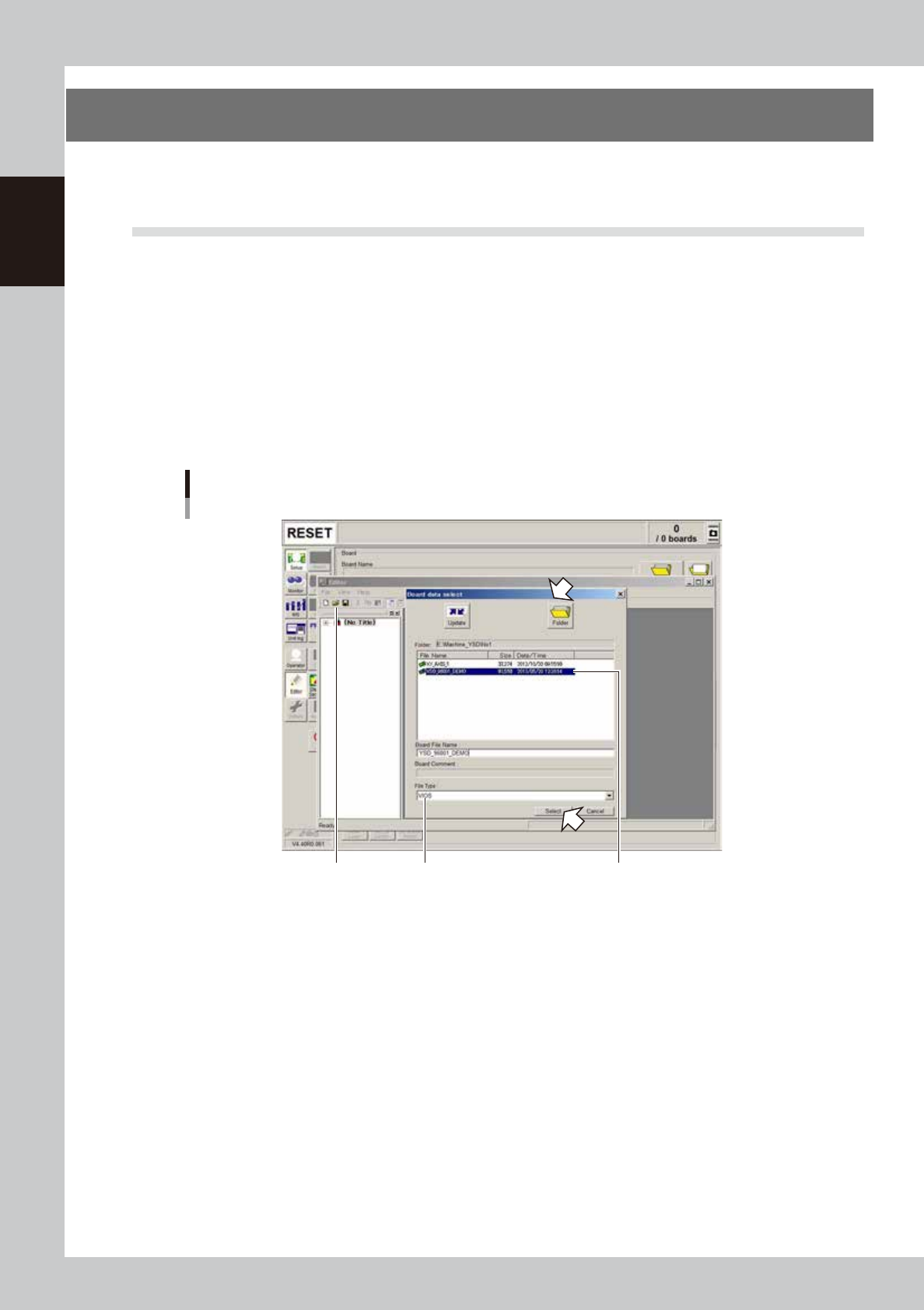
Open the VIOS board data.
1. Select "Open Board Data" from the File menu or click the [Open Board Data] button on the toolbar.
The "Board data select" dialog box appears.
2. Select "VIOS" from the File Type drop-down list.
3. Check that the "Folder" box shows the path to the folder ("No 1" folder) that contains the VIOS board
data you want to select. If not, press the [Folder] button and specify the folder containing the VIOS
board data and press the [OK] button.
4. Select the board data and click the [Select] button.
The selected board data is loaded and displayed in the Editor window.
[Open Board Data] button
Opening the "VIOS" board data
Select "VIOS". Select the board data
you want to convert.
64723-N7-00
7-21
7
Editing the board data
2
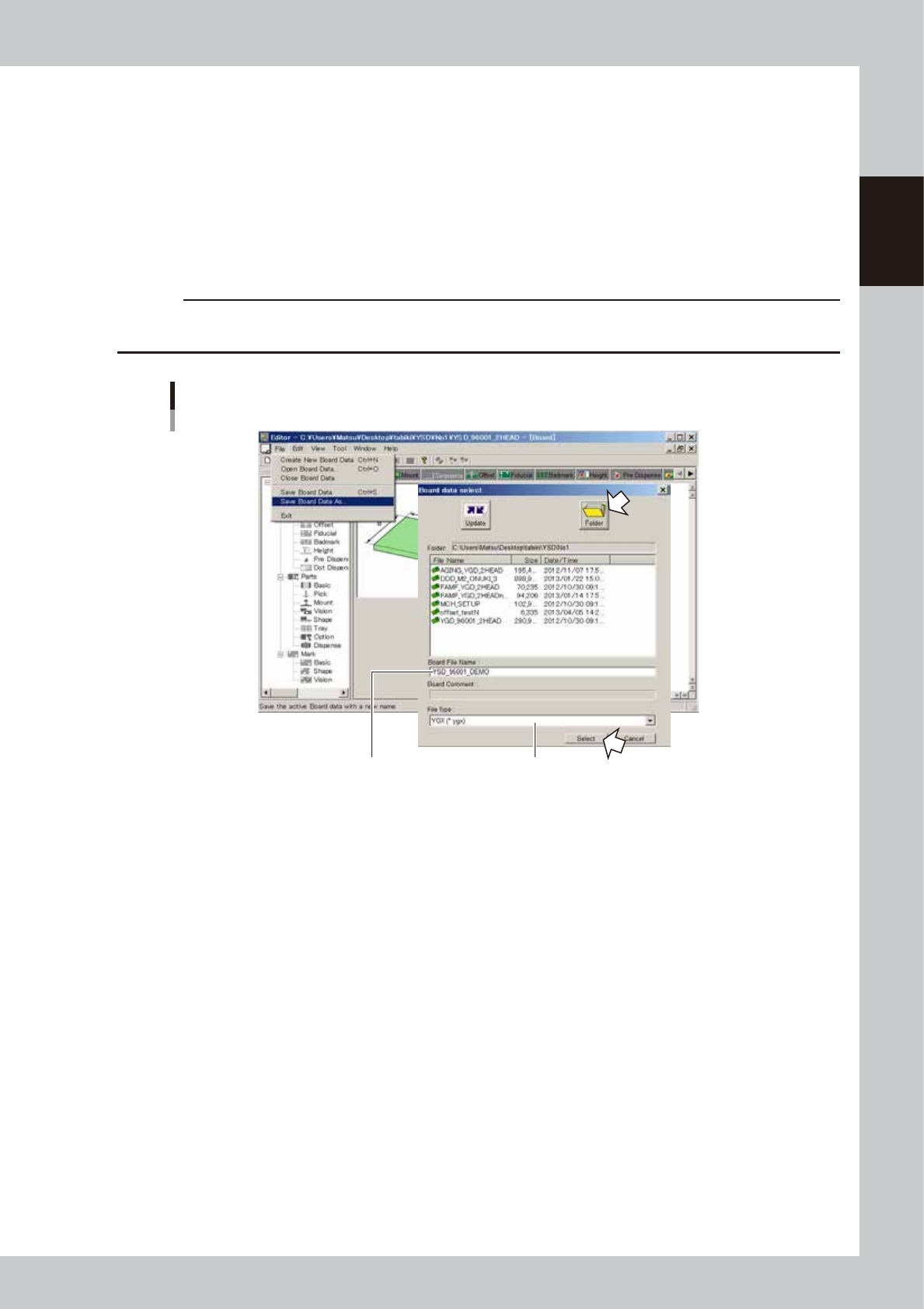
Save the board data in YGX format.
1. Select "Save Board Data As" from the File menu.
A dialog box appears to let you save the board data.
2. Select "YGX" from the File Type drop-down list and enter the file name in the Data Name text box to
save the board data.
3. Check that the "Folder" box shows the path to the folder where you want to save the board data. If
not, press the [Folder] button and specify the destination folder ("No 1" folder) and press the [OK]
button.
4. Click the [Save] button.
c
CAUTION
If a file format other than “YGX” is selected, part of information may not be saved, making the relevant functions
unusable.
Enter the file name to save the board data. Select "YGX".
Saving board data in YGX format
64724-N7-00
7-22
7
Editing the board data
3.2 Converting YGX data into VIOS data
1
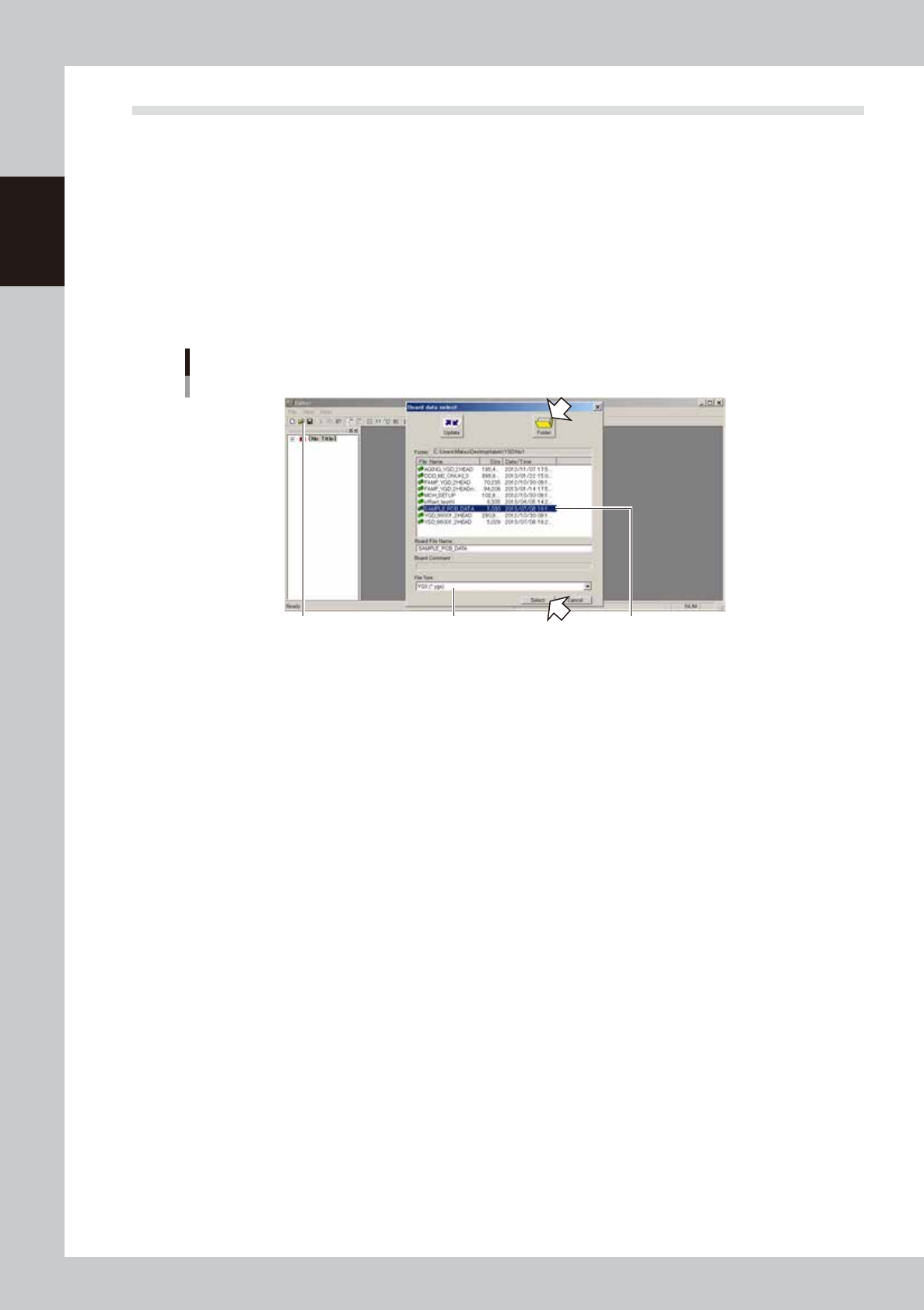
Open the YGX board data.
1. Select "Open Board Data" from the File menu or click the [Open Board Data] button on the toolbar.
The "Board data select" dialog box appears.
2. Select "YGX" from the File Type drop-down list.
3. Check that the "Folder" box shows the path to the folder ("No 1" folder) that contains the YGX board
data you want to select. If not, press the [Folder] button and specify the folder containing the YGX
board data and press the [OK] button.
4. Select the board data and click the [Select] button.
The selected board data is loaded and displayed in the Editor window.
[Open Board Data] button Select the board data
you want to convert.
Opening the "YGX" board data
Select "YGX".
64725-N7-00