YSD_Users_E.pdf - 第322页
8-2 8 Managing the data 1.1.1 Backing up onto a USB flash drive F ollow the steps below to backup data to a USB flash dri ve using the Board Explorer . When using a USB flash driv e, you need to create a "board"…
8-1
8
Managing the data
1. Data backup
Production board data and system data can be backed up. This section explains how to make a backup of
these data.
1.1 Making a backup of board data
A backup copy of board data can be stored on a USB flash drive or on a network drive (including on-line
software). When board data is saved in YGX format, it can be stored in any location. However, when using a
USB flash drive, the data should be stored in a predetermined location.
n
When using a USB flash drive
When using a USB flash drive, you need to create a "board folder" to make a directory named "No 1". Backup data
should be stored in that directory. Refer to "1.1.3 Backing up onto a USB flash drive".
c
CAUT ION
Use a USB flash drive (supplied with the machine or purchased from YAMAHA sales reps) specified by YAMAHA Motors
C o., L td. U sing a USB flash drive other than specified might cause problems. D o not use any other type of USB flash
drive with YAMAHA surface mounters and related machines.
c
CAUT ION
Before operating the USB drive to copy data, always close the media access door to prevent dust from adhering to
the USB port and to protect the USB flash drive from electrostatic noise.
c
CAUT ION
After copying board data or system data into a USB flash drive, do not leave that data in the USB flash drive for a long
time. U se the USB flash drive just as a copy medium for backup data. Prepare other backup media (CD , DVD , MO ,
etc.) to store the backup data.
8-2
8
Managing the data
1.1.1 Backing up onto a USB flash drive
Follow the steps below to backup data to a USB flash drive using the Board Explorer.
When using a USB flash drive, you need to create a "board" folder to make a directory (folder) named "No1".
Backup data should be stored there.
TIP
You may use the [Save] button to save board data to a USB flash drive.
1
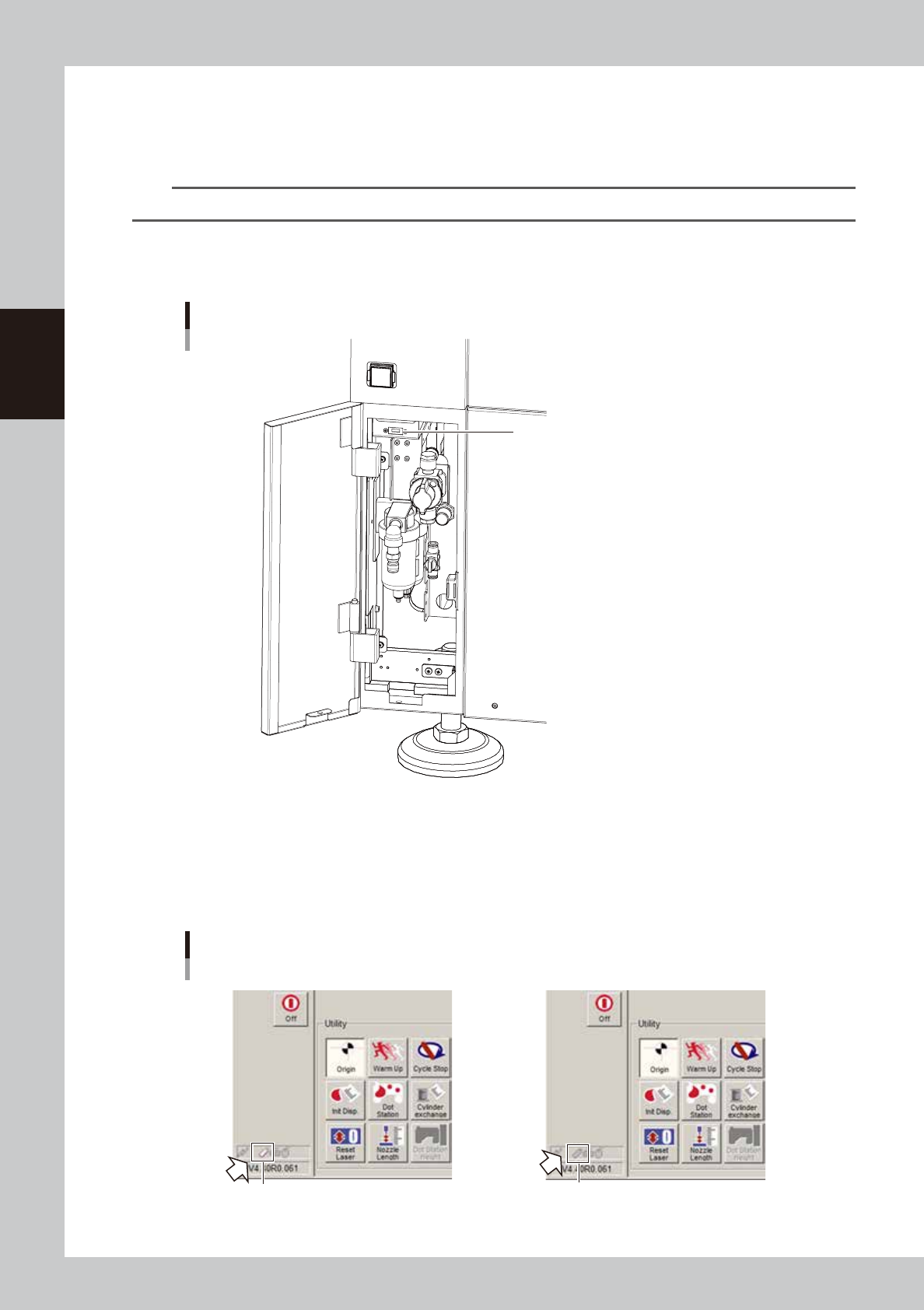
Insert a USB flash drive into the USB port.
Insert a specified USB flash drive into the USB port of the machine.
USB port
Insert a USB memory device into this USB port.
63800-N7-00
2
Check the USB flash drive connection.
Check the indicator on the lower left of the operation screen.
The connection is complete when the USB flash drive icon appears red.
The connection is incomplete if the USB flash drive icon is grayed out. Try reconnecting the USB flash
drive.
Checking the USB memory device connection
Connected Not connected
Icon appears "red".
Icon is grayed out.
64800-N7-00
8-3
8
Managing the data
3
Open the Board Explorer.
Press the [Board Explorer] button on the Setup screen.
4
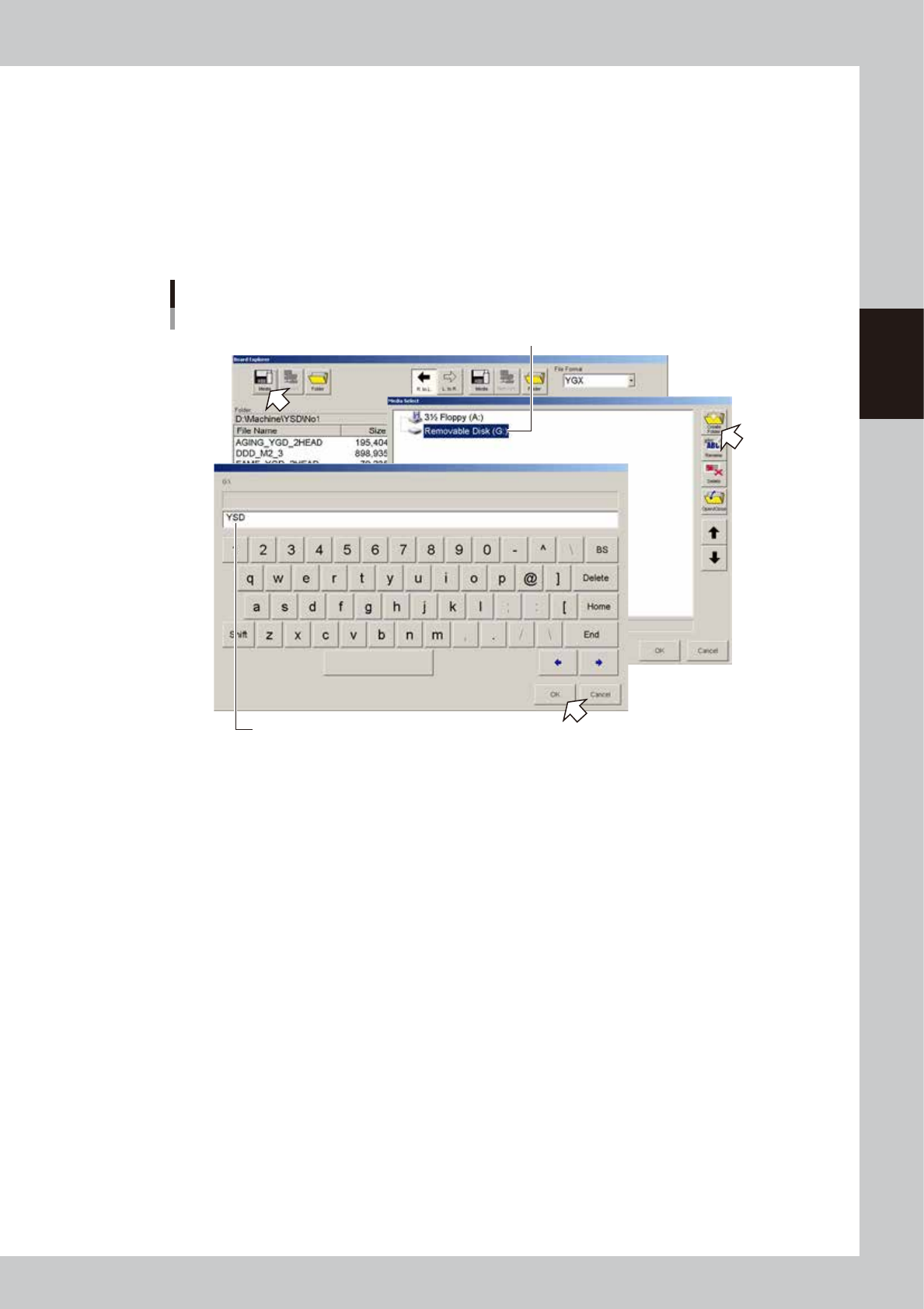
Press the [Media] button.
The "Media Select" dialog box appears.
5
Select the media and create a board folder.
1. In the "Media Select" dialog box, select the media (USB flash drive) and press the [Create Folder]
button. When the keyboard dialog box appears, enter a folder name and press the [OK] button.
Selecting the media
Select the media (USB memory device).
Enter a folder name.
64801-N7-00
2. Select the folder you have just created, and press the [Board folder making] button.