YSD_Users_E.pdf - 第61页
2-1 2 Basic operation 1. Before operation The following sections explain how to start and stop the machine and also how to cancel emergency stop and clear an error . Read before operating the machine. 1.1 Star ting the m…

Chapter 2 Basic operation
Contents
1. Before operation 2-1
1.1 Starting the machine 2-1
1.2 Canceling emergency stop 2-3
1.3 Clearing an error 2-4
1.4 Turning off the machine power 2-5
2. Operation screen and buttons 2-7
2.1 Basic configuration of operation screen 2-7
2.2 Setup screen 2-10
2.3 Unit screen 2-12
3. Machine operation from start to finish 2-16
3.1 Pre-operation check 2-17
3.2 Selecting the board data 2-18
3.3 Changing the conveyor unit setup 2-19
3.3.1 Conveyor unit setup flow 2-19
3.3.2 Changing the conveyor width 2-20
3.3.3 Adjusting the board hold plates 2-21
3.3.4 Arranging the push-up pins 2-22
3.4 Head unit setup 2-24
3.5 Starting and warming up the machine 2-27
3.6 Bleeding the nozzle air 2-29
3.7 Performing a dispensing test 2-32
3.8 Starting board production 2-34
3.9 Displaying the production monitors 2-35
3.10 Finishing board production 2-44
4. Basic tasks for optional units 2-46
4.1 Low-liquid sensor 2-46
4.1.1 Adjusting the low-liquid sensor 2-48
4.2 Dot station 2-50
4.2.1 Replacing the paper 2-50
4.3 Laser displacement meter 2-52
4.3.1 Initialization 2-52
2-1
2
Basic operation
1. Before operation
The following sections explain how to start and stop the machine and also how to cancel emergency stop
and clear an error. Read before operating the machine.
1.1 Starting the machine
Proceed as follows to start the machine.
1
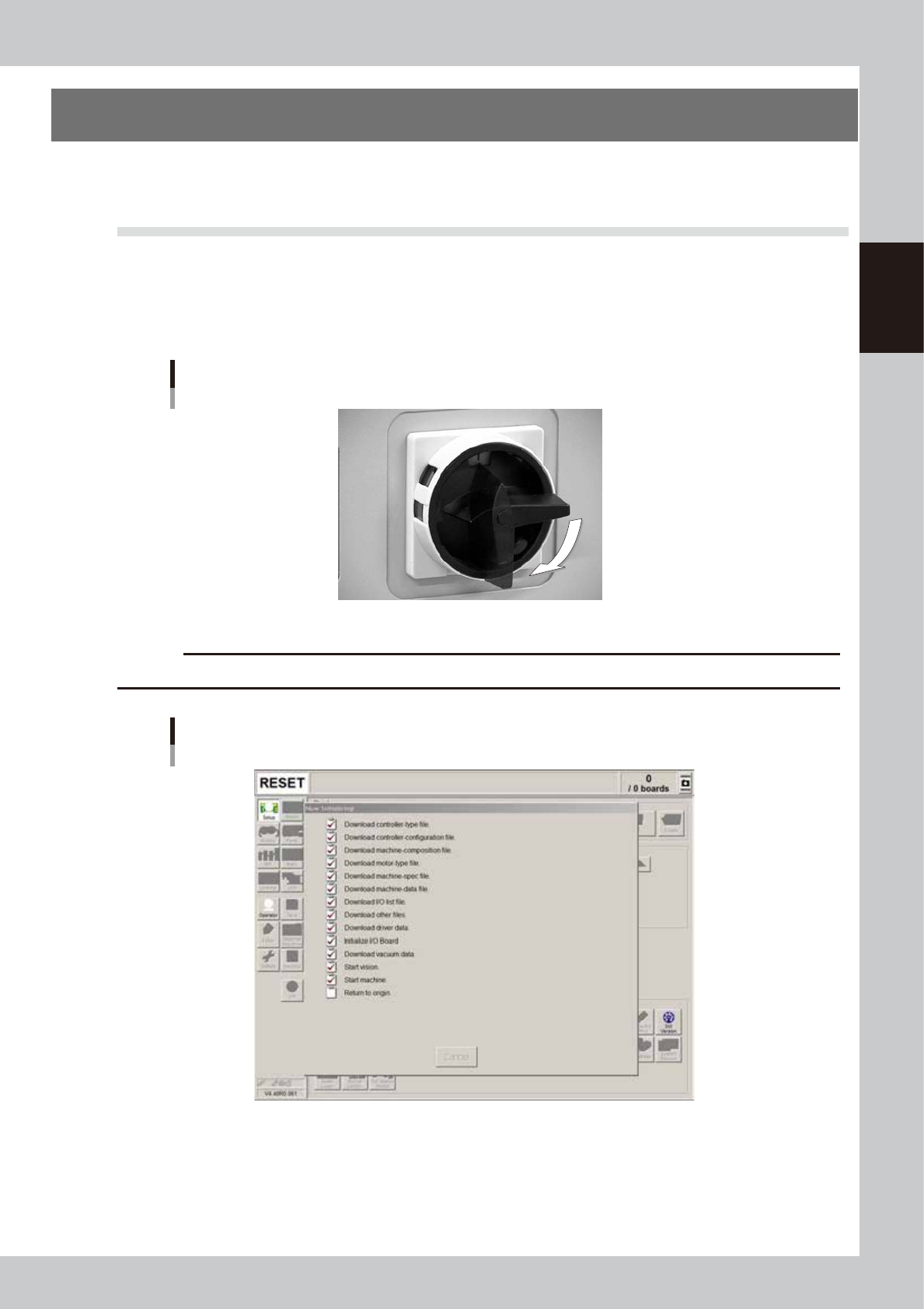
Turn the main power ON.
Turn on the main power switch at the front lower right of the machine, by turning to the right. The
Initialization screen appears and the loading of the program necessary for machine operation starts.
ON
OFF
Main Switch
63202-N7-00
c
CAUTION
After turning the power switch off, wait at least 2 seconds before turning the power back on again.
Initialization screen
64202-N7-00
2
Perform return-to-origin.
After initialization, the return-to-origin dialog box appears. Follow the instructions on the screen.
To perform return-to-origin manually, press the [Origin] button on the Setup screen.
2-2
2
Basic operation
3
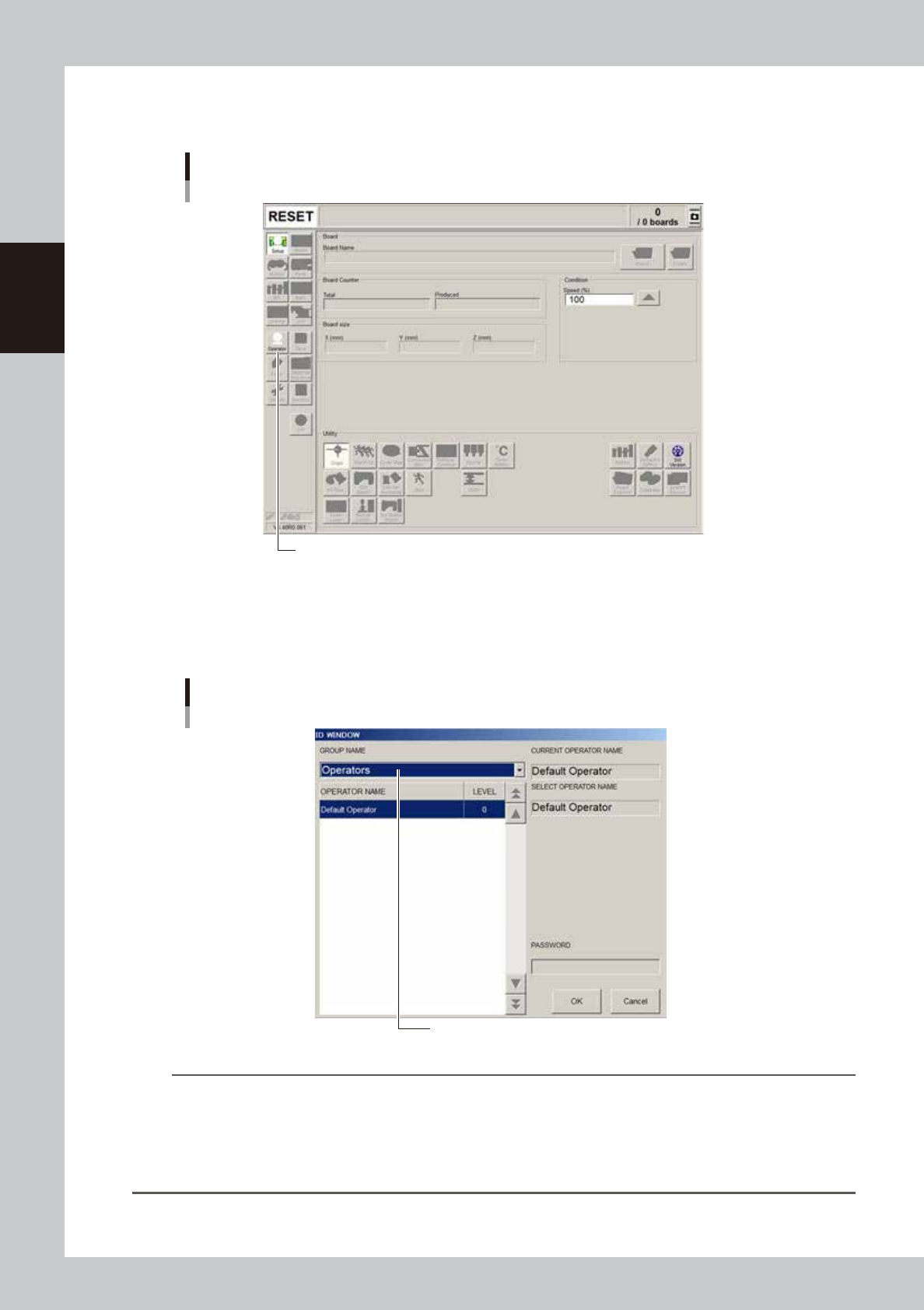
Press the [Operator] button.
The ID WINDOW dialog box appears for specifying the operator.
[Operator] button
Press the [Operator] button to open the ID WINDOW.
64203-N7-00
4
Specify the operator and enter the password.
From the GROUP NAME drop-down list,“Operators” or “Administrators” can be selected as needed.
When the password is matched, the initial screen (Setup screen before selecting a board) appears.
Specifying the operator
Select the operator and press [OK].
64204-N7-00
TIP
Active menu buttons differ depending on the operation level setup. For example, when the machine is turned on with
the factory setup, the program starts up at an operation level called “Default Operator”. This “Default Operator” level
is set to “Level 0” at the time of shipment to allow only basic operation items. This operation level can be changed as
needed. Operators and operation items can also be added and specified by setting the password and operation
level.
For more details, see “A2 Operator access control” in Appendix of the programming manual.