YSD_Users_E.pdf - 第79页
2-19 2 Basic operation 3.3 Changing the conveyor unit setup When the board type to be produced is changed, the con veyor unit must be set up correctly according to that board type. T his section describes how to change t…
2-18
2
Basic operation
3.2 Selecting the board data
Select and load the board data to use for production. When the selected board data uses a heater, the
temperature regulator also turns on.
Select the board data as follows:
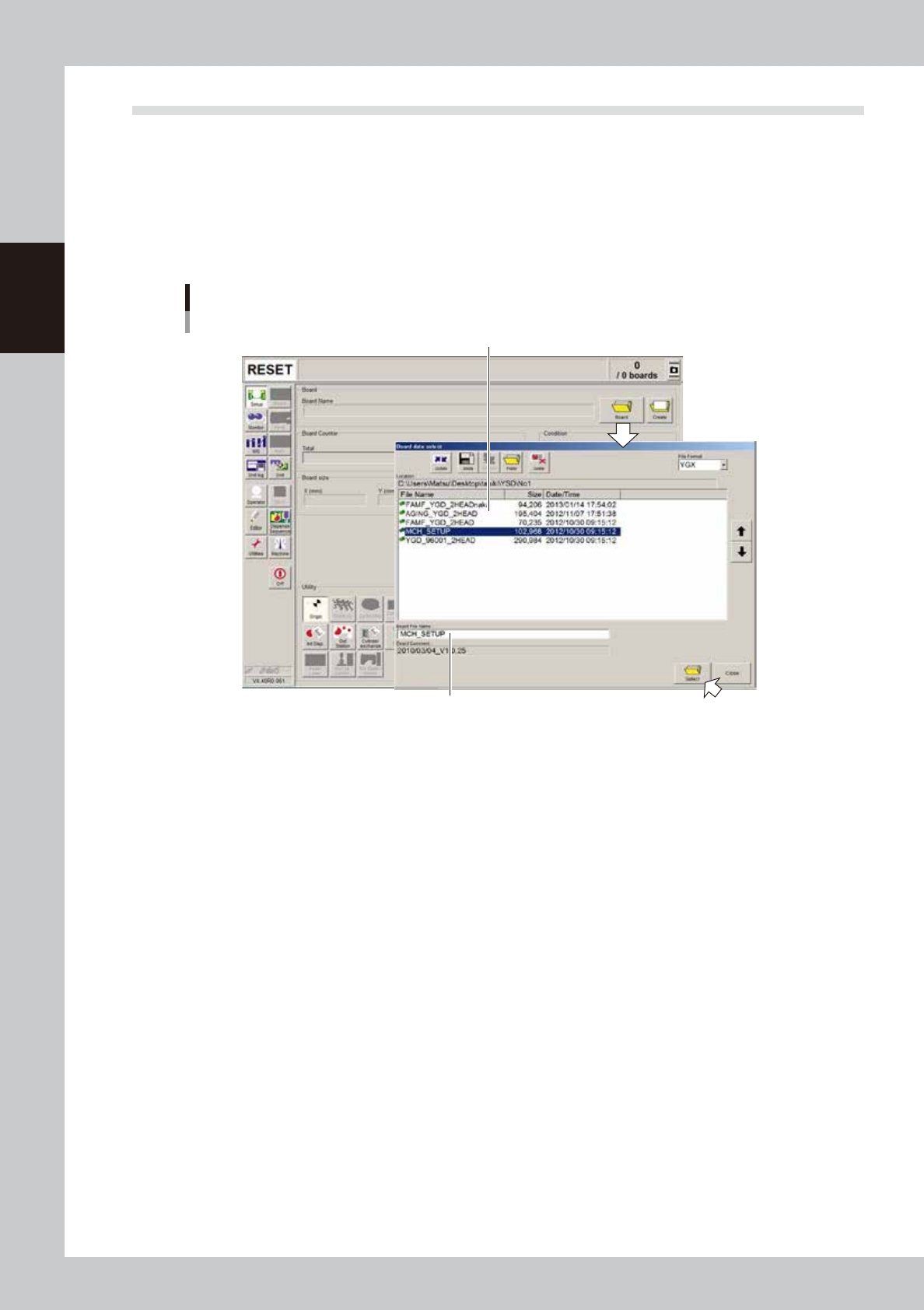
1. On the Setup screen, press the [Board] button to display the list of the registered board data.
2. Line up the cursor with the board name for production and press the [Select] button. The selected
board data will be loaded.
Selecting the board name
Select the board from the list of registered board data
The selected board name appears here.
64235-N7-00
2-19
2
Basic operation
3.3 Changing the conveyor unit setup
When the board type to be produced is changed, the conveyor unit must be set up correctly according to that
board type. This section describes how to change the conveyor unit setups.
Board clamping method
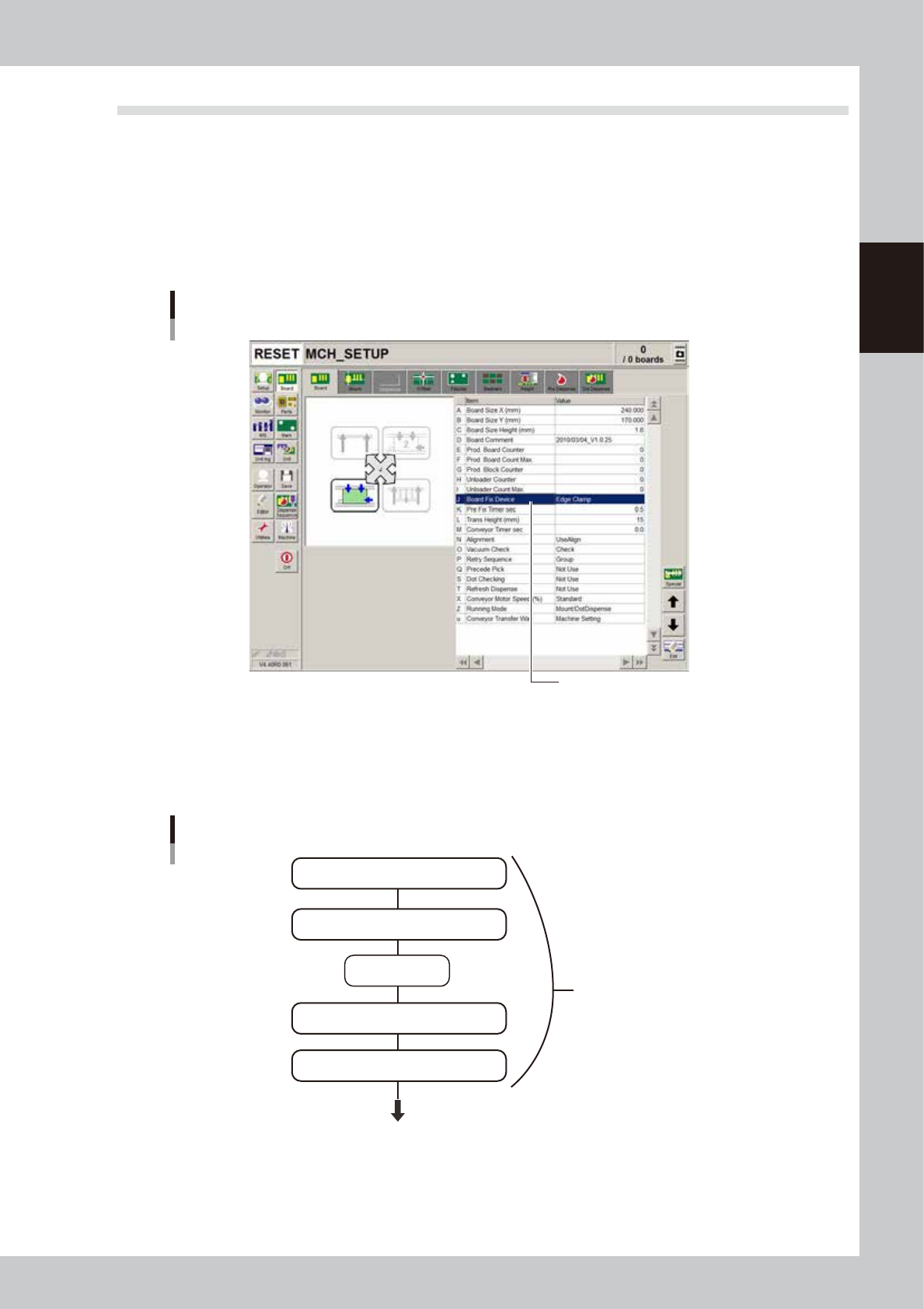
The board clamping method should be set to "Edge Clamp". Open the [Board] - [Board] tab and make sure that the
"Board Fix Device" parameter is set to "Edge Clamp". If not, set it to "Edge Clamp". With this method, the board is
clamped with support from the edges and also with push-up pins.
[Board] tab grid showing Board clamping method
Board clamping method
64209-N7-00
3.3.1 Conveyor unit setup flow
The flow chart below shows the sequence for setting up the conveyor unit. The method for adjusting each
conveyor unit is described in the following sections.
Flow chart for changing the conveyor unit setups
Adjust conveyor width
Press emergency
stop button
Raise main stopper
Adjust board hold plate positoins as needed
Arrange push-up pins on push-up plate
Conveyor unit setups
Next step (head unit setup)
63206-N7-10
2-20
2
Basic operation
3.3.2 Changing the conveyor width
First adjust the conveyor width to match the board width to be produced.
1
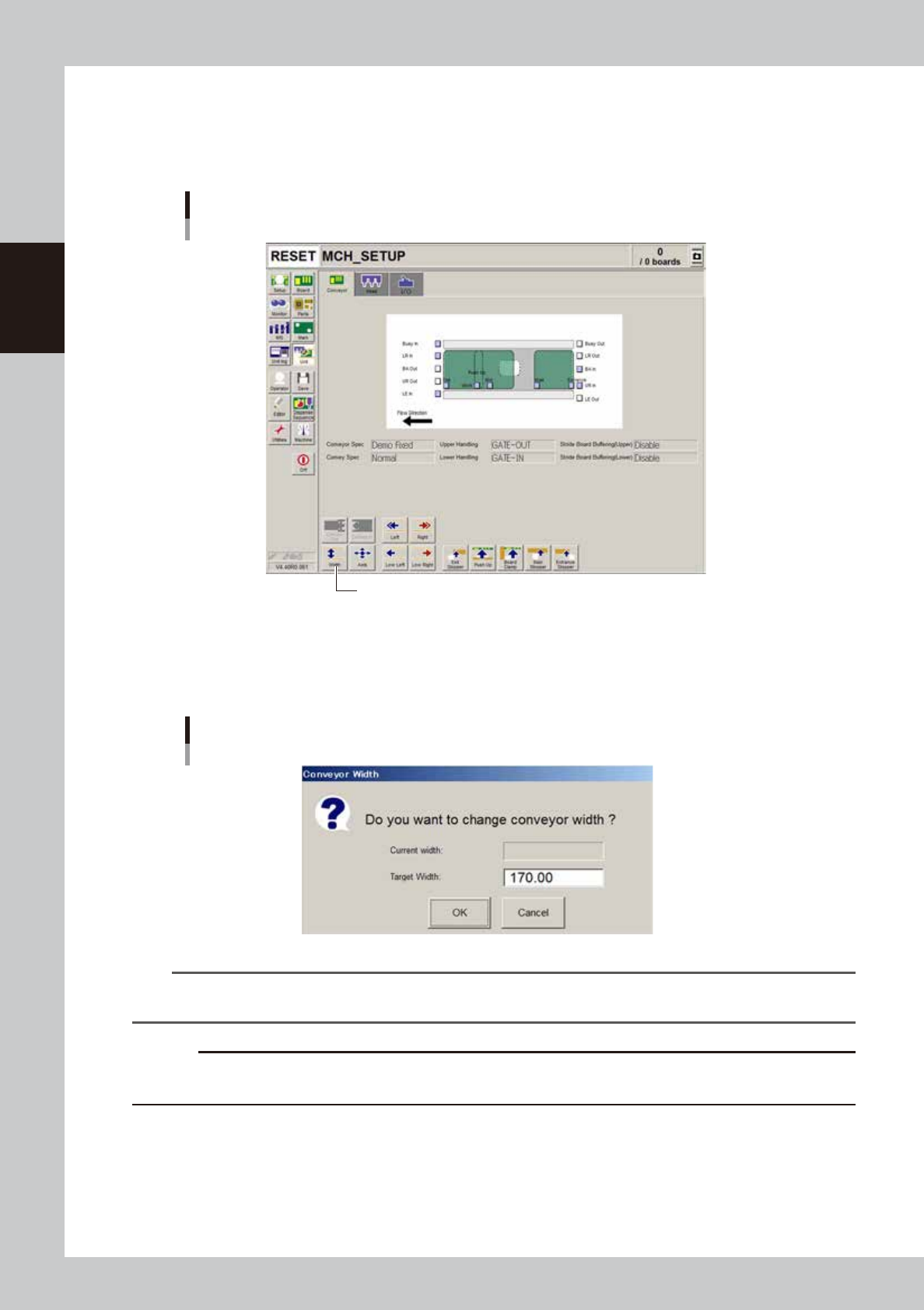
Open the [Unit]-[Conveyor] tab screen.
[Unit] - [Conveyor] screen
[Width] button.
64210-N7-A0
3
Press the [Width] button.
The Conveyor Width dialog box appears. Check the conveyor width and press the [OK] button. The
conveyor rail automatically changes to the specified width.
Conveyor Width dialog box
64211-N7-00
TIP
When board data has been loaded, the conveyor width of the board data is displayed in the “Target Width” box in
the dialog box.
c
CAUTION
When push-up pins are set on the push-up plate, make sure that they do not touch the conveyor rail while adjusting
the conveyor width.