00197184-01_IM_Celsius_W510_Windows7_EN.pdf - 第19页
Celsius W510 with Win dows 7 10/2011 Edition First, we have to navigate to the Add/Remove programs window. Figure 3-20: Opening Control Panel ► Click the Windows button ► Click at Control Panel . The Control Panel opens.…
Celsius W510 with Windows 7 10/2011 Edition
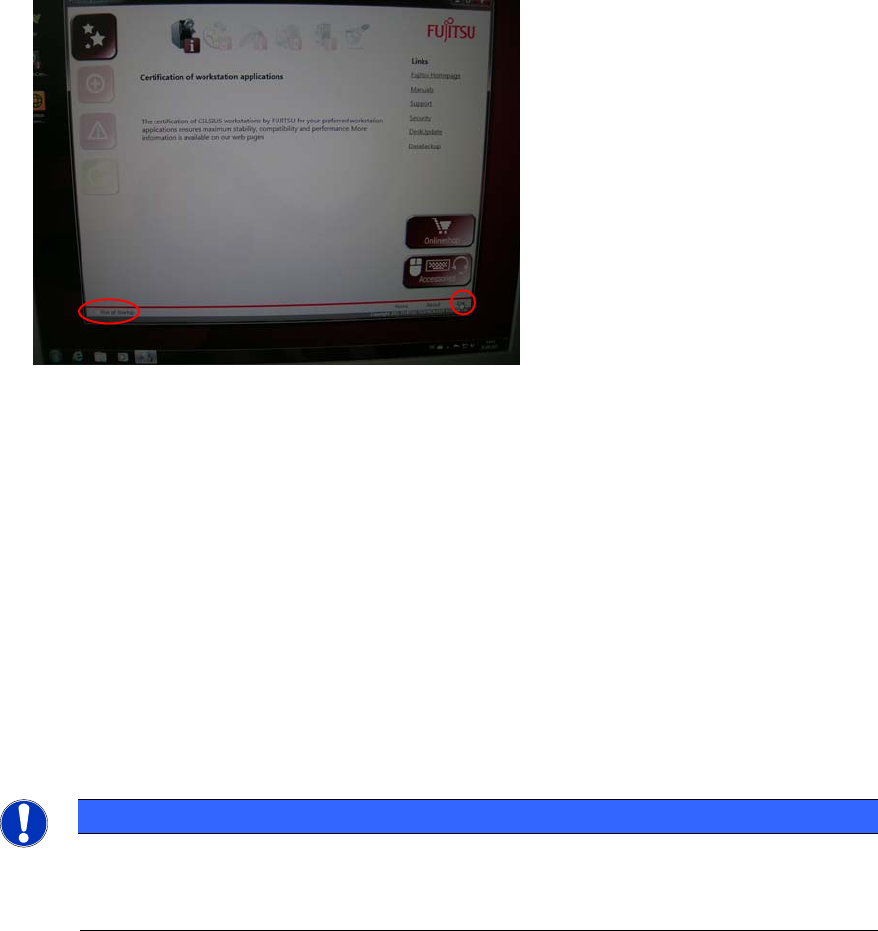
After preparation, you will see the following window.
Figure 3-19: Fujtisu Options
This tool provides you with links helping you to perform some common tasks.
► If you don’t want this tool to show again, ensure the checkbox besides Run at Startup in the
lower left corner isn’t selected.
► Click the Exit link in the lower right corner to close the tool.
► Continue with the next chapter
3.1 Uninstall unused Tools
In the pre-installed image, there are some tools not required by SIPLACE which we recommend to
uninstall before proceeding.
NOTICE
Security Tools might conflict with SIPLACE Software
Some anti-virus or firewall tools might conflict with SIPLACE software. We recommend
uninstalling them as described in this chapter.
18
Celsius W510 with Windows 7 10/2011 Edition
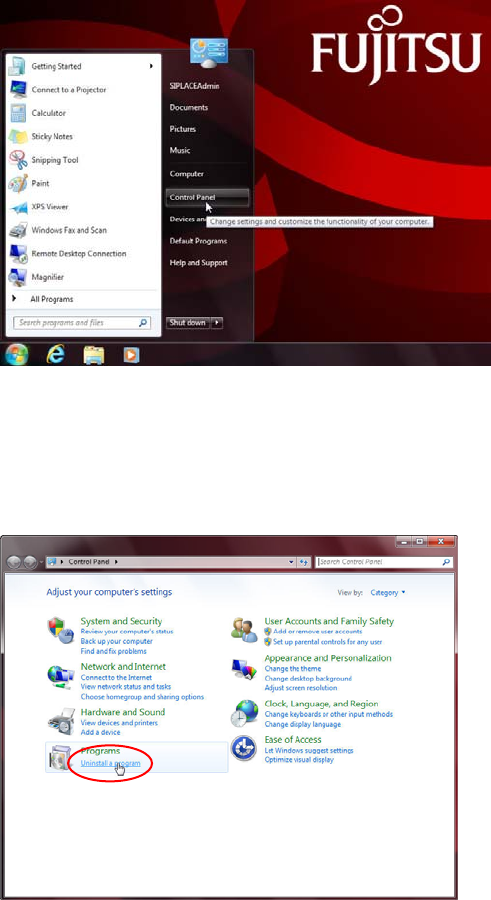
First, we have to navigate to the Add/Remove programs window.
Figure 3-20: Opening Control Panel
► Click the Windows button
► Click at Control Panel.
The Control Panel opens.
Figure 3-21: Calling Uninstall a program
► Click on Uninstall a program in the Programs group.
19
Celsius W510 with Windows 7 10/2011 Edition
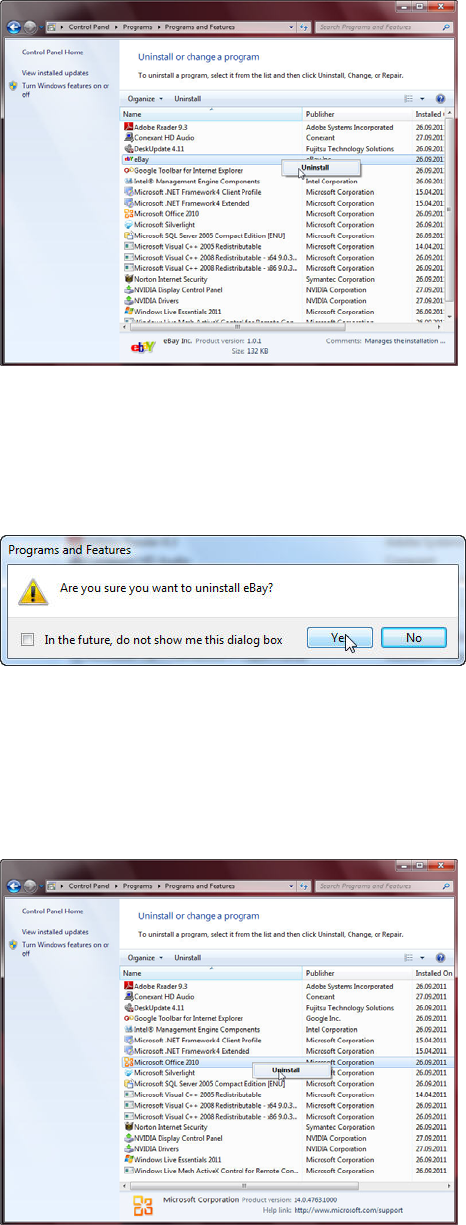
The Uninstall or change a program window opens.
Figure 3-22: Uninstalling Ebay – Step 1
► In the list of programs, right-click on Ebay.
► Select Uninstall.
A confirmation message appears.
Figure 3-23: Uninstall Ebay confirmation message
► Accept the message by clicking the Yes button.
► When uninstallation starts, another confirmation message will appear. Accept this message by
clicking the Yes button.
When done, the program will be removed from the list.
Figure 3-24: Uninstalling Office – step 1
► In the list of programs, right-click ont Microsoft Office 2010.
► Select Uninstall.
20