00197184-01_IM_Celsius_W510_Windows7_EN.pdf - 第22页
Celsius W510 with Win dows 7 10/2011 Edition The following window ap pears. Figure 3-28: Uninstalling Norton Internet Security – Step 3 ► Click the Next button During uninstallation, the window will look like the followi…
Celsius W510 with Windows 7 10/2011 Edition
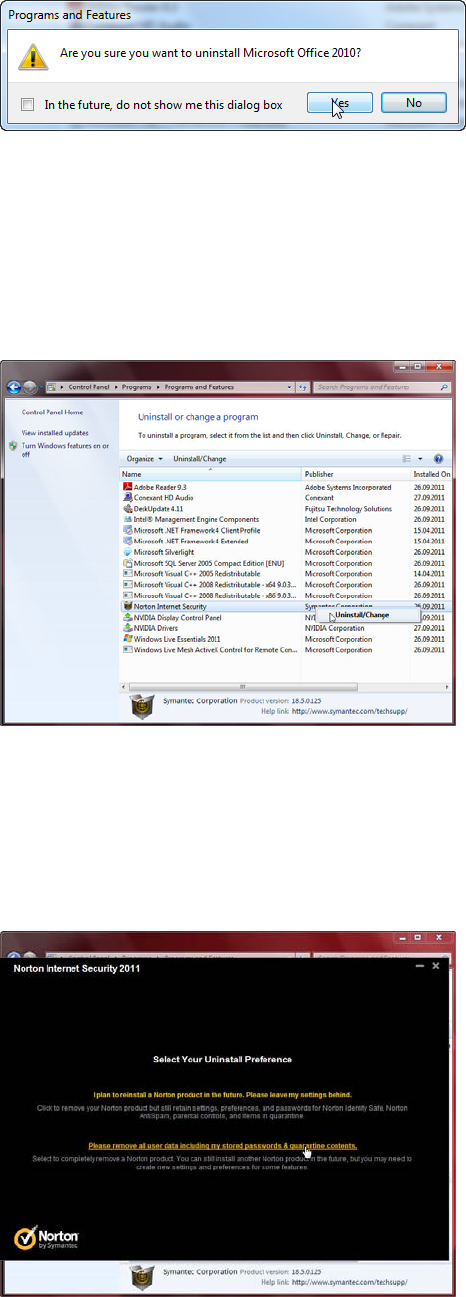
A confirmation message appears.
Figure 3-25: Uninstall Office 2010 confirmation message
► Accept the message by clicking the Yes button.
► When uninstallation starts, another confirmation message will appear. Accept this message by
clicking the Yes button.
When done, the program will be removed from the list.
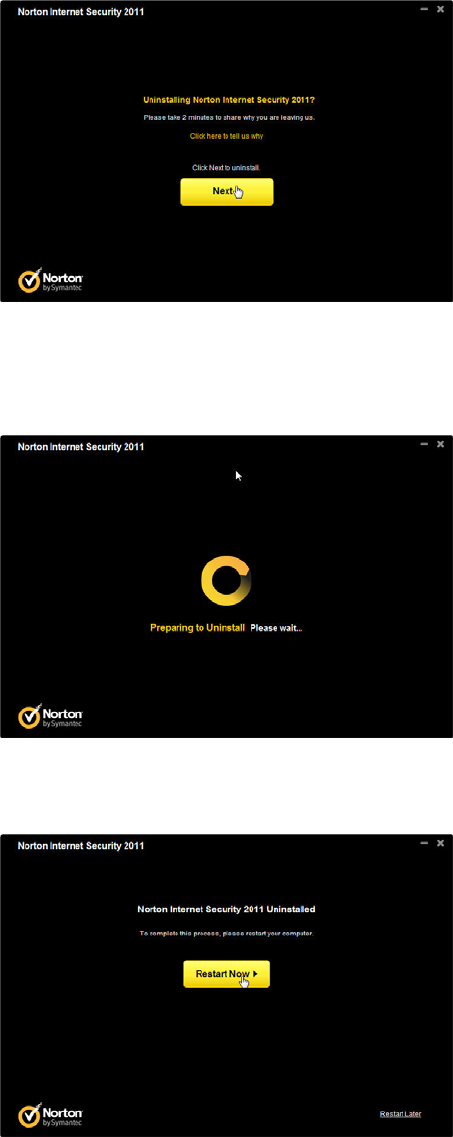
Figure 3-26: Uninstalling Norton Internet Security – Step 1
► In the list of programs, right-click on Norton Internet Security.
► Select Uninstall/Change.
The following window appears.
Figure 3-27: Uninstalling Norton Internet Security – Step 2
► Click the Please remove all user data including my stored passwords & quarantine contents
option.
21
Celsius W510 with Windows 7 10/2011 Edition
The following window appears.
Figure 3-28: Uninstalling Norton Internet Security – Step 3
► Click the Next button
During uninstallation, the window will look like the following picture.
Figure 3-29: Uninstalling Norton Internet Security
After a while, the following window will appear.
Figure 3-30: Uninstalling Norton Internet Security – Reboot message
► Click the Restart Now button to reboot your computer.
► Continue with the next chapter.
22

Celsius W510 with Windows 7 10/2011 Edition
3.2 Before you continue
► Before you continue preparing the system with Support Media, ensure you check the
configuration (accounts, network, etc.) as described in the document “Required Steps before
using Support Media”, item no. 00197185-xx.
WARNING
Check Configuration before installing any Software.
Please ensure that your account and network configuration is appropriate before
installing any software.
23